Display dotted-line managers for Org Chart (SharePoint Server 2019/SE)
In this article, I want to show you how to display dotted-line reports in Plumsail Org Chart. It is quite a common scenario for companies with a matrix organization structure when there are direct managers and dotted-line managers.
As Plumsail Org Chart displays hierarchy, but not matrix, it is important to understand how dotted-line reports appear in the visualization. Please take a look at the example below.
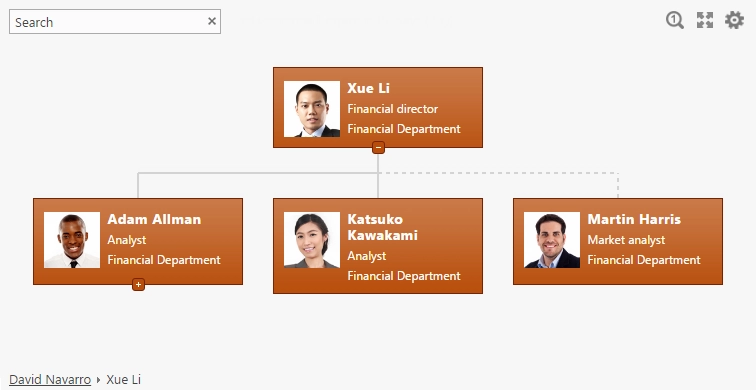
Org Chart supports two data sources, SharePoint list, and User Profiles. Each data source has some specifics in the configuration of dotted-line managers. Let us move step by step.
Note
Org Chart allows you to specify one or more dotted-line managers for an employee. Thus, a single employee may have a single direct (solid line) manager and an unlimited number of dotted-line managers.
If a solid line employee has a dotted-line manager, there will be displayed a small button next to the solid line box. It allows you to quickly navigate from the solid box to a dotted-line manager. If the employee have more than one dotted-line manager, you will navigate to the first one specified in the corresponding field.
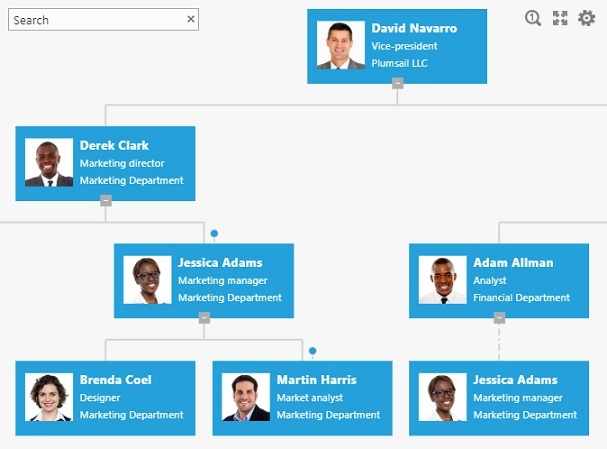
This article has two parts:
Dotted-line managers for User Profiles data source
Dotted-line managers are enabled for User Profiles data source by default. If you open the configuration wizard on the Data source settings step and see that Dotted manager mapping is specified, it means that dotted-managers are enabled and Org Chart will try to get data from this user profile property:
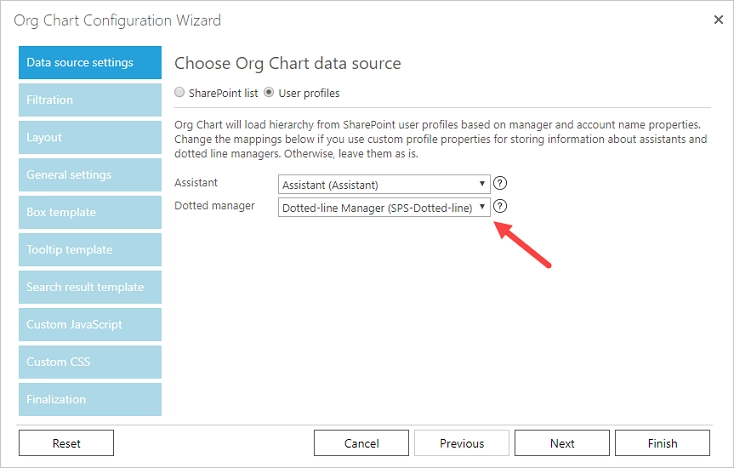
If you want to disable dotted line managers, just select None for the Dotted line manager mapping on the Data source settings step.
How to add support for multiple dotted-line managers for User Profiles data source
By default, Org Chart uses standard “Dotted-line Manager” property from SharePoint user profiles. It allows you to specify only one dotted line manager per employee. If you want to specify multiple dotted-line managers per employee, you need to create a new custom user profile property and specify it in the Org Chart mapping.
Once you have a new property for dotted-line managers, you can fill it with semicolon separated list of managers.
Example: manager1@contoso.com; manager2@contoso.com; manager3@contoso.com
Org Chart supports following types of user profile properties, consider it when creating a new user profile property:
String (Single Value)
String (Multi Value)
E-mail
Person – this type allows you to specify only one value. Thus, if you want support for multiple dotted-line managers, you need to pick some other type.
Dotted-line managers for SharePoint List data source
If you choose the SharePoint List data source, you need to specify mappings of list columns and Org Chart properties in the Data source step of the configuration wizard:
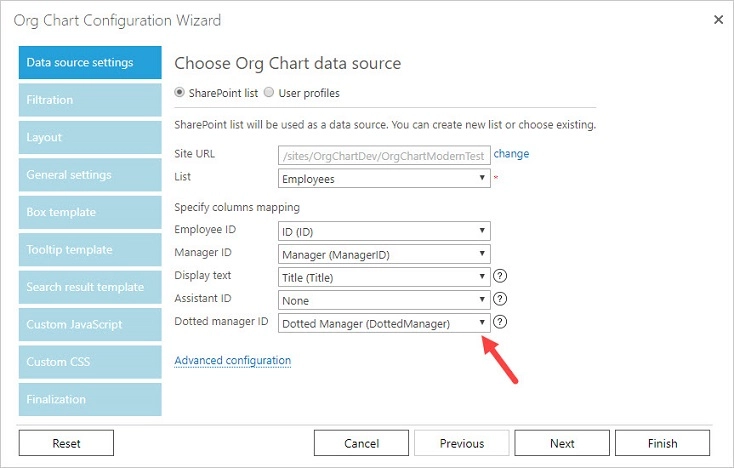
In my case, I use the standard list item ID column as an ID of an employee. And I also created a separate column to store information about the dotted-line manager for an employee. I used Lookup column which looks to the same list with employees. Thus, I can pick any other employee from a list on the list item edit form. You can see the configuration for the column below:
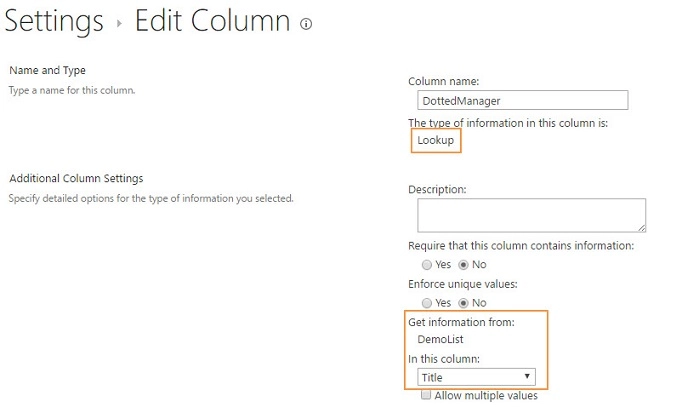
Thus, I created a separate column for a dotted-line manager and specified it in the mapping of the configuration wizard.
You would use another type of column, for example, string, but I decided to use Lookup to improve the user experience.