Box options
You can quickly customize box appearance and orientation directly in your chart.
These options let you adjust orientation and style individual boxes without opening the wizard, making it easier to experiment with layout and appearance.
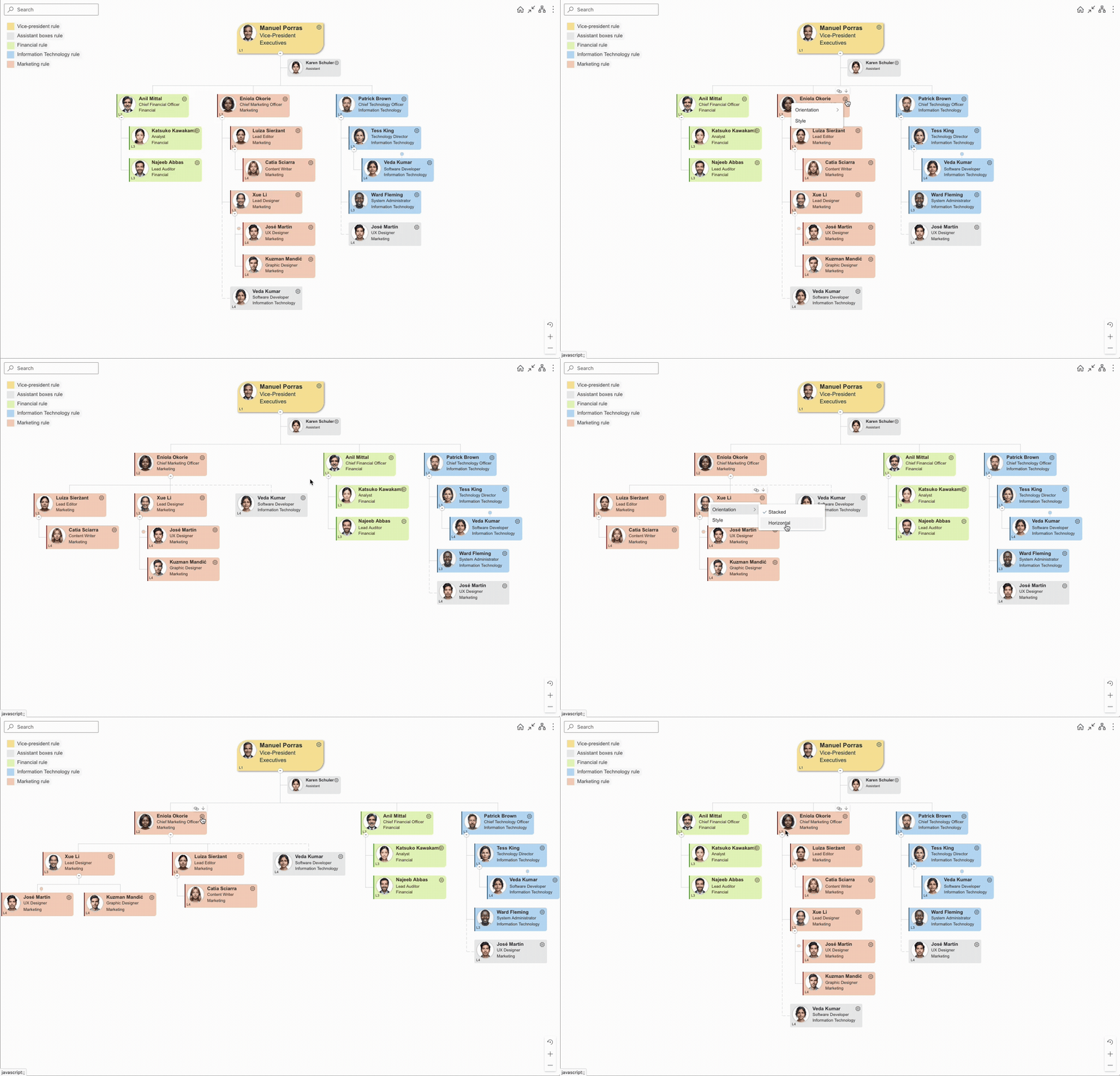
Set box orientation
You can combine horizontal and stacked orientations within the same chart to better match your organizational structure.
To change orientation:
Open the page in edit mode.
In the Compact layout, a settings icon appears in the top-right corner of each box.
Click it to change the orientation.
The selected orientation applies to the current box and all boxes below it. For deeper levels, set the orientation separately.
Note
This option is available only in the Top to bottom compact layout.
Changing these settings will affect all users who use the layout.
A stacked orientation can be placed under a horizontal one. However, a horizontal orientation cannot be placed under a stacked one.
Individual box formatting
You can apply custom styles to a specific box to highlight it, and then apply them to others with the same department, job title or box type.
To do this:
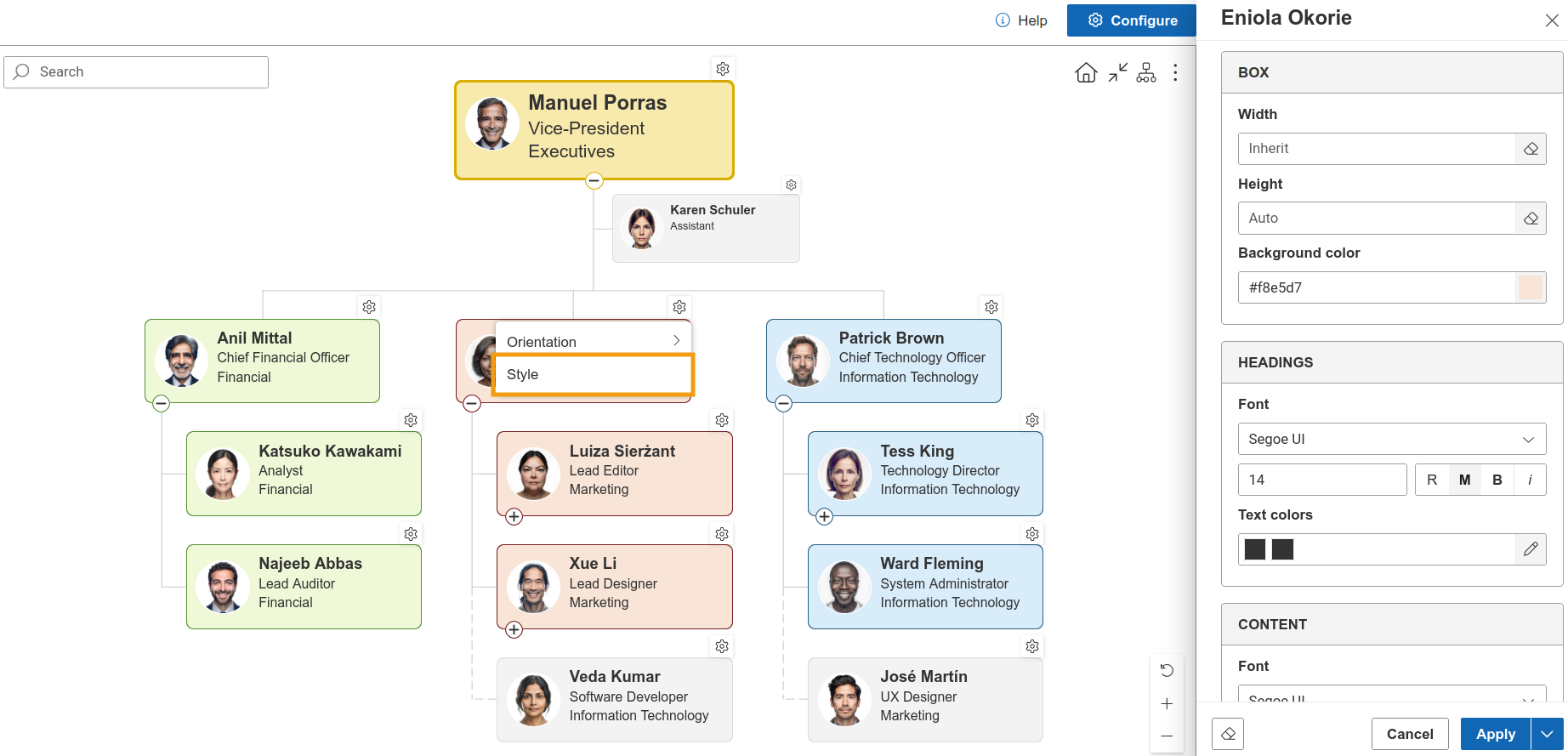
Open the page in edit mode, and click the settings icon on the box.
Then click Style to modify it.
This works the same way as conditional style rules in the configuration wizard.
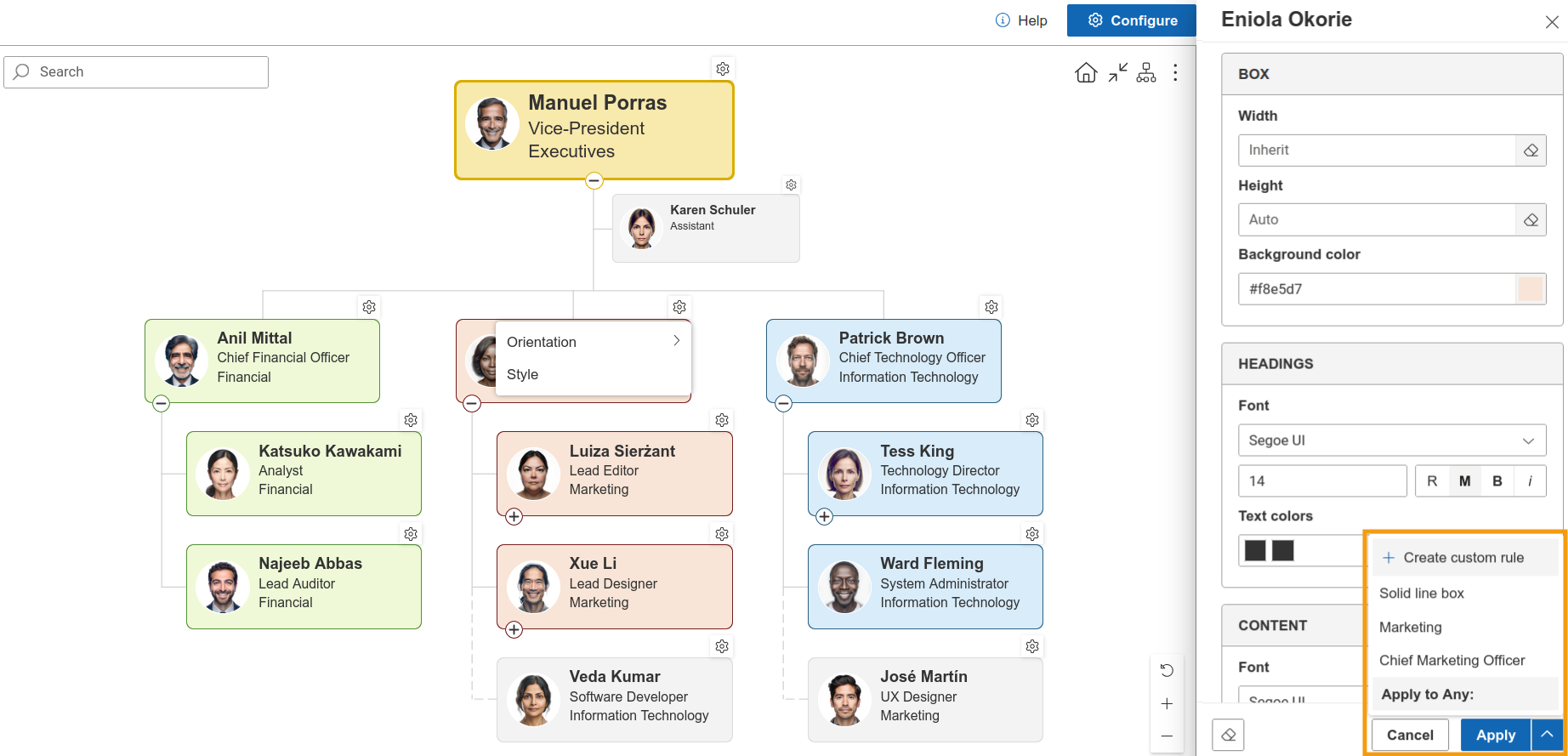
The Apply button includes shortcuts for creating rules based on the current style.
You can create rules based on:
job title,
department,
box type.
Legend modes
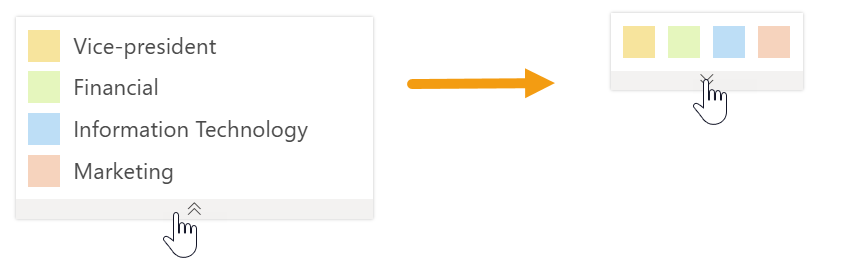
After enabling them, legends will show which style rules are applied to boxes. There are two modes:
Full (default): shows all style rules with their labels (color + meaning),
Compact: shows only color indicators for rules currently used in the chart.
Click the arrow below the legend to switch between modes: