Vacancies
Use the Vacancies step to enable vacancies, control who can view and edit them, and choose where they are stored. Vacancies are stored separately from your employee data.
Note
This step is available in Microsoft 365 version 4.3.6 and later. If you use an earlier version, see Vacancies in version 4.3.5 and earlier. If you have upgraded, follow the migration instructions to migrate your existing vacancies.
Enable or disable vacancies
Open the configuration wizard and select Vacancies. Enable vacancies to make vacancy management available in the chart.
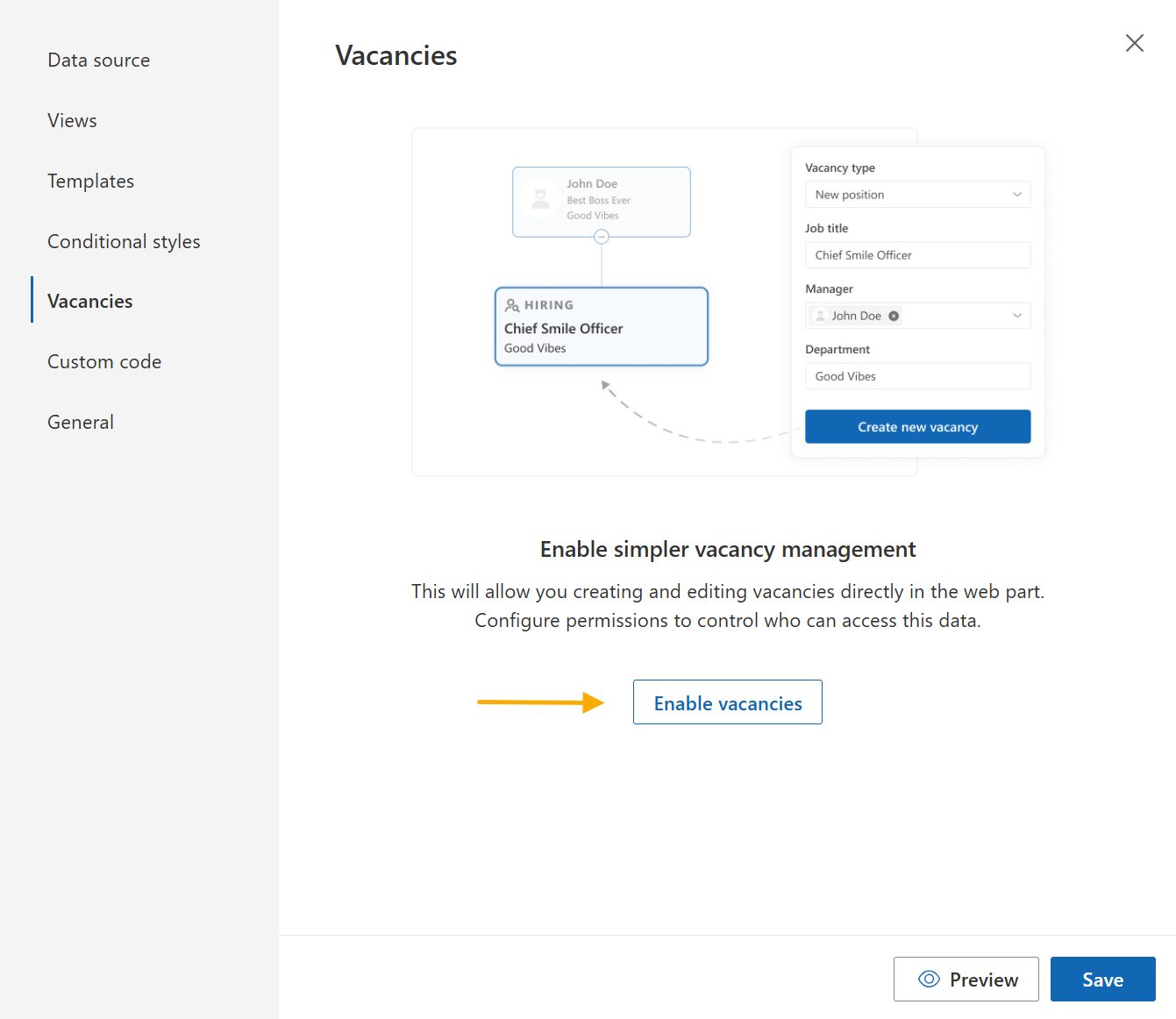
Once enabled, the step displays Disable vacancies. Use this option to turn off the feature for the chart.
Configure permissions and, if needed, the storage location, then save the step to apply your settings.
Permissions
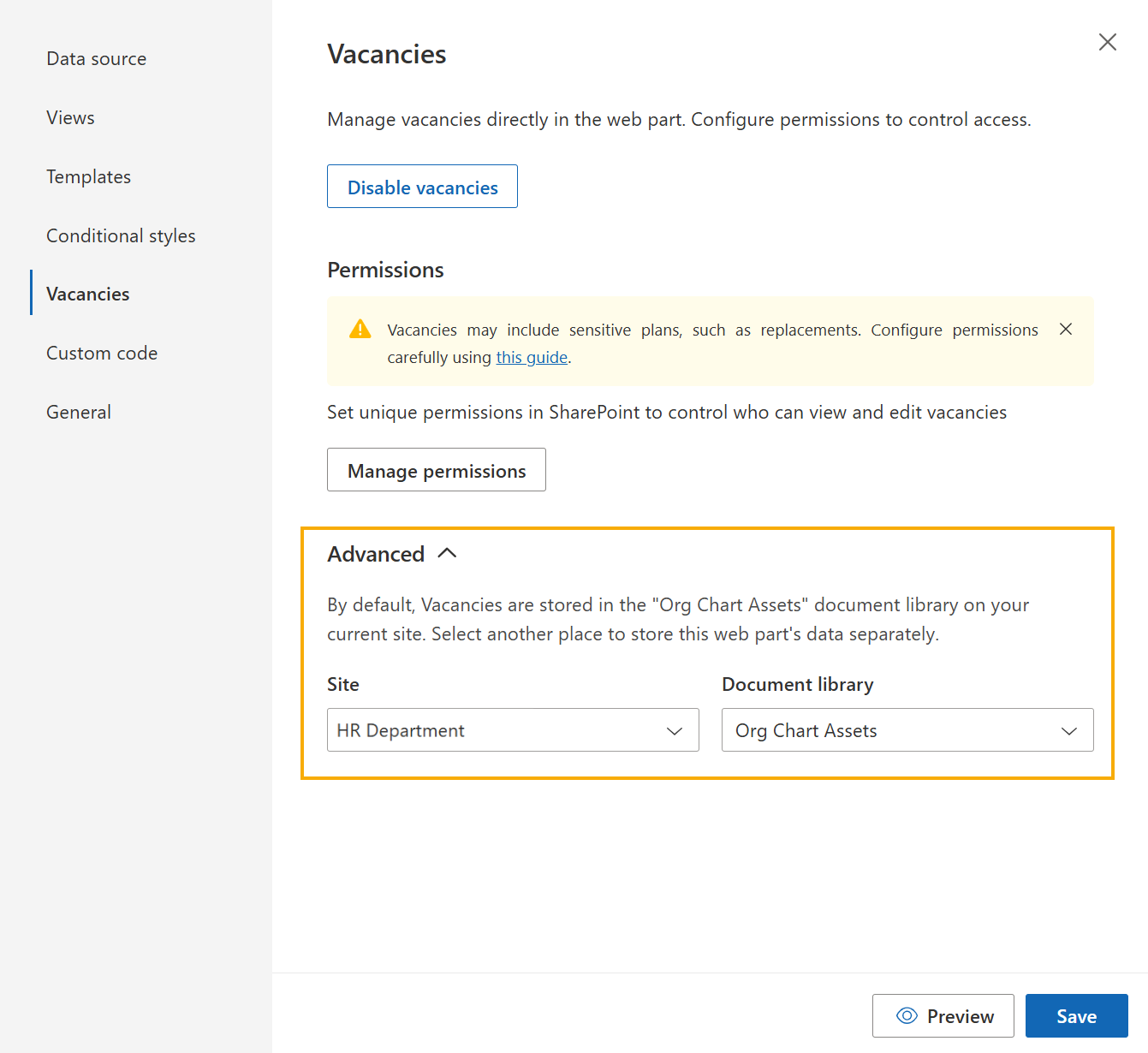
Vacancies may contain sensitive information, such as plans to replace an employee. Configure access to the document library where vacancies are stored to control who can view and edit them.
Follow the vacancy permissions guide to configure access.
To manage permissions separately from other chart assets, choose a different document library in Advanced settings.
Advanced settings
Expand Advanced to choose where vacancies are stored:
Site: The SharePoint site containing the document library.
Document library: The library used to store vacancies. By default, Org Chart uses the Org Chart Assets document library on the current site.
Select another location if you want to store this chart’s vacancy data separately or manage its permissions independently.
Create and manage vacancies
After saving your settings, use Manage vacancies in the chart menu. Follow the how-to to:
Note
Go to the next step of the configuration wizard, Custom code.