Getting started
Configuration wizard
HTML templates
JavaScript framework
Additional resources
- Video: Introducing Plumsail Org Chart
- Data caching
- SharePoint Server 2019/SE (On-Premises) resources
- Installation for SharePoint 2019 / SE
- Quick configuration
- How to add Org Chart to Microsoft Teams tabs
- Generate organization structure report
- Layout
- Filtration
- JavaScript custom code
- General settings
- Display assistants
- Display dotted-line managers for Org Chart
- Display vacancies
- Customize box HTML template and CSS styles
- HTML templating syntax
- Change Org Chart skin
- Create org chart with two root managers
- Order employees boxes using custom field
- How Org Chart pulls data from AD On-Premises
- Drill down to current user by default
- Drill down to specific box using URL parameter
- Include and use fields from additional list
- Use advanced Org Chart navigation
- How to open Org Chart in full-screen mode on load
- Support of search in a list with more than 5000 items
- Exclude disabled users in On-Premises
- Configuring profiles sync in On-Premises
- Make sure that SharePoint has enough data
- Exporting properties to a directory service
General
- Version history
- Licensing details
- Data protection and security
- Custom code security measures
- Billing and subscription management
Printing & Reports
- Printing organizational structure
- Generate multi-page PDF report
- Export to CSV and analyze in Excel
- Custom styles for printed Org Chart
Microsoft Teams
Display different types of employees
Filter and order boxes
- Create and manage filtered views
- Order employees boxes using a custom field
- Group employees boxes using a custom field
Customize boxes and styles
- Format boxes conditionally
- Customize box HTML template and CSS styles
- Display awards and conditionally format Org Chart
- Create an Org Chart with two root managers
- Change Org Chart theme
- Localize Org Chart
Show specific user on load
- Drill down to specific box using URL parameter
- Drill down to current user by default
- Drill down to manager of user from URL by default
Manage web part size and scale
- Open Org Chart in full-screen mode on load
- Make Org Chart use full page width
- Automatically scale boxes to fit visible area
Other examples
- How to customize Org Chart
- How to use advanced Org Chart navigation
- Use tenant properties to disable Org Chart features
- Include and use fields from additional list in Org Chart
- Support of search in a list with more than 5000 items for Org Chart
- Show Org Chart based on a list data source for anonymous users
- How to check if a user has Tenant Administrator permissions
Quick configuration (SharePoint Server 2019/SE)
Note
The instruction below is for Modern SharePoint pages. If you use Classic SharePoint pages check this instruction.
Once you added the web part to your page, you can see the message asking you to configure the web part.
Open your page in edit mode. Then Click pencil icon at the left side of your web part. It will open property pane:
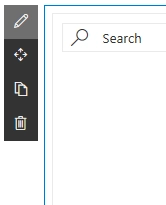
Then click Open config wizard in the property pane.
Majority of the options in the configuration wizard is filled with default values, you have to configure data source only (first step), then go through the wizard and click Finish button.
You can choose between two data sources:
SharePoint list.
User profiles.
If you choose User profiles as a data source, no additional configuration is needed, just go through the wizard until the end.
If you choose SharePoint list as a data source, it will be configured to create a new list with demo data by default. You only need to fill List name.
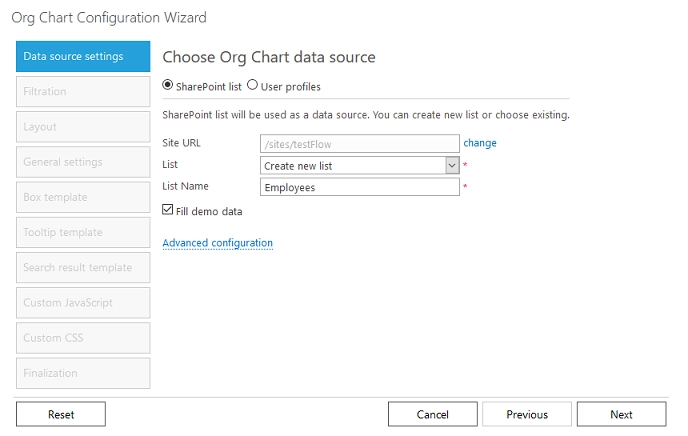
If you want to use an existing SharePoint list, you can choose it from combo box. Then you will have to specify mapping for list fields required for building correct hierarchy. The interface for mapping looks like this.
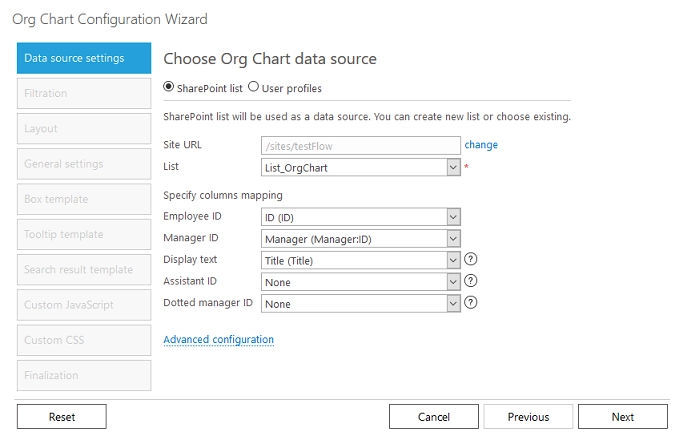
Mapping defines the connection between Organization Chart field and List field. Data from the corresponding list field will be used by the Organization Chart, for example, you can specify the mapping between Employee ID and list item ID.
Employee ID, Manager ID and Display text mappings are required, you can leave other mappings empty. Once you configured it, you can go through the wizard and click the finish button.
Employee ID and Manager ID are used to build hierarchy. Display text is used as display text for entities in the org chart. For example, you will see Display text in the breadcrumb.
You can change these settings later too as you want, but these settings are available for Full Control users only.
Read Advanced Web Part configuration for more information.