Change Org Chart theme in SharePoint and Microsoft Teams
Note
In versions earlier than 4.3.0, themes were called skins.
Org Chart themes control the visual look of employee boxes, including colors, fonts, borders, and layout elements.
You can use built-in themes or create custom ones to match your company branding or SharePoint site design.
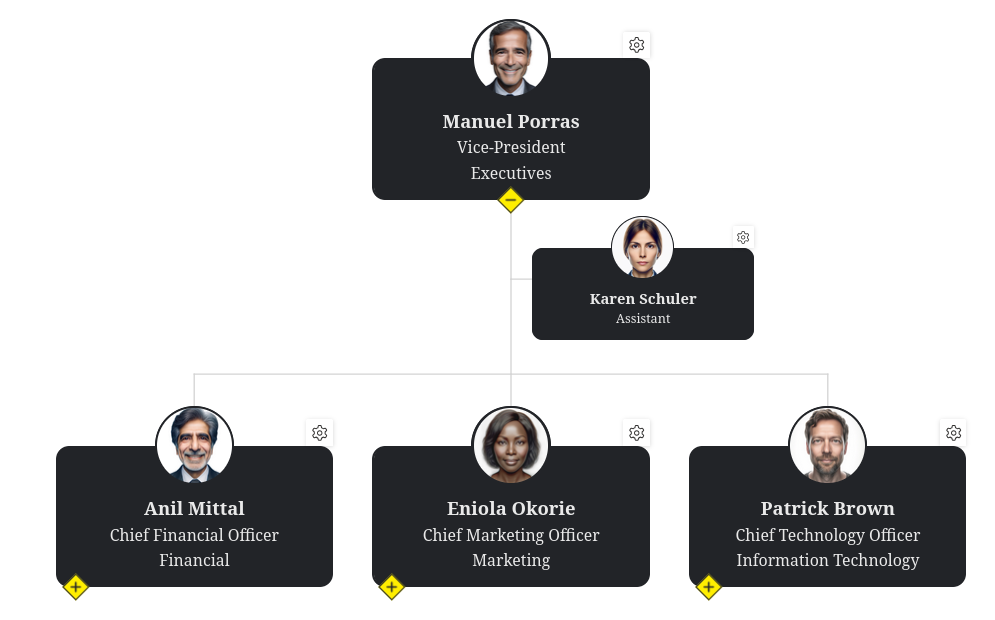
Select theme
In the configuration wizard, open the Templates step in the Boxes tab to view available themes.
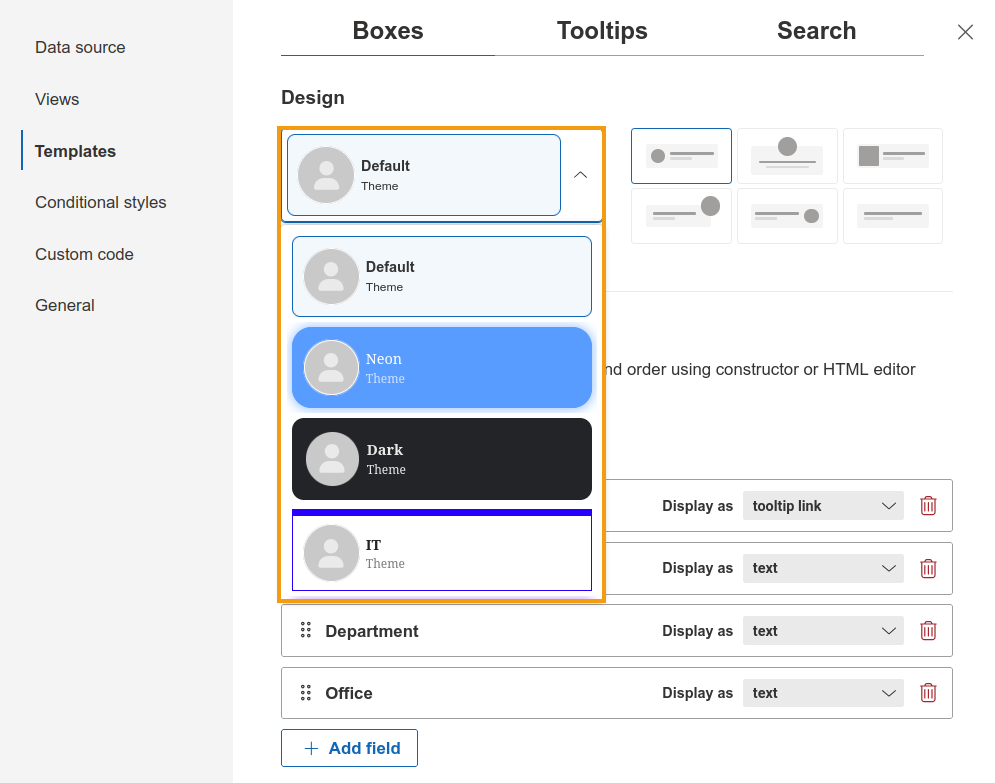
You can select different options and click Preview to test how your chart would look like with each theme.
Create custom theme
To customize an existing theme or create one from scratch, click New custom theme.
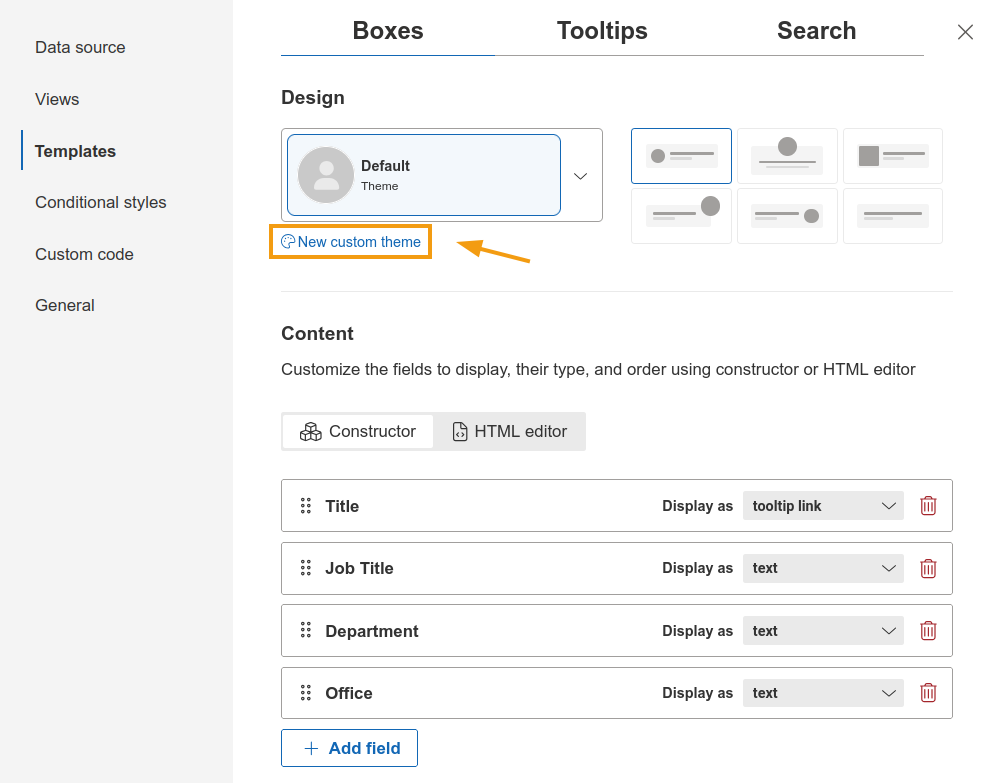
A panel opens with the following editable fields:
Box: background and layout of employee cards.
Headings: main content in the box.
Content: additional content in the box.
Border: outline styling.
Expand/collapse sign: interaction controls to expand hierarchy.
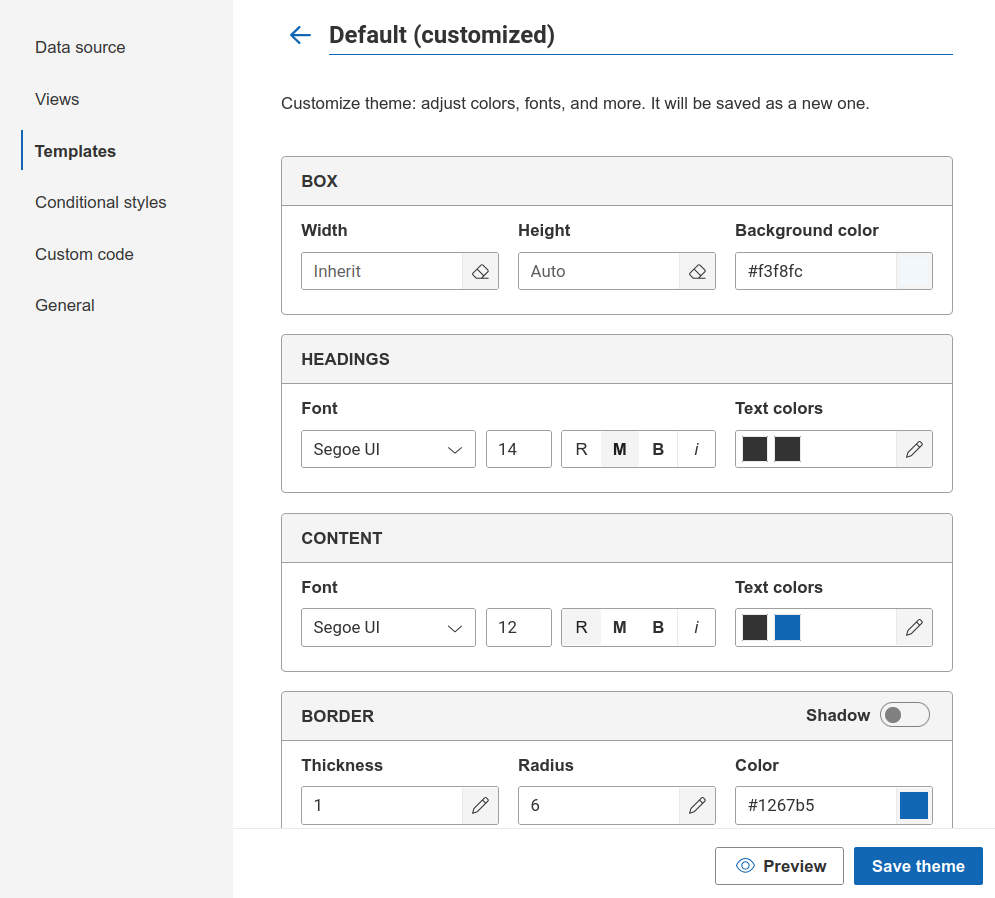
Edit the fields you want to customize and click Save theme.
Change image display
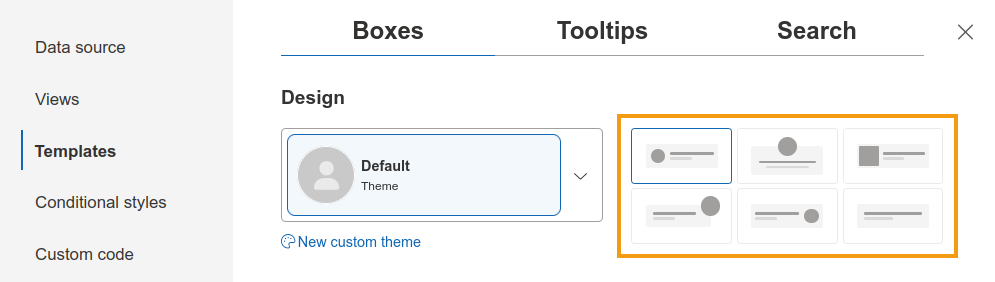
You can adjust employee images by changing their size, position, or hiding them completely.
Use the options in the Boxes tab to configure image display:
Optimize themes for mobile devices
On smaller devices, larger expand/collapse buttons improve usability while maintaining drag navigation. This way it is easy to interact with them on a mobile device.
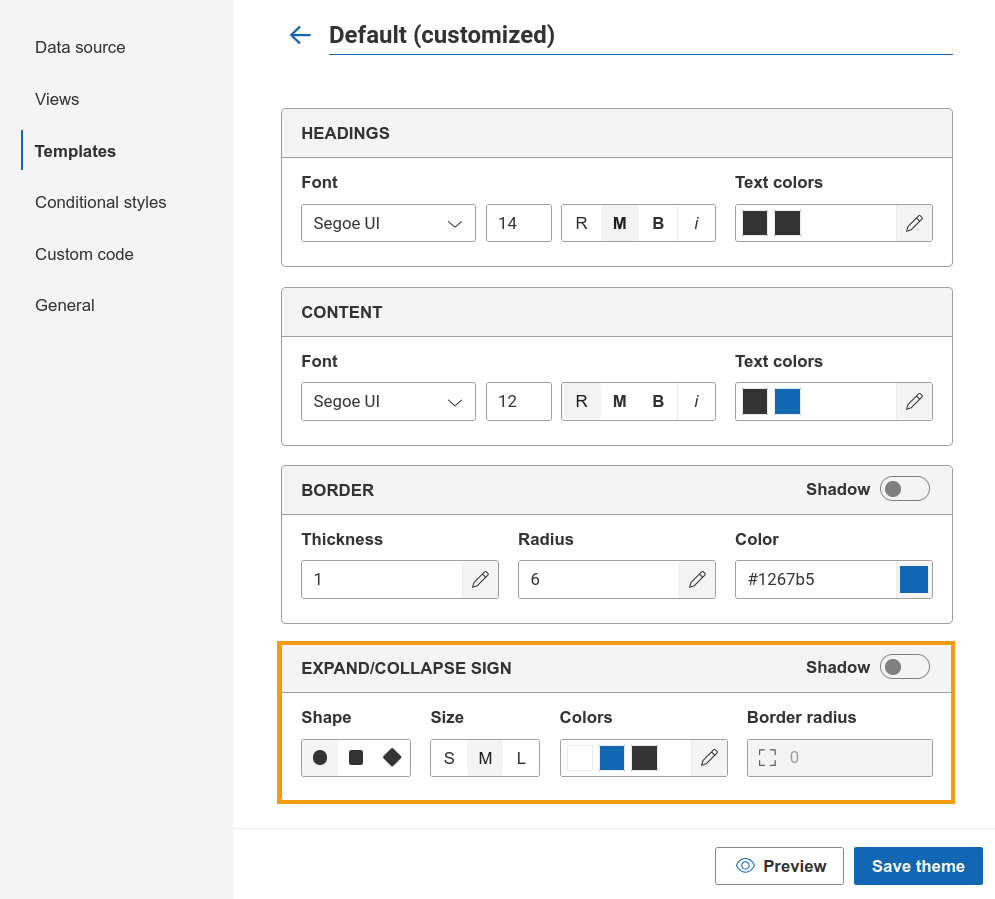
In the theme editor, use the Expansion/collapse sign settings to adjust:
Shape
Size
Colors
Border radius