How to customize Org Chart
In this article, you’ll find easy-to-follow examples to help you modify and adapt Org Chart to your specific needs.
Before starting
To get the most out of these examples, we recommend taking a quick look at the following articles:
We also invite you to participate in our community. It’s the perfect place to connect with other Plumsail users, share your customizations, and find helpful tips.
Examples using JavaScript
Add custom styles to box
For basic box styling and formatting, use Box options to apply styles directly in the chart.
The example code below shows how to modify box border styles using JavaScript.
api.onBoxRendered((box, itemData) => {
   const $boxCard = $(box.elem).find(".poch-group-item__card");
   $boxCard.css({
       'border': '2px dashed #000' // Change these values to set your preferred styles
   });
});
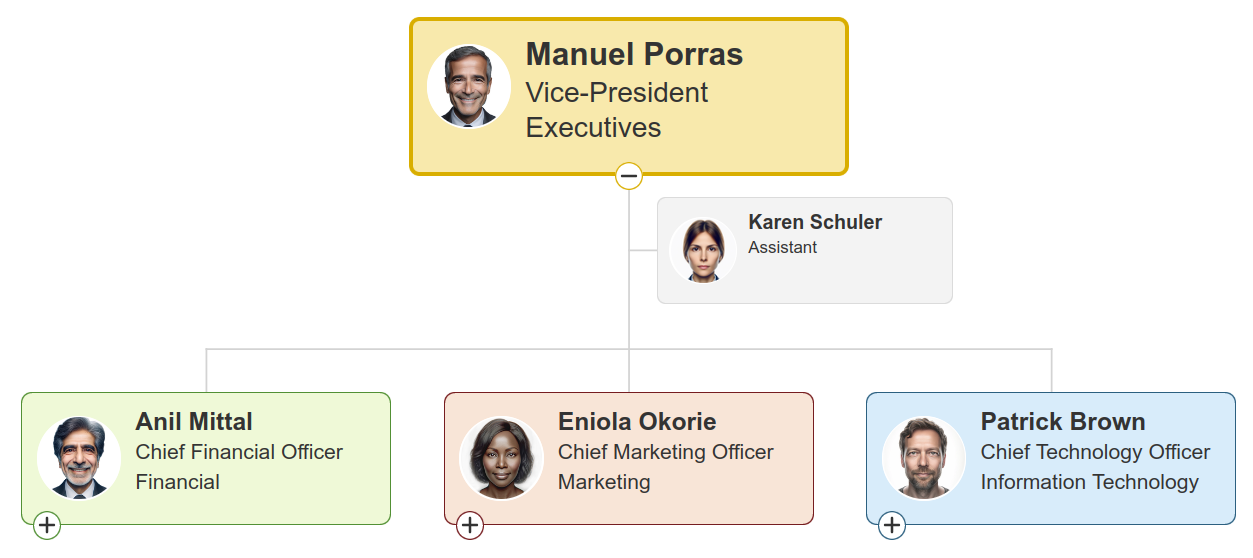
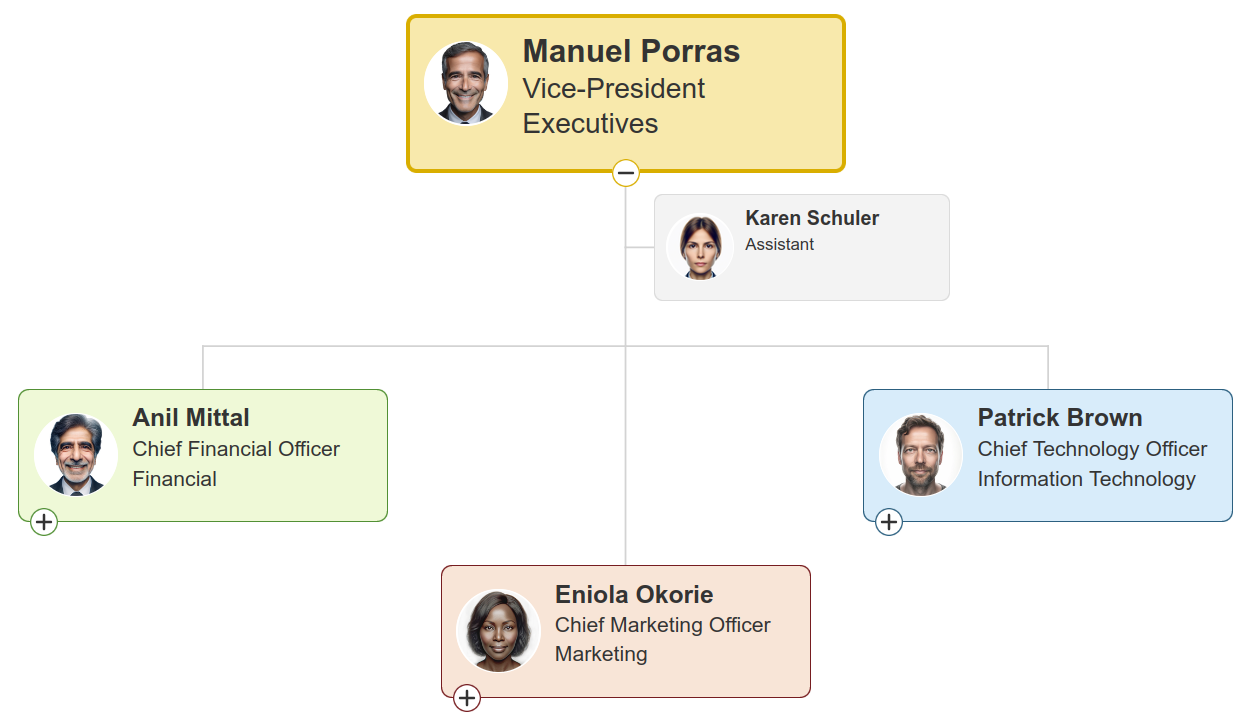
Another useful way to use this is to add margin on top of an employee box, creating a visual sub-level without affecting the data:
api.onBoxRendered((box, itemData) => {
    if (itemData['WorkEmail'] === "e.okorie@plumsail.com") { //Replace with your condition
        $(box.elem).css('margin-top',"100px");
    }
});
The resulting chart will look like this:
Before |
After |
|---|---|
|
|
Display fields conditionally
This example shows how to use conditional logic (e.g., based on an employee’s department) to dynamically display extra information, like building location, directly inside the box.
api.onBoxRendered((box, itemData) => {
    let $card = $(box.elem).find('.poch-box__fields-container');
    let fieldHTML;
    let fieldText = 'Building A'
    let department = itemData.Department;

    if (department == 'Marketing') {
        fieldHTML = $(`<div class="poch-box__field">${fieldText}: ${department}</div>`);
    } else if (department == 'Financial') {
        fieldText = 'Building B';
        fieldHTML = $(`<div class="poch-box__field">${fieldText}: ${department}</div>`);
    }

    if (fieldHTML) {
        $card.append(fieldHTML);
    }
});
Examples using CSS
Hide options
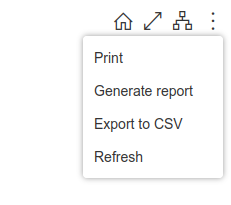
If you need to simplify the Org Chart menu by removing specific options (like ‘Print’ or ‘Export’), the CSS code below will do the trick.
// Hide Print option
.poch-print-link{
    display: none!important;
}
// Hide Generate report option
.poch-generate-report-link{
    display: none!important;
}
// Hide Export to CVS option
.poch-export-csv-link{
    display: none!important;
}
// Hide Layouts option
.poch-expanding-layouts-item{
    display: none!important;
}
// Hide Manage vacancies option (only visible when the feature is enabled)
.poch-manage-vacancies-link{
    display: none!important;
}
Note
Alternatively, you can disable multi-page PDF reports generation using PowerShell.
Show assistants only on drill-down
Before |
After |
|---|---|

|

|
Applying the code below ensures that a subordinate’s assistant is only displayed when a new view (drill-down) is opened with that subordinate as the root employee.
.poch-node__node-list-container .poch-node:has(.poch-node__group_assistant) .poch-node__assistants-container {
    display: none !important;
    position: absolute !important;
}

.poch-node__node-list-container .poch-node:has(.poch-node__group_assistant) .poch-node__lines svg path:first-child {
    display: none !important;
}
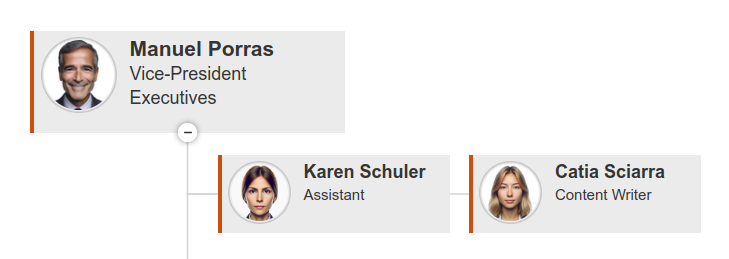
Assistant levels
Before |
After |
|---|---|
|
|
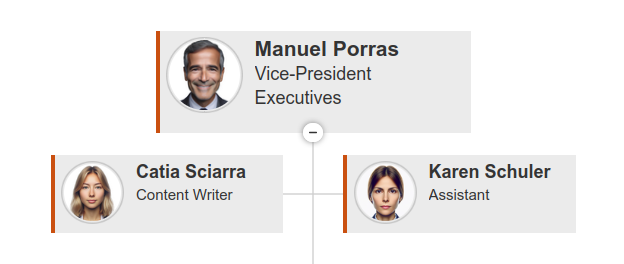
If you have an “assistant-of-an-assistant” setup, use this code to visually adjust their placement on your view with classic layout.
.poch-group-item_assistant_right{
    position: absolute;
    left: 20%;
}

.poch-group-item_assistant_left{
    float:right !important;
    clear:right !important;
    left: 100%!important;
}
Note
This is only a front-end visual adjustment. Both assistants are linked to and managed by the same employee at data level.
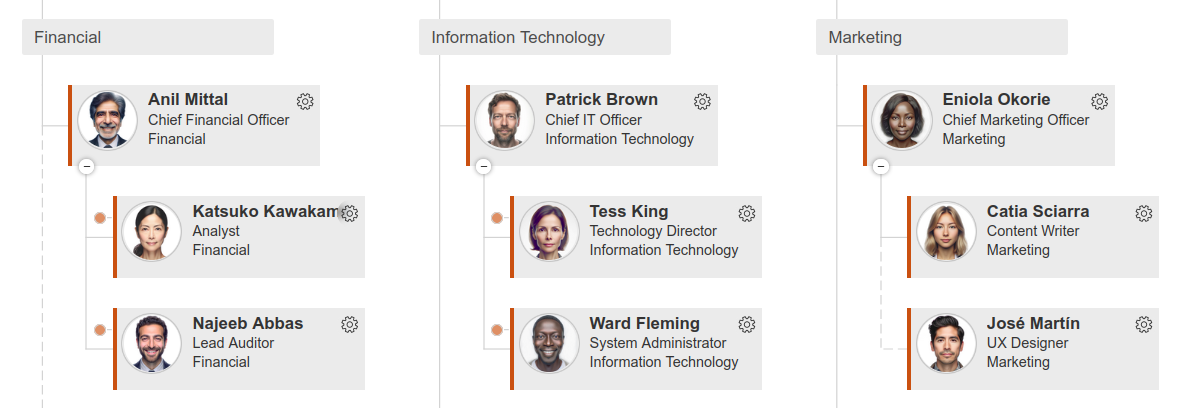
Style grouping labels
Before |
After |
|---|---|
|
|
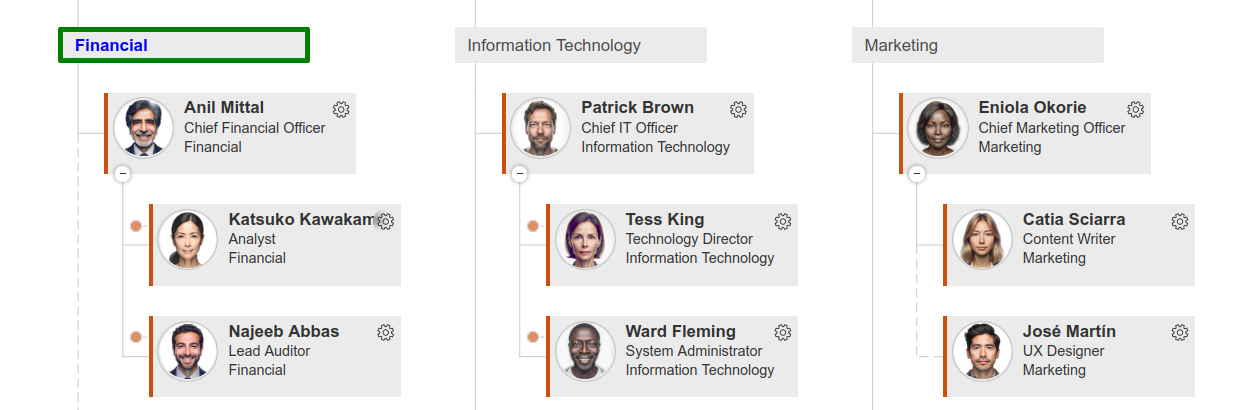
If you need to customize the look of these labels, every element includes a data-poch-label-hash attribute. This attribute is unique to each group—meaning identical labels share the same hash—making it much easier to target specific groups with your own CSS.
To find a specific hash, right-click a label in your chart and select Inspect. In the developer tools, look for the label’s HTML code to find the attribute value:
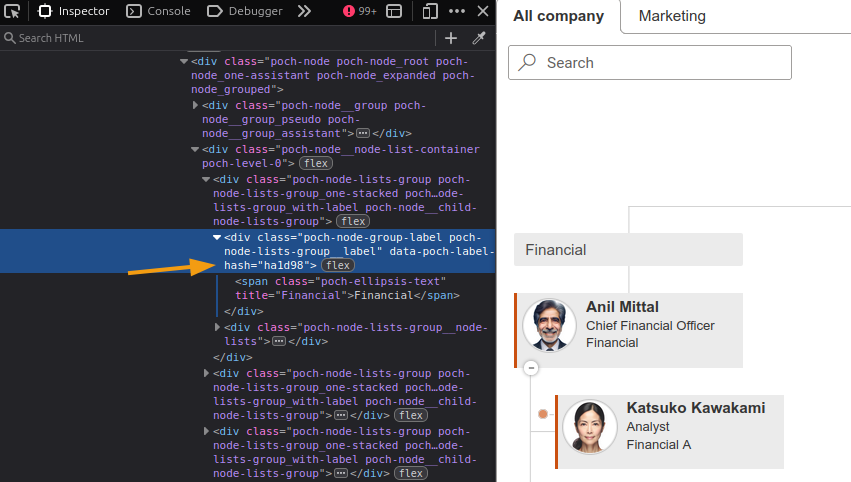
Once you have the hash code, you can use a CSS attribute selector to apply your styles. For example:
[data-poch-label-hash="yourHashCode"] {
   color: blue;
   font-weight: bold;
   border: 4px solid green;
}