Convert PDF to BMP Image in Zapier
Converts PDF document to BPM images with the help of Zapier.
Parameters
Output Parameters
Parameter |
Description |
Example |
|---|---|---|
File Content |
The array of result image files. |
It is an array of result image files. You can iterate through them and save somewhere. |
Setup Parameters
Parameter |
Description |
Example |
|---|---|---|
App |
Select the app. |
Plumsail Documents |
Action event |
Select an action from the Plumsail Documents bundle. |
Convert PDF to BMP Image |
Account |
To allow your zaps to get information from and send it to Plumsail Documents, you need to create a connection. |
For more information on how to create a connection to Plumsail Documents, see the online Help. |
Configure Parameters
Parameter |
Description |
Example |
|---|---|---|
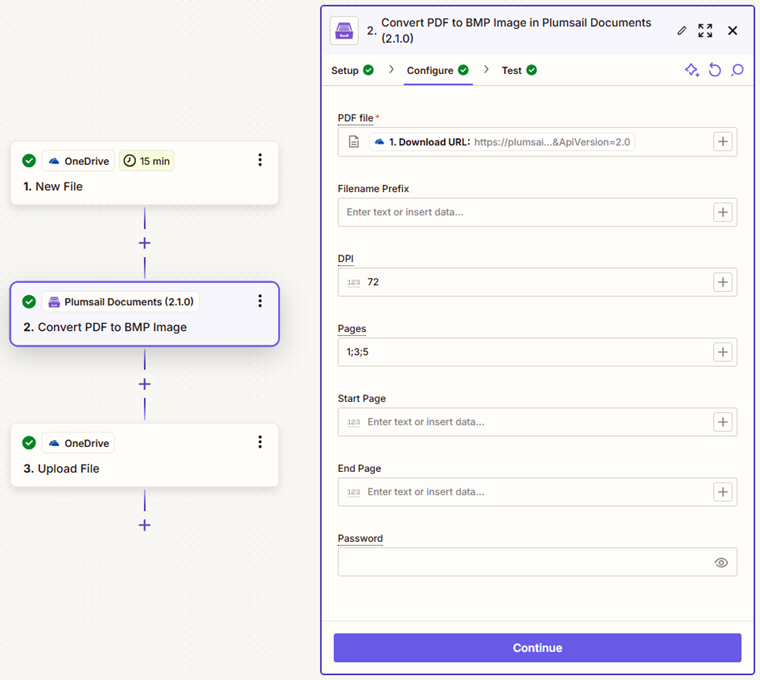
PDF file |
The content of PDF document. |
You may get the content of the source PDF from the OneDrive app or from some other app. |
Filename Prefix |
Optional: Output images will have this prefix followed by an index number as their name. |
Contract |
DPI |
The resolution of the result image. |
The DPI field stands for “dots per inch” and determines the resolution of the resulting images when converting from a PDF. Higher DPI values result in better image quality but may increase the file size. Common DPI values include 72 for web images and 300 for print quality. |
Pages |
Page numbers to convert to images separated by ; (only these pages will be converted). Use last and last(N) to apply the action to the last or last N pages. You can also use ranges with N-last to include pages up to the end of the document. |
|
Start page |
The first page to start converting. |
2 |
End page |
The last page to convert. |
7 |
Password |
The password to decrypt the source document. If it was encrypted earlier. |
PAs$word |
Example
Download a source PDF file and use the output in the Convert PDF to BPM Image action.