Reports
You can find usage statistics on the Reports page.
Date range
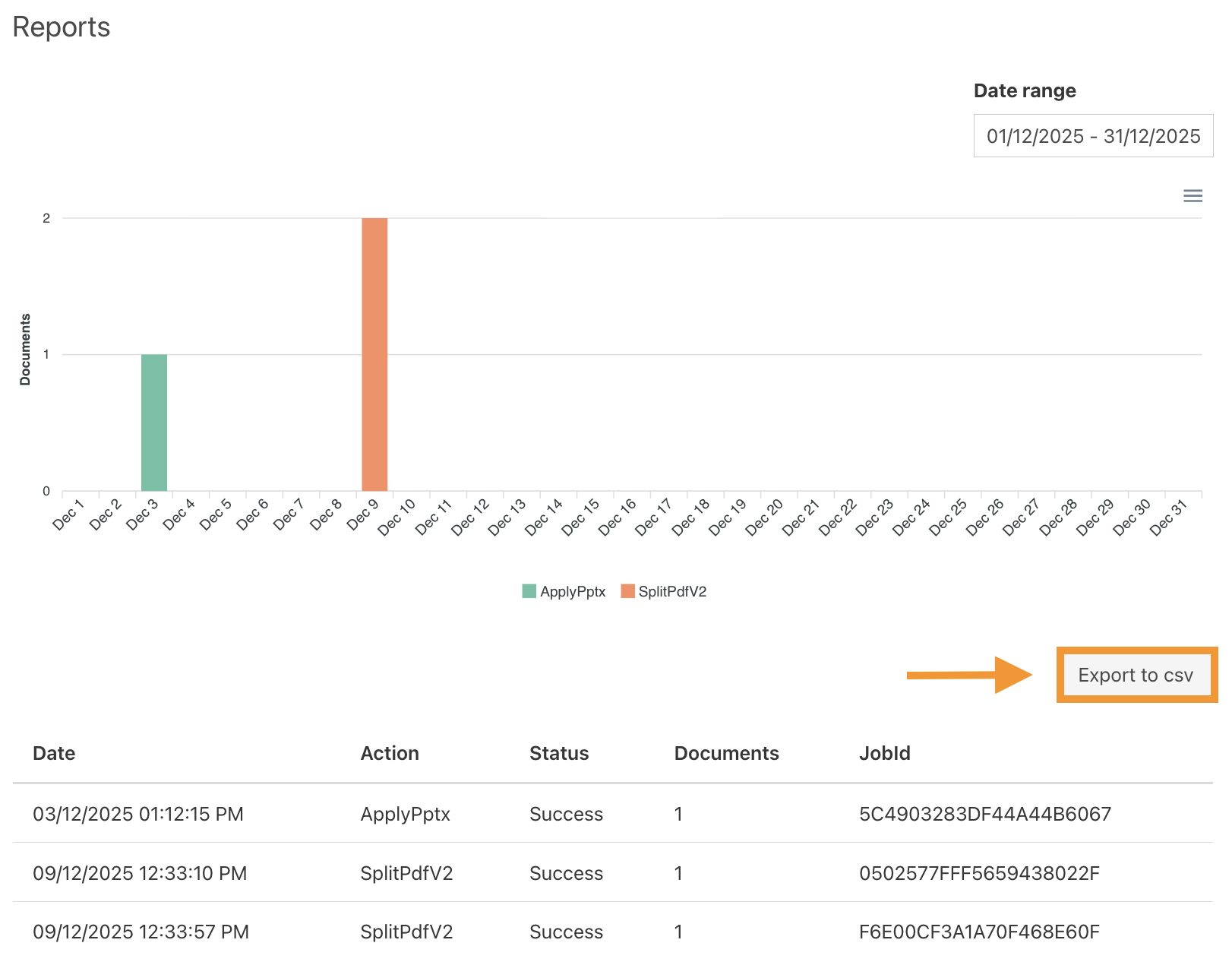
It allows you to select a specific interval or a single day. For example, to find out which Documents actions were used from December 01, 2025 to December 31, 2025, you can select the corresponding range in the calendar.
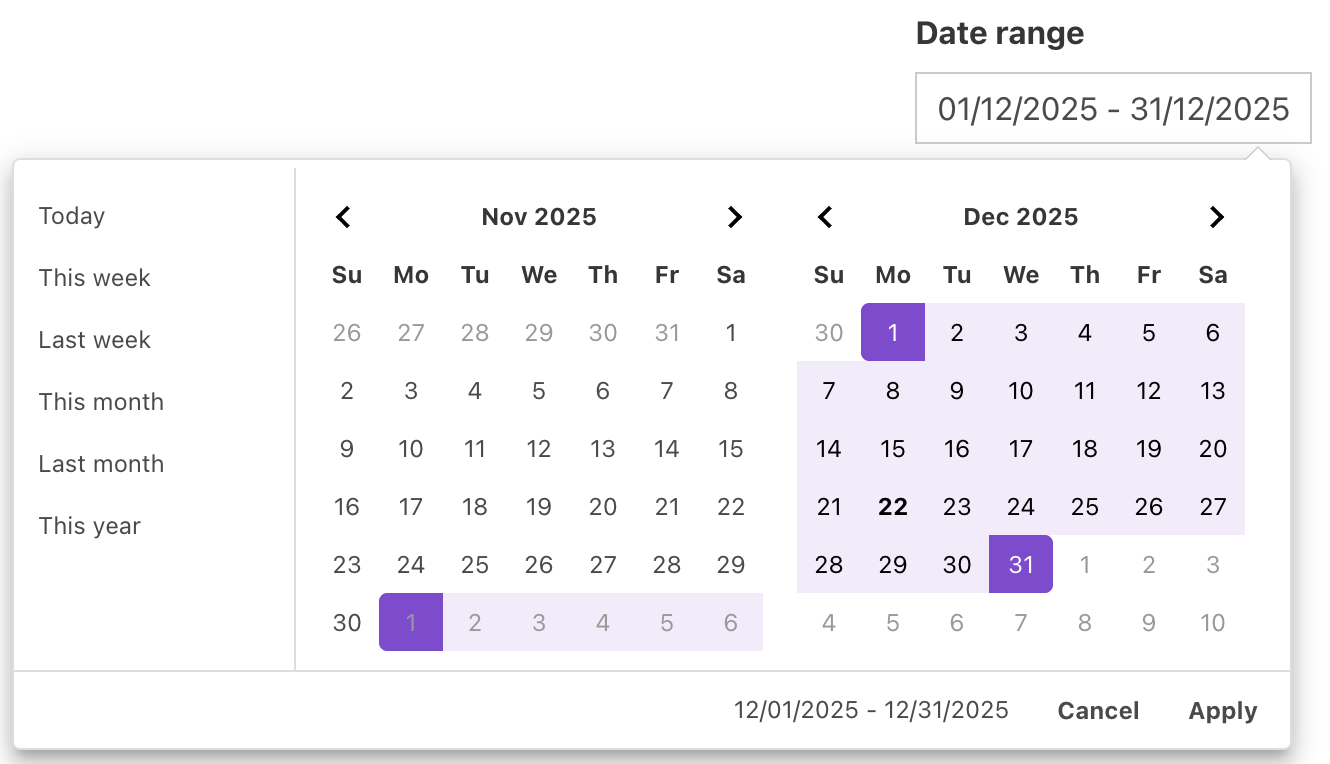
Report statistics
Reports show statistics for all Documents actions by default, but you can disable some actions if needed.
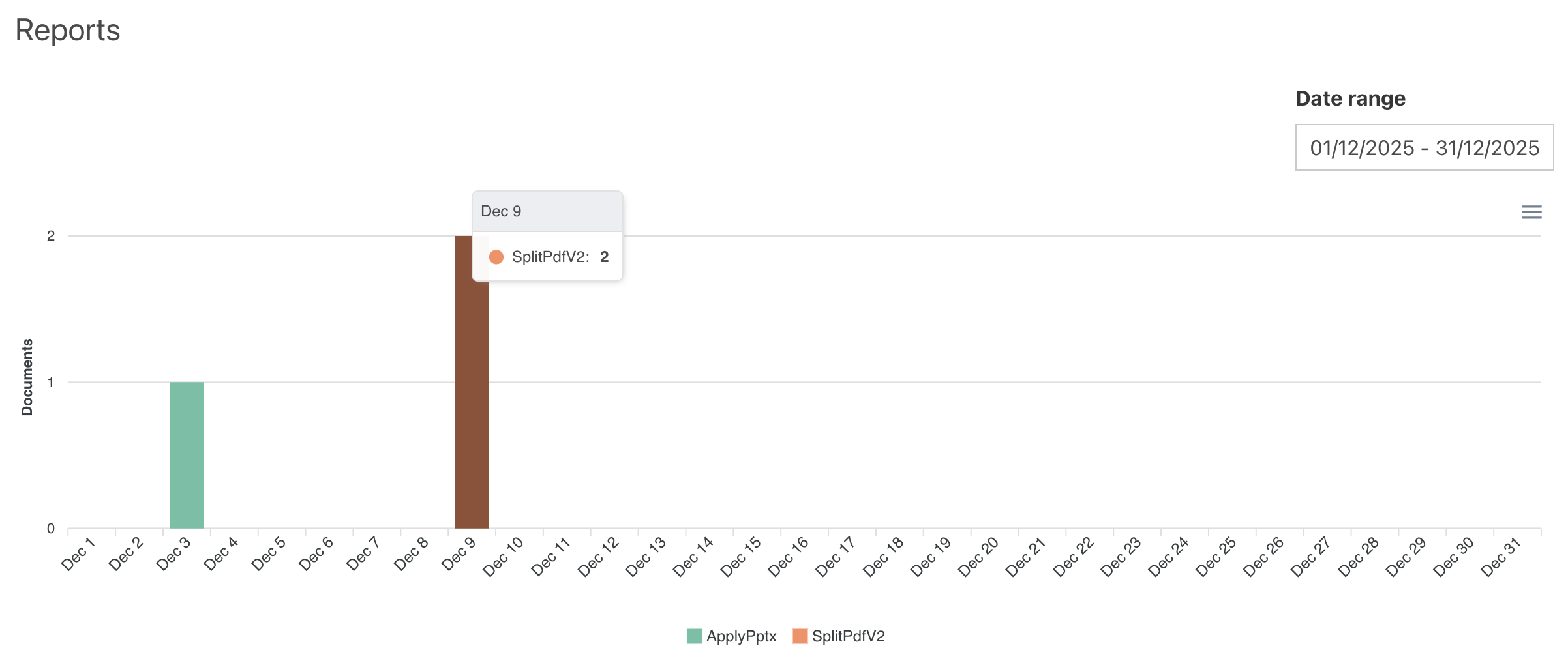
To disable an action, select it in the actions list.
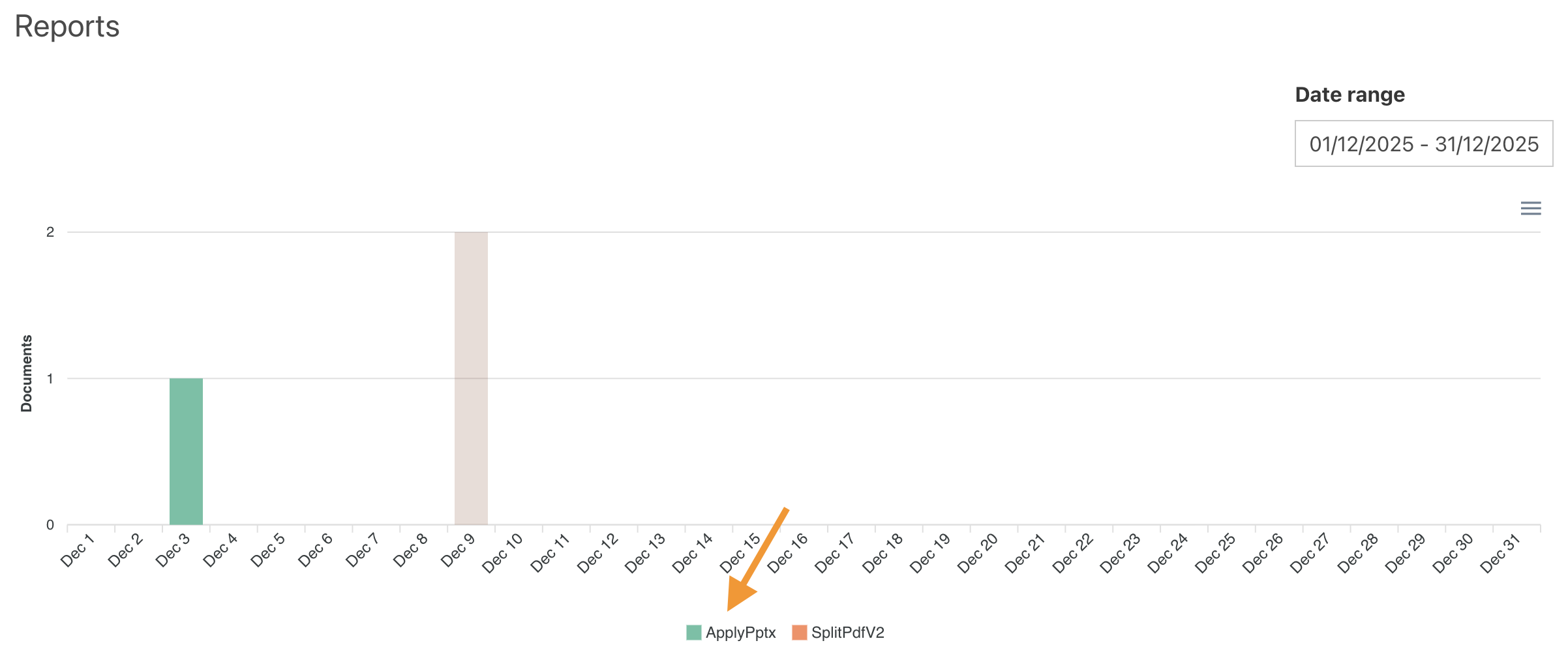
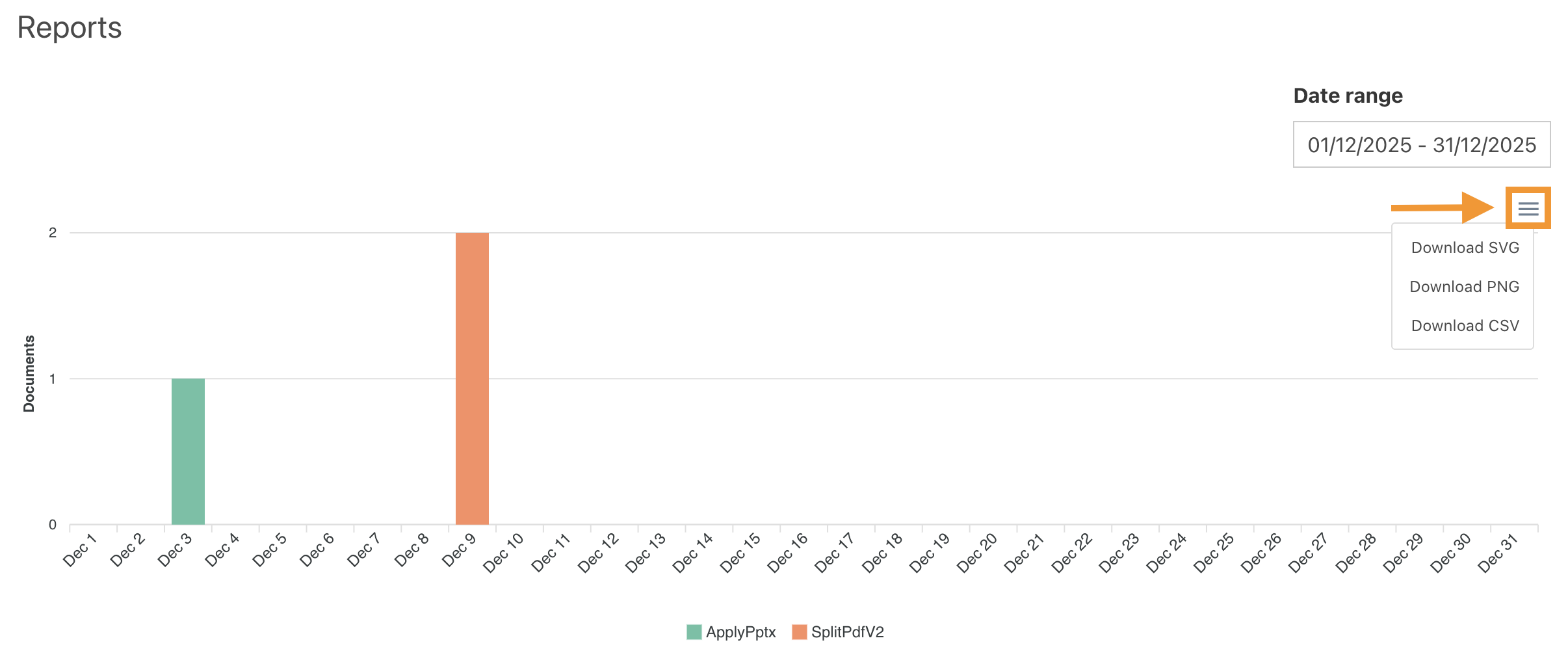
You can also save the chart from the toolbar in SVG, PNG, or CSV format.
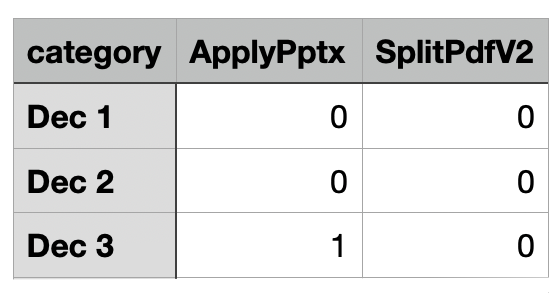
When using Download CSV, daily counts of document actions are exported. The columns include Category and Actions, showing how many times each action was performed each day.
For example:
Export to CSV
This function exports data to a CSV file for a selected date range.
The exported table includes the following columns:
Column |
Description |
|---|---|
Date |
Date and time of the action |
Action |
Name of the document processing action |
JobId |
Unique identifier of the job |
Credits |
Number of credits consumed by the action |
Status |
Result of the action (Success or Failed) |
Duration |
Time spent on the action in milliseconds |
Size |
Size of processed documents in bytes |
SecretId |
Masked identifier of the document |
Note |
Additional notes or comments |
For example:

Table with events
The table includes five columns.

Date column displays the date and time when the document action was performed.
Action column displays the name of the document processing action.
For example:
ApplyPptx
SplitPdfV2
Status column displays the result of the action. For example:
Success
Failed
Documents column indicates how many documents were counted against your document limit for that job or action.
JobId column displays the unique identifier of the executed job.