Migrate version 3.x to version 4.x
Starting with version 4.0, Org Chart was released as a new web part, separate from the 3.x versions. Both versions can run side by side in the same SharePoint tenant and work independently. Because of this, configuration settings are not transferred and are not guaranteed to be compatible. In most cases, they must be recreated or adjusted manually.
If you are upgrading from version 3.x, you will need to install version 4.x and configure it separately. This guide walks you through the migration process.
Note
Your existing data is not affected by the migration. The underlying data source (SharePoint list, user profiles, and so on) stays intact. Only the web part and its configuration need to be recreated in version 4.x.
What is new
The latest version includes several new features and improvements, including:
Modern configuration wizard interface.
Rule-based filtering and views using the conditions builder.
Improved PDF report generation with support for modern HTML standards.
Support for multiple Org Chart web parts on the same page.
Additional data sources.
Microsoft Teams tab integration.
For a complete list of changes, see our version history.
Install version 4.x
As mentioned above, Org Chart 4.x is a separate solution and must be installed and configured independently of version 3.x.
Note
You have to be a SharePoint administrator to complete this installation process.
First, download the installation file from our website. You’ll need to select the Microsoft 365 version and enter your email address.
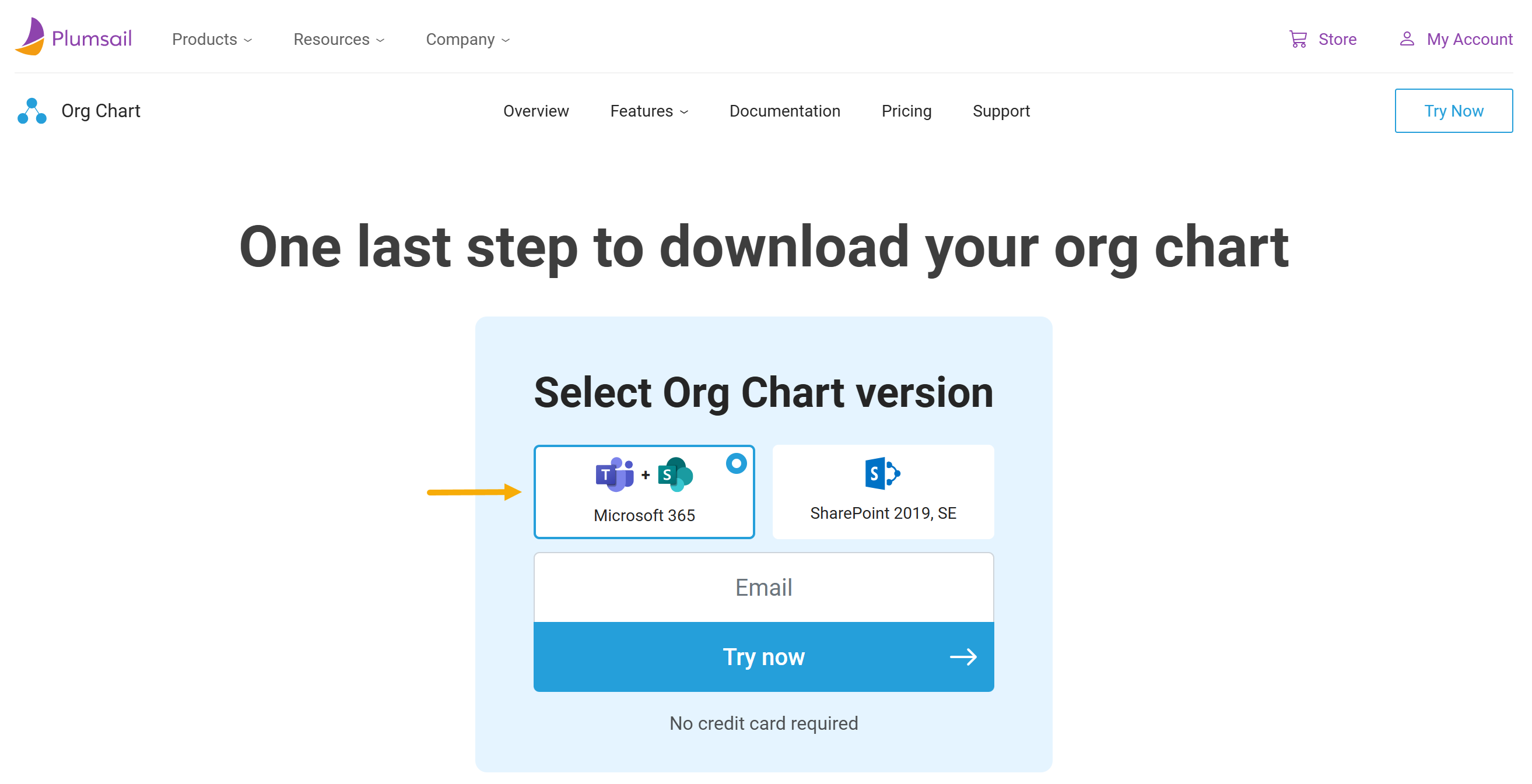
You can find the download link located at the end of the Installation section.
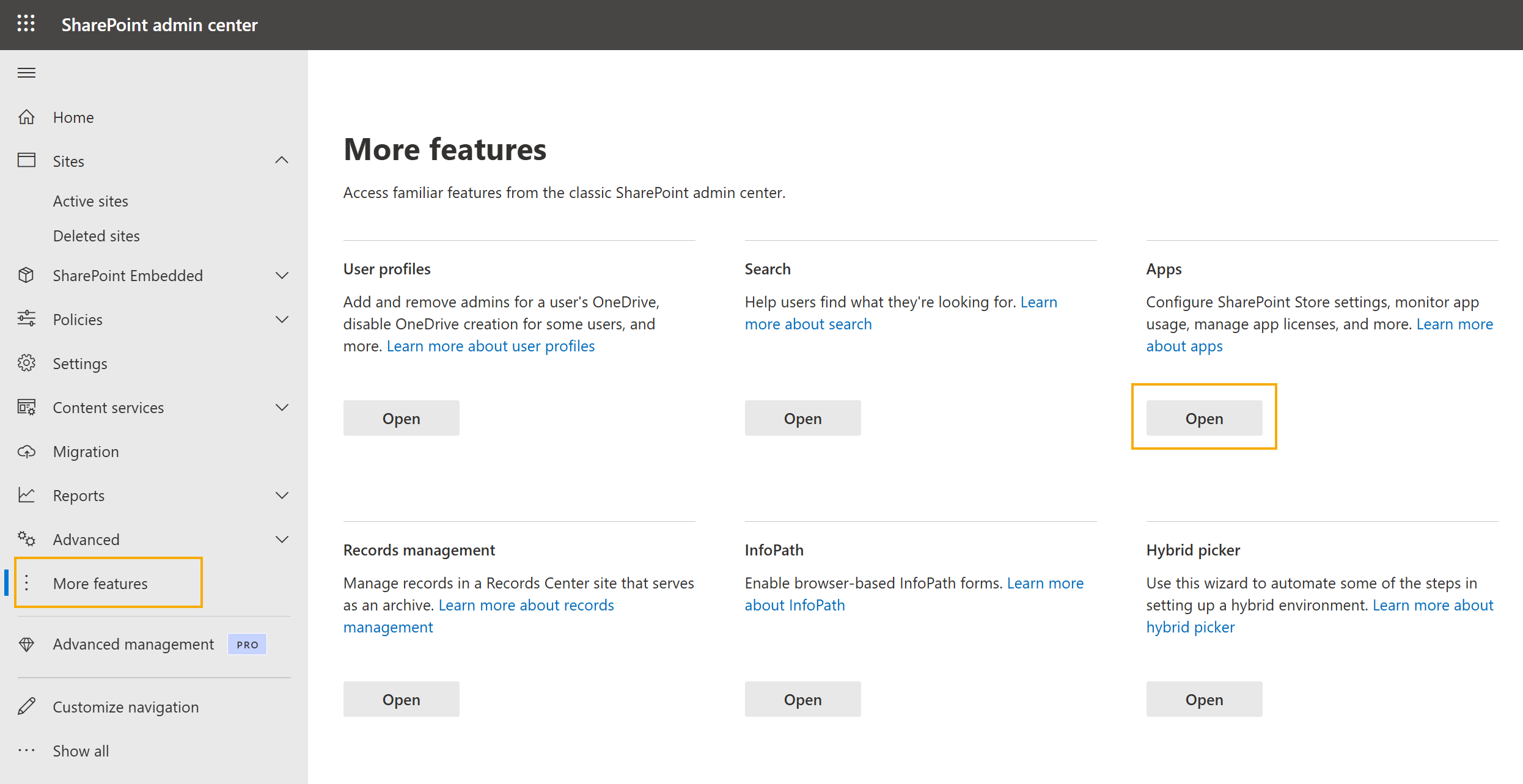
Navigate to SharePoint Admin Center and go to More features → Apps
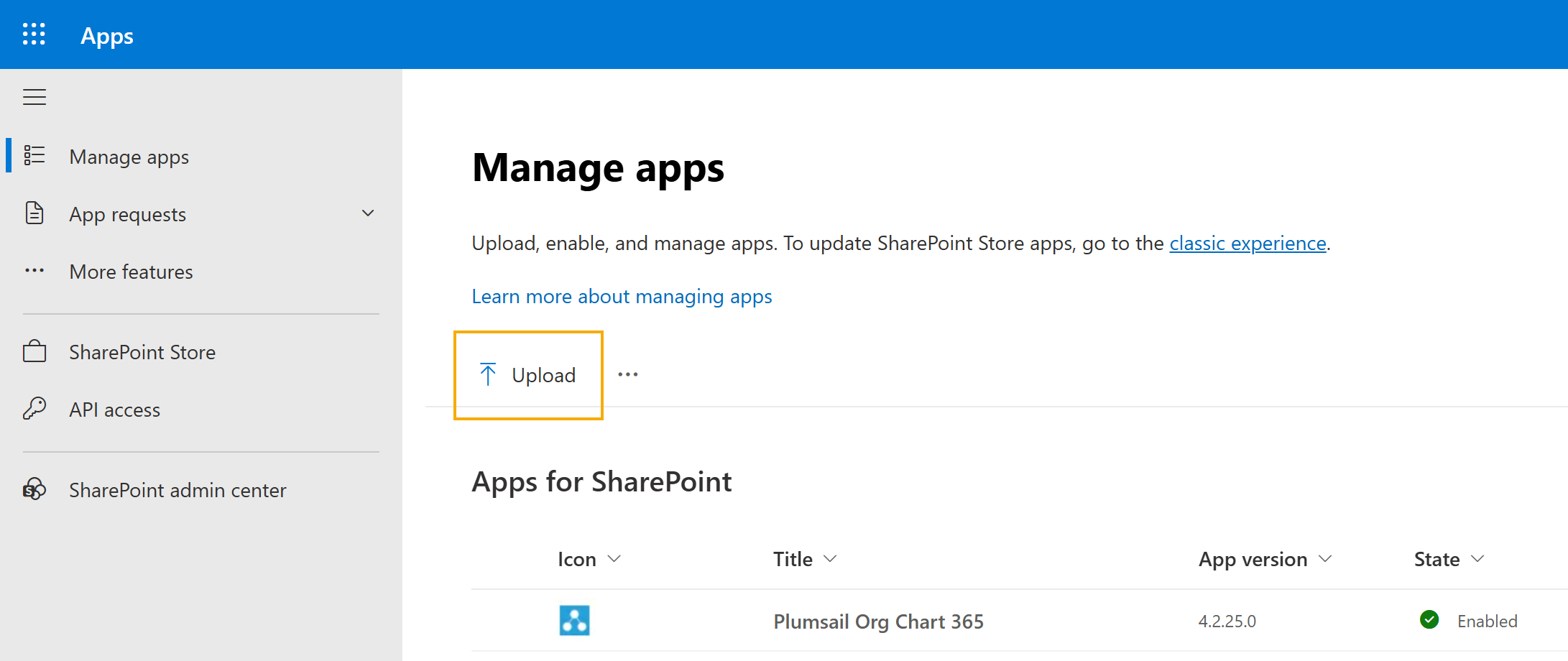
Navigate to Manage apps and upload the .sppkg file downloaded at the beginning of these instructions (without unpacking it):
Depending on your configuration, you may also need to grant additional permissions before completing the installation. For more information, see the article on granting permissions.
Note
Alternatively, you can install Org Chart directly from Microsoft AppSource. Read the installation guide for detailed instructions.
Get started
After installation, you can add the Org Chart web part to:
To use Org Chart on a modern SharePoint page, open the page in Edit mode and search for Plumsail Org Chart in the web part toolbox.
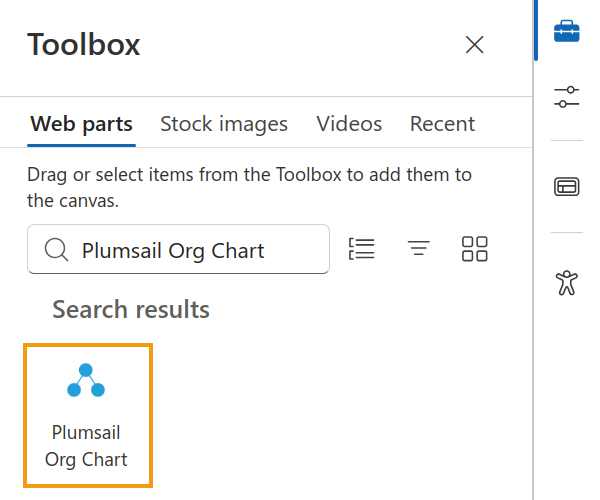
Add the web part to the page and click Configure to open the configuration wizard.
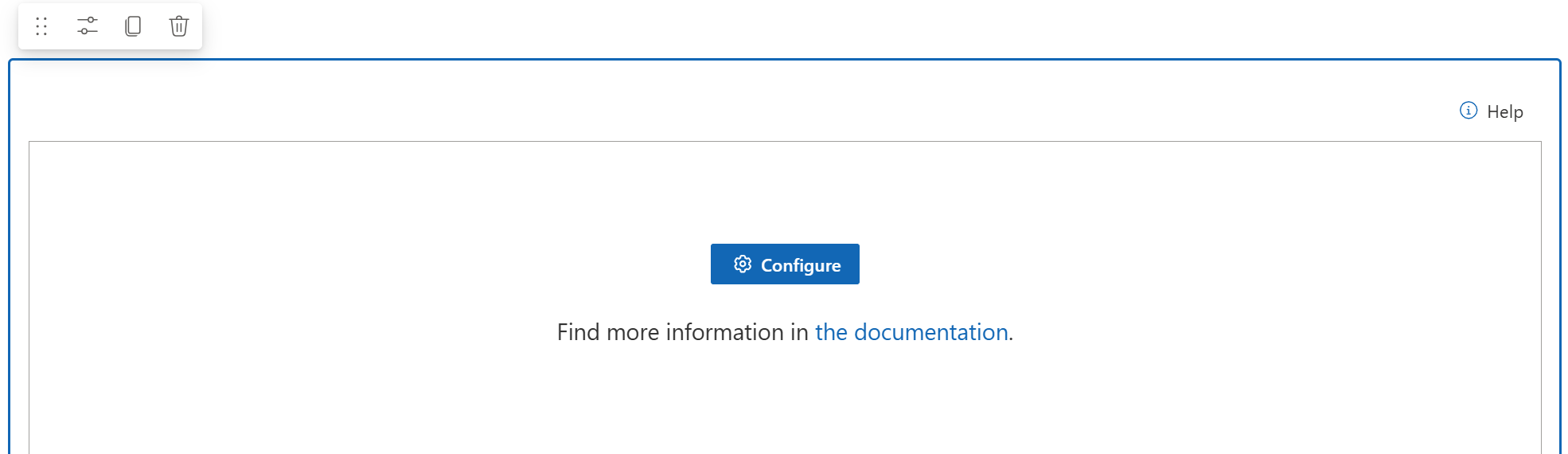
The following articles will help you complete the initial configuration:
Remove the old version
Once the version 4.x web part is configured and working as expected, remove the old 3.x web part from your SharePoint pages. After no pages use version 3.x anymore, you can uninstall the 3.x package from the App Catalog to complete the migration.