Getting started
User guide
- Settings
- Form sets
- Containers
- Controls
- SharePoint fields
- Common fields
- JavaScript
- CSS
- Display mode: panel, dialog, fullscreen
- SharePoint web parts
- Microsoft Teams tab
- Forms versioning
Provisioning forms
- Provisioning setup
- Provisioning API
- Provisioning forms (samples)
- Provisioning Form sets and display settings (samples)
General
- YouTube
- Licensing
- Manage subscription
- Billing and payments
- Privacy policy
- Data protection and security
- Version history (Microsoft 365)
- Version history (SharePoint 2019/SE)
Multilingual support
Navigation between forms
Generating PDF documents
- Save SharePoint form as PDF
- Generate PDF from DOCX template with Plumsail Documents
- Generate PDF from DOCX template with Word Online (Business)
Integration with Power Automate
How to work with buttons on the toolbar of a List or Library control
In this article, we’ll show you how to work with buttons for List or Library control, adding new buttons, removing or modifying existing ones.
Add a new button to the left
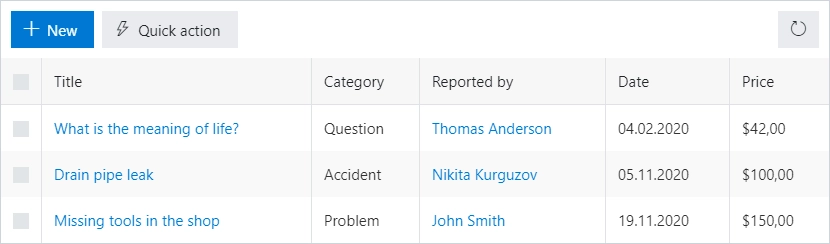
The following code allows you to add a button to the left side of the toolbar, select an icon and run custom code on click:
fd.spRendered(() => {
// new button
let button = {
text: 'Quick action',
class: 'btn-secondary',
visible: true,
icon: 'LightningBolt',
iconType: 0,
click: () => {
alert('Button clicked!');
}
};
fd.control('Control1').ready(() => {
// dt parameter is the same as fd.control('SPDataTable1')
dt.buttons.push(button);
});
});
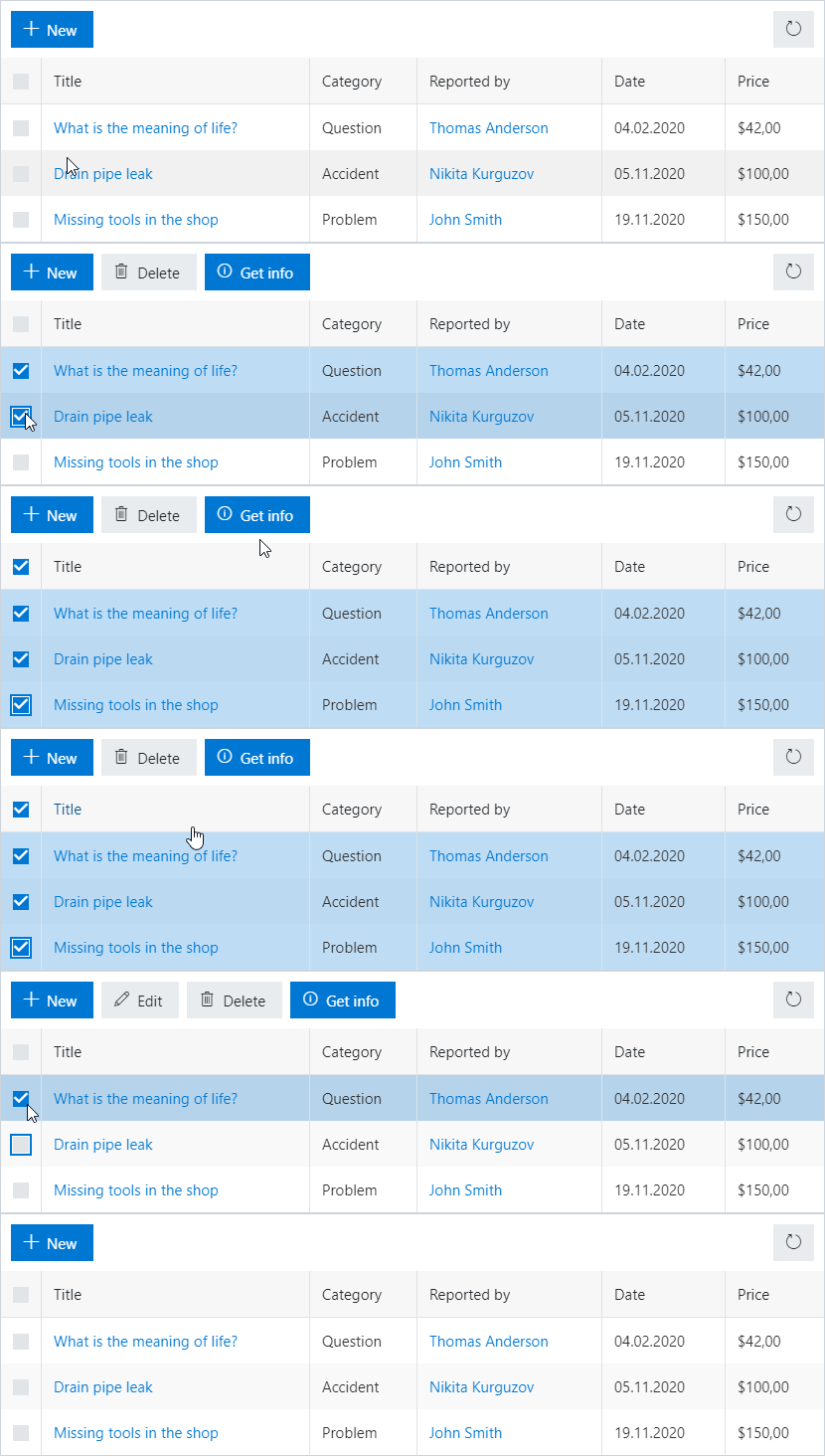
Add a new button to the left, which is hidden, if no item is selected

The following code allows you to add a button to the left side of the toolbar, which will be hidden until an item is selected and the code sample to access values of selected items:
fd.spRendered(() => {
// new button
let button = {
text: 'Get info',
class: 'btn-primary',
visible: false,
icon: 'Info',
iconType: 0,
click: () => {
let items = fd.control('Control1').selectedItems;
let ids = 'Selected item IDs: ';
items.forEach(item => {
ids += item.ID + '; ';
});
alert(ids);
}
};
fd.control('Control1').ready(() => {
// dt parameter is the same as fd.control('SPDataTable1')
dt.buttons.push(button);
dt.$watch('selectedItems', items => {
if (items.length > 0) {
button.visible = true;
} else {
button.visible = false;
}
});
});
});
Add a new button to the right
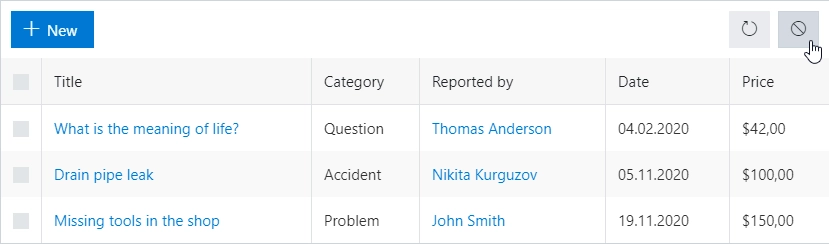
The following code allows you to add a button to the right side of the toolbar:
fd.spRendered(() => {
// new button
let button = {
text: '',
class: 'btn-secondary',
visible: true,
icon: 'Blocked',
iconType: 0,
location: 1,
click: () => {
alert('Button clicked!');
}
};
fd.control('Control1').ready(() => {
// dt parameter is the same as fd.control('SPDataTable1')
dt.buttons.push(button);
});
});
Modify existing buttons
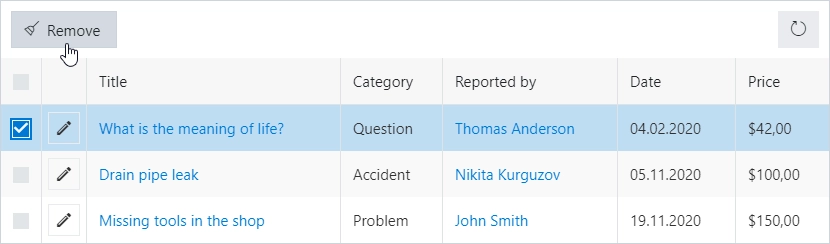
The following samples will allow you to hide, change text or icon for the existing buttons.
You can hide any button, for example, New button, with the following code:
fd.spRendered(() => {
fd.control('Control1').ready(() => {
// dt parameter is the same as fd.control('SPDataTable1')
dt.buttons[0].visible = false;
});
});
Change the text on the Delete button:
fd.spRendered(() => {
fd.control('Control1').ready(() => {
// dt parameter is the same as fd.control('SPDataTable1')
dt.buttons[1].text = 'Remove';
});
});
Swap the icon for the Delete button (the icons are taken from Office UI Fabric Icons):
fd.spRendered(() => {
fd.control('Control1').ready(() => {
// dt parameter is the same as fd.control('SPDataTable1')
dt.buttons[1].icon = 'Broom';
});
});
Add a duplicate button
The following code allows you to add a Duplicate button to the toolbar. When pressed, the button will create a copy of the selected items in the target list.
Note that the code has to explicitly reference each field of the item that is being copied; make sure to replace the fieldsToCopy list with a list of internal names of the fields.
// use Internal Names of your fields
const fieldsToCopy = ['Title', 'Description', 'Price', 'Supervisor', 'Parent'];
async function copySelectedItems(selectedItems, items) {
return await Promise.all(
selectedItems.map(async selected => {
const item = await items.getById(selected.ID).get();
const copy = {};
// go through fields and copy each one
fieldsToCopy.forEach(field => {
// copy regular fields
if (item[field]) {
copy[field] = item[field];
}
// copy more complex fields - Person/Lookup
else if (item[field + 'Id']) {
copy[field + 'Id'] = item[field + 'Id'];
}
});
return copy;
})
);
}
fd.spRendered(() => {
const lol = fd.control('Control1');
// new button
let duplicateButton = {
text: 'Duplicate item',
class: 'btn-secondary',
visible: false,
icon: 'Copy',
iconType: 0,
click: async () => {
const listUrl = lol.listRootFolder;
const selected = lol.selectedItems;
const items = pnp.sp.web.getList(listUrl).items;
const copies = await copySelectedItems(selected, items);
console.log(copies);
const batch = pnp.sp.web.createBatch();
const batchItems = items.inBatch(batch);
copies.forEach(copy => {
batchItems.add(copy).catch(console.warn);
});
await batch.execute();
lol.refresh();
duplicateButton.visible = false;
}
};
lol.ready(dt => {
dt.buttons.push(duplicateButton);
dt.$watch('selectedItems', items => {
duplicateButton.visible = items?.length;
});
});
});
After you add this code to the form, the end user will be able to select and copy any number of items in the control, and it will work for both Dialog and Inline editing mode.