Object operations in XLSX templates
Object operations allow you to insert special objects, such as barcodes, QR codes, and pictures, into your Excel workbook.
In this article, you’ll find a list of all the object operations you can use in XLSX templates. Each one comes with examples to help you see how you can use them in your documents.
barcode
Use the #barcode operation to generate barcodes in your template.
Syntax:
{{#barcode value "TYPE" width height}}
value — the token containing the barcode value
TYPE — barcode type (must be in quotes)
width — barcode width in pixels
height — barcode height in pixels
Example:
Template |
Data |
Result |
|---|---|---|
{{#barcode value "CODE128" 300 100}}
|
{
    "value": "test barcode"
}
|
the barcode |
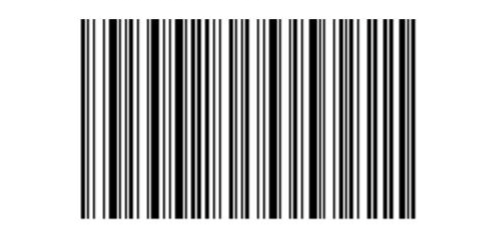
This code generates a CODE128 barcode that is 300 pixels wide and 100 pixels high.
If you’d like to create a square barcode, you can leave out the height. This generates a barcode with a width and height of 300 pixels:
{{#barcode value "CODE128" 300}}
There are different types of the barcodes.
The following barcode types are supported:
Barcode type |
Template |
JSON data |
|---|---|---|
CODE128 |
|
{
    "value": "12345678"
}
|
CODE11 |
|
{
    "value": "01234567"
}
|
CODE39 |
|
{
    "value": "ABC1234"
}
|
UPCA |
|
{
    "value": "72527273070"
}
|
MSI |
|
{
    "value": "01234567"
}
|
ISBN |
|
{
    "value": "9781234567897"
}
|
EAN13 |
|
{
    "value": "978020137962"
}
|
ITF14 |
|
{
    "value": "01234567890123"
}
|
qrcode
This operation allows you to insert a QR code into your template. You only need to set one parameter: the width in pixels. Since QR codes are always square, the height will match the width automatically.
Template |
Data |
Result |
|---|---|---|
{{#qrcode value 150}}
|
{
    "value": "https://plumsail.com/"
}
|
the qrcode |

There are different types of QR codes, you can specify it in the JSON.
URL
To encode the text of a URL, for example, https://plumsail.com/, encode the https://plumsail.com/ URL text in the JSON. Include the http:// protocol to ensure it is recognized as a URL.
{
      "value": "https://plumsail.com/"
}
Telephone Numbers
To encode a telephone number, use a telephone URI to ensure that the digits are recognized as a telephone number and include prefixes which make the number internationally accessible.
{
      "value": "tel:+1-234-555-6677"
}
SMS
To encode an SMS short code or number, create an SMS URI. For example, to create a link to the 12345 number, encode sms:12345. You may use other URI forms, such as sms:number:subject, and other prefixes, such as smsto:.
{
      "value": "sms:12345"
}
Geolocations
To encode a point on the earth, including altitude, use a geo URI.
{
      "value": "geo:42.65049,23.37925,100"
}
Hint
Read this article to get inspired on how to enrich your documents with various QR codes.
checkbox
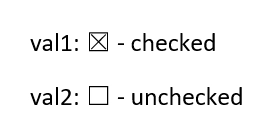
#checkbox - activates checkboxes in a your template.
For example, a user fills out some online form and the #checkbox operation activates checkboxes in a XLSX template depending on the forms’ values.
The resulting document could be an application or questionnaire.
Template |
Data |
Result |
|---|---|---|
{{#checkbox prop1}}
{{#checkbox prop2}}
|
{
    "prop1": true,
    "prop2": false
}
|
XLSX file with activated checkboxes |
picture
The #picture operation resolves URL or base64 string and converts it to an image. This operation doesn’t compress the source picture and keeps its original quality.
There are several parameters that you can use to customize how the image comes out in the final document:
Parameter |
Description |
Examples |
|---|---|---|
|
Default sizing options. |
For example, to fit your picture into a 300x300 square, use the operation as follows:
To calculate the height automatically, feel free to just leave out the height parameter like so:
|
|
Allows you to rotate your picture by 90, 180, 270, or 360 degrees. Only those values are supported. |
|
|
Flips the image horizontally (X), vertically (Y), or both (XY). |
|
|
Picture proportions are preserved and fit into the specified size. |
|
|
This is the default behavior. The picture will be stretched according to the specified sizes. |
|
Feel free to mix and match these parameters. For example, if you want to fit the image to a 400x350 resolution, rotated it by 90 degrees and flip it both ways, you’d write it like this:
{{#picture imageData 400 350 Fit rotate:90 flip:XY}}
Examples
Template |
Data |
Result |
|---|---|---|
{{#picture imageData}},

{{#picture imageData 300}},

{{#picture imageData 150 200}},

{{#picture imageData 200 300 flip:Y}},

{{#picture imageData 300 rotate:270}},

{{#picture imageData 100 50 flip:XY rotate:90}}

{{#picture imageData 100 50 Fit flip:XY rotate:90}}
|
{
    "imageData": "https://picturesite.com/pics/picture.png"
}


{
    "imageData": "iVBORw0KGgoAAAANSUhEUgAAAIAAAAA9CAYAAABlamFgAA"
}
|
the image
|
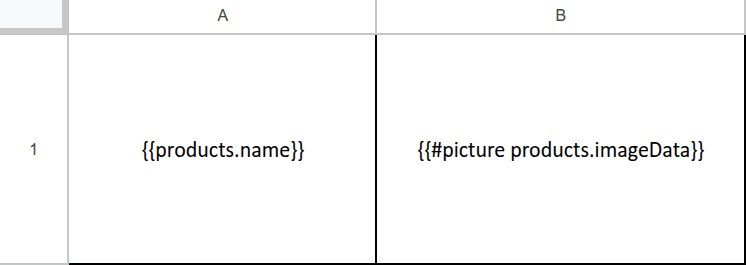
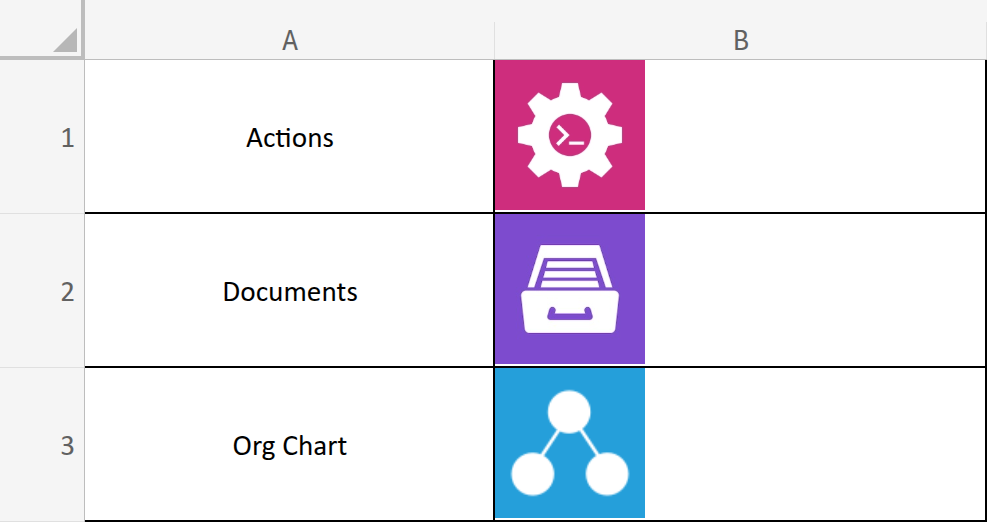
If your data contains objects with image attributes, you can loop through them to insert all images into your document. For example:
JSON |
Template |
Results |
|---|---|---|
{
  "products": [
    {
      "name": "Actions",
      "imageData":
        "https://contoso.com/img/logo-actions.jpg"
    },
    {
      "name": "Documents",
      "imageData":
        "https://contoso.com/img/logo-documents.jpg"
    },
    {
      "name": "Org Chart",
      "imageData":
        "https://contoso.com/img/logo-orgchart.jpg"
    }
  ]
}
|
{{#picture products.imageData}}
|
|
pictureCompress
The #pictureCompress operation resolves URL or base64 string and converts it to an image. This operation compresses the source picture.
There are several parameters that you can use to customize how the image comes out in the final document:
Parameter |
Description |
Examples |
|---|---|---|
|
Default sizing options. |
For example, to fit your picture into a 300x300 square, use the operation as follows:
To calculate the height automatically, feel free to just leave out the height parameter like so:
|
|
Allows you to rotate your picture by 90, 180, 270, or 360 degrees. Only those values are supported. |
|
|
Flips the image horizontally (X), vertically (Y), or both (XY). |
|
|
Picture proportions are preserved and fit into the specified size. |
|
|
This is the default behavior. The picture will be stretched according to the specified sizes. |
|
Feel free to mix and match these parameters. For example, if you want to fit the image to a 400x350 resolution, rotated it by 90 degrees and flip it both ways, you’d write it like this:
{{#pictureCompress imageData 400 350 Fit rotate:90 flip:XY}}
Examples
Template |
Data |
Result |
|---|---|---|
{{#pictureCompress imageData}},

{{#pictureCompress imageData 300}},

{{#pictureCompress imageData 150 200}},

{{#pictureCompress imageData 200 300 flip:Y}},

{{#pictureCompress imageData 300 rotate:270}},

{{#pictureCompress imageData 100 50 flip:XY rotate:90}}

{{#pictureCompress imageData 100 50 Fit flip:XY rotate:90}}
|
{
    "imageData": "https://picturesite.com/pics/picture.png"
}


{
    "imageData": "iVBORw0KGgoAAAANSUhEUgAAAIAAAAA9CAYAAABlamFgAA"
}
|
the image
|
link
The #link operation creates a hyperlink in your document.
Here’s an example of its usage:
{{#link "https://google.com" "Link text"}}
It takes two parameters:
Link URL- the URL that will open when the text is clicked.Link text- the text that will be displayed for the hyperlink.
Both parameters can be dynamic.
Examples
Template |
Data |
Result |
|---|---|---|
{{#link url title}}

{{#link url "Link text"}}

{{#link "https://google.com" title}}
|
{
    "url": "https://google.com",
    "title": "Link text"
}
|
htmlExcel
The #htmlExcel operation converts the provided HTML code into text and elements.
Note that the cell size is not adjusted automatically to fit the inserted HTML, which replaces the entire contents of the target cell.
Example
Template |
Data |
Result |
|---|---|---|
{{#htmlExcel text}}
|
{
    "text": "<html><head><title></title></head>
    <body><p style=\"color: green; font-size: 20px\">
    This is HTML</p></body></html>"
}
|
Excel file with converted HTML elements. Inline styles are applied. |
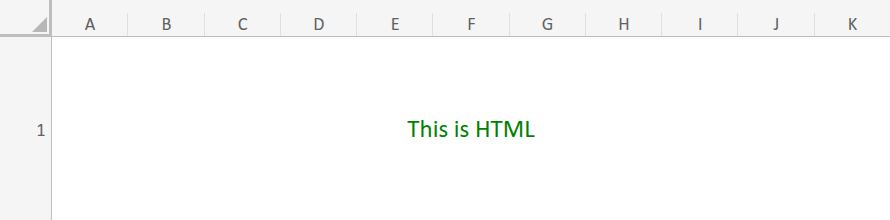
The following HTML tags are supported:
<h1-h6><b>,<i>,<u>,<em>,<strong><div>,<span>,<font>and<p><ul>,<ol>and<li>(single-level lists only)<q><article>,<aside>,<section>(treated as<div>elements)
A few limitations to keep in mind:
Only inline styles are supported, including font-family, color, font-size, font-weight, font-style, and text-decoration (underline only).
Images and hyperlinks are not supported.
markdown
The #markdown operation converts provided Markdown code into text.
Template |
Data |
Result |
|---|---|---|
{{#markdown text1}}
{{#markdown text2}}
{{#markdown text3}}
{{#markdown text4}}
|
{
    "text1": "# h1 Heading",
    "text2": "## h2 Heading",
    "text3": "**This is bold text**",
    "text4": "*This is italic text*",
}
|
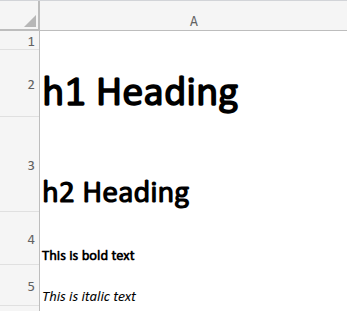
XLSX file with the markdown text |
You can upload the source markdown file from any connector: SharePoint, OneDrive, etc, and use the dynamic content in Plumsail processes.
merge
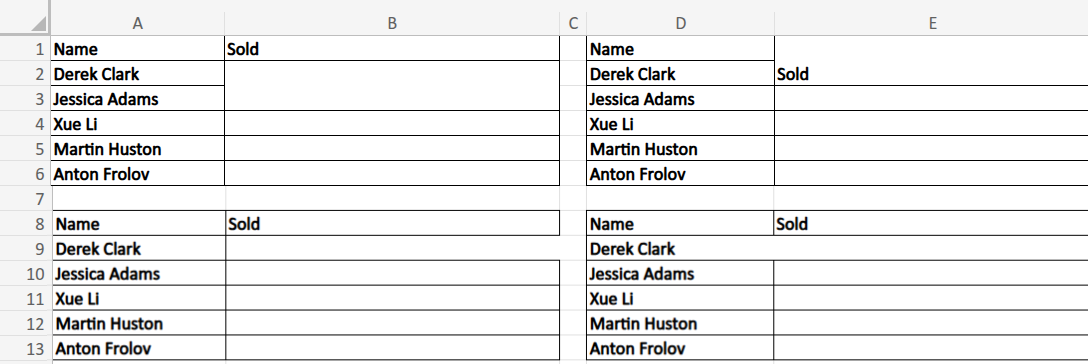
This operation merges a table cell with an adjacent cell in the specified direction if the given condition is met. To control the merge direction use:
{{#merge-left-if condition}}{{#merge-right-if condition}}{{#merge-top-if condition}}{{#merge-bottom-if condition}}
Note
This formatter doesn’t support merging cells in table ranges. Thus, if you want to use this formatter, apply it to regular Excel cells instead.
Examples
Template

Data
    {
        "collection": [
            {
                "name": "Derek Clark",
                "sold": null
            },
            {
                "name": "Jessica Adams",
                "sold": 14000
            },
            {
                "name": "Xue Li",
                "sold": 500
            },
            {
                "name": "Martin Huston",
                "sold": 9400
            },
            {
                "name": "Anton Frolov",
                "sold": 1000
            }
        ]
    }

-
Results
line-break-if
The line-break-if object operation inserts a line break at the specified position within a cell when the condition evaluates to true.
Example
Template |
Data |
Result |
|---|---|---|
Before the break. {{#line-break-if isActive}} After the break.
|
{
  "isActive" : true
}
|
Before the break.
After the break.
|