Calculated properties in XLSX templates
Calculated properties allow you to create new values from existing data before it is passed to your XLSX template.
They can be used to simplify complex property calculations such as totals, counts, and validations, and reuse those values throughout the template. Think of calculated properties as temporary fields that become part of the data available during document generation.
Calculated properties using top-level properties
A calculated property is a new token defined directly in the template rather than in the original data source.
You can assign a value from the data source using the following syntax:
{{calculatedProperty = dataSourceProperty}}
Once defined, the calculated property {{calculatedProperty}} can be used anywhere in the template just like any other field.
Shortening example
When working with complex JSON structures, repeatedly typing long property paths can make templates difficult to read and maintain.
For example, employee information may be stored inside a deeply nested object. Without a calculated property, each field reference requires the full path:
{{requestedData.employees.name}}{{requestedData.employees.title}}{{requestedData.employees.department}}
To simplify the template, create an alias:
{{e = requestedData.employees}}
You can then reference the same fields using much shorter expressions:
{{e.name}}{{e.title}}{{e.department}}
This approach makes templates easier to read and maintain, especially when the same object is referenced multiple times.
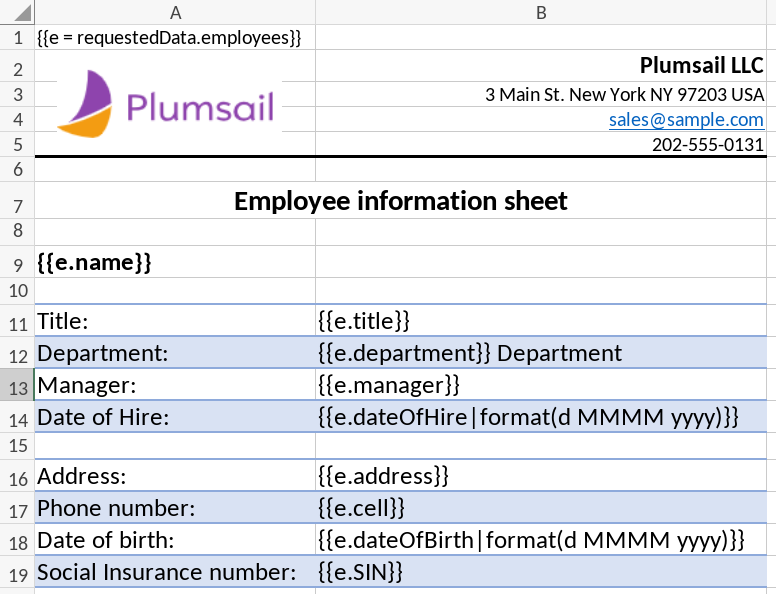
Download the template and data source object and use them in your process for testing.
Adding properties to an existing object
Calculated properties can also be added directly to existing objects. This is useful when you need to derive new values from existing data without modifying the original source.
For example, the following expression adds an isValid property to an order object:
{{order.isValid = order.items|count() > 0 and order.status == "Active"}}
The expression checks whether the order contains at least one item and whether its status is "Active". If both conditions are met, the new property is set to true; otherwise, it is set to false.
You can also write the same expression using the @value reference, which refers to the parent object of the calculated property:
{{order.isValid = @value.items|count > 0 and @value.status == "Active"}}
The calculated property becomes available throughout the template just like any other field in the source data.
Result:
{
   "order": {
      "items": [
         {
            "name": "Keyboard",
            "quantity": 10,
            "price": 80
         },
         {
            "name": "Printer",
            "quantity": 5,
            "price": 250
         }
      ],

      "status": "Active",
      "isValid": true
   }
}
Calculated properties inside other calculated properties
Calculated properties can be referenced by other calculated properties. This allows you to build calculations and reuse values in your template.
For example, first calculate the total value of each item:
{{order.items.total = @value.quantity * @value.price}}
Then use those values to calculate the order total:
{{order.total = order.items|sum(total)}}
Important: Because calculated properties are processed in the order they appear in the template, make sure a property is defined before it is referenced by another calculation.
Result:
{
   "order": {
      "items": [
         {
            "name": "Keyboard",
            "quantity": 10,
            "price": 80,
            "total": 800
         },
         {
            "name": "Printer",
            "quantity": 5,
            "price": 250,
            "total": 1250
         }
      ],

      "status": "Active",
      "total": 2050
   }
}
Calculated properties inside multiple nested collections
When working with nested collections, calculations must be performed within the correct context. The @value reference ensures that each item is evaluated independently within its parent collection.
For example, consider an order containing multiple customers, where each customer has their own collection of attributes.
First calculate the total value of each item:
{{order.customers.items.total = @value.quantity * @value.price}}
Then calculate the total value for each customer:
{{order.customers.total = @value.items|sum(total)}}
Using @value ensures that each customer’s total is calculated from their own items rather than from the entire collection.
Result:
{
   "order": {
      "customers": [
         {
            "name": "John Doe",
            "items": [
               {
                  "name": "Keyboard",
                  "quantity": 10,
                  "price": 80,
                  "total": 800
               },
               {
                  "name": "Printer",
                  "quantity": 5,
                  "price": 250,
                  "total": 1250
               }
            ],

            "total": 2050
         },
         {
            "name": "Jane Doe",
            "items": [
               {
                  "name": "Desk",
                  "quantity": 2,
                  "price": 600,
                  "total": 1200
               },
               {
                  "name": "Shredder",
                  "quantity": 3,
                  "price": 200,
                  "total": 600
               }
            ],

            "total": 1800
         }
      ],

      "status": "Active"
   }
}
Calculated properties can be combined with value functions to support more advanced document generation scenarios.
See the related documentation to learn more about it.