Aliases in PPTX templates
An alias is a new token initiated right in the template. It is not a part of the data source object. You can assign a value from the latter to the alias following this syntax:
{{alias = dataSourceProperty}}
After that, you can put the dataSourceProperty value in the template using the token {{alias}}.
Usage:
shortening tokens with nested properties, e.g.
{{name = item.name}},in combination with functions.
Note
Assign values to aliases and display alias values in separate text boxes:
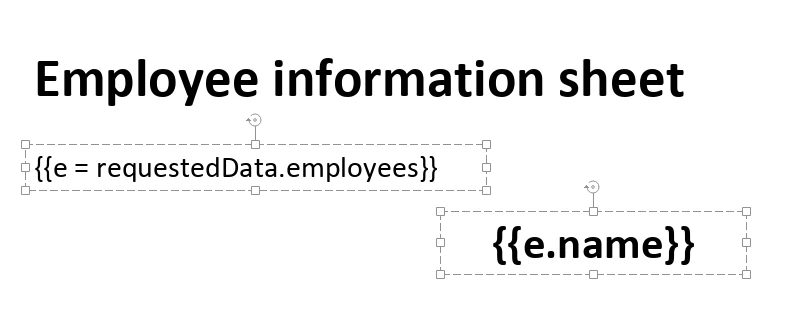
Shortening example
There may be a complex JSON object as a data source for populating the template.
For example, generating employee information sheets will require only the employees property which is nested in others.
Getting each field of employees’ data would require enumeration of all nested properties:
{{requestedData.employees.name}},{{requestedData.employees.title}},{{requestedData.employees.department}}, etc.
The alias {{e = requestedData.employees}} shortens the notation to:
{{e.name}},{{e.title}},{{e.department}}, etc.
Thus, template tokens become much shorter:
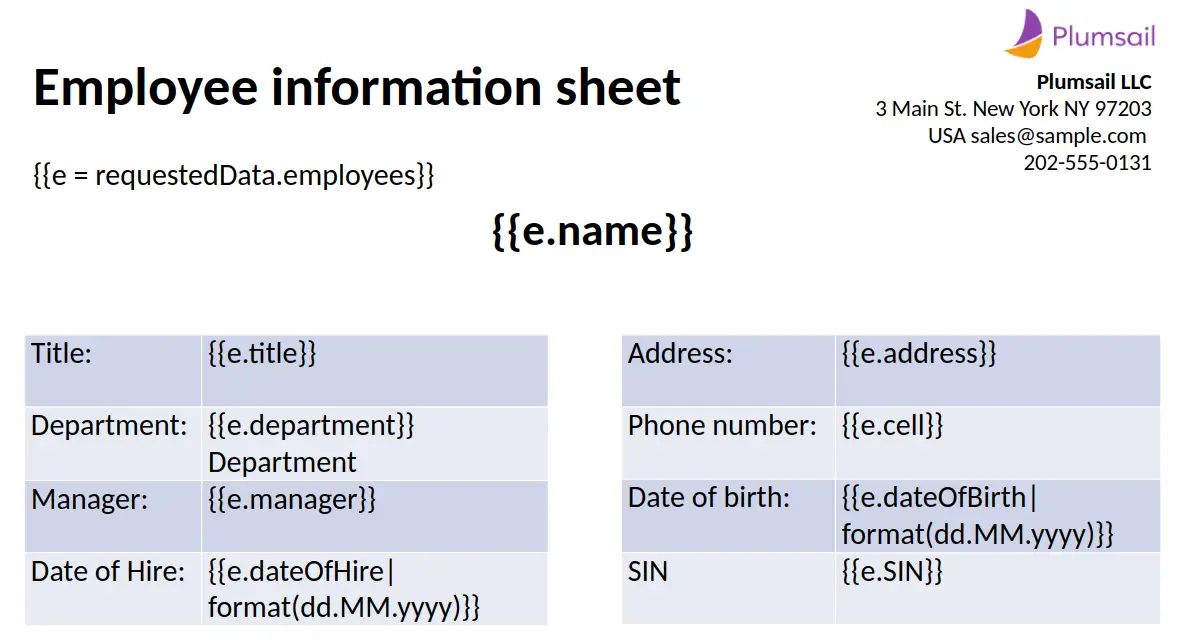
Download the template and data source object and use them in your process for testing.
Calculated properties
Calculated properties are a more powerful kind of alias that let you modify your source JSON object before it is passed to your template for generation. Think of them as variables that let you create new pieces of information based on existing data. In PPTX templates, put the assignment in any text block on a slide, in the same way as an alias.
Calculated properties using top-level properties
Let’s start with an example JSON structure:
{
   "order": {
      "items": [
         {
            "name": "Keyboard",
            "quantity": 10,
            "price": 80
         },
         {
            "name": "Printer",
            "quantity": 5,
            "price": 250
         }
      ],

      "status": "Active"
   }
}
Suppose we want to clone order.items into a new calculated property called items. We can do this using the following syntax:
{{items = order.items}}
This syntax will create a new items property on top level of our JSON object and clone objects from order.items:
{
   "items": [
         {
            "name": "Keyboard",
            "quantity": 10,
            "price": 80
         },
         {
            "name": "Printer",
            "quantity": 5,
            "price": 250
         }
   ],

   "order": {
      "items": [
         {
            "name": "Keyboard",
            "quantity": 10,
            "price": 80
         },
         {
            "name": "Printer",
            "quantity": 5,
            "price": 250
         }
      ],

      "status": "Active"
   }
}
Now we can make various modifications to this new property we created and apply aggregate functions like count, sum, avg, etc. We can also use it in the final document by adding the following token: {{items}}
We can also add properties directly to our order object. For example we want to add a new property called isValid to the order object, which will check if the order is valid based on the number of items and status. We could use the following syntax:
{{order.isValid = order.items|count() > 0 and order.status == "Active"}}
Here, we count how many items are in order.items and check if there are more than 0 items and if the order status is “Active.” If both conditions are true, isValid will return true; otherwise, it will return false.
You can also write this syntax in different ways:
{{order.isValid = Count(order.items) > 0 and order.status == "Active"}}{{order.isValid = Count(order.items) > 0 and @value.1 == "Active"}}
In these examples, we work with properties at the top level. However, sometimes you may need to refer to properties at the current level, like an item within a collection. For instance:
{{order.items.total = @value.quantity * @value.price}}
The @value refers to the parent object of the calculated property.
The same logic applies when working with nested single objects:
{{order.isValid = @value.items|count > 0 and @value.status == "Active"}}
Result:
{
   "order": {
      "items": [
         {
            "name": "Keyboard",
            "quantity": 10,
            "price": 80
         },
         {
            "name": "Printer",
            "quantity": 5,
            "price": 250
         }
      ],

      "status": "Active",
      "isValid": true
   }
}
Calculated properties inside other calculated properties
When defining calculated properties, it’s important to set them up in the order they appear in the template. This allows you to use earlier calculated properties in later ones. For example:
{{order.items.total = @value.quantity * @value.price}}
You can then sum the totals like this:
{{order.total = order.items|sum(total)}}
Alternatively:
{{order.total = sum(order.items, total)}}
These lines will calculate totals appropriately based on previously defined properties.
Result:
{
   "order": {
      "items": [
         {
            "name": "Keyboard",
            "quantity": 10,
            "price": 80,
            "total": 800
         },
         {
            "name": "Printer",
            "quantity": 5,
            "price": 250,
            "total": 1250
         }
      ],

      "status": "Active",
      "total": 2050
   }
}
Calculated properties inside multiple nested collections
Now, let’s make the scenario a bit more complex by introducing a customers object in our JSON.
{
   "order": {
      "customers": [
         {
            "name": "John Doe",
            "items": [
               {
                  "name": "Keyboard",
                  "quantity": 10,
                  "price": 80
               },
               {
                  "name": "Printer",
                  "quantity": 5,
                  "price": 250
               }
            ]
         },
         {
            "name": "Jane Doe",
            "items": [
               {
                  "name": "Desk",
                  "quantity": 2,
                  "price": 600
               },
               {
                  "name": "Shredder",
                  "quantity": 3,
                  "price": 200
               }
            ]
         }
      ],

      "status": "Active"
   }
}
When dealing with nested collections, it’s important to reference the @value object to define the calculation context. In this case, each customer’s total will be calculated separately:
{{order.customers.items.total = @value.quantity * @value.price}}
You can then sum the total for each customer:
{{order.customers.total = @value.items|sum(total)}}
Result:
{
   "order": {
      "customers": [
         {
            "name": "John Doe",
            "items": [
               {
                  "name": "Keyboard",
                  "quantity": 10,
                  "price": 80,
                  "total": 800
               },
               {
                  "name": "Printer",
                  "quantity": 5,
                  "price": 250,
                  "total": 1250
               }
            ],

            "total": 2050
         },
         {
            "name": "Jane Doe",
            "items": [
               {
                  "name": "Desk",
                  "quantity": 2,
                  "price": 600,
                  "total": 1200
               },
               {
                  "name": "Shredder",
                  "quantity": 3,
                  "price": 200,
                  "total": 600
               }
            ],

            "total": 1800
         }
      ],

      "status": "Active"
   }
}