Add text watermark to PDF document using Power Automate
This is the second article in our How to use Watermarks series. We hope these articles will help you to get the best out of watermarking PDFs using Plumsail Documents in Power Automate (Microsoft Flow).
Before we dive in, here is where we are in our How to use Watermarks series:
How to use an image type watermark to automatically add a company logo to PDF files and save them in a new folder.
How to use a text type watermark to prevent documents dissemination.
How to use a PDF type watermark to add a watermark with a specific design to PDF documents generated on submitting a form.
How to use an HTML type watermark to add a richly styled watermark with dynamic content to PDF documents.
Add watermark to PDF action supports a few types of watermarks — Text, Image, PDF and HTML:
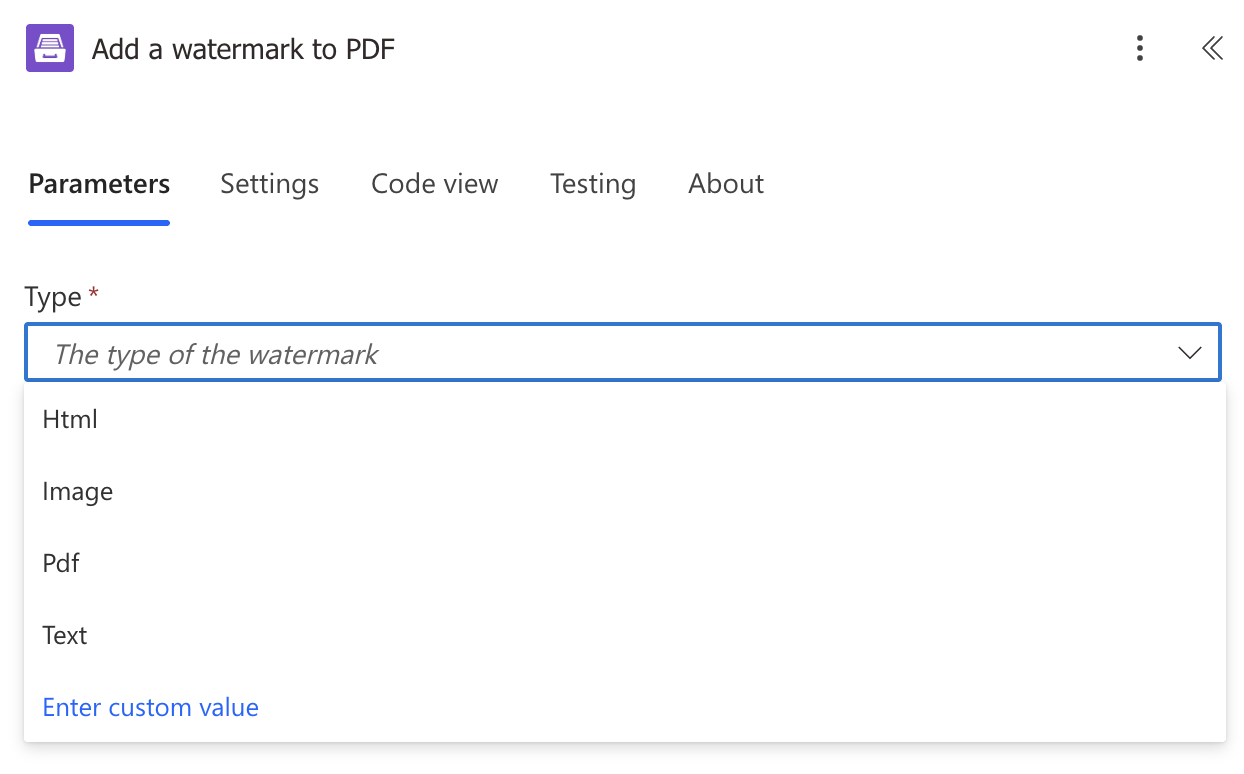
The following steps show how to add a text watermark to a document.
Use cases for text watermarks
Text watermarks help protect documents and communicate important information. Here are some common use cases:
Classify your documents
A watermark that states “Confidential” or “For internal use only” helps indicate how a document should be handled. For example, users are less likely to leave a document open on their screen when they step away if it is clearly marked as confidential.
Show the status of document
Text watermarks can also be used to indicate document status, such as Reviewed, Approved, or Draft, so that recipients can immediately understand the state of the document.
Identify the perpetrator if the document is leaked
When sending confidential documents outside your organization, adding a recipient-specific watermark can help discourage unauthorized sharing. Including details such as the recipient’s email, name, or timestamp makes it easier to trace the source if the document is leaked.
Let’s look at how to implement this in Power Automate.
Let’s say you have a list of recipients on your SharePoint site:
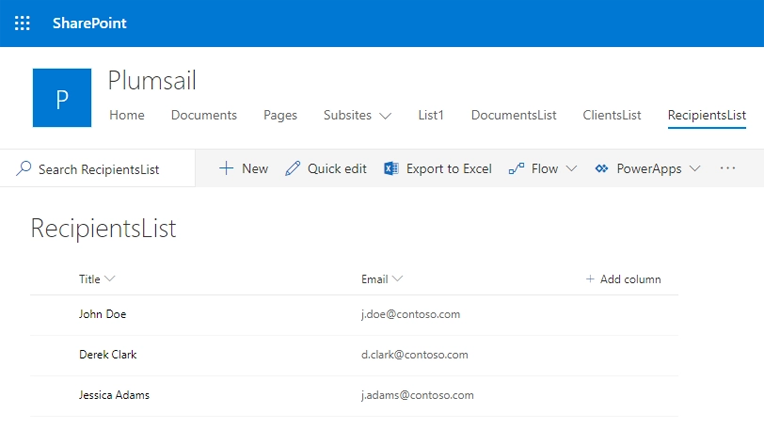
You need to send them a confidential document you would prefer not be spread around. For example, a price list.
You can create a flow that is started on a particular item from the list:
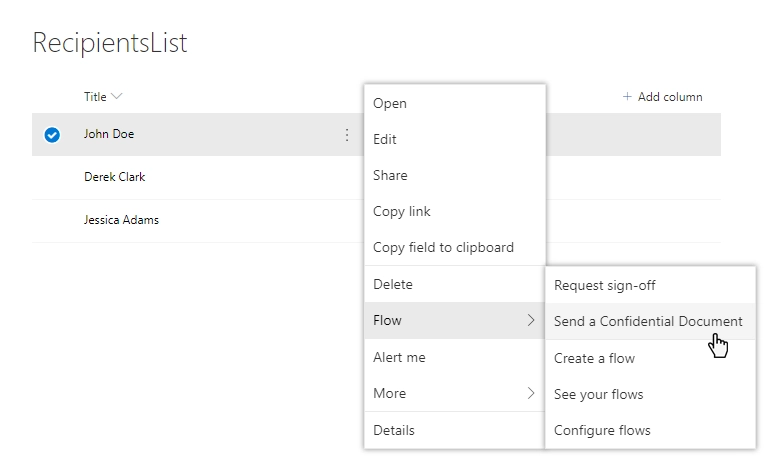
Here is how the entire flow looks:
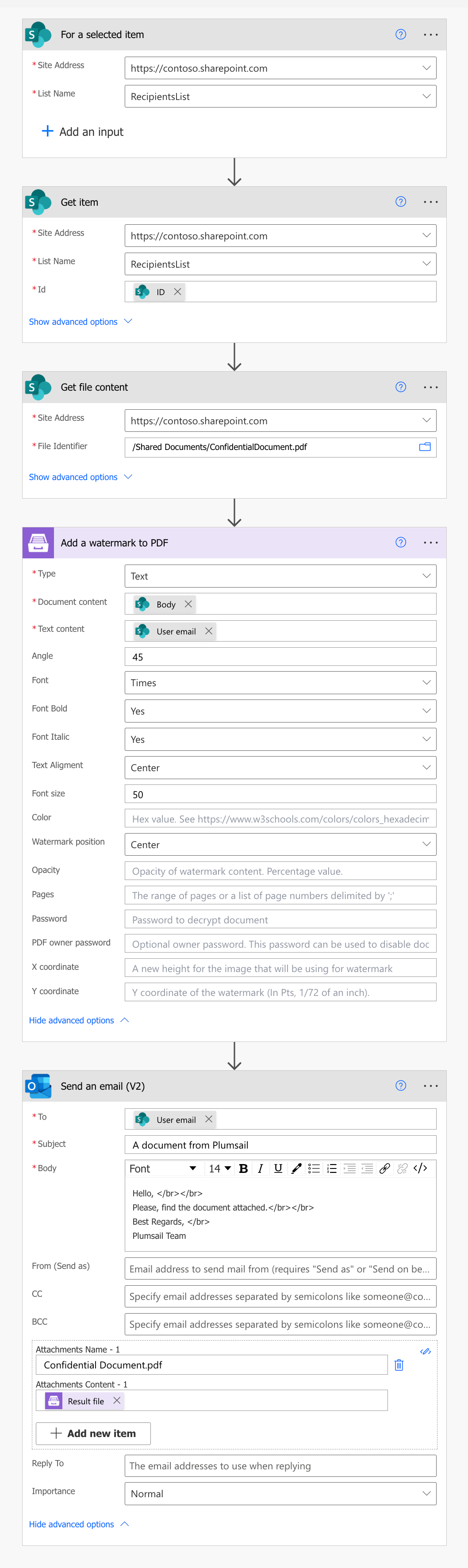
Create the flow
The following steps show how to configure the flow.
Flow trigger
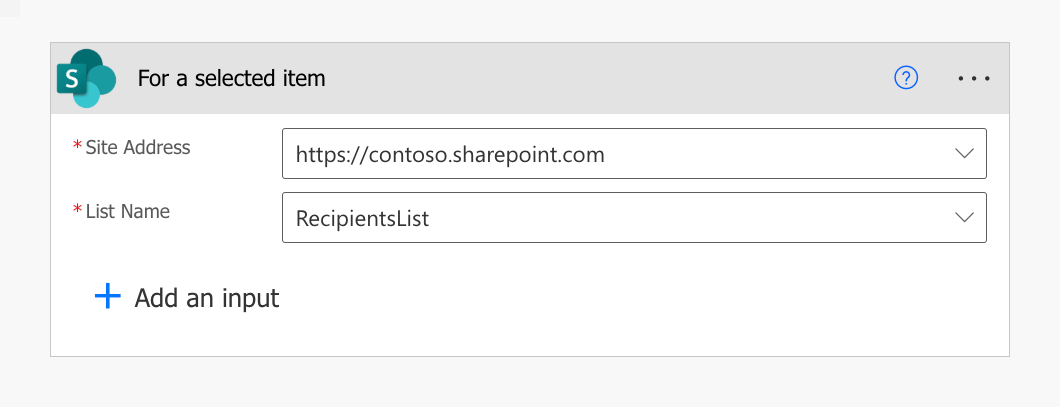
Go to Power Automate, create a flow and find For a selected item action from the SharePoint connector. This trigger allows you to start the flow manually for a selected item. Set your Site Address and the List name:
Get item
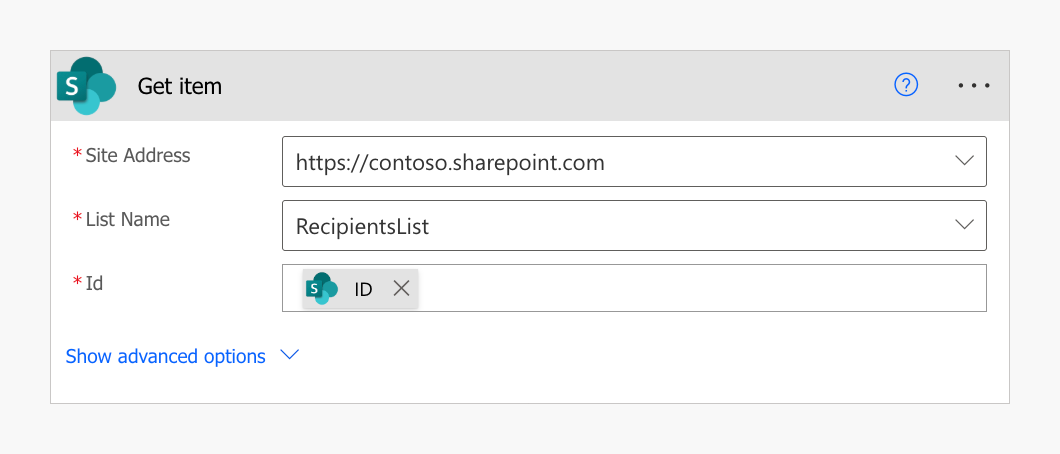
Use the Get item action from the SharePoint connector to retrieve item data. Use ID from the output of the For a selected item action:
Get file content
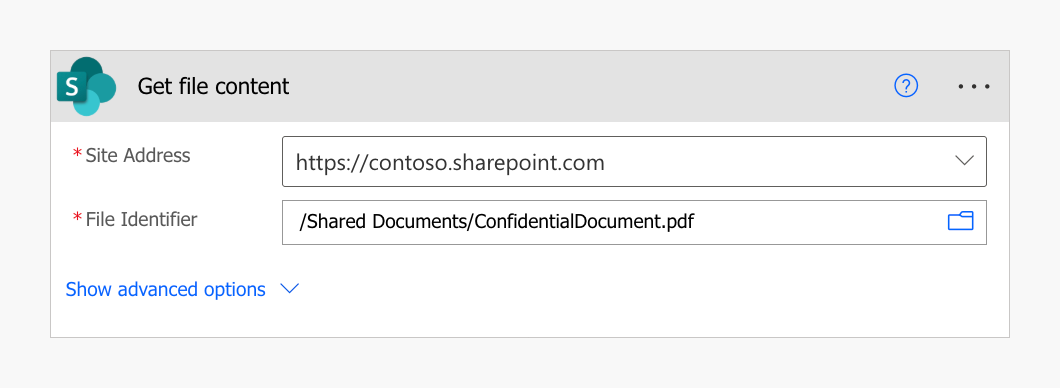
Use the Get file content action to retrieve the source PDF file:
Add a watermark to PDF
This is an action from the Plumsail Documents connector.
- nosearch:
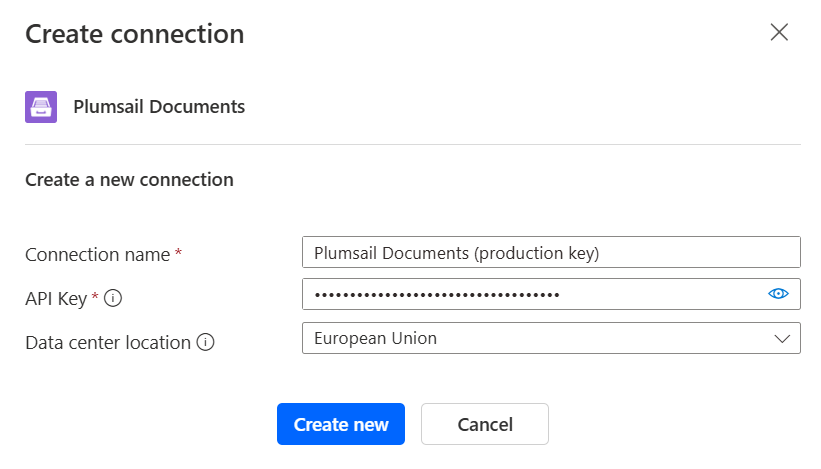
If this is your first time using the Plumsail Documents connector, Power Automate will request you to create a new connection. Provide the following details and then click Create new:
Connection name - you can type any name for the connection, for example Plumsail Documents (production key);
API Key - create an API key in your Plumsail Account, copy it, and paste it into the API Key field;
Data center location - make sure the selected data center location matches one of your account.
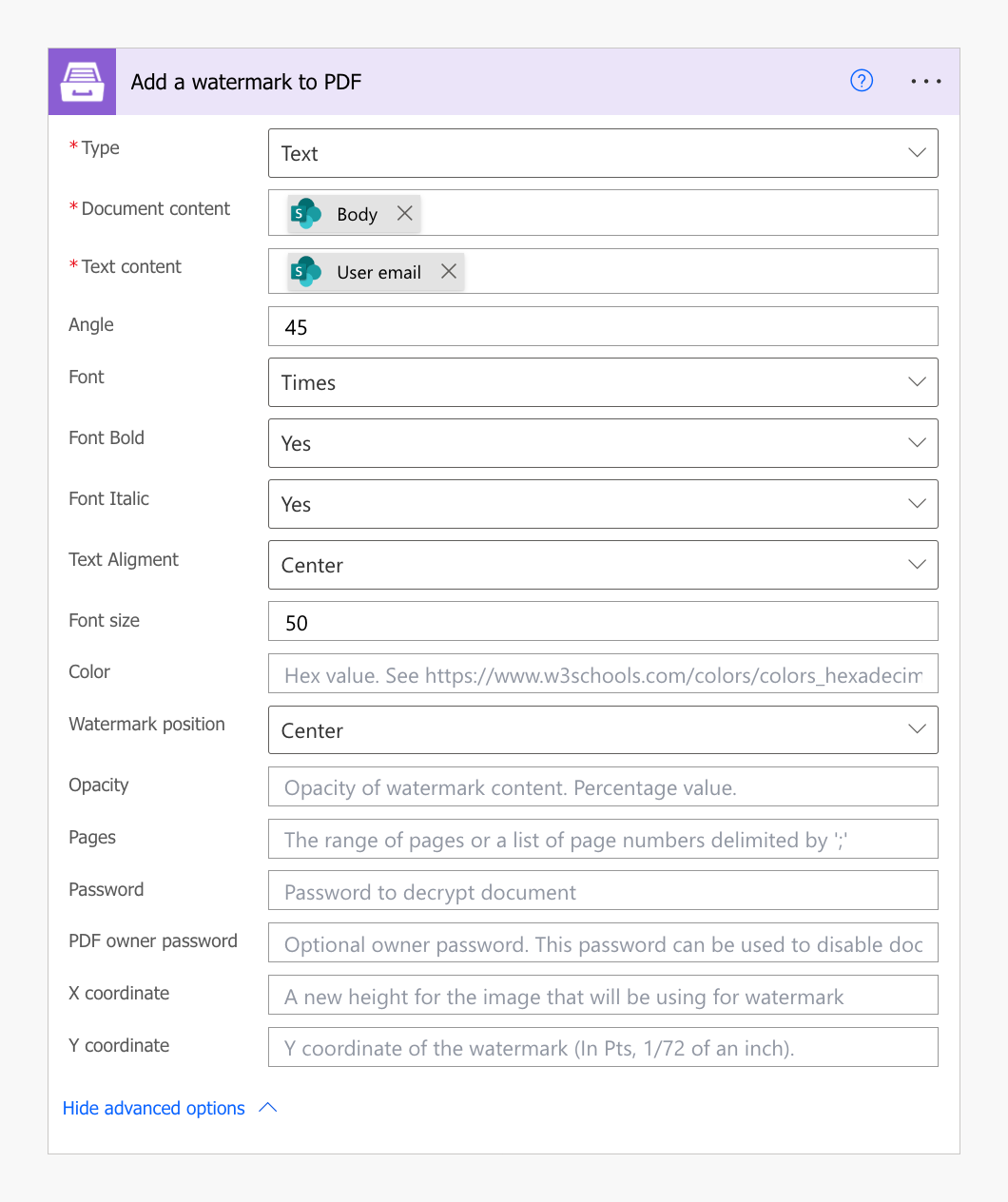
Select Text type of the watermark. Put here File content from the output of the Get file content action and the recipient’s Email from the output of Get item action.
We set custom values for Angle, Font Size, Color, Watermark position, and Opacity.
You may check the detailed information on how to use these and other settings.
Send an email
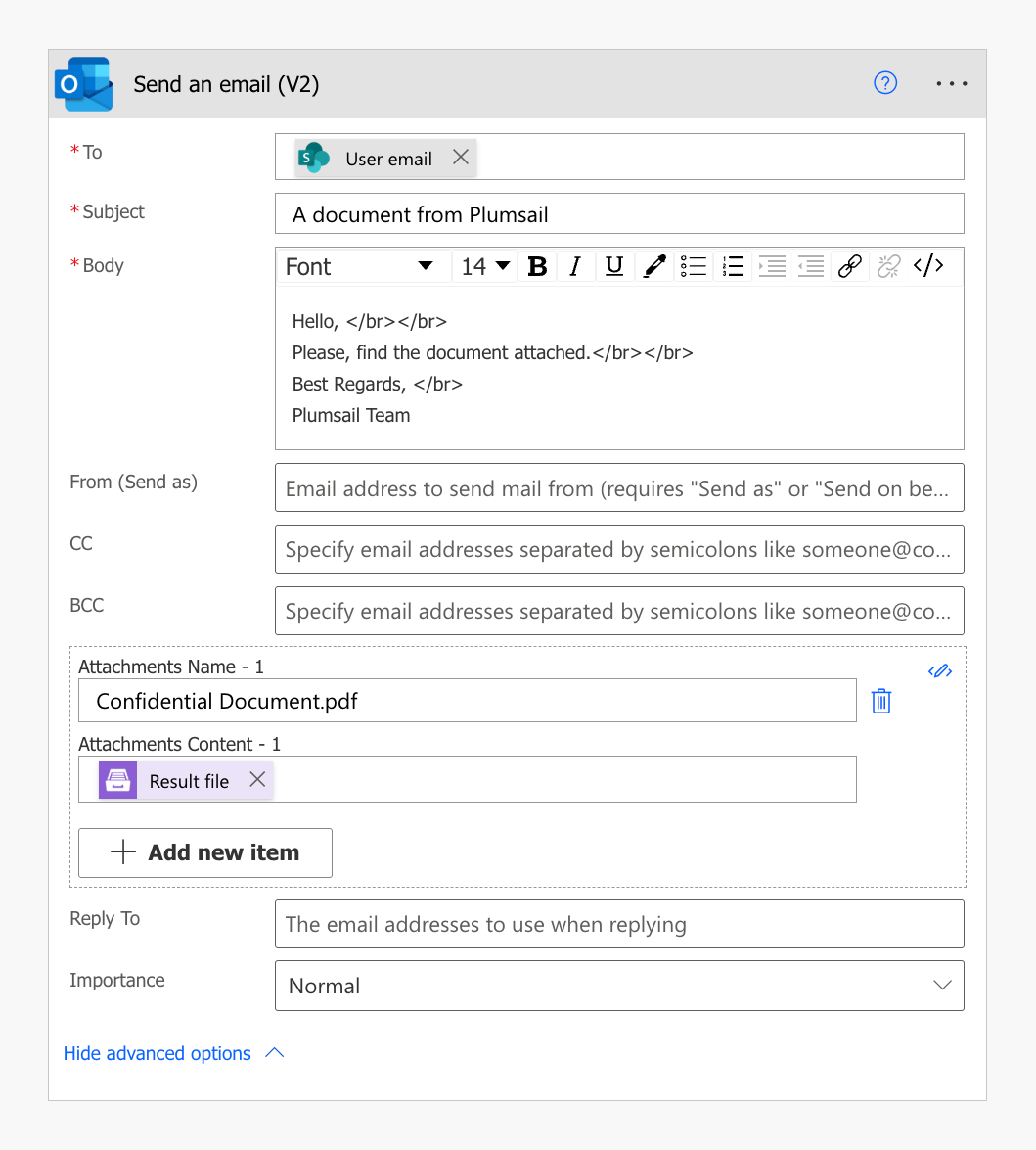
We used Send an email action from Office 365 Outlook connector, but you can choose another one. Attachment content is the output of Add watermark to PDF action.
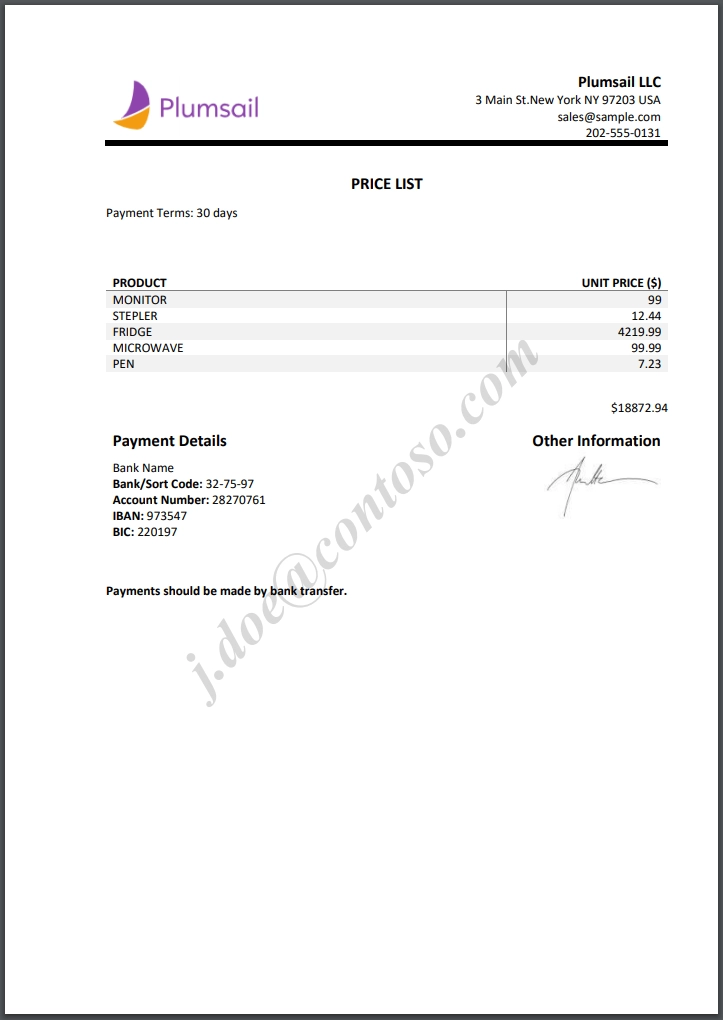
Once completed, the recipient will receive the document with a personalized watermark containing their email address. This helps discourage unauthorized sharing by identifying the recipient.
Conclusion
We hope this series of articles on using the Add watermark to PDF action helps you protect and manage your PDF documents.
If you need more advanced styling options, consider using an HTML watermark. It allows you to fully customize text, layout, and formatting, and include dynamic content.
If you haven’t used Plumsail Documents yet, registering an account would be the first step. It is quite easy to get started.