Demos for DOCX templates
Sales invoice
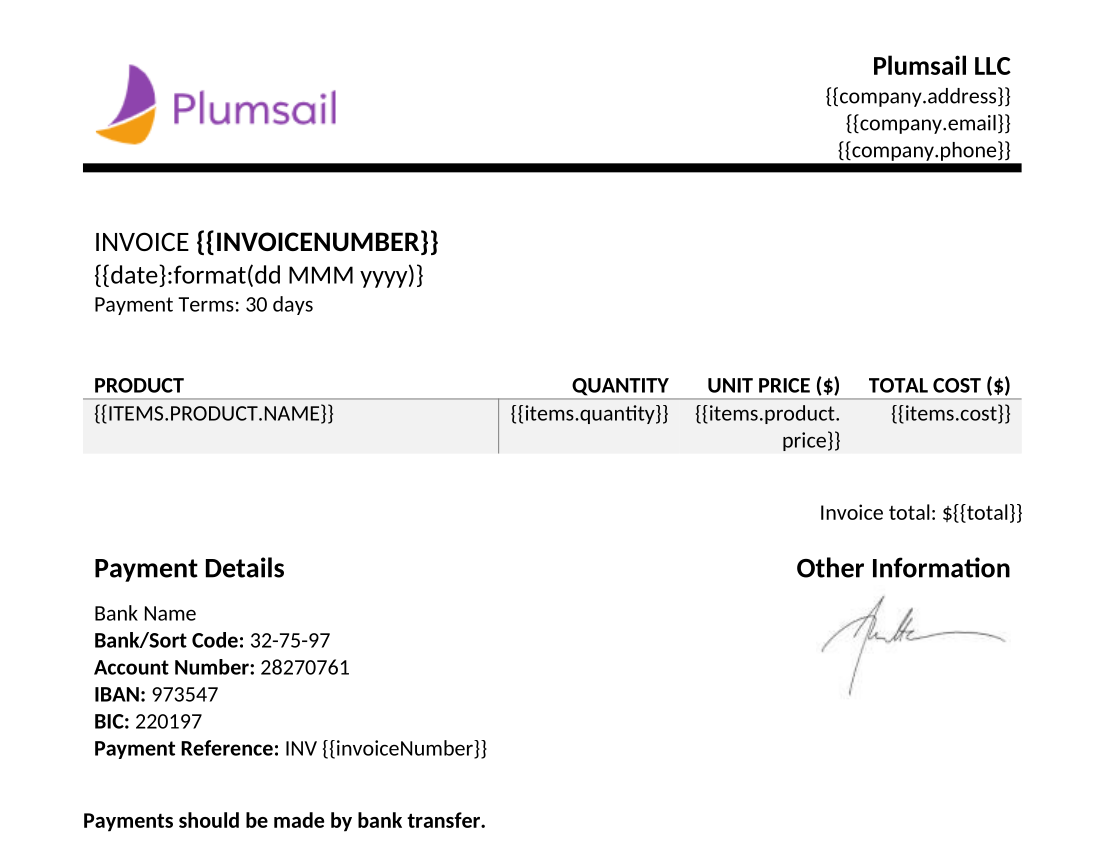
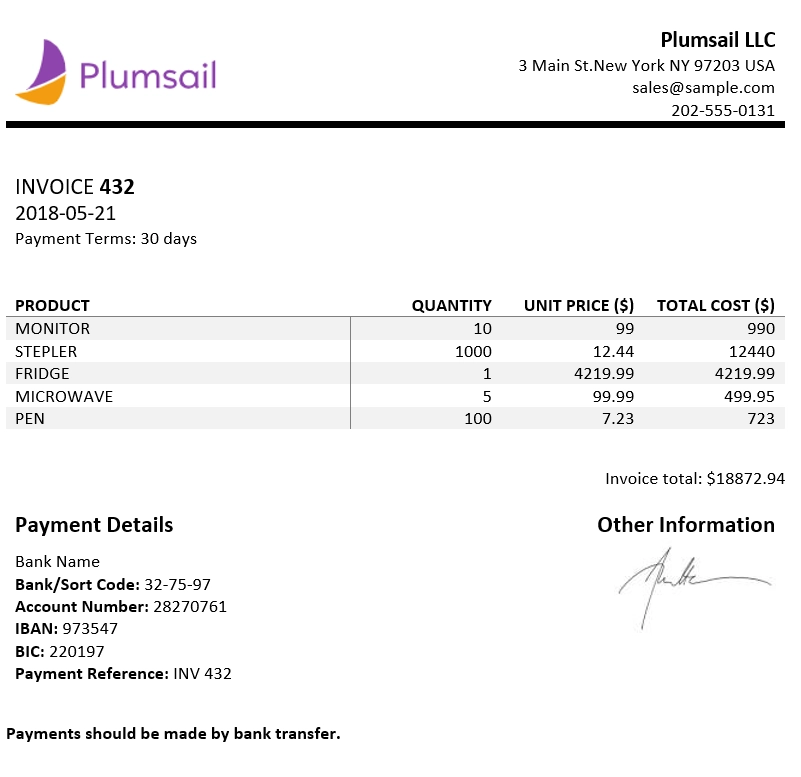
This demo demonstrates how to create a template for an invoice document.
You can find the description of this case in the create DOCX document from template article.
Scroll down to see source data for the template in JSON format.
Template |
Result |
|---|---|
|
|
Template data
{
    "invoiceNumber": "432",
    "company": {
        "email": "sales@sample.com",
        "address": "3 Main St.New York NY 97203 USA",
        "phone": "202-555-0131"
    },
    "date": "2018-05-21",
    "items": [
        {
            "product": {
                "name": "Monitor",
                "price": 99
            },
            "quantity": 10,
            "cost": 990
        },
        {
            "product": {
                "name": "Stepler",
                "price": 12.44
            },
            "quantity": 1000,
            "cost": 12440
        },
        {
            "product": {
                "name": "Fridge",
                "price": 4219.99
            },
            "quantity": 1,
            "cost": 4219.99
        },
        {
            "product": {
                "name": "Microwave",
                "price": 99.99
            },
            "quantity": 5,
            "cost": 499.95
        },
        {
            "product": {
                "name": "Pen",
                "price": 7.23
            },
            "quantity": 100,
            "cost": 723
        }
    ],
    "total": 18872.94
}
Regular table
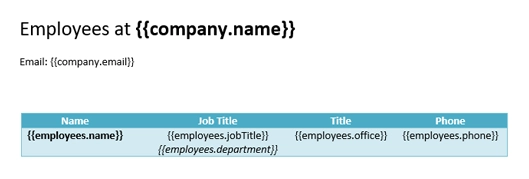
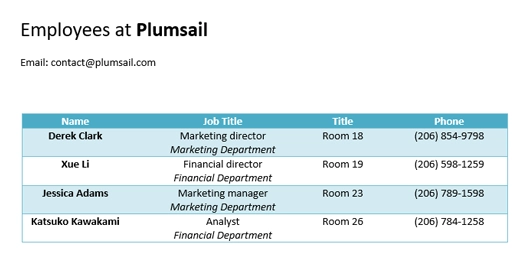
This demo shows how to create a table based on an array of objects. You can find the description of this case in the tables documentation.
Scroll down to see source data for the template in JSON format.
Template |
Result |
|---|---|
|
|
Template data
{
    "company": {
        "name": "Plumsail",
        "email": "contact@plumsail.com"
    },
    "employees": [
        {
            "name": "Derek Clark",
            "jobTitle": "Marketing director",
            "department": "Marketing Department",
            "office": "Room 18",
            "phone": "(206) 854-9798"
        },
        {
            "name": "Xue Li",
            "jobTitle": "Financial director",
            "department": "Financial Department",
            "office": "Room 19",
            "phone": "(206) 598-1259"
        },
        {
            "name": "Jessica Adams",
            "jobTitle": "Marketing manager",
            "department": "Marketing Department",
            "office": "Room 23",
            "phone": "(206) 789-1598"
        },
        {
            "name": "Katsuko Kawakami",
            "jobTitle": "Analyst",
            "department": "Financial Department",
            "office": "Room 26",
            "phone": "(206) 784-1258"
        }
    ]
}
Dynamic table
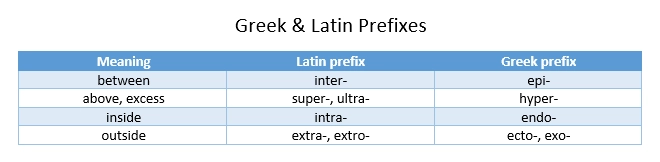
This demo shows how to create dynamic tables from arrays by just adding a single tag into the template document. You can find the description of this case in the tables documentation.
Scroll down to see source data for the template in JSON format.
Template |
Result |
|---|---|

|
|
Template data
{
    "myArray": [
        [
            "Meaning",
            "Latin prefix",
            "Greek prefix"
        ],
        [
            "between",
            "inter-",
            "epi-"
        ],
        [
            "above, excess",
            "super-, ultra-",
            "hyper-"
        ],
        [
            "inside",
            "intra-",
            "endo-"
        ],
        [
            "outside",
            "extra-, extro-",
            "ecto-, exo-"
        ]
    ]
}
Repeat multiple table rows
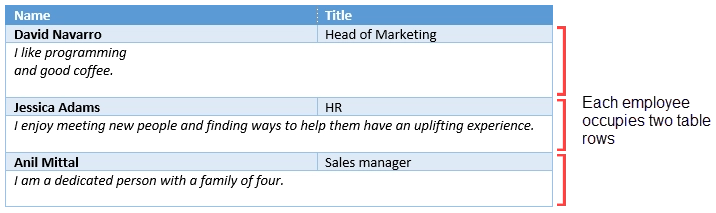
This demo shows how to occupy multiple table rows by properties of a single object from your source array. You can find the description of this case in the tables documentation.
Scroll down to see source data for the template in JSON format.
Template |
Result |
|---|---|

|
|
Template data
[
    {
        "name": "David Navarro",
        "title": "Head of Marketing",
        "aboutMe": "I like programming \nand good coffee."
    },
    {
        "name": "Jessica Adams",
        "title": "HR",
        "aboutMe": "I enjoy meeting new people and finding ways to help them have an uplifting experience."
    },
    {
        "name": "Anil Mittal",
        "title": "Sales manager",
        "aboutMe": "I am a dedicated person with a family of four."
    }
]
Loops and nesting
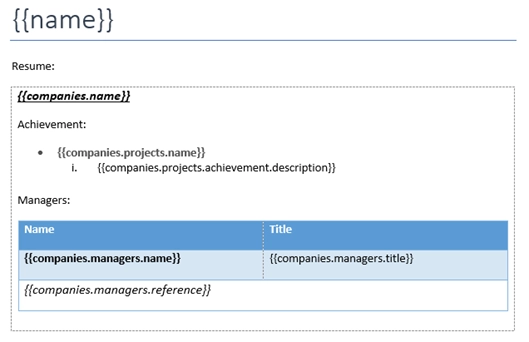
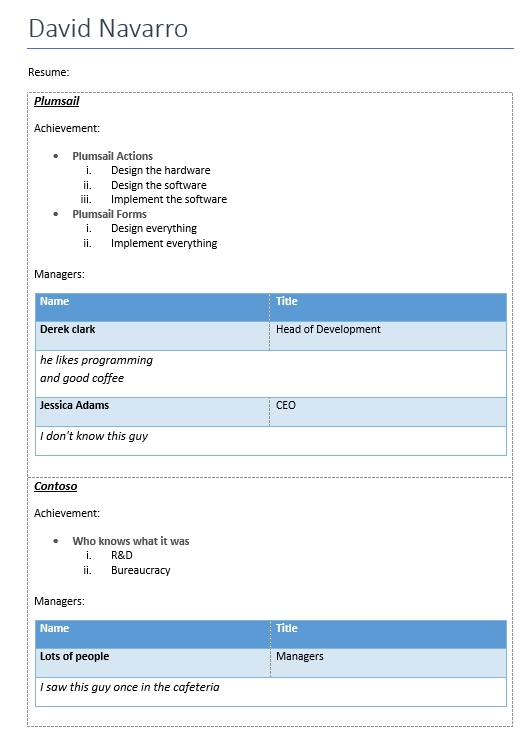
This demo demonstrates how to create complex nested documents based on nested objects and collections. You can find the description of this case in the loops and nesting documentation.
Scroll down to see source data for the template in JSON format.
Template |
Result |
|---|---|
|
|
Template data
[
    {
        "name": "David Navarro",
        "companies": [
            {
                "name": "Plumsail",
                "projects": [
                    {
                        "name": "Plumsail Actions",
                        "achievement": [
                            {
                                "description": "Design the hardware"
                            },
                            {
                                "description": "Design the software"
                            },
                            {
                                "description": "Implement the software"
                            }
                        ]
                    },
                    {
                        "name": "Plumsail Forms",
                        "achievement": [
                            {
                                "description": "Design everything"
                            },
                            {
                                "description": "Implement everything"
                            }
                        ]
                    }
                ],
                "managers": [
                    {
                        "name": "Derek Clark",
                        "title": "Head of Development",
                        "reference": "he likes programming \nand good coffee"
                    },
                    {
                        "name": "Jessica Adams",
                        "title": "CEO",
                        "reference": "I don't know this guy"
                    }
                ]
            },
            {
                "name": "Contoso",
                "projects": [
                    {
                        "name": "Who knows what it was",
                        "achievement": [
                            {
                                "description": "R&D"
                            },
                            {
                                "description": "Bureaucracy"
                            }
                        ]
                    }
                ],
                "managers": [
                    {
                        "name": "Lots of people",
                        "title": "Managers",
                        "reference": "I saw this guy once in the cafeteria"
                    }
                ]
            }
        ]
    },
    {
        "name": "Martin Harris",
        "companies": [
            {
                "name": "Plumsail",
                "projects": [
                    {
                        "name": "Plumsail Org Chart",
                        "achievement": [
                            {
                                "description": "Mentor"
                            },
                            {
                                "description": "Teach"
                            }
                        ]
                    }
                ],
                "managers": [
                    {
                        "name": "Anil Mittal",
                        "title": "Founder",
                        "reference": "I like the way he laughs"
                    }
                ]
            },
            {
                "name": "Contoso",
                "projects": [
                    {
                        "name": "Whatever it was",
                        "achievement": [
                            {
                                "description": "R&D"
                            },
                            {
                                "description": "Documentation"
                            }
                        ]
                    },
                    {
                        "name": "Another old project",
                        "achievement": [
                            {
                                "description": "Research"
                            },
                            {
                                "description": "Development"
                            }
                        ]
                    }
                ],
                "managers": [
                    {
                        "name": "Brenda Coel",
                        "title": "Head of Heads",
                        "reference": "he knows the stuff"
                    },
                    {
                        "name": "Xue Li",
                        "title": "CEO",
                        "reference": "Brenda said he knows the stuff"
                    }
                ]
            }
        ]
    }
]
Links and endnotes
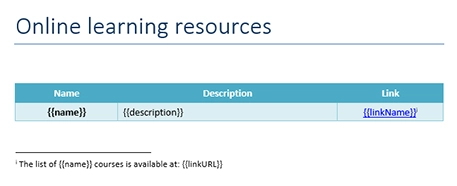
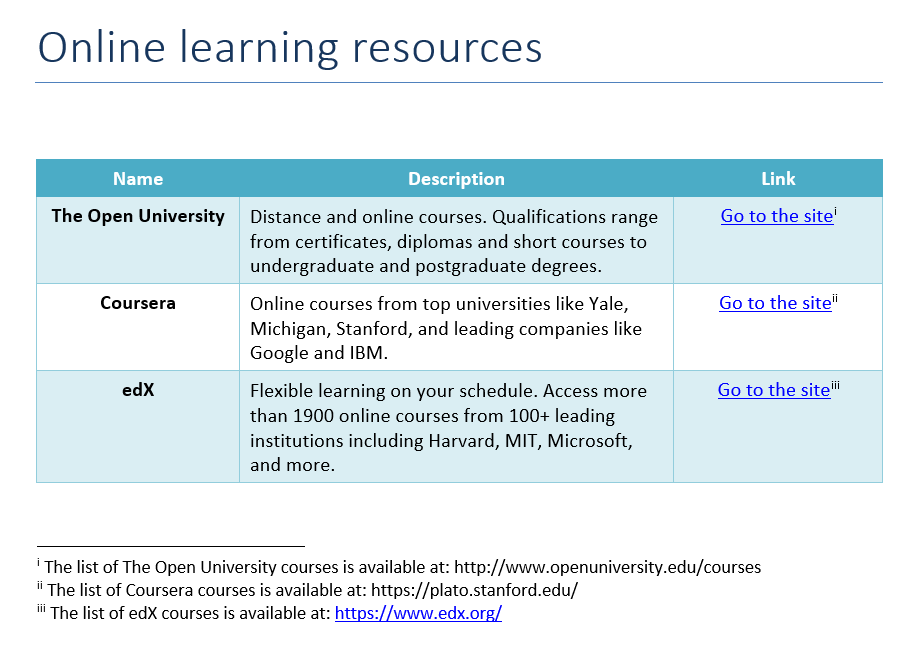
This demo shows how to add external links and endnotes to your document. You can find the description of this case in the links and endnotes section of the documentation.
Scroll down to see source data for the template in JSON format.
Template |
Result |
|---|---|
|
|
Template data
[
    {
        "name": "The Open University",
        "description": "Distance and online courses. Qualifications range from certificates, diplomas and short courses to undergraduate and postgraduate degrees.",
        "linkName": "Go to the site",
        "linkURL": "http://www.openuniversity.edu/courses"
    },
    {
        "name": "Coursera",
        "description": "Online courses from top universities like Yale, Michigan, Stanford, and leading companies like Google and IBM.",
        "linkName": "Go to the site",
        "linkURL": "https://plato.stanford.edu/"
    },
    {
        "name": "edX",
        "description": "Flexible learning on your schedule. Access more than 1900 online courses from 100+ leading institutions including Harvard, MIT, Microsoft, and more.",
        "linkName": "Go to the site",
        "linkURL": "https://www.edx.org/"
    }
]
Pie charts
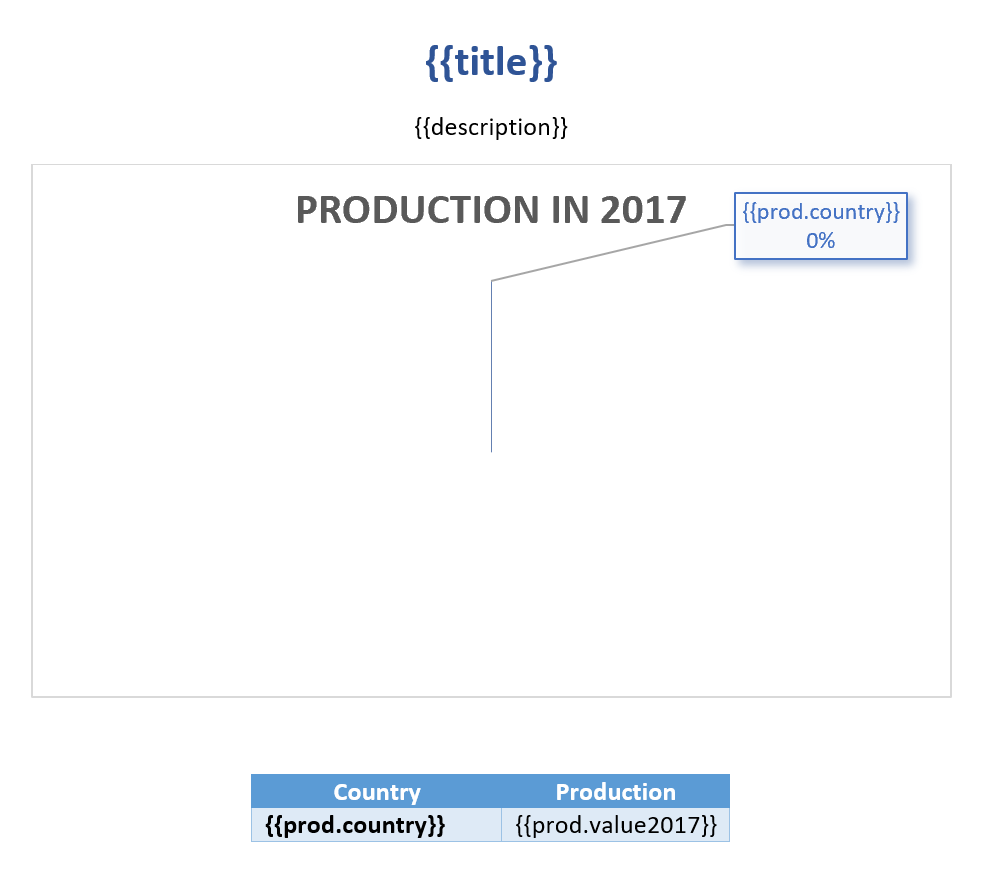
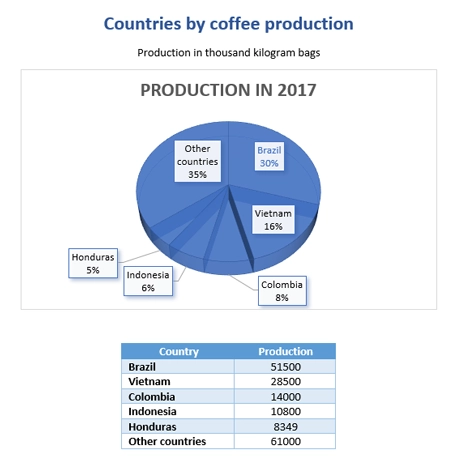
This demo shows how to build a pie chart in a MS Word document. You can find the description of this case in the pie charts documentation.
Scroll down to see source data for the template in JSON format.
Template |
Result |
|---|---|
|
|
Template data
[
    {
        "title": "Countries by coffee production",
        "description": "Production in thousand kilogram bags",
        "prod": [
            {
                "country": "Brazil",
                "value2017": 51500
            },
            {
                "country": "Vietnam",
                "value2017": 28500
            },
            {
                "country": "Colombia",
                "value2017": 14000
            },
            {
                "country": "Indonesia",
                "value2017": 10800
            },
            {
                "country": "Honduras",
                "value2017": 8349
            },
            {
                "country": "Other countries",
                "value2017": 61000
            }
        ]
    }
]
Clustered column charts
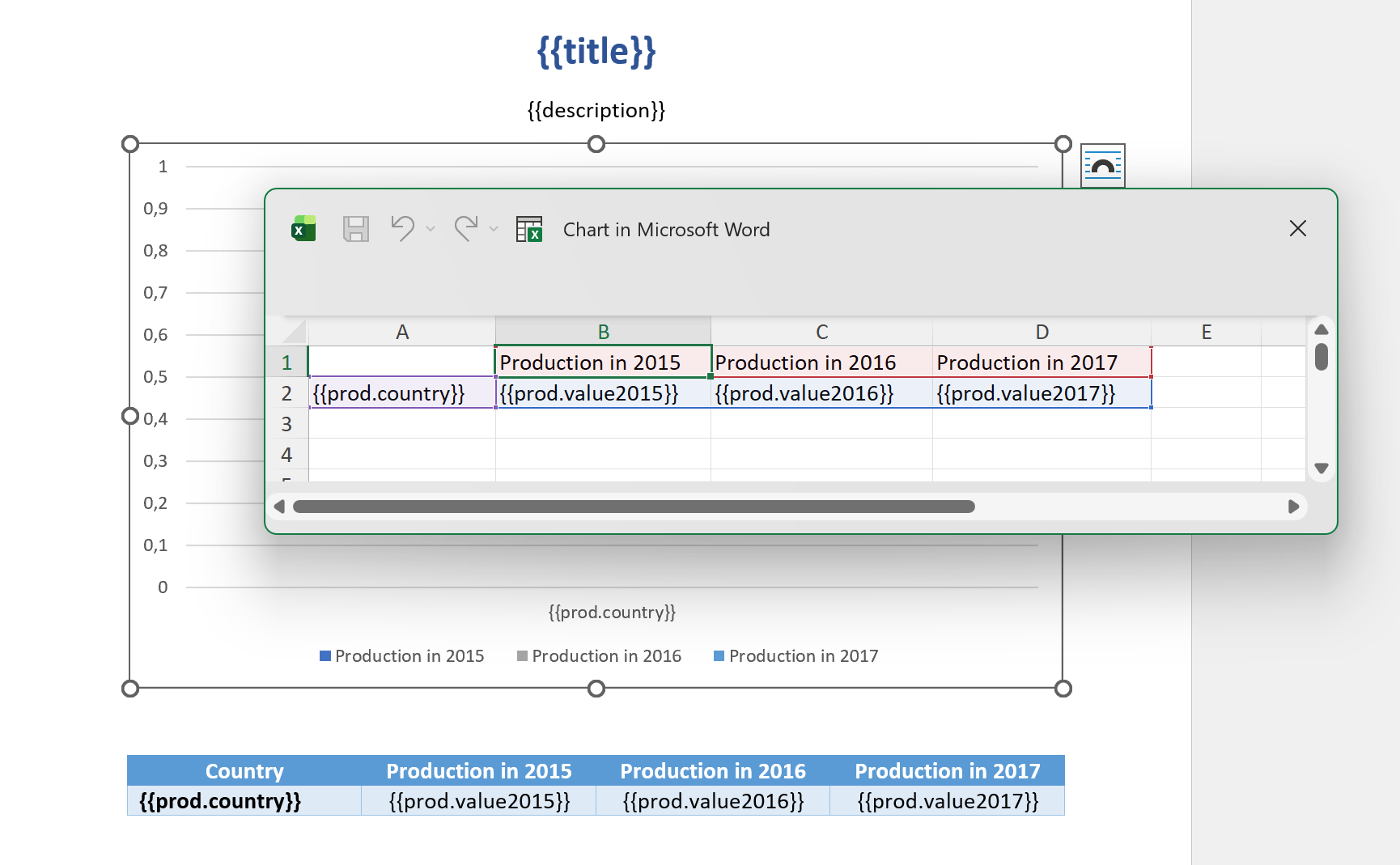
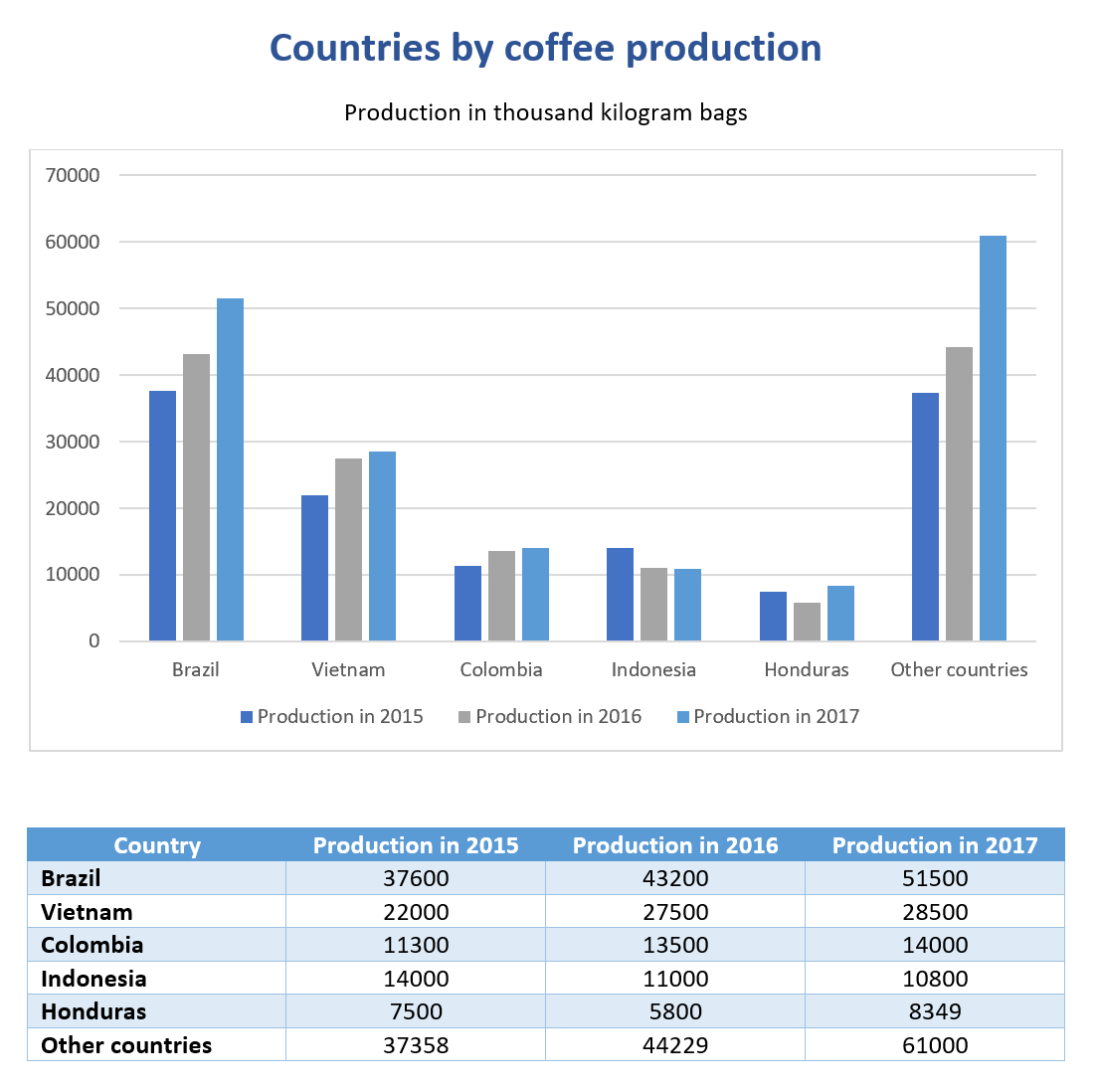
This demo shows how to build a clustered column chart in a MS Word document. You can find the description of this case in the clustered column charts documentation.
Scroll down to see source data for the template in JSON format.
Template |
Result |
|---|---|
|
|
Template data
[
    {
        "title": "Countries by coffee production",
        "description": "Production in thousand kilogram bags",
        "prod": [
            {
                "country": "Brazil",
                "value2015": 37600,
                "value2016": 43200,
                "value2017": 51500
            },
            {
                "country": "Vietnam",
                "value2015": 22000,
                "value2016": 27500,
                "value2017": 28500
            },
            {
                "country": "Colombia",
                "value2015": 11300,
                "value2016": 13500,
                "value2017": 14000
            },
            {
                "country": "Indonesia",
                "value2015": 14000,
                "value2016": 11000,
                "value2017": 10800
            },
            {
                "country": "Honduras",
                "value2015": 7500,
                "value2016": 5800,
                "value2017": 8349
            },
            {
                "country": "Other countries",
                "value2015": 37358,
                "value2016": 44229,
                "value2017": 61000
            }
        ]
    }
]
Conditionally hide content
Note
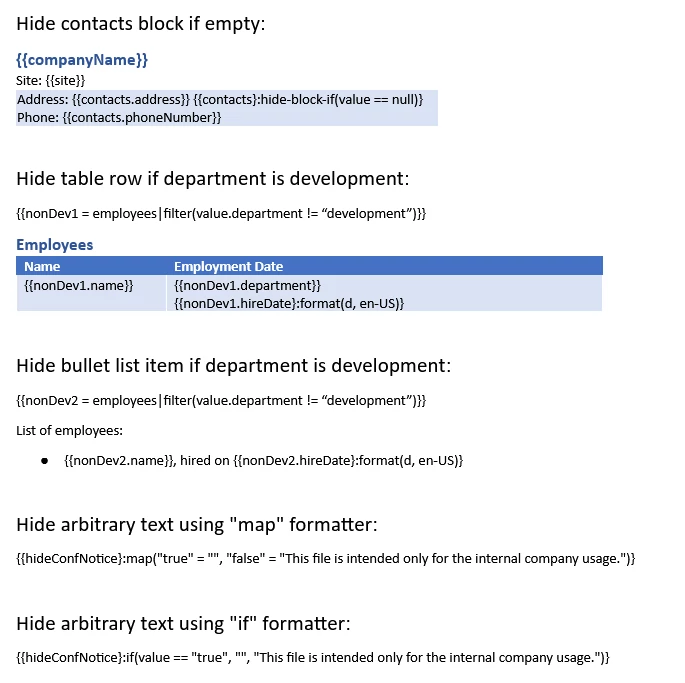
If you use multiple bullet lists or tables, it is better to create a separate alias for each case (nonDev1 and nonDev2 in this sample).
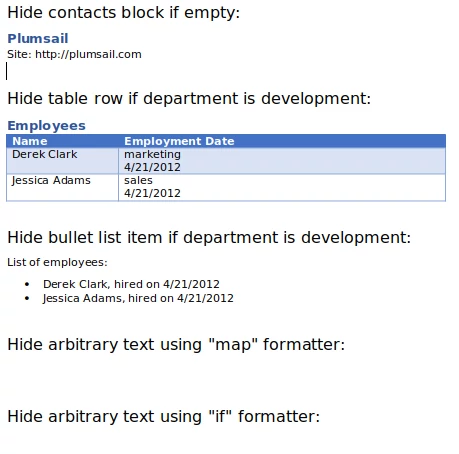
This demo shows how to hide table rows, bullet list items and arbitrary sections of a document.
You can find the description of this case in the conditionally hide content documentation.
Scroll down to see source data for the template in JSON format.
Template |
Result |
|---|---|
|
|
Template data
{
  "companyName": "Plumsail",
  "site": "http://plumsail.com",
  "contacts": null,
  "employees": [
    {
      "name": "Derek Clark",
      "hireDate": "2012-04-21T18:25:43-05:00",
      "department": "marketing"
    },
    {
      "name": "Jessica Adams",
      "hireDate": "2012-04-21T18:25:43-05:00",
      "department": "sales"
    },
    {
      "name": "Anil Mittal",
      "hireDate": "2016-04-11T14:22:13-02:00",
      "department": "development"
    }
  ],
  "hideConfNotice": "true"
}
Watermarks
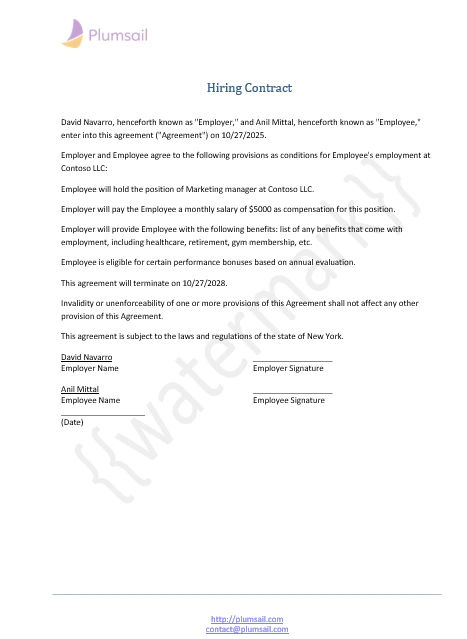
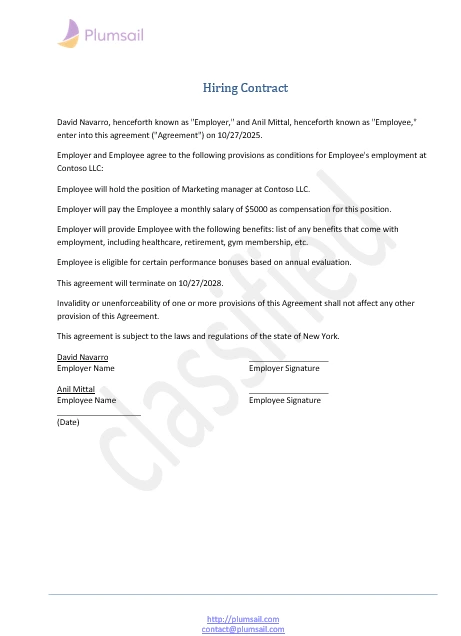
This demo shows how to add a watermark to a document.
JSON representation of the object:
Template data
{
   "watermark": "Classified"
}
To add a watermark please navigate to the Design tab in MS Word, click Watermark, then Custom watermark, choose Text watermark option and simply add {{watermark}} tag into the Text field.
Template |
Result |
|---|---|
|
|
QR codes
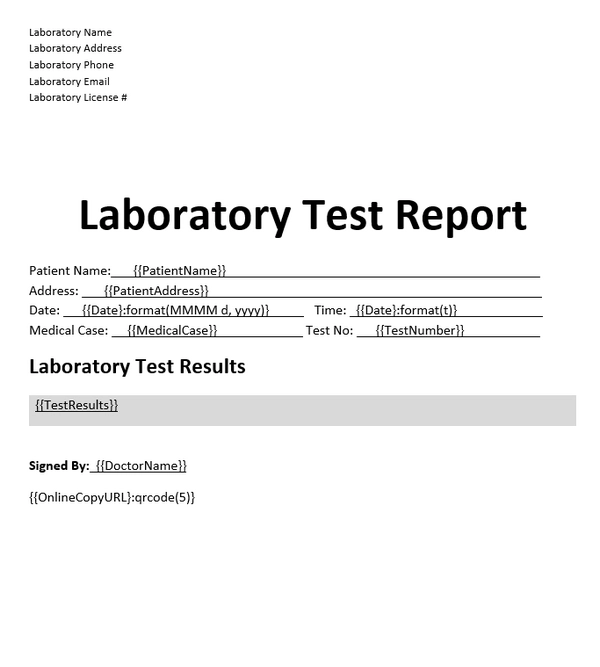
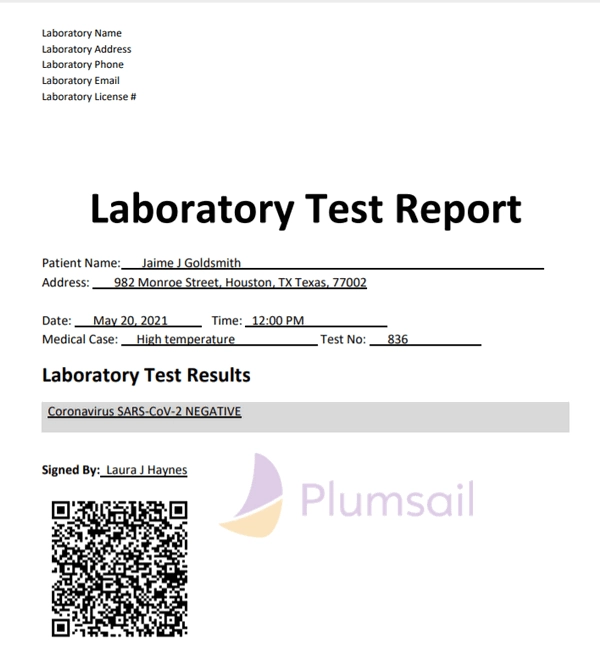
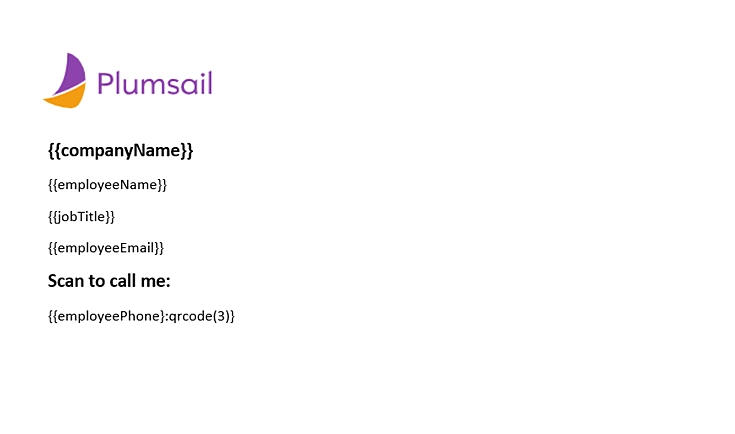
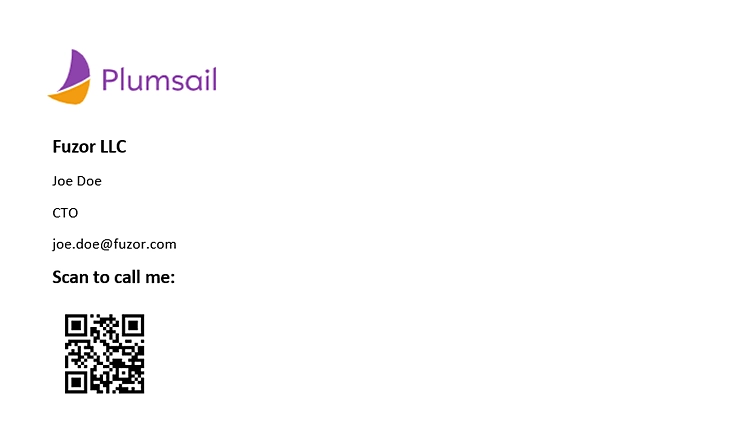
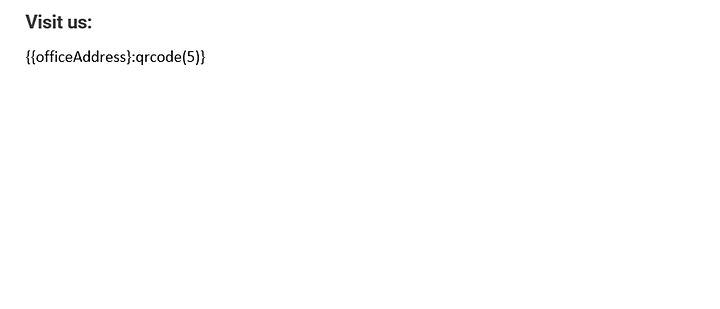
This demo shows how to add QR codes to a document.
JSON representation of the object:
Template data
{
   "OnlineCopyURL": "https://plumsail.com/"
}
{
   "employeePhone": "tel:+1-234-555-6677"
}
{
   "officeAddress": "geo:40.74018922726678,-74.00869124083648"
}
To add a QR code add qrcode(size) tag into your docx template. Find some examples below:
Template |
Result |
|---|---|
Template |
Result |
|---|---|
Template |
Result |
|---|---|

Barcodes
This demo shows how to add Barcodes to a document.
JSON representation of the object:
Template data
{
   "barcode": "test barcode"
}
To add a Barcode add {{value}:barcode(barcode_type, width, height)} tag into your docx template.
Please review this how-to .
Template |
Result |
|---|---|