Tokens in Classic engine
This article explains how to use tokens in the Classic template engine.
Token basics
Tokens in Classic template engine are placeholders to insert dynamic data. They act as variables and replaced with actual values when the document is generated. They are enclosed in {{curly braces}} and represent fields from a data source like JSON.
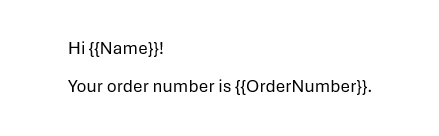
For example, if you’re generating a document and you want to insert the client’s name dynamically, you might define a token like {{Name}}.
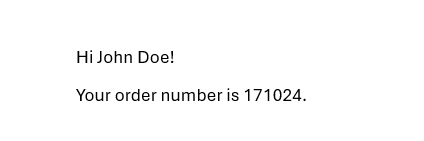
When generating the document, this token would be replaced with the actual name, such as “John Doe”.
Template:
JSON:
{
  "Name": "John Doe",
  "OrderNumber": "171024"
}
Result:
Plumsail tokens can also be used in more complex ways, allowing you to
format values, for example
{{date}:format(dd.MM.yyyy)}.perform operations, for example
{{sorted = customers|sort(lastName, ASC)}}automatically display properties from some object, for example
{{companies.name}},{{companies.projects.name}}.
System tokens
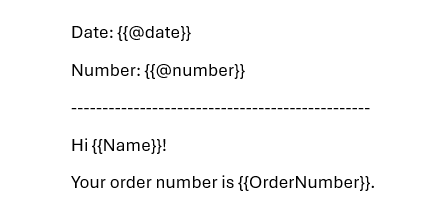
There are two system (predefined) tokens: {{@date}} and {{@number}}.
System tokens use @ as a prefix.
{{@date}}token provides full current date with time.{{@number}}token inserts unique numbers in a document or in Process’ parameters.
Note
Review the article to get more information about automatic numbering.
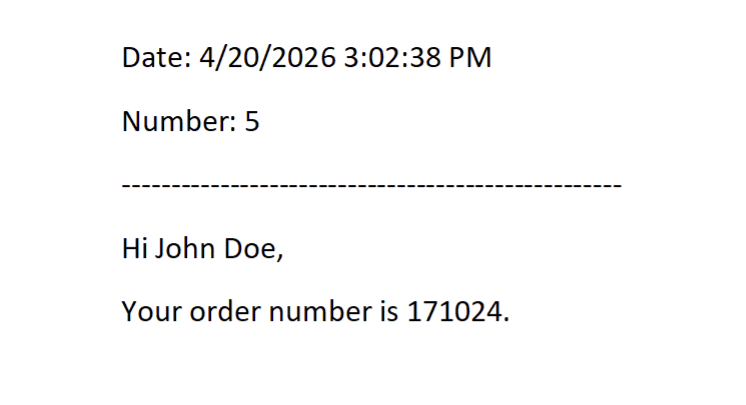
If we add the system tokens to our template:
And use the same JSON:
{
  "Name": "John Doe",
  "OrderNumber": "171024"
}
We’ll get this result:
Tokens in Processes
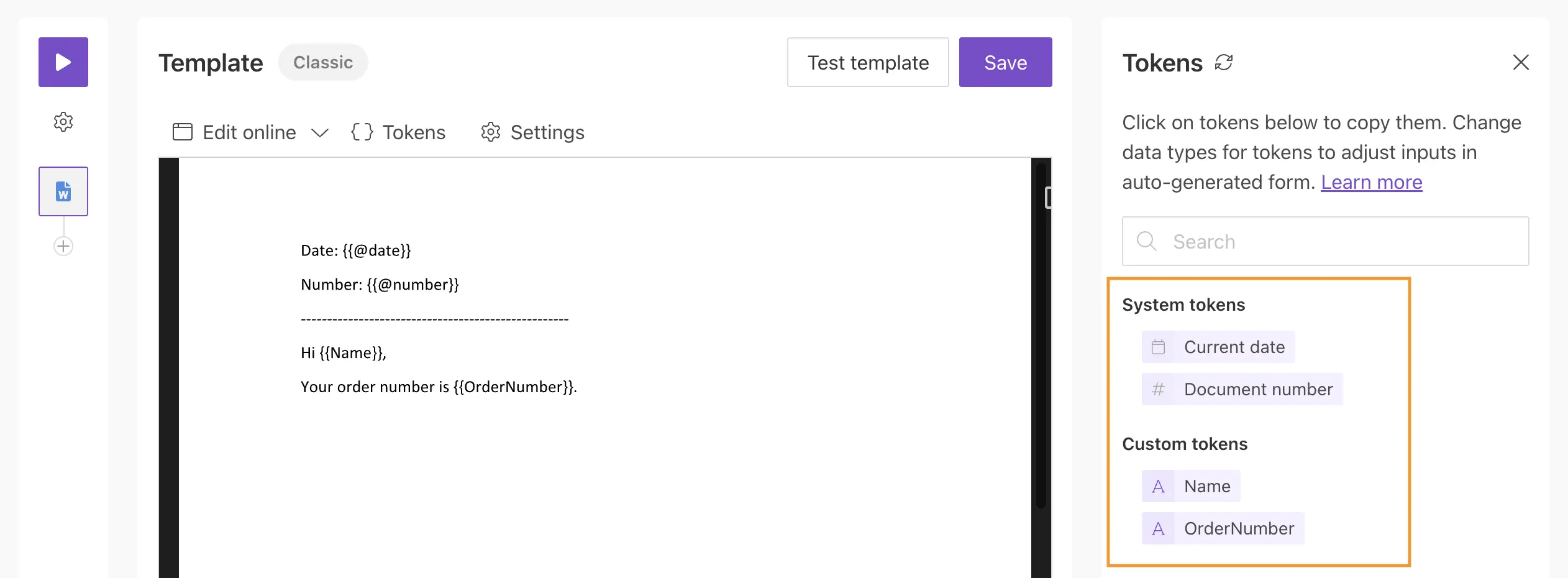
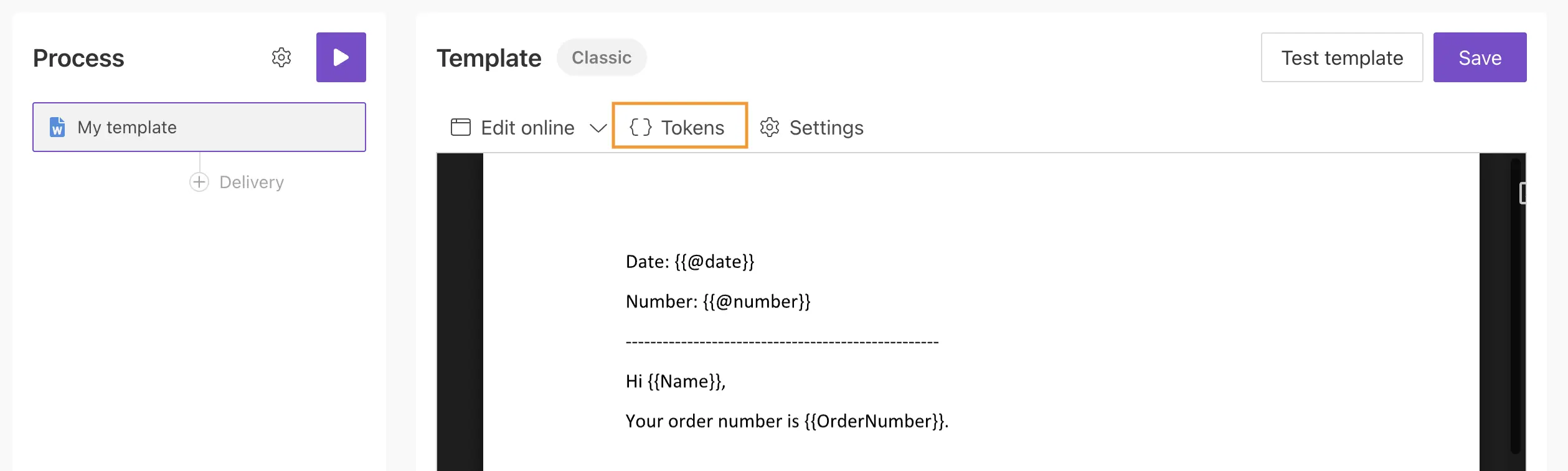
Tokens that are used in the template are available in the tokens panel in Processes.
To open the panel, click the Tokens button above the template editor:
You can also change the types of tokens extracted from your template. Learn how it works.