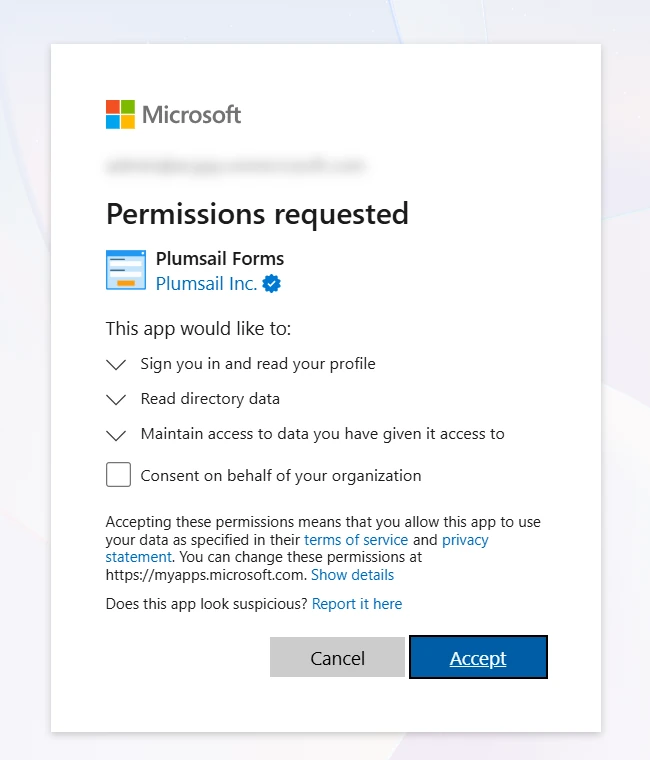
Grant Plumsail Forms access to selected SharePoint sites
When you connect Plumsail Forms to SharePoint for the first time, Plumsail requests permissions to access your whole tenant. If you want to restrict the scope to selected SharePoint sites, follow this guide.
Prerequisites
You need a global admin account for your SharePoint tenant.
This account must have access to the sites you plan to give permissions for.
Step-by-step guide
Open PowerShell and execute the following command:
irm "https://forms.plumsail.com/powershell/Grant-SelectedSitesPermissions.ps1" | iex
A text-based interactive setup will begin. Enter the URLs of the SharePoint sites that Plumsail Forms should have access to, one per line. After you add all the URLs, press Enter on an empty input line.
Note
This script overrides existing permissions for Plumsail Forms. Make sure to list all sites that should be accessible to Plumsail Forms every time you run this script.

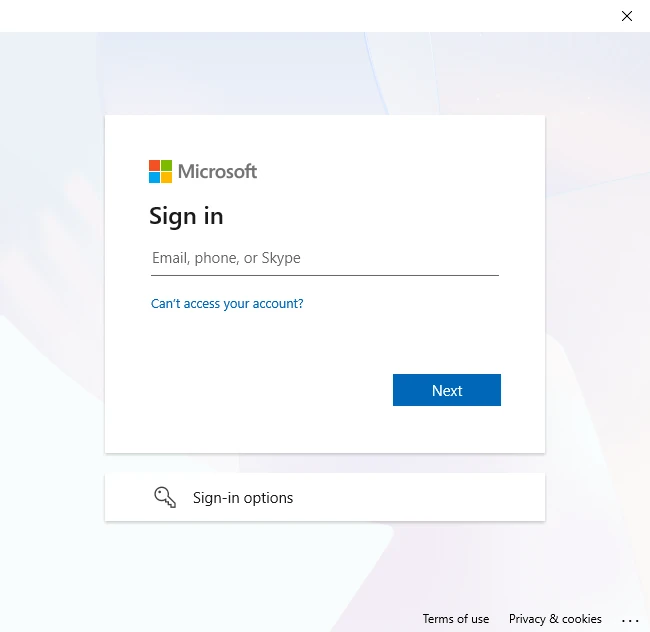
A sign-in window will open. Sign in as the global admin of your tenant.
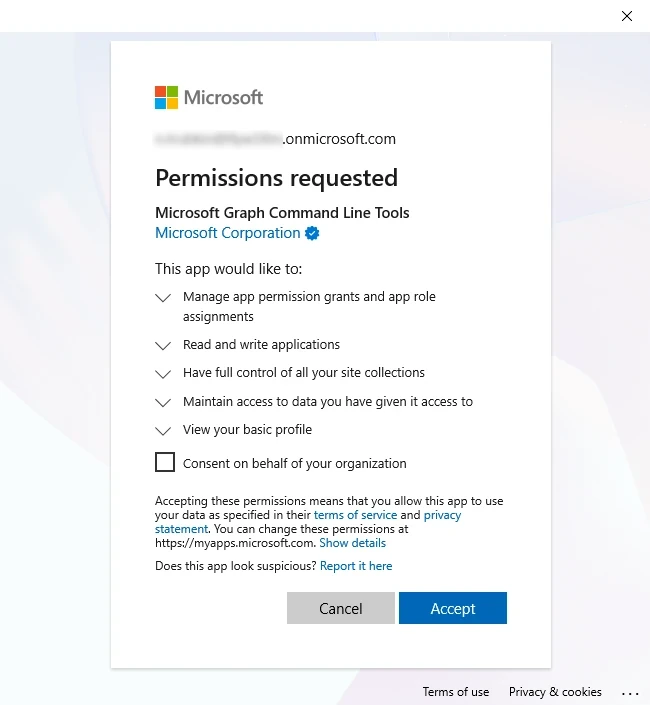
In another pop-up window, give permissions to Microsoft Graph Command Line Tools. This app is used by the script to add required permissions for Plumsail Forms.
Note
After the script finishes, you can delete Microsoft Graph Command Line Tools app from your Microsoft Entra ID.
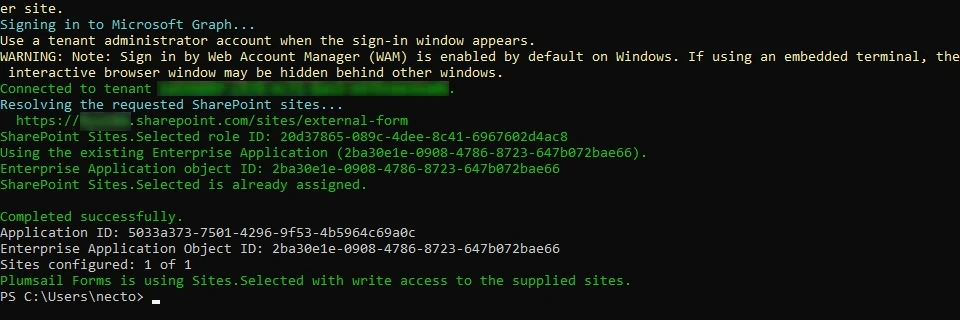
Wait for the script to finish.
Open your form in the designer and move to Connection settings.
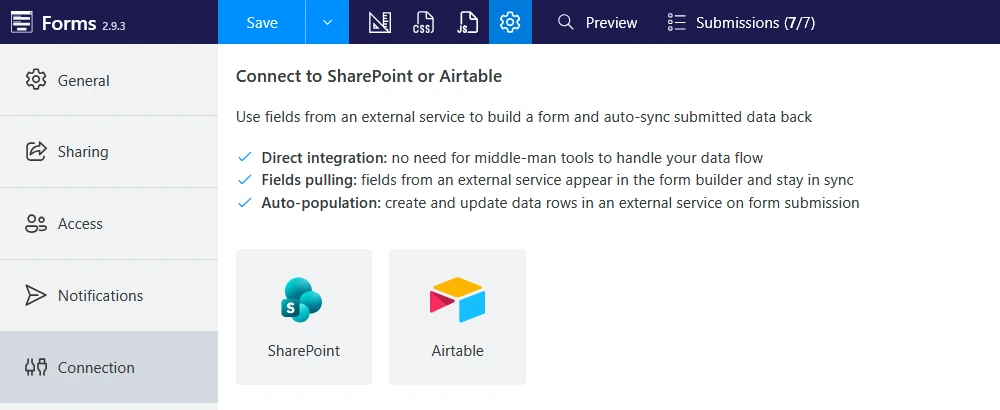
Choose SharePoint and enter one of the selected SharePoint sites.
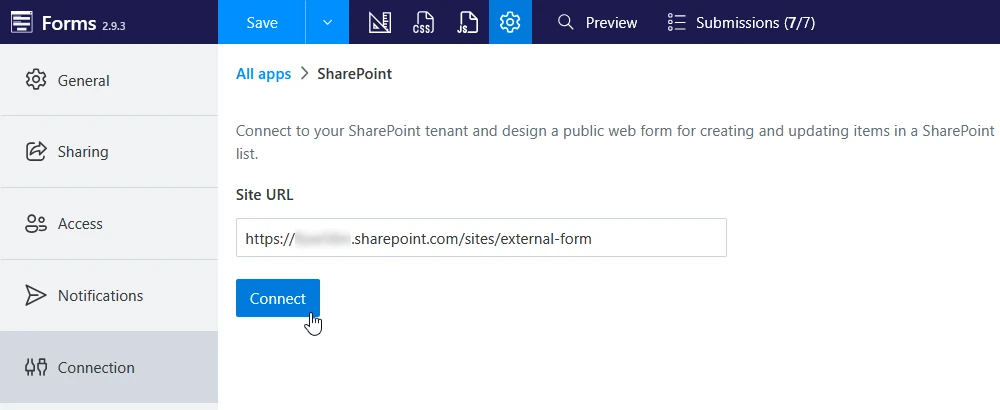
A sign in window will appear. Sign in as a SharePoint admin and grant delegated permissions if requested.
This is used solely to link your Plumsail account to your SharePoint tenant. The Designer confirms that you have sufficient permissions in SharePoint and never acts beyond your own access rights.
Note
If you aren’t a SharePoint admin, invite a user with the appropriate permissions to your team. They can then access your form and follow steps 6-8 using their own account.