Processing submissions in n8n
n8n is a workflow automation platform that lets you connect and handle hundreds of different services through a visual editor with native AI capabilities. Each workflow is made up of several nodes: specific actions that trigger or process the workflow data.
Plumsail Forms provides a verified community node to handle form submissions in n8n. To start using it, check out n8n’s guide on installing verified community nodes, or follow our guide below:
With n8n and Plumsail Forms, you can:
Store form submissions in your preferred database
Send notifications to your team chat on new submissions
Interpret and categorize user feedback with an AI agent
Update inventory systems based on order form submissions
…and much more
Note
The amount of data that can be handled by Plumsail Forms depends on your current subscription plan.
Handle submissions
Use the Form is submitted trigger as a workflow entry point to handle new submissions.
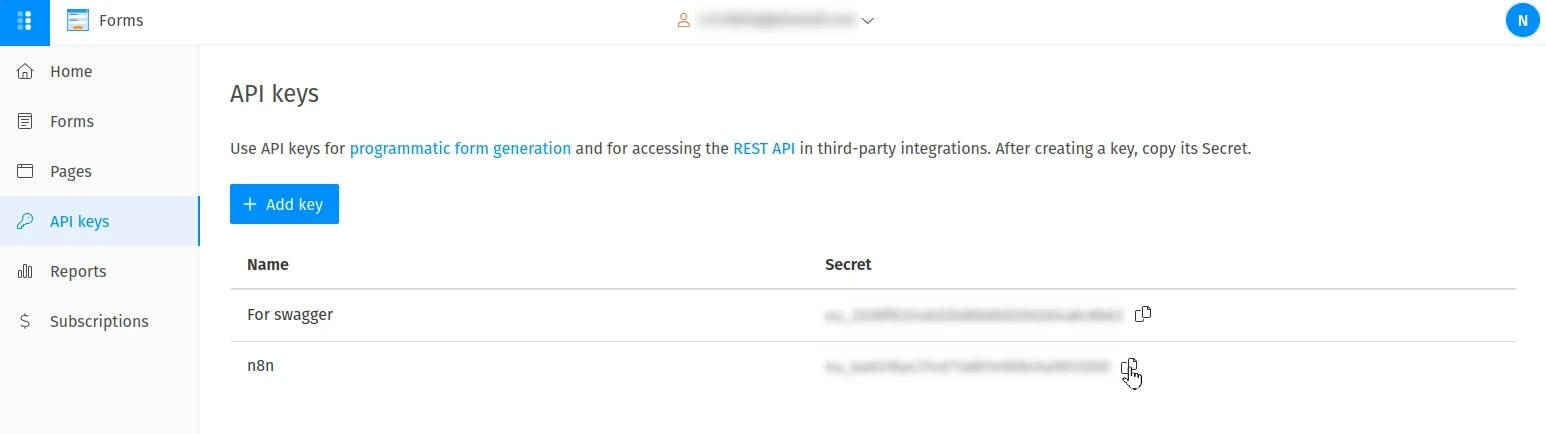
Open your Plumsail account, move to API keys page, create an API key, and copy its secret:
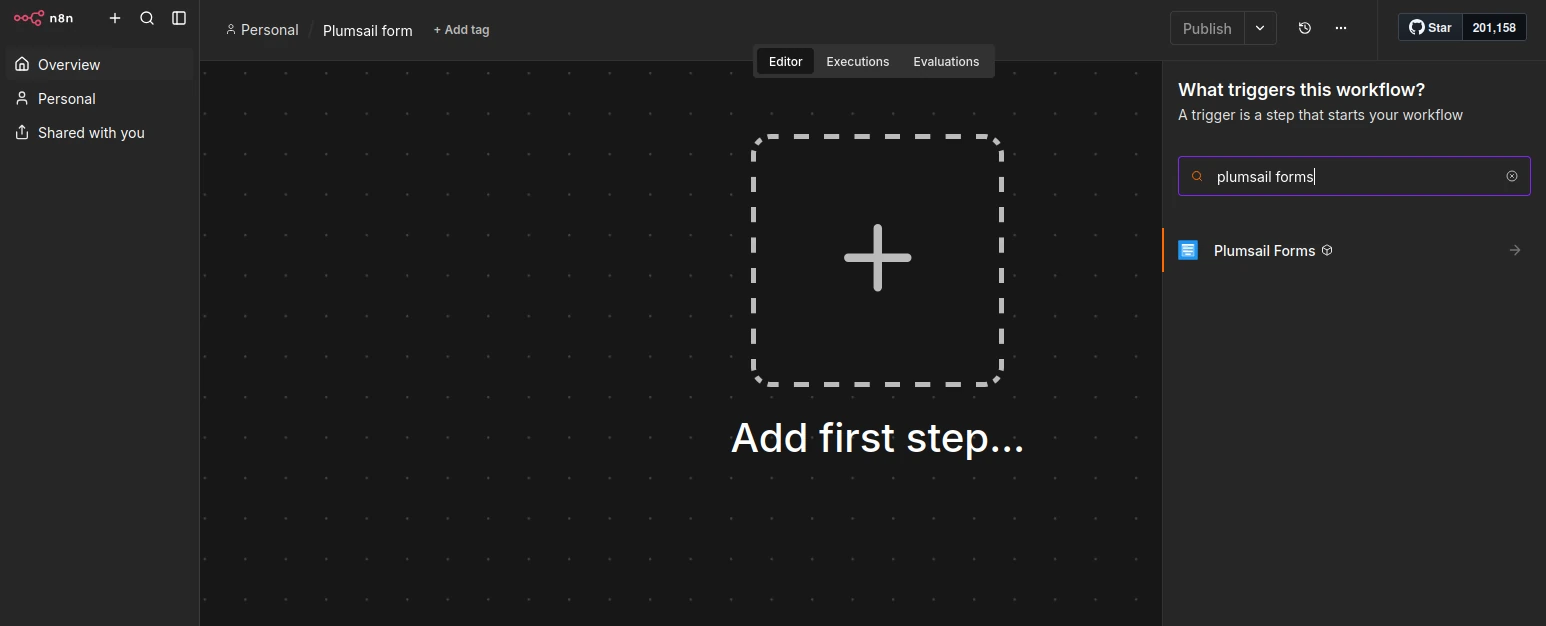
In a new n8n workflow, click Add first step and search for Plumsail Forms in the opened panel:
Select the Plumsail Forms node and choose Form is submitted trigger:
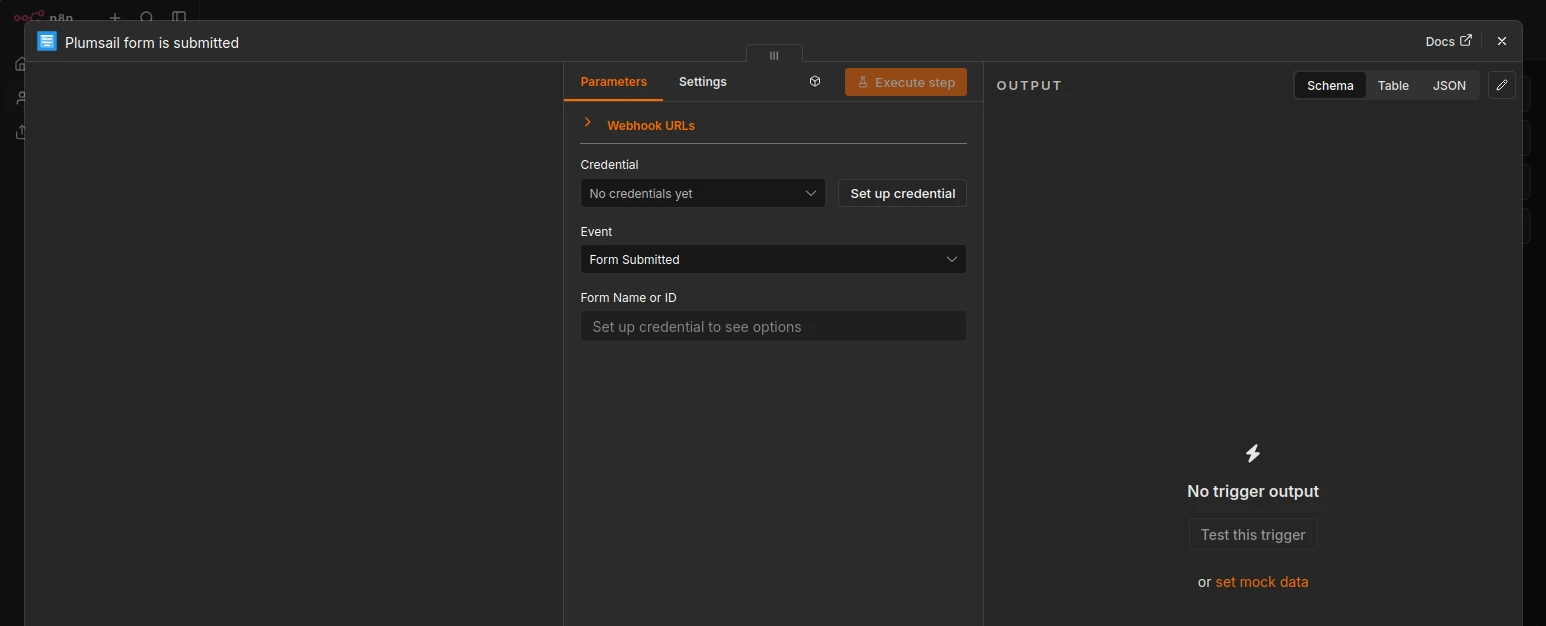
In the opened configuration window, click Set up credential and paste your Plumsail API key secret:
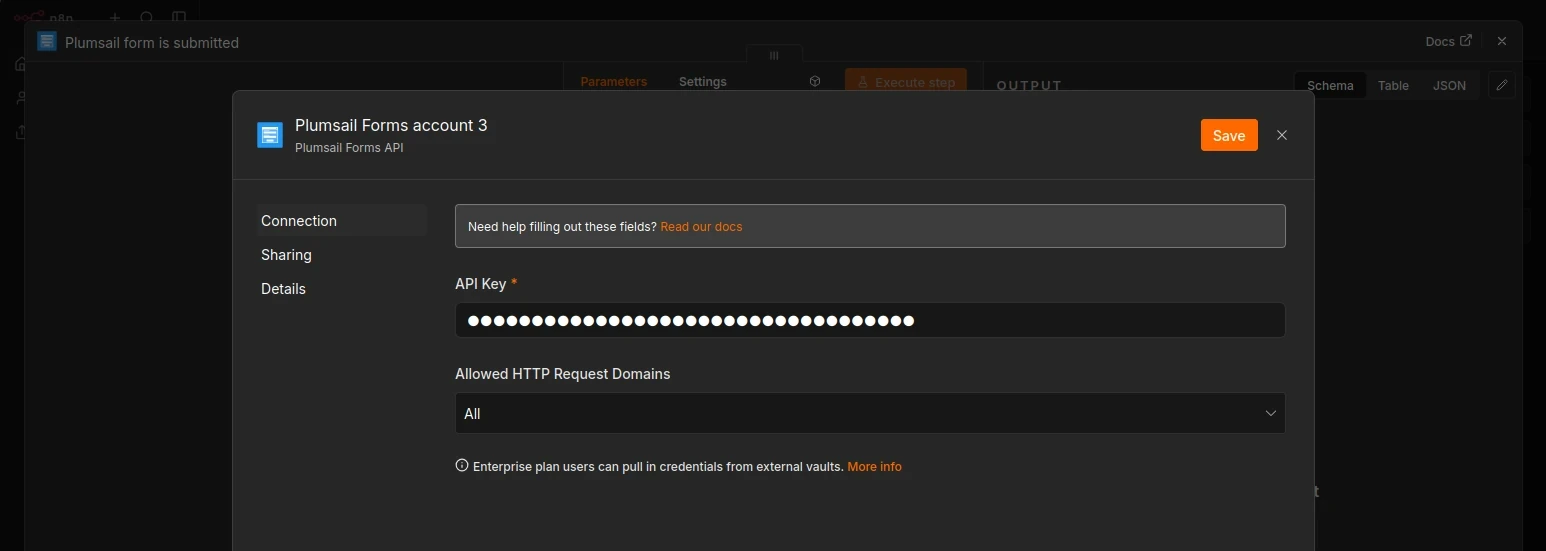
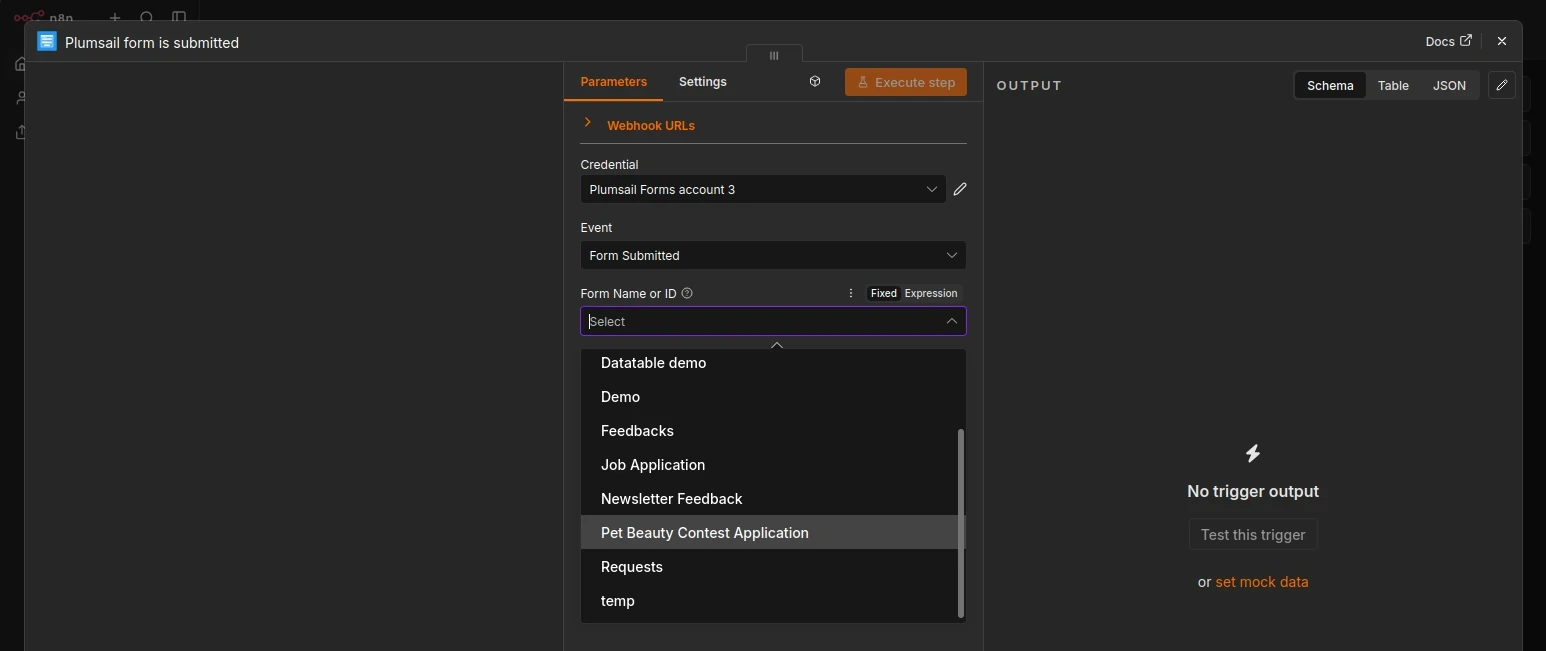
Select the form you want to watch for new submissions:
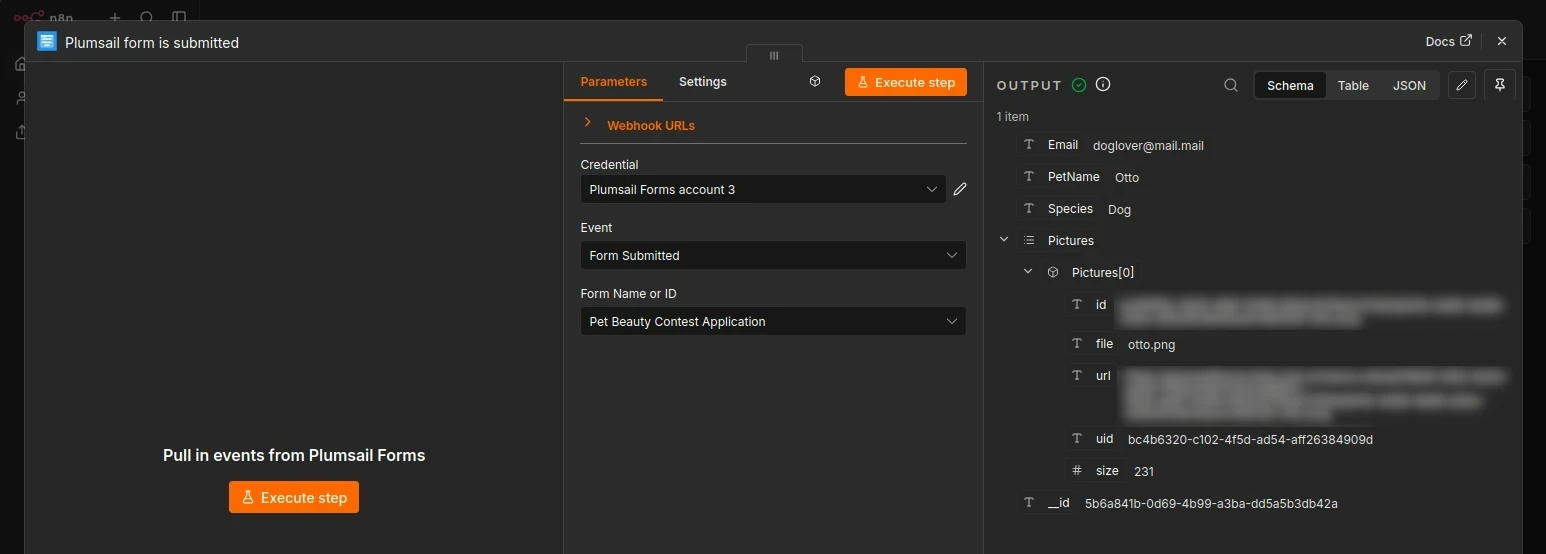
Click Execute step and make a test form submission, so that n8n could capture the submission schema and use it in next steps:
Delete attachment
Use the Delete an attachment action to delete files attached with a form submission from your Plumsail Account.
Note
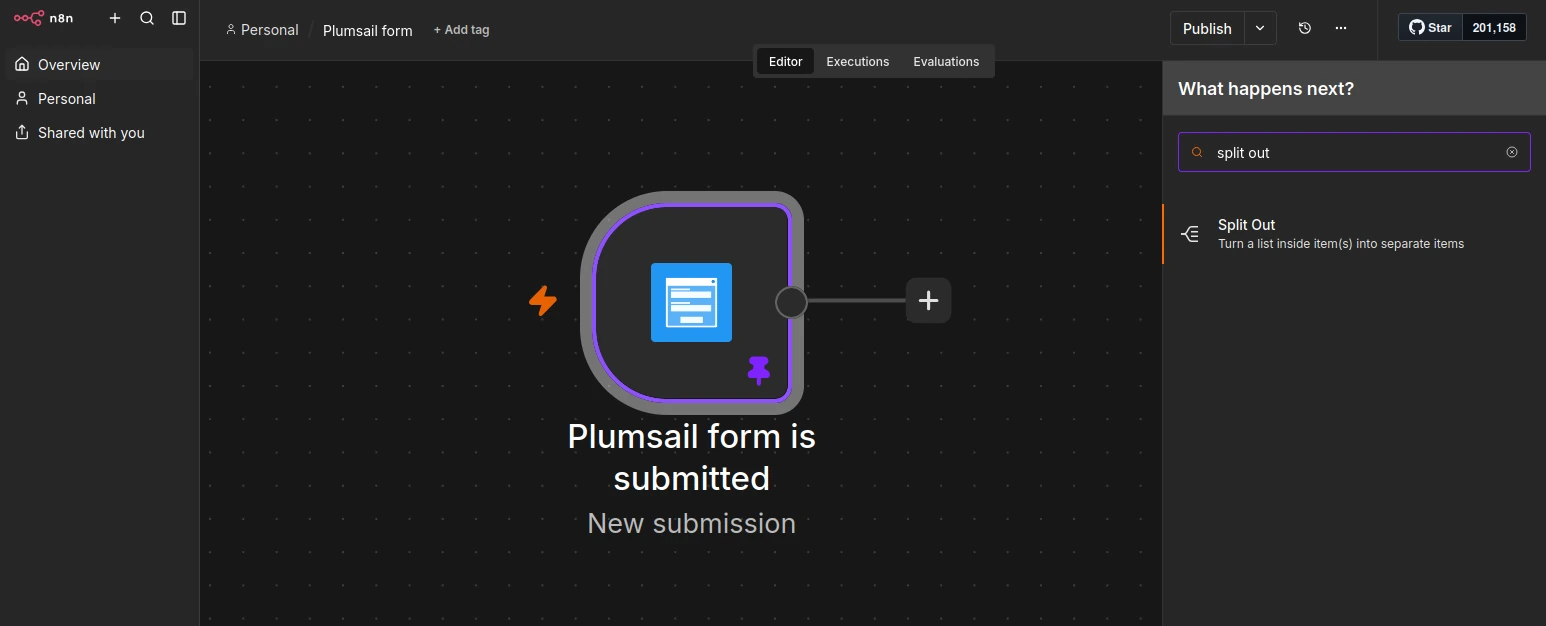
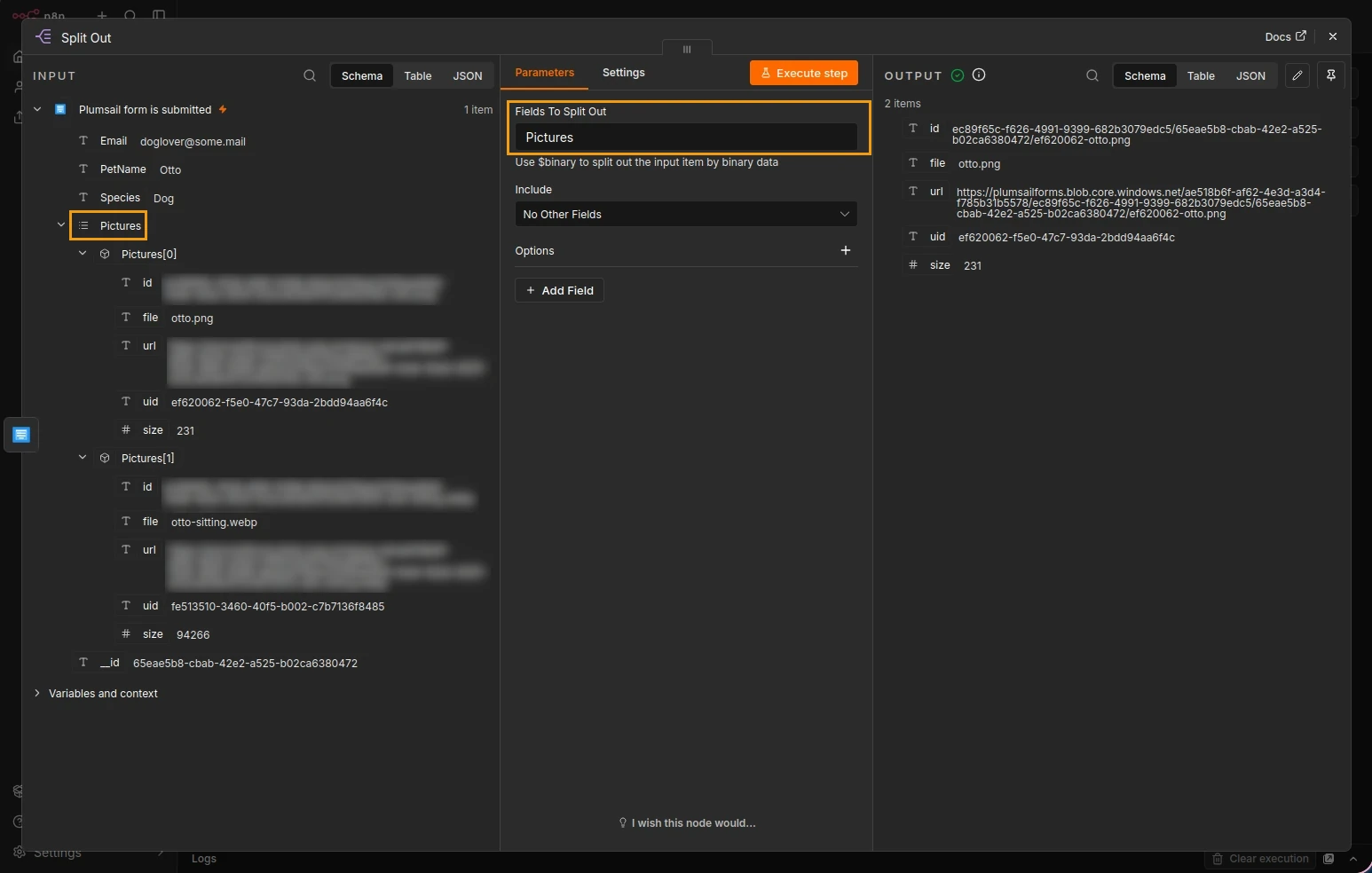
In the following scenario, Split Out action lets you use the Delete an attachment action on each attachment, instead of choosing a single attachment to delete.
In your n8n workflow, click the plus icon to add a new step. Find the Split Out action, and add it to the workflow canvas:
In the opened configuration window, drag the attachment field name from the submission schema into the Fields To Split Out field:
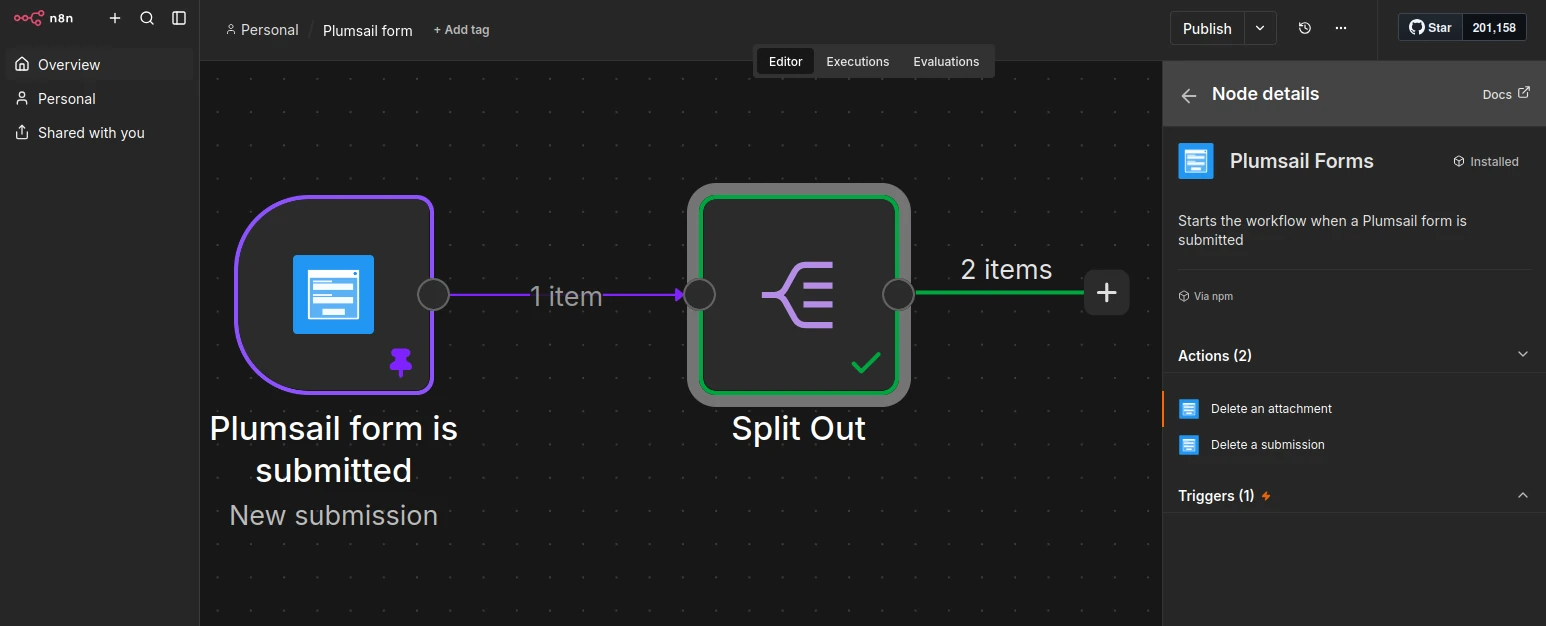
Add another step, find the Plumsail Forms node and choose Delete an attachment action:
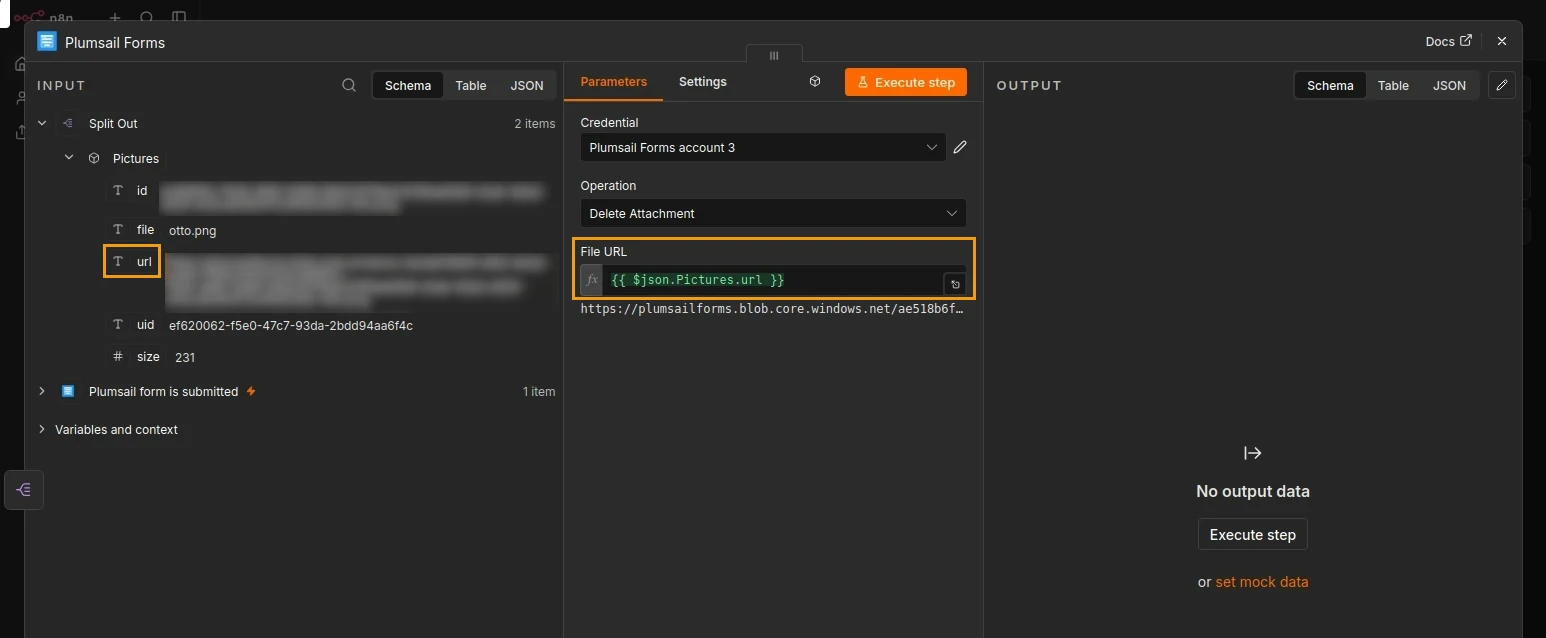
In its configuration window, drag the attachment URL from the Split Out input into the File URL field:
Delete submission
Use the Delete a submission action to delete form submissions from your Plumsail Account.
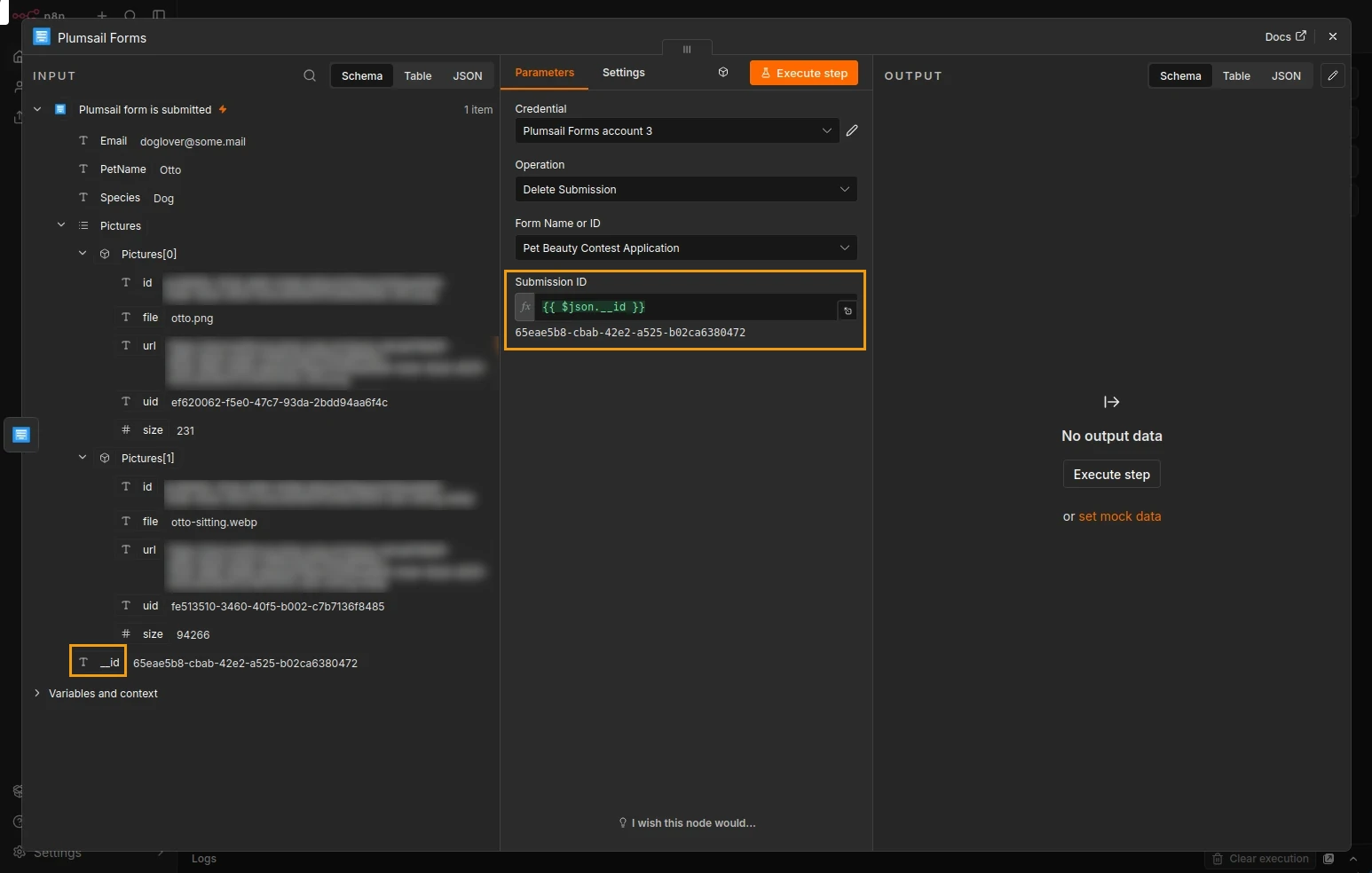
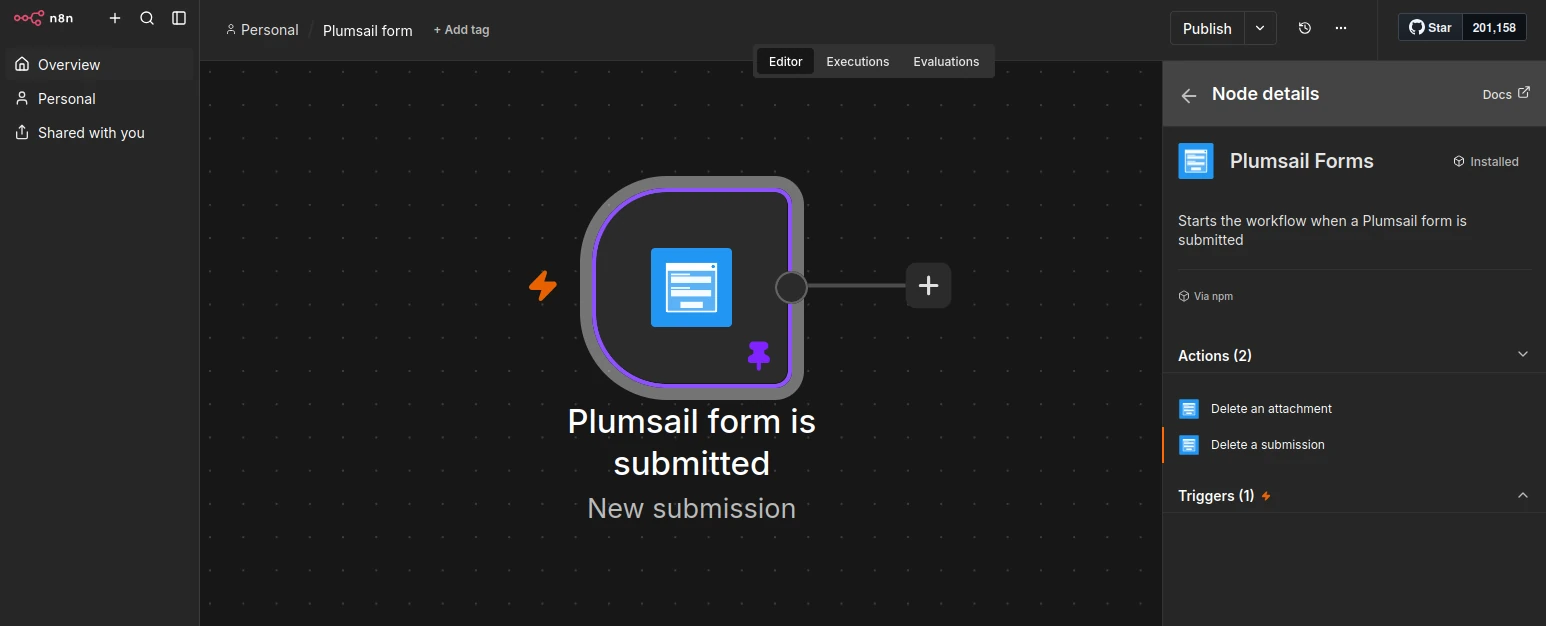
In your n8n workflow, click the plus icon to add a new step. Find the Plumsail Forms node and choose Delete a submission action:
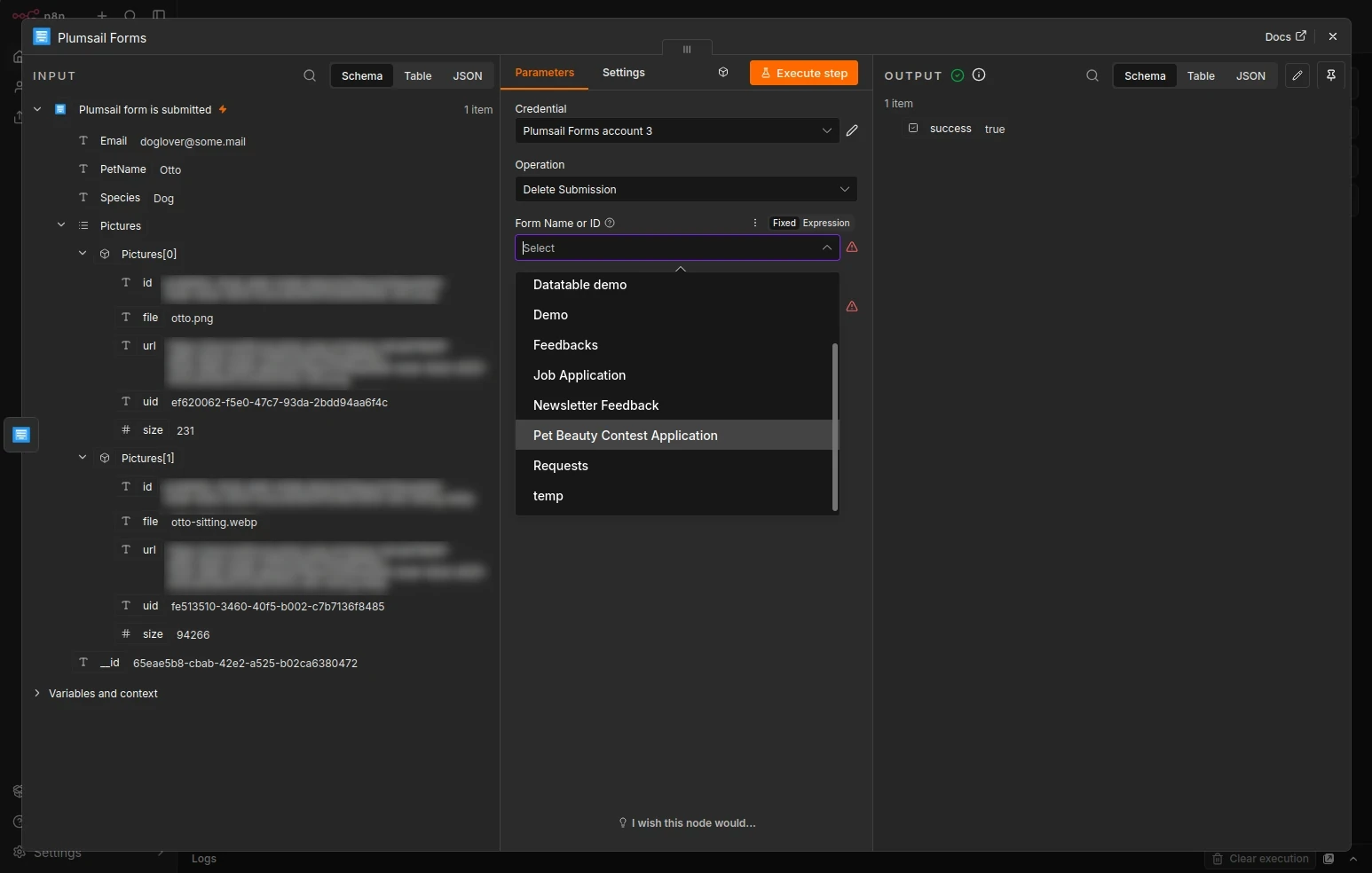
In the opened configuration window, select the form which submissions you want to delete in the Form Name or ID field:
Drag the
__idproperty from the submission schema into the Submission ID field: