 File
File
The File field is available in every form connected to a SharePoint library. While other SharePoint fields map their values to document properties, the File field is responsible for uploading the actual document.

This page contains a detailed description of the field properties and JavaScript samples which you can use with this field.
Common properties
File properties
Learn about properties specifically related to the File field.
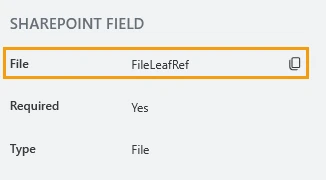
File
Use this read-only property to reference the field in custom JavaScript.
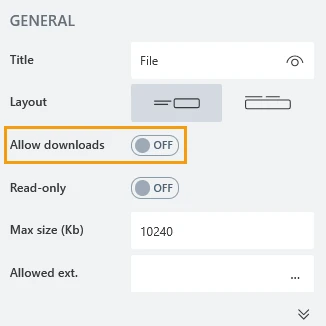
Allow downloads
Allow form users to download the stored file when editing an existing SharePoint item.
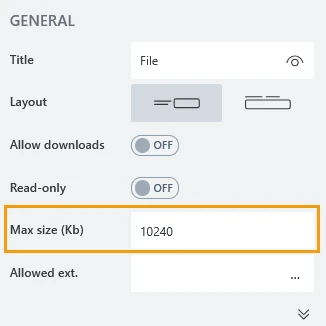
Max size (Kb)
Select the max possible size of the attached file. Default max file size is 10Mb.
Note
Maximum file size is also limited by your Public Web Forms subscription plan.
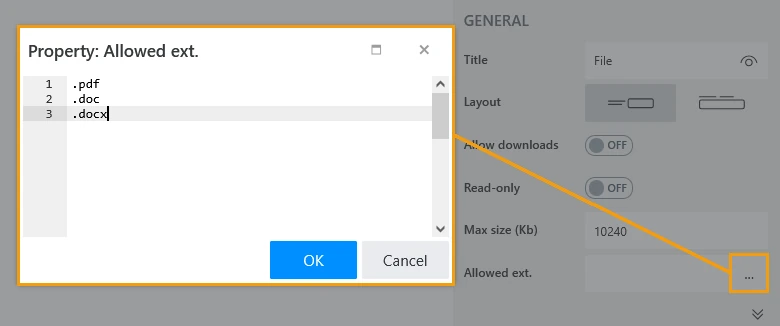
Allowed ext.
Choose which file types users can upload. Each file extension must start with a dot and appear on its own line. If empty, all extensions are allowed.
JavaScript framework
In this section, you can find basic examples of how to work with SharePoint fields in Forms using JavaScript.
For more examples, check out Working with form fields in JavaScript article. Follow this guide to connect a web form to a SharePoint list or library. If you are not familiar with the JavaScript framework, get started with the JavaScript basics.
Note
The field is only accessible once the form is rendered, so all calls to the field must be inside fd.rendered event:
fd.rendered(() => {
    // make field required
    fd.field('Field1').required = true;
});
Disable field
Make a field non-editable. The field value can still be changed with JavaScript and saved:
// disable field
fd.field('FileLeafRef').disabled = true;

// enable field
fd.field('FileLeafRef').disabled = false;
Get HTML element
Access HTML element inside the field in order to modify it, hide it, or do something else.
// access field's control
let htmlElement = fd.field('FileLeafRef').$el;

// access field's block, which includes title and control
let htmlParentElement = fd.field('FileLeafRef').$parent.$el;
Hide field
Hide a field from a user. The field value can still be accessed and changed with JavaScript:
// hide field
fd.field('FileLeafRef').hidden = true;

// show field
fd.field('FileLeafRef').hidden = false;