Plumsail Forms connector
Plumsail has a dedicated connector to trigger flows in Power Automate: Form is submitted.
The connector processes all form data, including Common fields and Controls that are not saved to SharePoint.
Note this before using Plumsail Forms connector:
Submission data is routed through Plumsail servers before being delivered to Power Automate.
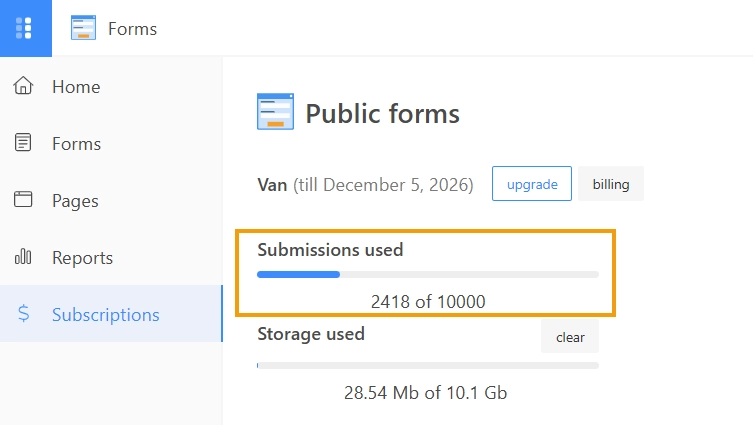
Each submission is counted toward your Public Web Forms subscription limits.
If you exceed your plan’s submission limit, flows using the Plumsail trigger will stop working.
Important
Use Microsoft SharePoint Connector if you need to keep all data strictly within your SharePoint tenant.
Configuring Plumsail trigger
Get Form ID
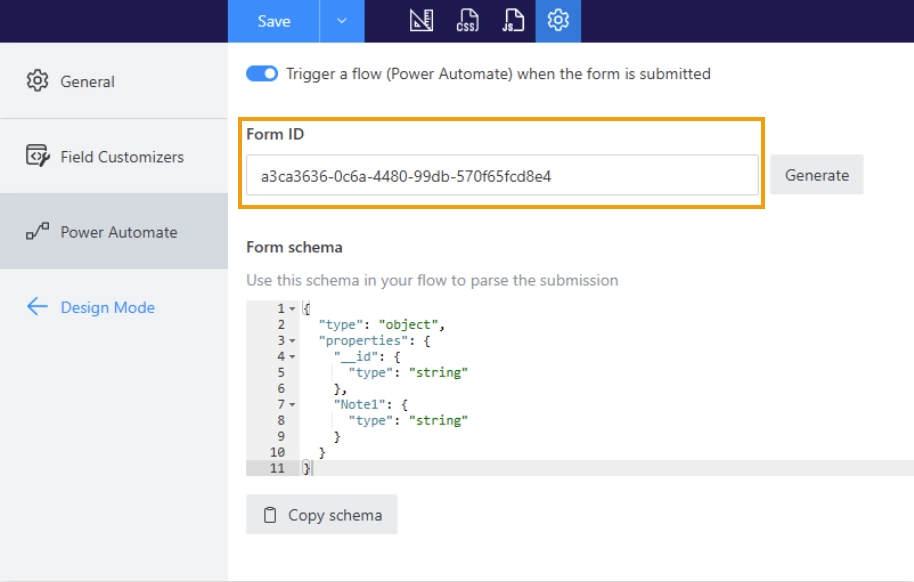
Toggle on Trigger MS Flow when the form is submitted in the Settings → Power Automate.
Once enabled, a Form ID will appear. Copy this ID to use in your Power Automate flow.
Create the Power Automate flow
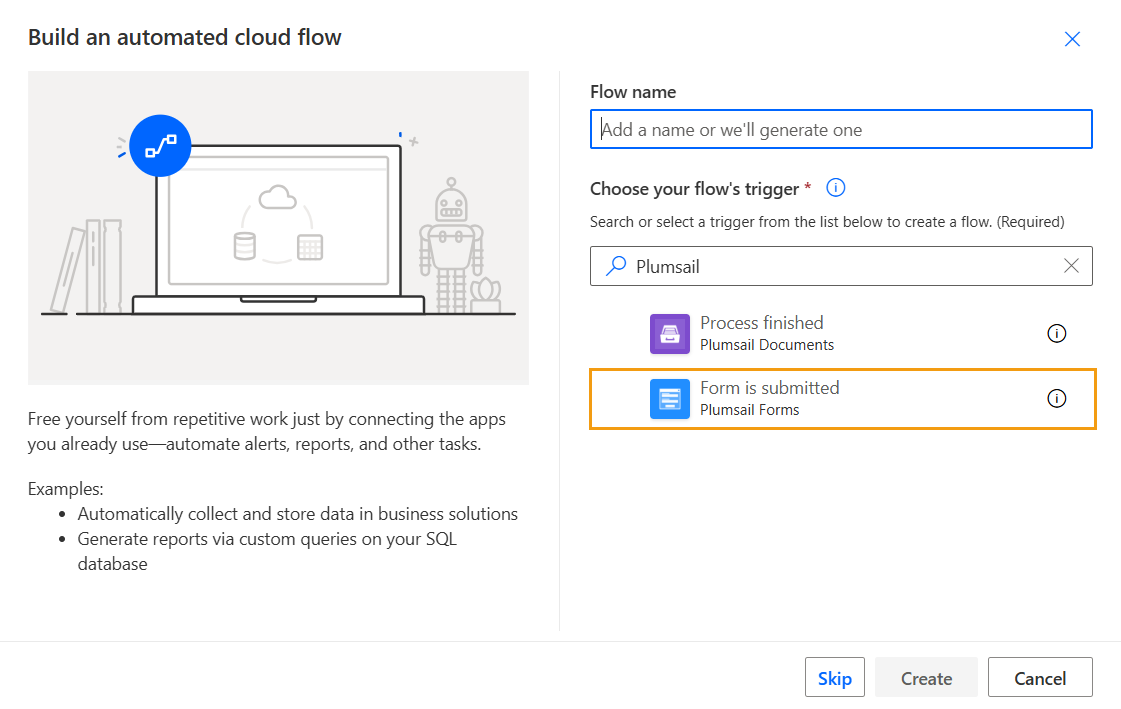
Go to the Power Automate home page. Create a new Automated cloud flow and choose the Plumsail - Form is submitted trigger.
Configure the trigger action
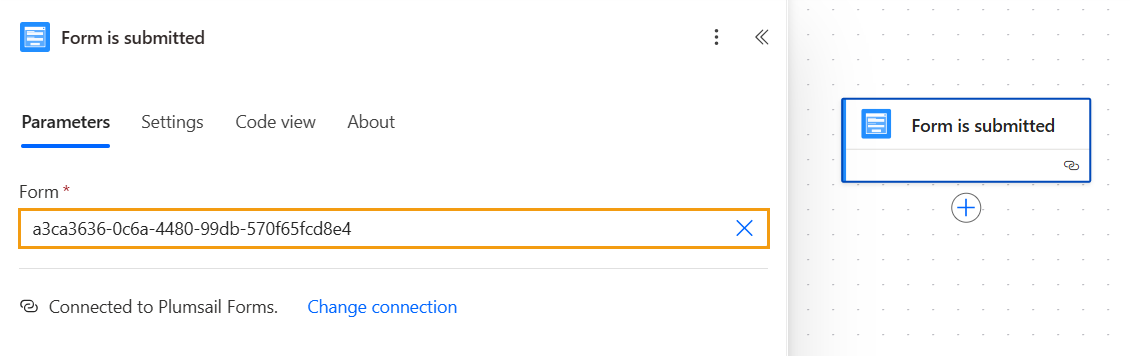
Add the Form ID you copied previously and save the flow:
Parse JSON action
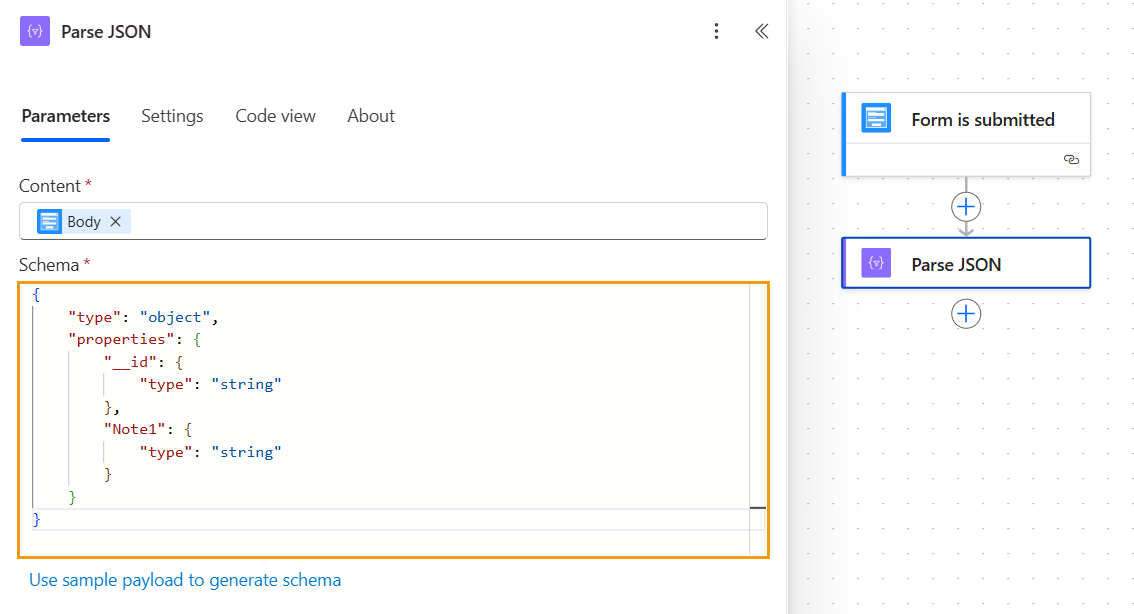
Plumsail Forms connector submits form data as JSON. Add the Data Operations - Parse JSON action.
In the Content box, add Body from the Dynamic content list.
In the Form Schema box, add Form Schema from the form’s settings:
Submission limits
Important
If the Plumsail account doesn’t have an active subscription or usage limits are depleted, the Power Automate flow will not trigger, even though the submission will still be saved to SharePoint.
Track the submission usage of Plumsail Forms connector in your Plumsail account, on the Subscriptions page: