Adding conditional sections to Word documents in Power Automate can be tricky, especially when different scenarios require different content. This is a common challenge discussed in communities:
The problem is that creating a separate Word template for every combination would mean 2^5 templates, which is not practical.
What is the best way to handle optional paragraphs/sections in a Word template with Power Automate, without ending up with dozens of templates?
I have thought of using drop down bars option but it would be long codes with all the texts about the product information.
does word have a feature for such functions? i.e. a feature to allow creation of different documents depending on what "product" is chosen?
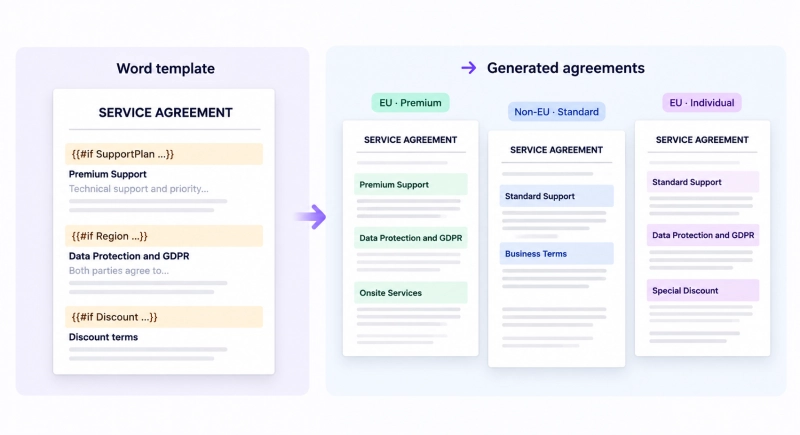
With Plumsail Documents, you can show, hide, or change entire sections using conditional logic in a single Word template.
In this tutorial, we'll generate service agreements from SharePoint data, with different terms based on customer type, region, selected services, and discounts.
First, let's create a SharePoint list to store customer information and service agreement details. We'll use this data to populate our Word template and control which sections appear in the generated document.
Create a new SharePoint list called Service Agreements and add the following columns:
Column name
Type
Description
Company
Single line of text
Customer's company name
Customer Name
Single line of text
Customer's full name
Customer Email
Single line of text
Customer's email address
Customer Type
Choice
Business, Individual
Region
Choice
EU, Non-EU
Support Plan
Choice
Standard, Premium
Onsite Service
Yes/No
Whether onsite service is included
Discount
Number
Discount percentage, if applicable
Agreement Date
Date and Time
Date of the agreement
Service Fee
Currency
Service fee before discounts
The Customer Type, Region, Support Plan, Onsite Service, and Discount columns will control the conditional content in our Word template. For example, if the Support Plan is set to Premium, the agreement will display the Premium Support terms instead of the Standard Support terms.
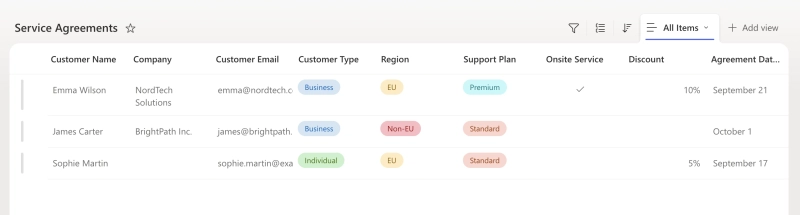
Here's an example of the SharePoint list with different customer and agreement details:
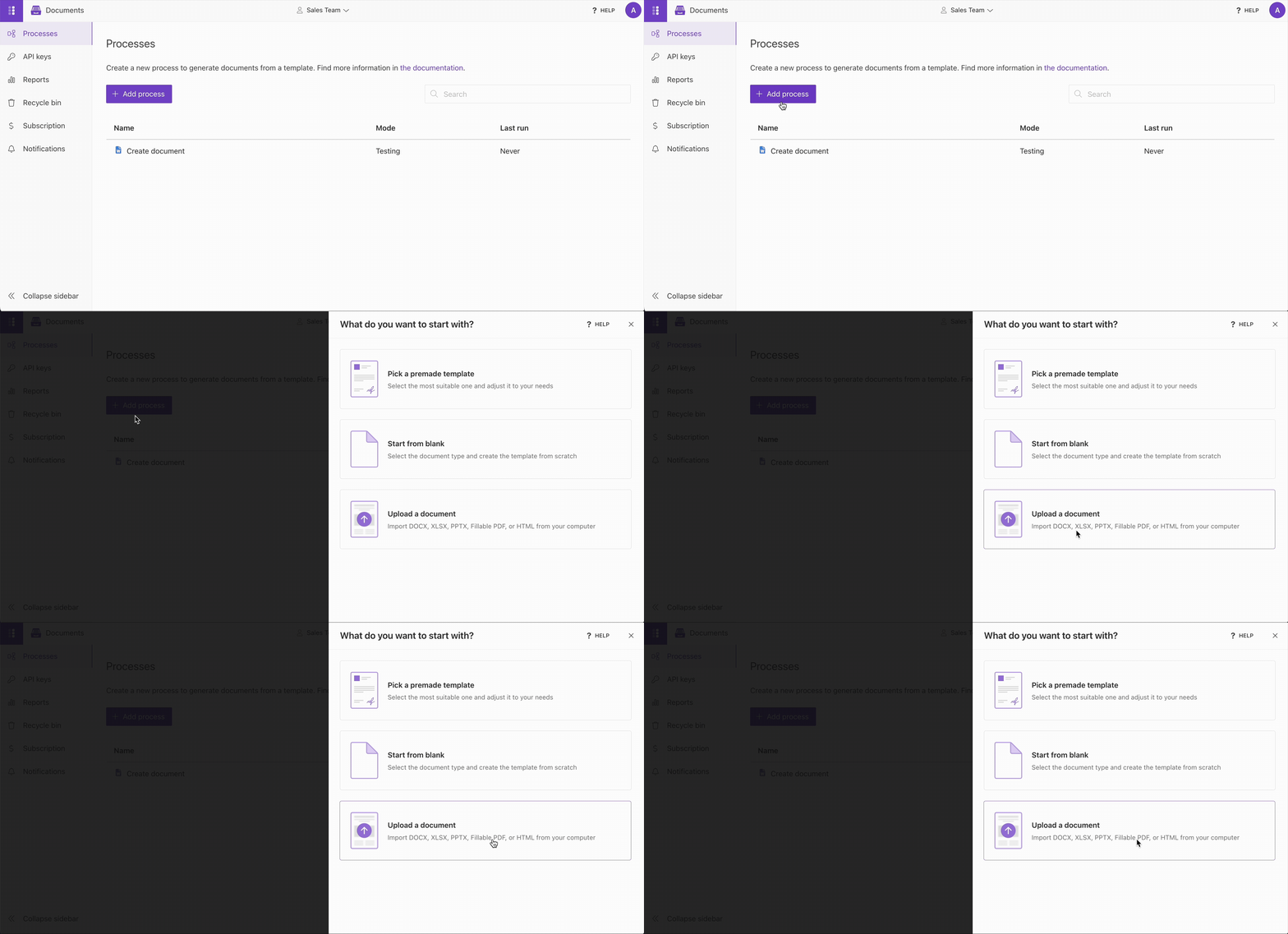
Log in to the Plumsail Documents account and create a new process. You can upload your own template, start with a blank document, or choose one of the ready-to-use templates.
For this tutorial, select Upload a document and upload the downloaded template.
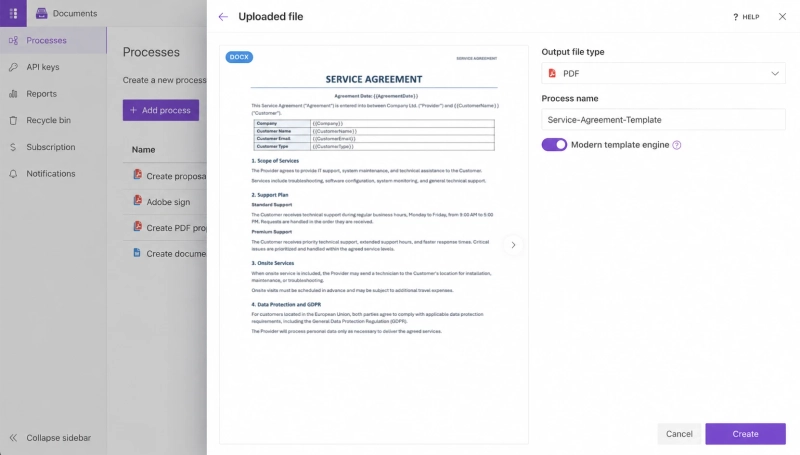
Give your process a name, select the output file type, and click Create:
The template already contains the agreement sections we'll work with.
Next, let's add conditional logic to control which sections appear in the generated document.
For example, our service agreement includes a Data Protection and GDPR section, which should appear only for customers located in the EU.
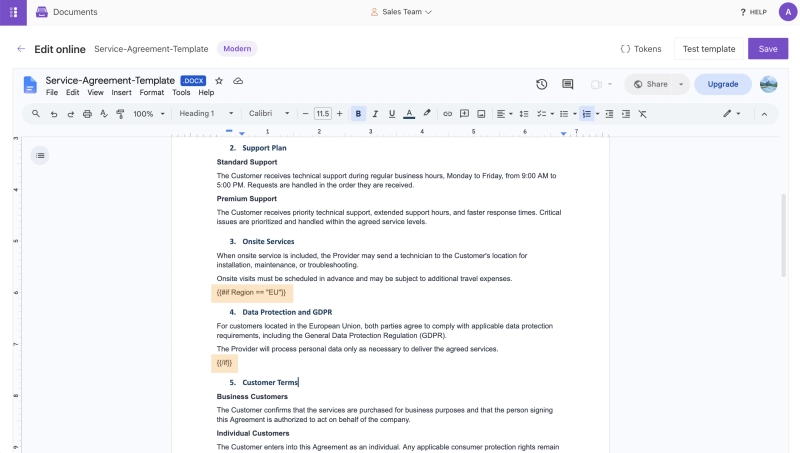
Open the template in online editor and find this section. Add the {{#if Region == "EU"}} token before the section heading and {{/if}} after the last paragraph. The section should look like this:
The #if operation checks whether the region value equals EU. If the condition is true, the entire section is included in the generated document. Otherwise, it is hidden.
You can learn more about logical operators in the Plumsail Documents documentation.
Now, let's use a similar condition for the Onsite Services section. In our SharePoint list, the Onsite Service column has a Yes/No value that determines whether onsite services are included in the agreement.
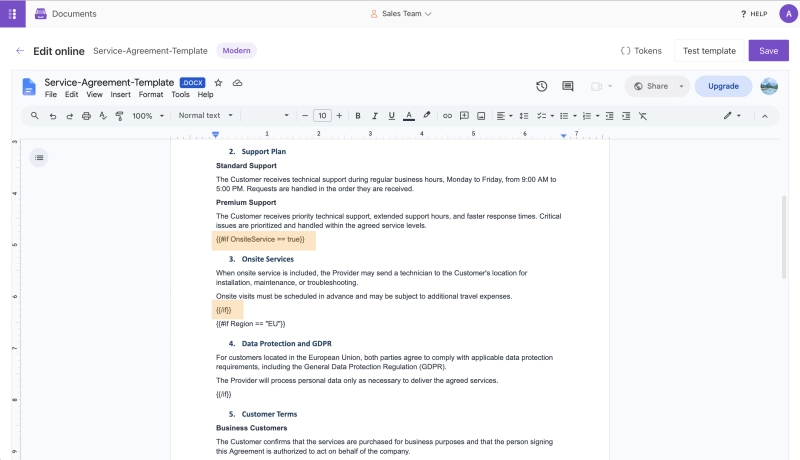
Find the Onsite Services section in the Word template and wrap it in the condition {{#if OnsiteService == true}}...{{#if}}:
If OnsiteService is true (Yes in SharePoint), the section appears in the document. If it's false (No in SharePoint), the entire section is excluded.
Both examples use the same approach: place the opening and closing tokens around the content you want to show or hide. You can apply this to individual paragraphs or entire sections of your Word template.
Our service agreement includes two support plans: Standard and Premium. Depending on the selected plan, the agreement should include only the relevant support terms.
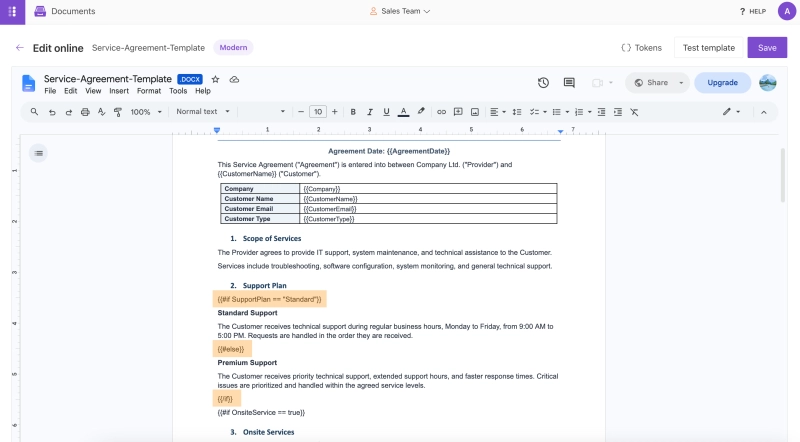
Find the Support Plan section and wrap the two options in the condition {{#if SupportPlan == "Standard"}} ... {{#else}} ... {{/if}}:
If SupportPlan equals Standard, the agreement includes the Standard Support terms. Otherwise, it displays the Premium Support terms.
We can apply the same approach to display different agreement terms based on the customer type.
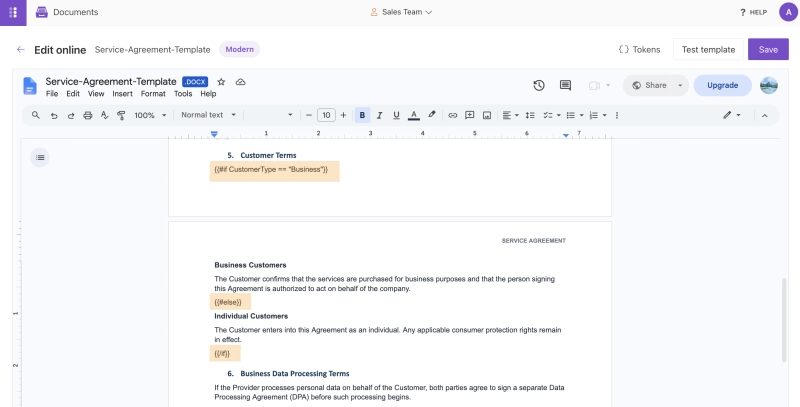
Find the Customer Terms section and wrap the Business and Individual terms in the condition {{#if CustomerType == "Business"}} ... {{#else}} ... {{/if}}:
If CustomerType equals Business, the agreement includes the Business terms. Otherwise, it displays the Individual terms.
This way, you can use a single Word template to generate agreements with different terms based on the SharePoint data.
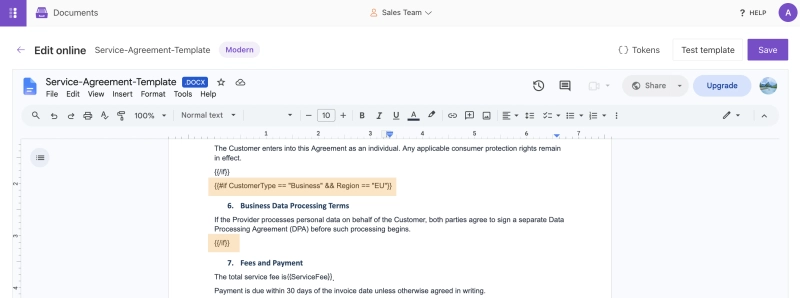
You can combine multiple conditions using logical operators such as && (AND) and || (OR) to control which content appears in your Word document. Let's look at two examples.
Sometimes, you may need to check several conditions to display different content. For this, you can use multiple #if conditions with logical operators.
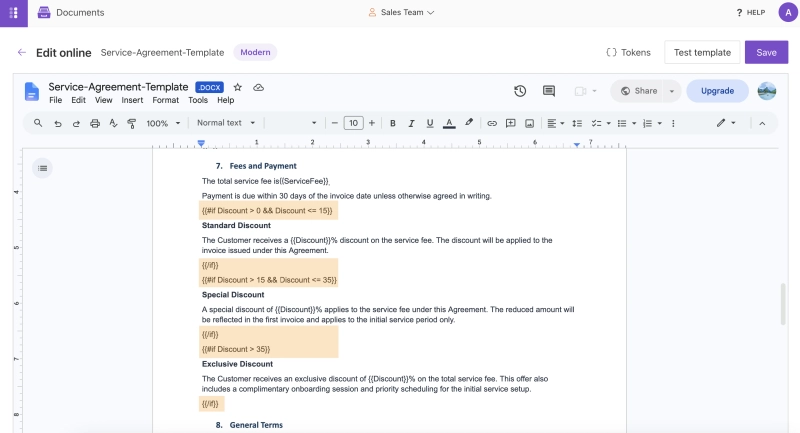
For example, let's use the Discount field from our SharePoint list to display different discount terms in the Fees and Payment section, based on the following rules:
Above 35%: Display the Exclusive Discount terms.
Above 15% and up to 35%: Display the Special Discount terms.
Above 0% and up to 15%: Display the Standard Discount terms.
No discount: No discount paragraph is displayed.
Add the following conditions to the Word template:
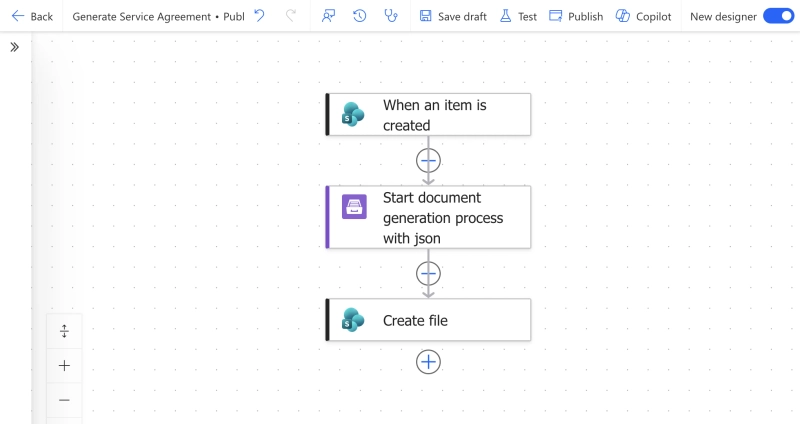
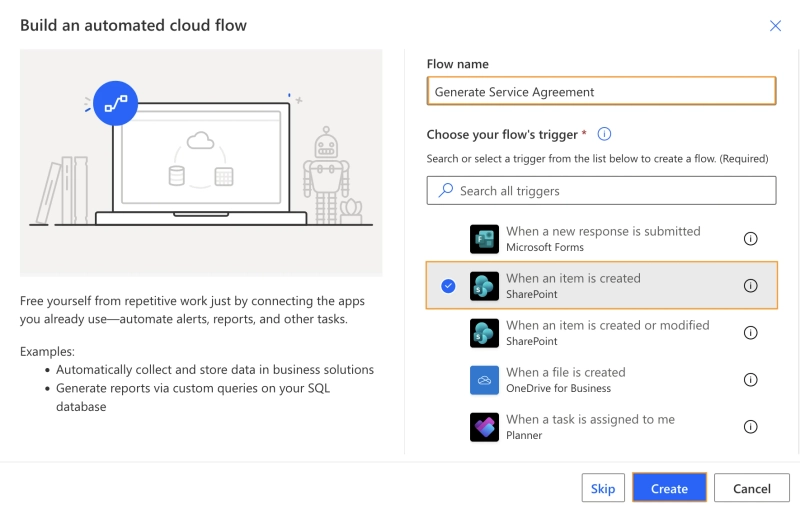
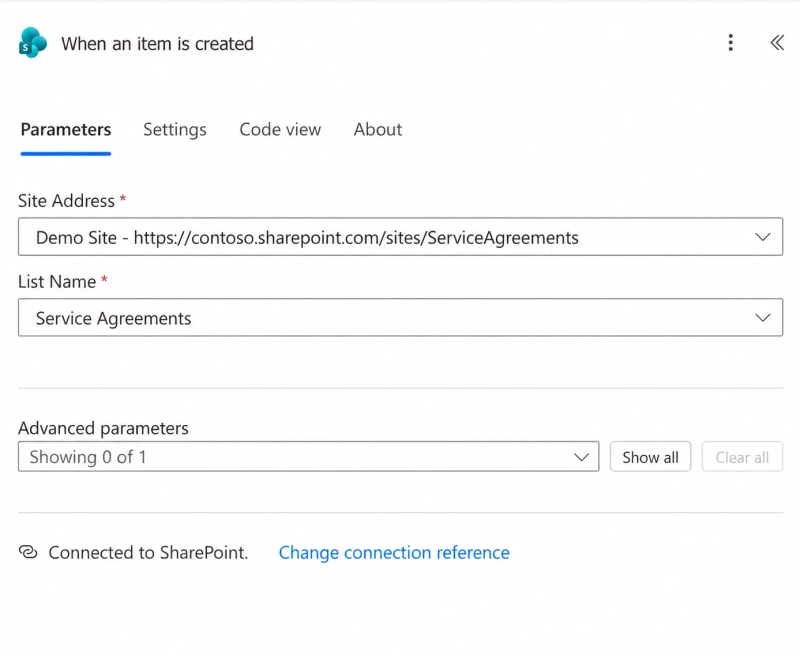
Now that our Word template is ready, let's create a Power Automate flow to generate service agreements using data from our SharePoint list.
The flow will retrieve the customer and agreement details, pass them to Plumsail Documents, and save the generated document to a SharePoint document library.
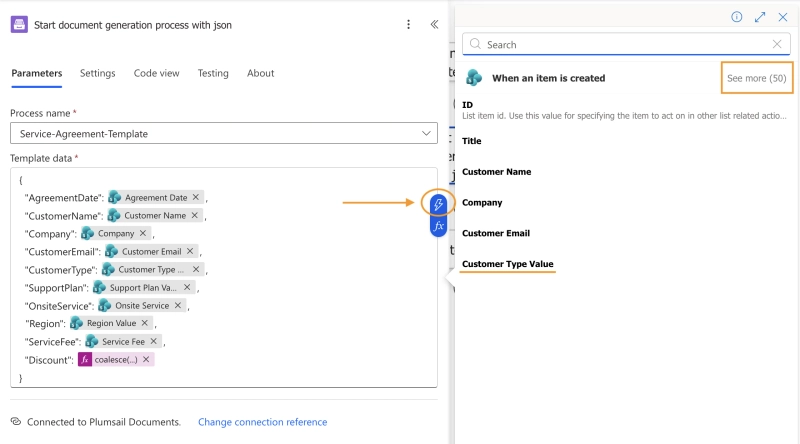
In the action settings, select the process we created earlier. In the Template data field, add the tokens from your Word template and map them to the corresponding SharePoint columns using Dynamic content.
Since the Discount field is optional, it may be empty in SharePoint. To ensure that the discount conditions work correctly, we need to pass 0 when no discount is provided. For this, use the following expression for this field:
coalesce(triggerBody()?['Discount'], 0)
Click Show more to see all available fields from the SharePoint list.
For SharePoint Choice columns, such as Customer Type, Region, or Support Plan, make sure to select the Value field (for example, Customer Type Value) from Dynamic content. This ensures that the selected value, such as Business or Individual, is passed to the template instead of the entire field object.
Make sure all template tokens are mapped to the correct SharePoint values, especially those used in conditional sections.
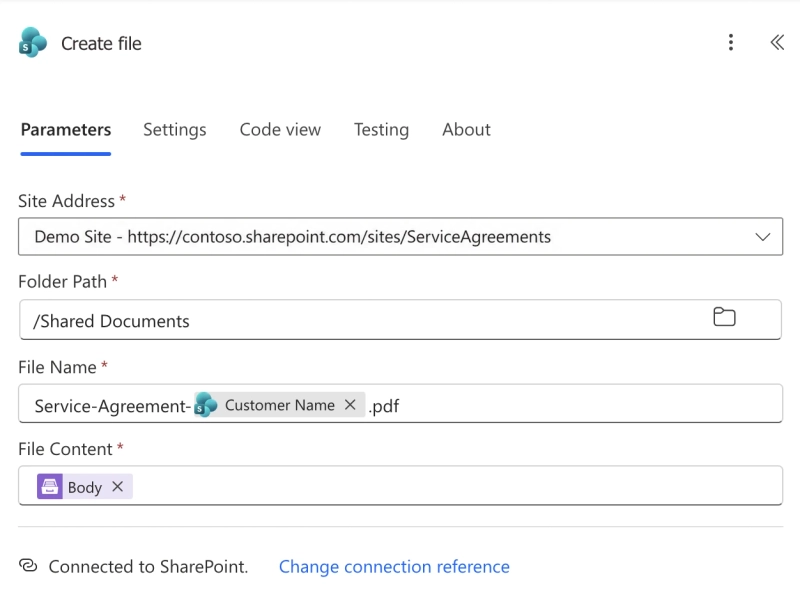
Finally, let's save the generated agreement to a SharePoint document library. Add the Create file action from the SharePoint connector and configure the fields:
Site Address: Select your SharePoint site.
Folder Path: Select the folder where you want to save the generated agreements.
File Name: Enter a name for the generated document. You can use data from the SharePoint list to create dynamic file names. In our example, we use the Customer Name field, so each generated agreement includes the customer's name in its file name.
File Content: Select Result file from the Plumsail Documents action using Dynamic content.
Save the flow. Each time a new item is added to the SharePoint list, Power Automate will generate a service agreement with the relevant sections and save it to the selected SharePoint folder.
You can also configure other delivery options directly in your Plumsail Documents process. For example, you can automatically email the generated agreement to the customer or save it to OneDrive, Google Drive, or another destination. Learn more about the available options in the Plumsail Documents delivery documentation.
Now, let's test our flow with different SharePoint list items to see how the conditional sections work.
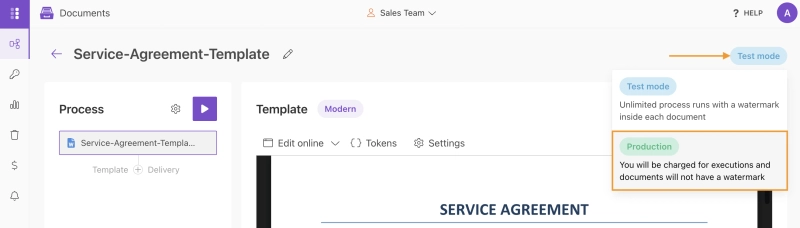
By default, our Plumsail Documents process runs in Test mode, so generated documents contain watermarks. You can switch the process to Production mode to remove them. However, you can keep it in Test mode until you're sure everything works as expected.
To change the mode, open your process in Plumsail Documents and switch it to Production:
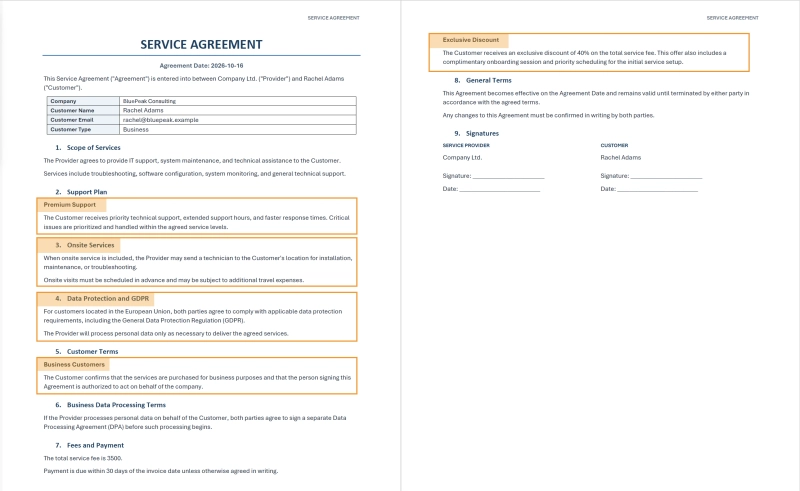
Create several new items in the Service Agreements SharePoint list with different customer details, regions, support plans, and discounts. Each new item will trigger our Power Automate flow and generate a service agreement in the selected SharePoint folder. Let's compare three examples:
Example 1: EU Business customer with Premium Support and onsite services
For this example, we set Customer Type to Business, Region to EU, Support Plan to Premium, enableOnsite Service, and set Discount to 40%.
The generated agreement includes Premium Support terms, Onsite Services, the GDPR clause, Business Data Processing Terms, and an Exclusive Discount.
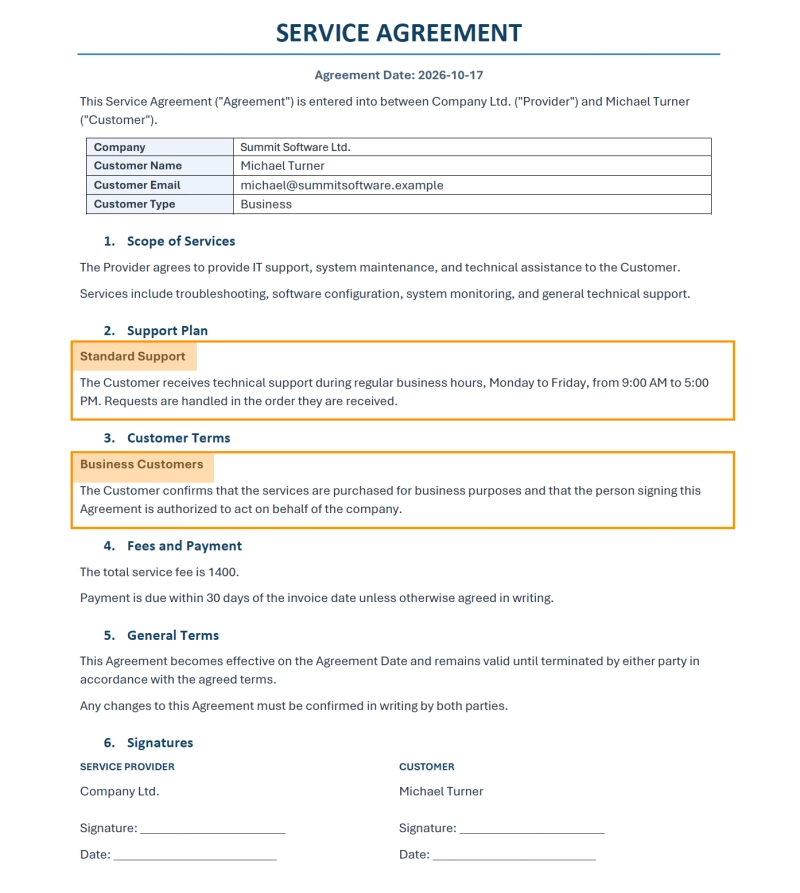
Example 2: Non-EU Business customer with Standard Support
For this example, we set Customer Type to Business, Region to Non-EU, Support Plan to Standard, disableOnsite Service, and set Discount to 0%.
This agreement includes Standard Support terms and Business Customer Terms. The GDPR and Onsite Services sections are excluded. The discount paragraph is also hidden because no discount is provided.
Example 3: EU Individual customer with Standard Support and a discount
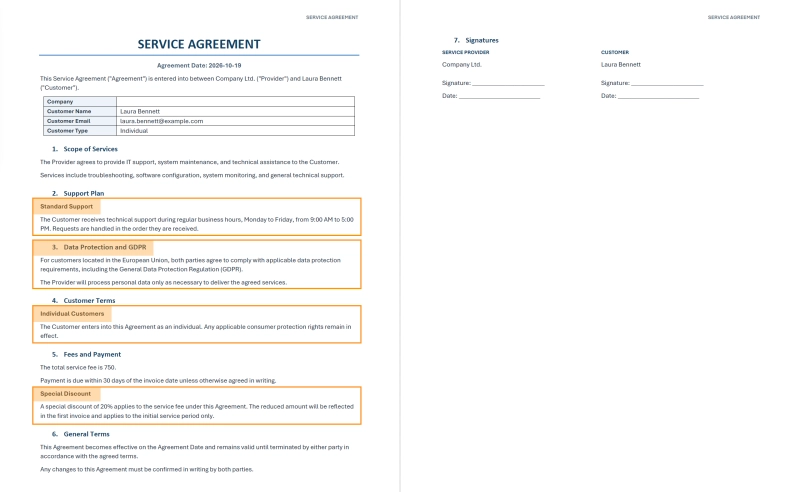
For this example, we set Customer Type to Individual, Region to EU, Support Plan to Standard, disableOnsite Service, and set Discount to 20%.
This agreement includes Standard Support, the GDPR clause, Individual Customer Terms, and a Special Discount.
As you can see, the content changes based on the SharePoint data, while all three agreements are generated from the same Word template.
Microsoft also supports conditional sections in its native SharePoint document generation tools, including Content Assembly with modern templates and Structured Document Generation.
With modern templates, you can show or hide sections based on field values and combine conditions using AND/OR operators. However, nested conditions are not supported. You can learn more in Microsoft's documentation on conditional sections.
Conditional sections in Word templates allow you to generate different documents without creating and maintaining multiple templates. With Plumsail Documents and Power Automate, you can show, hide, or change entire sections based on SharePoint data.
In this tutorial, we created a single service agreement template that automatically adjusts its content for different customers, regions, and services.
Document generation in SharePoint: content assembly, Copilot, templates, and Plumsail
I tested four ways to generate documents in SharePoint and compared their setup, features, limitations, pricing, and best use cases.
Margarita Nikitina
Customer Support Engineer
DocumentsPower Automate
Last updated: Jun 11
Power Automate: populate a Microsoft Word template action step by step
Learn how to use the Populate a Microsoft Word Template action in Power Automate. Follow a step-by-step guide, understand its limitations, and explore options for advanced document generation.
Anton Cox
Customer Support Engineer
DocumentsSharePointPower Automate
Aug 03
How to generate invoices with EPC QR Codes (Girocode) and Swiss QR Bills
Learn how to generate PDF invoices with EPC QR Codes (Girocode) and Swiss QR Bills automatically from Word templates using data from SharePoint, CRM, ERP, and other business systems.



 Documents
 FormsMicrosoft 365SharePoint
 Power Automate