There are several ways to handle document generation in SharePoint, from built-in Microsoft 365 features to Word templates, Power Automate, and third-party tools. They can all generate recurring documents such as contracts, offer letters, quotes, and reports, but they differ significantly in template flexibility, automation, supported data, output formats, and licensing.
This article compares four approaches to SharePoint document generation:
Content assembly, originally part of SharePoint Syntex, is a feature for creating Word documents from modern templates.
Structured document generation is a Copilot-powered feature, currently in preview, that converts a Word document into a form.
Custom templates use Word templates with Quick Parts, a long-established approach to document generation.
Plumsail Documents and Forms are third-party tools for SharePoint that collect data and generate documents from Word, PowerPoint, Excel, and HTML templates.
I tested all four to see what each is genuinely good at. Below I cover each one: what it is, how to set it up, the pros and cons worth knowing before you commit, and when it's the right choice. If you'd rather skip to the verdict, the side-by-side comparison is at the end.
Content assembly in SharePoint is a feature for generating standardized business documents from Word templates.
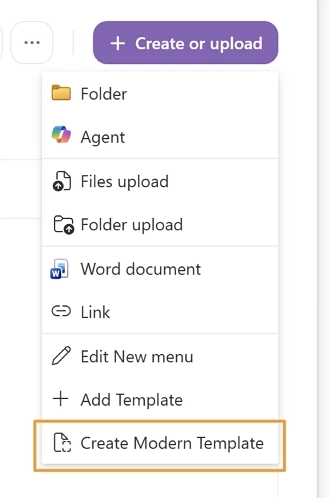
To make things slightly more confusing, in the SharePoint library interface the feature appears as Modern Templates:
One practical thing I like is that you can start with a document you already use. Upload a Word document and turn it into a modern template directly in the browser by adding placeholders to its content.
These placeholders become fields that can accept manual input, such as text, hyperlinks, images, or dates and times, or pull values from Managed Metadata or a SharePoint list that can be on the same or another site.
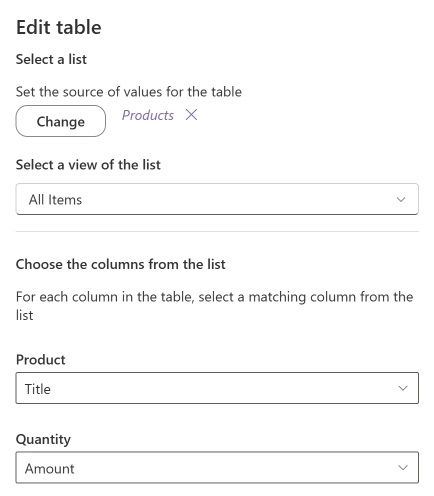
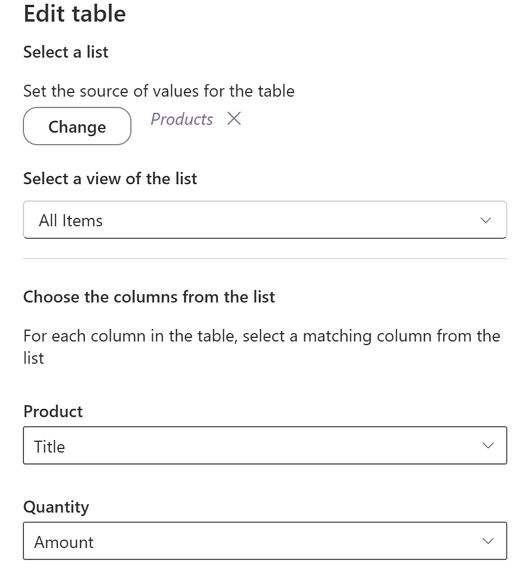
You can also connect a table to a SharePoint list or library and populate it with multiple records:
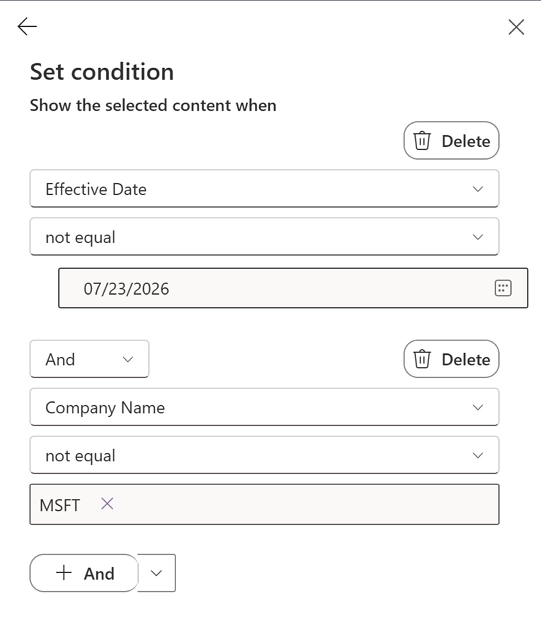
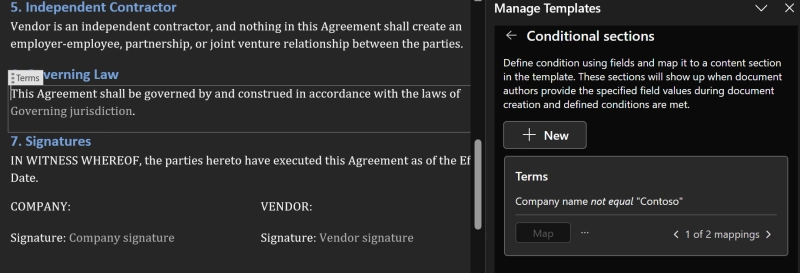
Optionally, add conditional sections to show or hide parts of the document:
Template fields can also be mapped to SharePoint library columns. However, once a document is generated, changing a column value does not update the content already inserted into the document.
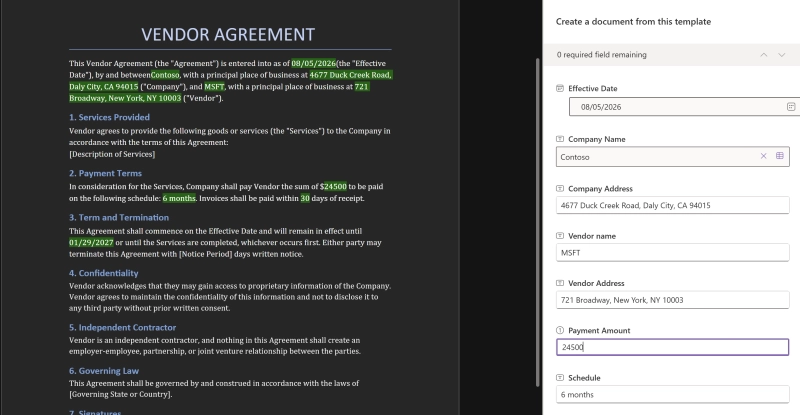
When someone creates a document from the template, SharePoint opens a form alongside the document preview, so users can see the result while entering values:
There are a few limitations to know before setting it up. Modern templates can only be created from Word documents, and pay-as-you-go billing must be enabled in the tenant. Under pay-as-you-go pricing, content assembly costs $0.15 per generated document.
There is also some uncertainty around the feature's longer-term direction. Content assembly is currently listed under "Other services" in Microsoft's document processing documentation, and I couldn't find any current content assembly records on the Microsoft 365 roadmap.
Microsoft has not announced its deprecation or end of service, so this isn't a reason to avoid the feature on its own. But if you're choosing a document generation approach for a process you expect to maintain for several years, it's something worth keeping in mind.
How to set up a modern template in a SharePoint document library
In the document library, click Create or upload → Create modern template.
Upload the Word document you want to convert into a template. It should already be formatted the way you want the generated document to look.
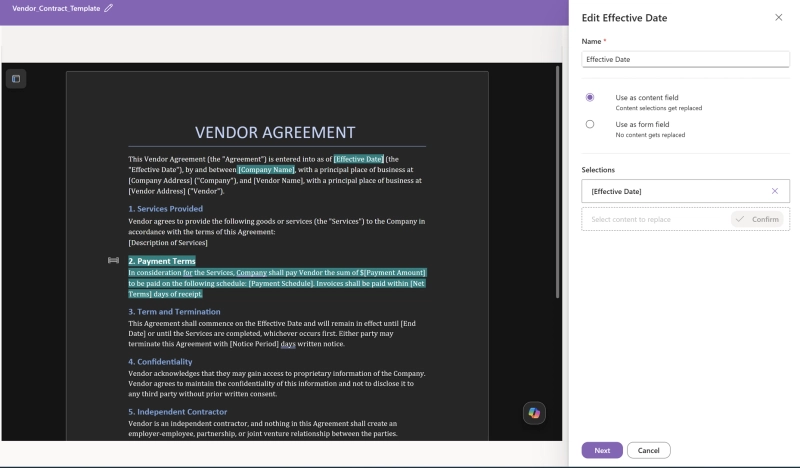
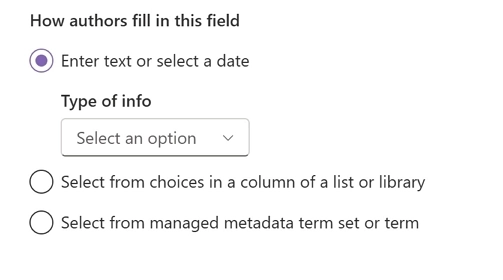
Select the text you want to replace with a placeholder and choose the placeholder type:
If your document contains a table, you can connect it to a SharePoint list and let users select which list items should appear in the generated table:
Optionally, create conditional sections by selecting the content you want to show or hide and defining the conditions:
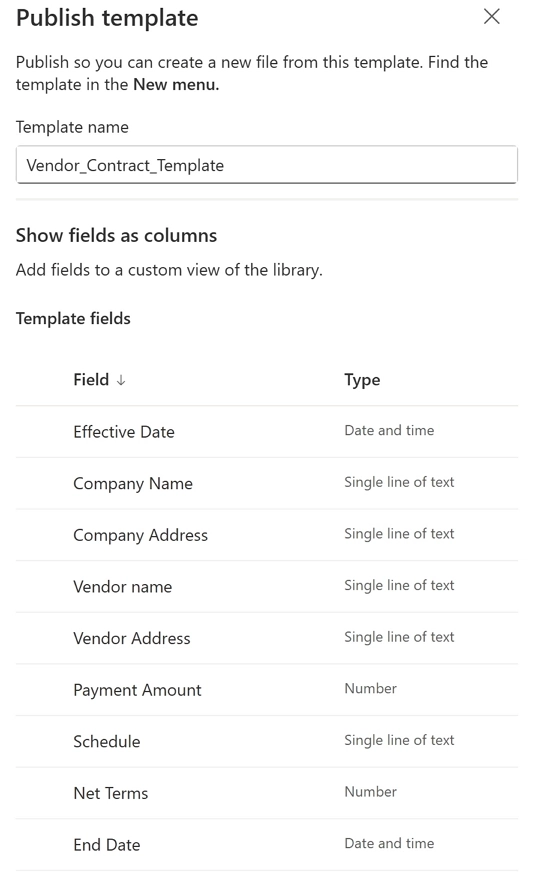
When publishing the template, you can optionally create a SharePoint view that includes the template fields:
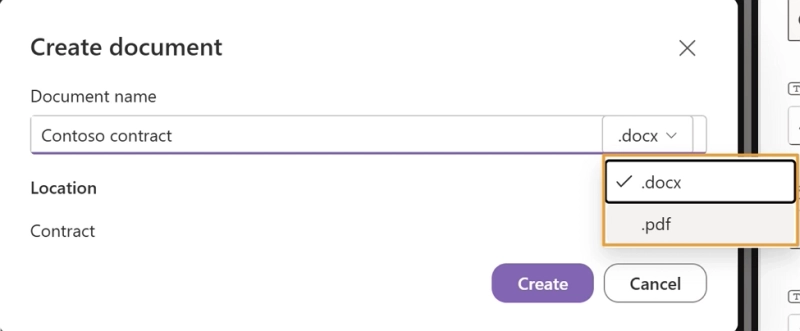
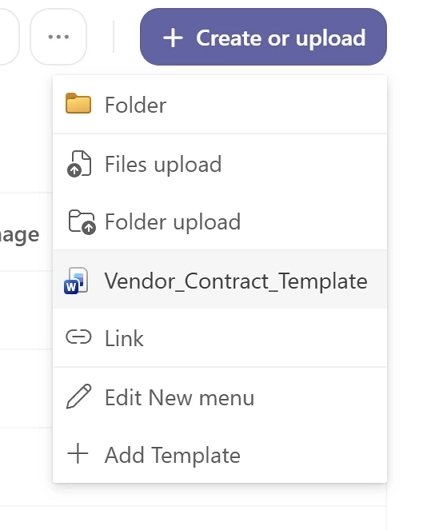
Once the template is published, users can select it from the Create or upload menu. They fill in the form, enter a file name, and choose the output format: DOCX or PDF.
The action exposes the template fields in the flow, so you can populate them with data from SharePoint or other data sources and generate documents automatically.
Pros and cons of content assembly
Content assembly is relatively straightforward to set up. After testing it, these are the capabilities and limitations I found most important when deciding whether modern templates fit a document generation process.
Pros of modern templates
No special template markup: you can start with an existing Word document rather than building a template with special tags or syntax. There are still a few preparation requirements, such as removing existing content controls and comments.
Easy field setup: creating a field is mostly a matter of selecting existing text and choosing how the value should be provided.
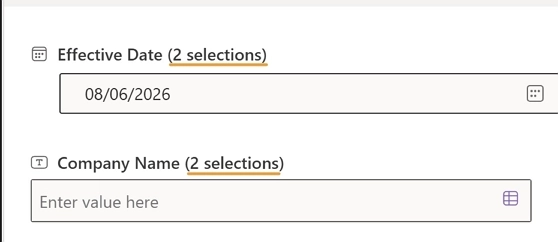
One field can replace multiple occurrences: the same field can be mapped to several places in the document. A counter shows how many occurrences will be replaced:
Conditional content: sections of text can be shown or hidden based on field values. Conditions support AND/OR combinations, although nested conditions aren't supported.
Images and repeating tables: users can provide images and populate tables with multiple records from a SharePoint list. Image fields aren't currently supported when generating documents through Power Automate.
Bulk document generation: with Power Automate, you can generate documents automatically and populate template fields with data from SharePoint or other sources available to the flow.
SharePoint lists and Managed Metadata: fields can use values from SharePoint lists or libraries and from Managed Metadata term sets. This is useful when information such as customer, department, project, or service data already exists in SharePoint.
Cons of modern templates
Limited template editing: the document should already have its final layout and formatting because there is no Word edit panel to freely edit text formatting, insert arbitrary elements, or redesign headers and footers.
Tedious field mapping: setting up many fields can become repetitive, particularly when the same value appears in several places. Each occurrence still needs to be selected and associated with a field.
Limited conditional logic: conditional sections support a relatively small set of operators and don't support nested conditions.
Tables use existing SharePoint data: users can select records to include in a repeating table, but they can't edit those records directly from the document generation form. Changes have to be made in the source list.
Limited form customization: the generated form provides little control over its presentation compared with a dedicated form builder. You can't freely redesign its layout or styling.
Limited manual field types: fields entered directly by users support Single line of text, Multiple lines of text, Number, Date and time, Email, and Hyperlink. Other values can still be sourced from SharePoint lists or Managed Metadata.
Limited input logic: there is no general-purpose formula engine for calculations, custom validation, or arbitrary default-value logic. SharePoint-connected fields can provide suggestions and automatically fill related values in some cases.
Templates are tied to a library: a modern template belongs to a specific SharePoint document library. To use the same template in another library, you need to create it there again.
Limited external-user scenario: modern templates are primarily designed for users working inside the Microsoft 365 environment. If external users need to provide the source data, you'll generally need a separate collection step and then generate the document through automation.
DOCX output remains editable: when users generate a Word document, it can be edited like any other DOCX file. PDF is also available when users generate the document manually.
When it's best to use content assembly
Content assembly works best for repetitive, structured documents where most of the wording and layout stay the same and only specific values or sections change. Typical use cases include HR documents, procurement paperwork, agreements, statements of work, and other documents where the wording is standardized and internally controlled.
Modern templates can also pull multiple records from a SharePoint list into a table. This works well for documents containing an existing set of items — for example, a schedule of services, list of deliverables, equipment list, or project team. Anything that doesn't require editing or calculations.
The side-by-side form and document preview also makes the manual generation process relatively easy to understand without much training.
When content assembly isn't the best tool for document generation
Content assembly is a poor fit when calculations are an important part of the document. There is no general-purpose formula engine for calculating totals, taxes, discounts, or other values while the user fills in the form.
This becomes particularly limiting for documents with editable line items, such as invoices, expense reports, purchase orders, or complex quotes. A repeating table can display records from SharePoint, but users can't create or edit those records directly in the generation form.
You should also consider how much control you need over the generated file. Manual generation lets users choose DOCX or PDF. If users should never receive an editable Word version, it is better to automate generation to a fixed output format to control how the final document is produced and distributed.
Finally, modern templates aren't particularly comfortable for heavily narrative documents such as customized consulting reports, long project briefs, or one-off legal documents. When large sections need to be written from scratch for every document, entering that content through the template's side panel becomes cumbersome.
What is structured document generation?
Structured document generation is a preview feature of Copilot in SharePoint. It turns a Word document into a document generation form: when a user submits the form, SharePoint creates a new document with the entered values merged into the corresponding fields. The file is saved in a dedicated folder, with the submitted values stored in SharePoint library columns.
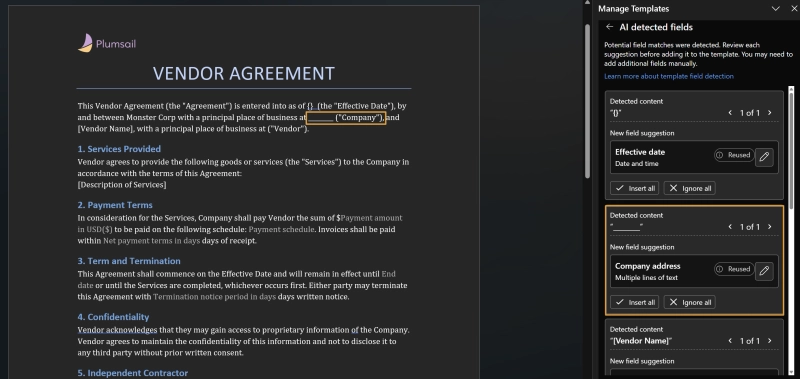
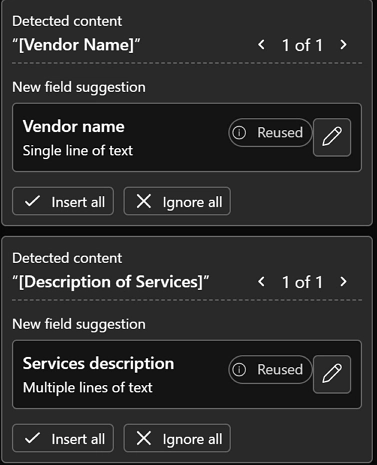
After you upload the Word document, Copilot helps identify potential placeholders. If the library already contains a column that matches a field, it suggests reusing it instead of creating a new one. This is particularly useful when several document generation forms use the same columns.
But Copilot doesn't do the whole setup for you. You still need to review the suggested fields, their names and types, and where each one appears in the document.
Document generation forms support most SharePoint field types, including Text, Choice, Number, Currency, Date and time, Image, Hyperlink, Email, and Managed Metadata.
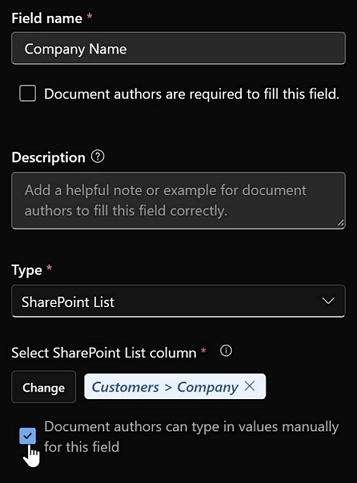
You can also add a SharePoint List field that pulls data from a list on the same or another SharePoint site. The value is stored in the document library as a single line of text rather than a standard Lookup column.
A few things stood out while testing. When preparing the template, the file opens in desktop Word, so I could edit the body content and formatting. I could also update the header and footer with placeholders. And once the template is published, the form fields can only be modified by changing the template — which keeps you from editing in one place and forgetting the other.
To create and configure a document generation form, the creator needs a Microsoft 365 Copilot license. Form submitters don't need an additional Copilot license.
Unlike content assembly, Microsoft currently doesn't list a per-document generation charge for this preview feature.
How to create a document generation form from a Word file with Copilot
Make sure you have a Copilot license before you start. Users who will fill in the form and generate documents don't need one.
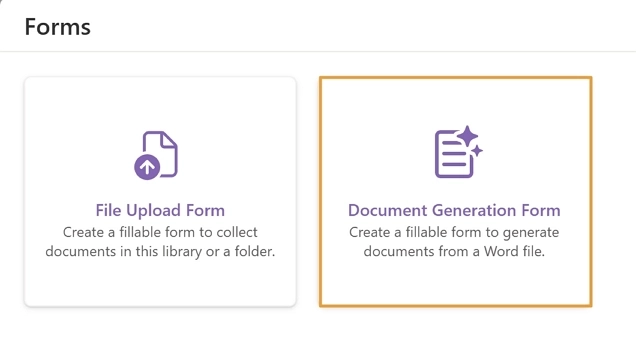
In your SharePoint library, click Forms → Document generation form:
Create the folder that will store the resulting files.
Select a Word document from the current SharePoint library or OneDrive, or upload one from your device. The template opens in the desktop Word application.
Copilot suggests placeholders to replace the content in your document:
Confirm the mapping and field type for each suggestion. You can adjust the mapping, add other spots where the same text should be replaced, insert existing placeholders or create new ones.
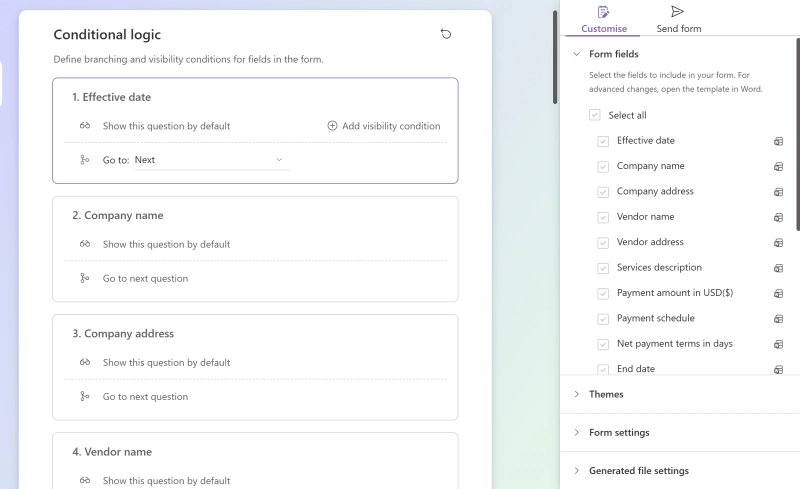
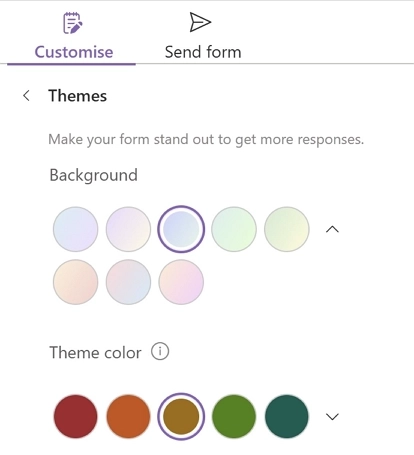
Publish the template to create the document generation form. From the form settings, you can choose which fields appear, change the theme, and configure conditional field visibility and branching:
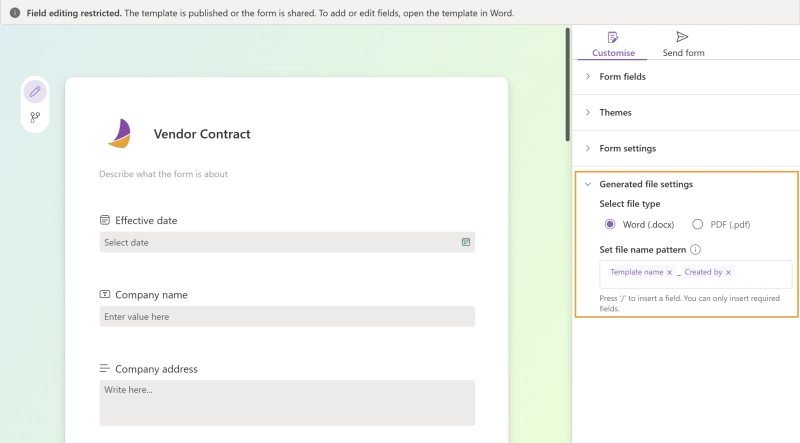
Pick the output format (DOCX or PDF) and define the file-name pattern using the fields:
When the form is ready, share it with users by link. It can be completed by anyone in your organization.
To create documents in bulk, or to connect the form to other data sources, build a Power Automate flow that watches for form submissions and generates a document by mapping template fields to data from elsewhere — Dataverse, Excel, Microsoft Forms submissions, and more.
Pros and cons of structured document generation
Having Copilot generate a form from an existing document sounds great on paper. But after hands-on testing, there are key drawbacks to weigh before jumping in, as well as some standout, underrated features that don't get talked about enough.
Pros of the document generation form
Copilot does part of the work: it identifies the content inside brackets that can be turned into placeholders, suggesting a name and type for each.
Broad field support: supports most SharePoint column types including hyperlink, email, choice, image, Managed Metadata, and values from SharePoint lists.
Lookup fields: SharePoint list fields can reference values stored in SharePoint lists, including lists on other sites.
Choice of output format: you set the output format of the generated file — DOCX or PDF — in the form settings.
Dynamic file names: the file name can be built from the form fields, so each generated document has a unique name.
Editable template: the template opens in desktop Word, so you can add objects and adjust styling.
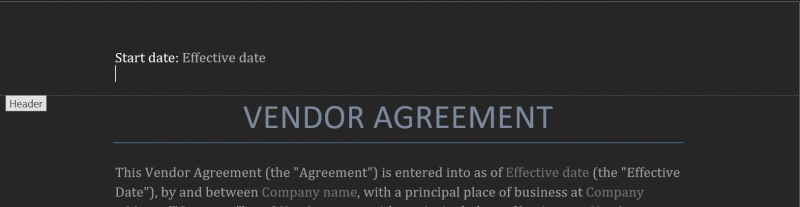
Header and footer placeholders: placeholders work in the document header and footer, not just the body:
Governed output: every generated document lands in one governed folder with metadata captured automatically, so the output is searchable and filterable.
Cons of the document generation form
Needs marked-up content: for Copilot to perform at its best, you must put the content you want replaced in brackets or mark it some other way. Otherwise, you'll be adding placeholders manually.
Word only: supports Word DOCX files only.
No repeating tables: repeating dynamic tables aren't supported, either in the form or in Power Automate.
Single value from lookups: a SharePoint lookup field brings in only the selected value, no additional data is pulled from the source list.
No formulas or custom validation: fields can have default values and visibility rules, but there is no general-purpose formula engine or custom validation logic for calculations such as totals, tax, or discounts.
Conditional logic has limits: you can combine conditions with AND/OR and control both document sections and form-field visibility, but it may fall short for more advanced logical rules.
Limited styling: styling is limited to the form theme — no custom branding or CSS:
No form reuse: there's no native way to copy or reuse a document generation form in another library.
No metadata feedback: editing the document's metadata later isn't reflected in the generated document.
Internal users only: only internal users can submit the form and generate documents. For external users you'll need a Power Automate flow and a way to collect data from them.
Still in preview: not something to build a mission-critical process on yet, and expect changes to the pricing.
When it's best to use structured document generation
Structured document generation works well when the document layout and most of its wording are fixed, while users provide a predictable set of values through a form. That makes it a good fit for internal documents such as simple NDAs, routine service agreements, offer letters, employment verification letters, and visa support letters.
It also works well when parts of the document should appear only under certain conditions. Conditional sections can include or remove clauses based on the values entered in the form, while SharePoint list fields can reuse data that already exists elsewhere.
One advantage over content assembly is that the template creator chooses the output format. If a process should always generate PDF, users don't get the option to switch it back to an editable Word document.
Generated files are also stored in a designated SharePoint folder with the submitted values captured as metadata, making them easier to search, filter, and use in subsequent workflows.
If your organization already licenses Microsoft 365 Copilot for the people creating these forms, there is currently no separate per-document generation charge listed by Microsoft.
When structured document generation isn't the best tool for document generation
Microsoft lists invoices, purchase orders, and similar documents among the potential use cases for structured document generation, but there is an important limitation: it doesn't support repeating dynamic tables or a general-purpose calculation engine.
That makes documents with variable line items awkward. Subtotals, taxes, discounts, and grand totals have to be calculated before the values reach the template or entered separately.
In my testing, it was also a poor fit for highly narrative documents or forms with a large amount of data to complete. Long case-specific explanations are cumbersome to enter through a structured form, and there is no way to add custom validation or calculations.
Finally, consider who needs to submit the form. Microsoft currently describes sharing document generation forms with users inside your organization. Processes involving customers, applicants, or suppliers therefore need a separate way to collect external data and, typically, Power Automate to generate the final document.
What is a custom template for a SharePoint library?
A classic template — Microsoft calls it a custom template — in a SharePoint document library is a file that a user fills out manually or that a Power Automate flow generates. It's the approach to standardized document creation that predates everything else in this post. If you're familiar with document templates for a content type — yes, those still work and are still available — then you already understand the idea.
How you configure the template depends on how you want documents created. There are three options:
Manual: a ready-made file users customize entirely by hand — no placeholders, no connection to SharePoint columns. It can be a Word, Excel, or PowerPoint file.
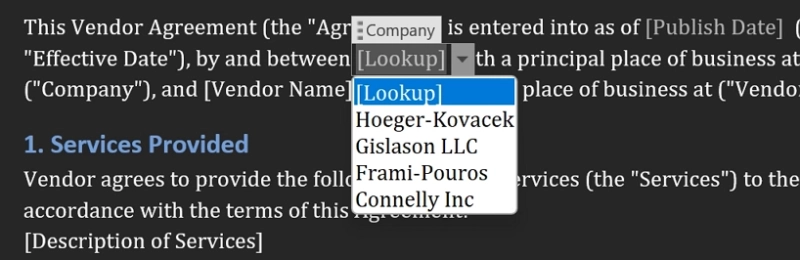
Manual, synced to SharePoint library columns: a Word file with Quick Parts tied to your SharePoint columns, giving two-way synchronization, but only when the document is edited in desktop Word. It supports most column types, including Lookup (users get a dropdown inside the file). It doesn't support images or repeating tables.
Automated Word template with Power Automate: a Word document containing content controls added from the Developer tab. The Populate a Microsoft Word template action fills those controls with data from the flow. This approach supports repeating sections and images.
What I like most is that you can build a template as advanced as you need, given some knowledge and patience. With the Power Automate route, templates can support dynamic images and repeating text or table rows. More complex behavior usually has to be implemented in the flow itself rather than in the Word template. The two-way synchronization also stood out to me. After testing the newer approaches, I was delighted to see that it still works.
How to set up a classic template
Decide how documents will be created, because it determines where the file lives. For automated generation, upload your Word file into the SharePoint document library itself. For manual creation, add it as a template under the Create or upload dropdown.
If you want placeholders synchronized with SharePoint columns, create all the required columns first.
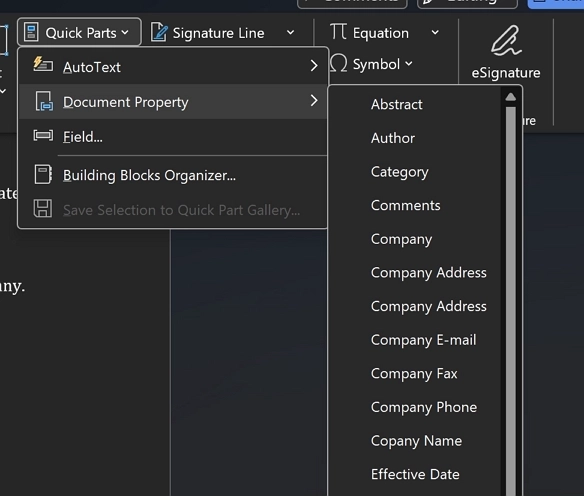
For a template linked to SharePoint library metadata, open the document in desktop Word and insert fields from Insert → Quick Parts → Document Property.
For automated generation with Populate a Microsoft Word template, use the Developer tab instead. Add supported content controls such as plain text, dropdowns, images, or repeating sections, and give each control a unique title.
Once the template is ready, users can find it under the Create or upload dropdown and create a file from it. They must open it in the desktop application for synchronization with SharePoint columns to work.
To generate documents automatically instead, build a Power Automate flow with the Populate a Microsoft Word template action, which fills your template from any data source and saves the result wherever you need it. This is the route that can create repeating tables and dynamic images.
Pros and cons of classic templates
Classic templates might feel old-fashioned — adding Quick Parts, remembering where to enable the Developer tab in Word — but the functionality is clear and in some cases more capable than Microsoft's modern alternatives. Here are the strengths and weaknesses that stand out.
Pros of classic templates
Broad SharePoint metadata support: Quick Parts can expose many SharePoint library columns directly inside Word, including lookup and metadata fields, although behavior varies by column type.
Images and repeating content: the Power Automate Word connector supports image controls and repeating sections, including repeating table rows and repeating blocks of text.
Metadata synchronization: Quick Parts linked to SharePoint columns allow metadata to be edited from SharePoint or desktop Word and stored with the document.
No per-document generation fee: Microsoft doesn't charge separately for each document generated with the Word connector, although the flow may require a Power Automate Premium license.
Reusable Word templates: Developer-based Power Automate templates can be reused by different flows and across SharePoint sites. Quick Parts tied to library metadata may require additional setup when moved to another library.
Many data sources: Power Automate can populate the template using data from SharePoint, Dataverse, SQL, Excel, Microsoft Forms, and other connectors.
Cons of classic templates
No built-in form: you design one separately in Microsoft Forms, Power Apps, or another tool, then bind it to the template through a Power Automate flow.
Desktop Word required for sync: synchronization between the file and SharePoint columns only works when the file is opened in the Word desktop application.
Nothing is locked: users can rewrite the boilerplate, delete clauses, or reformat the whole document, so consistency depends on people rather than the tool.
Premium connector for automation: automating generation with dynamic images and repeating tables requires the premium Word Online (Business) connector.
Complex for business users: setting up Quick Parts, content controls, and Power Automate is less guided than the newer SharePoint document generation tools.
No native conditional sections: the Word connector doesn't provide a conditional-section control comparable to the newer SharePoint document generation features. Conditional behavior has to be handled in the flow or through template design workarounds.
Little gain for manual large documents: for large documents completed by hand, it turns into ordinary file editing — no built-in form, no locked content.
PDF needs extra steps: PDF output is only possible through a Power Automate flow with additional actions, which can add cost.
When it's best to use classic templates
I'd suggest using classic templates in two situations. The first is when you want a branded starting document rather than a locked one: a letterhead, a report shell, or a proposal skeleton that people are meant to write into freely. The controls give you consistent structure and pre-filled metadata, while still leaving the author in charge of the words.
The second is when you're comfortable with Power Automate and want to keep costs down for automated document creation that needs images, repeating line-item tables, or high volumes — the combination that the newer features either can't produce or would bill you for per document. If your process already runs on flows, slotting a template into one is a small step.
When classic templates aren't the best tool for document generation
A classic template is the wrong choice whenever the approved wording has to stay untouched. Contracts, NDAs, and policy documents all depend on the boilerplate surviving contact with the person filling them in, and a classic template hands users the whole file. If protecting the final wording matters more than convenience, generate the document through a flow and convert it straight to PDF, or pick a tool that locks its output.
It is also a poor fit when you need to collect structured data from someone. With no form, no validation, and no guided flow, you're left with two options: let people type directly into the document, or build and maintain a separate front-end yourself and wire it up with Power Automate. That could be too much for a general user.
And if the people maintaining the process aren't comfortable with Word's Developer tools, content controls, and Power Automate, setup can become noticeably more technical than with the newer SharePoint features.
What are Plumsail Documents and Plumsail Forms?
Plumsail Documents and Plumsail Forms are third-party tools that can be used together for document generation in SharePoint. Plumsail Documents is a document automation service that generates files from Word, Excel, PowerPoint, and HTML templates using data from SharePoint or other sources.
A Plumsail Documents process contains the template, output settings, and delivery steps. Generated documents can be saved to SharePoint, sent for electronic signature, posted to Microsoft Teams, emailed, or delivered to other supported services.
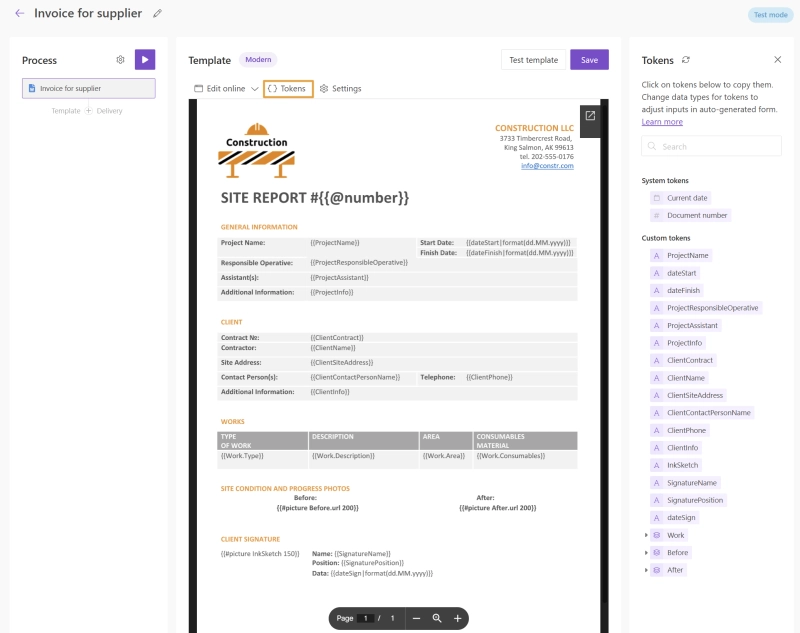
Templates use {{token}} syntax: values inside double curly brackets are replaced with data when the process runs.
Depending on the template format, Plumsail Documents supports:
Dynamic tables, including nested and repeating data.
Multilevel numbered and bulleted lists.
Conditional content and calculations inside templates, including operations such as sums, averages, and counts.
These capabilities cover some scenarios that the Microsoft options above don't handle natively, particularly nested repeating data, calculations, and more complex document structures.
The trade-off is template preparation. Instead of selecting placeholders through a graphical interface, you need to learn Plumsail's template syntax. Simple tokens are straightforward, but repeating structures, conditions, and calculations take more time to learn.
Plumsail Documents can be used on its own with SharePoint and Power Automate, or paired with Plumsail Forms. Plumsail Forms can replace a SharePoint list form or provide a public form for external users.
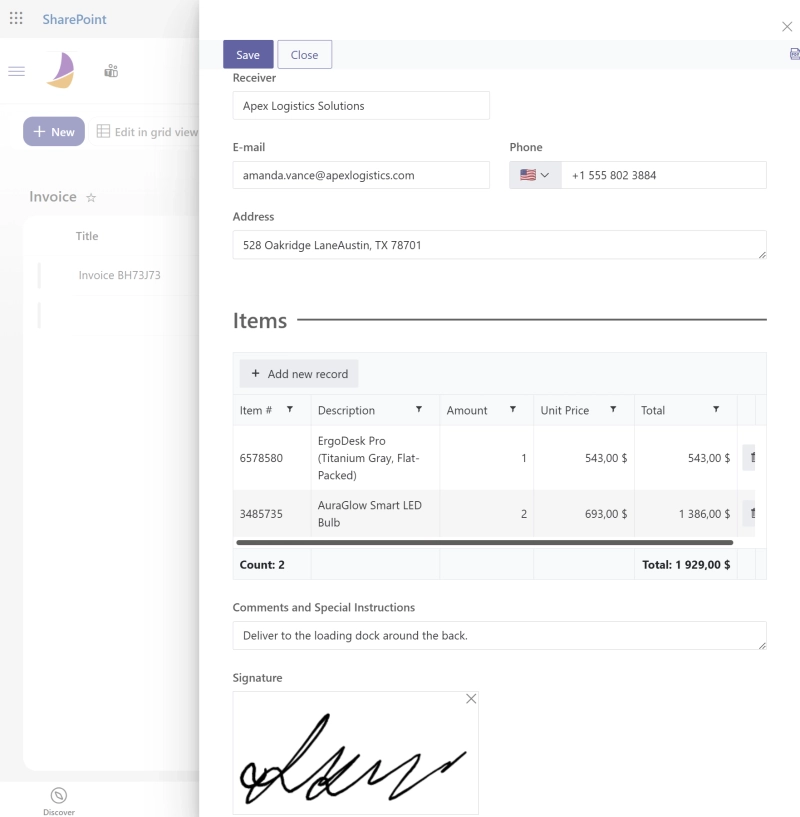
Using the two together is useful when data needs to be collected and checked before document generation. Forms can include validation, conditional logic, multiple pages, repeating data, related SharePoint list data, and signature fields.
One noticeable detail is that more of the data-processing logic can live in the form itself. For example, you can validate input, calculate values, control which fields are displayed, and collect repeating rows before passing the resulting data to the document template. This can reduce the amount of transformation logic needed in Power Automate.
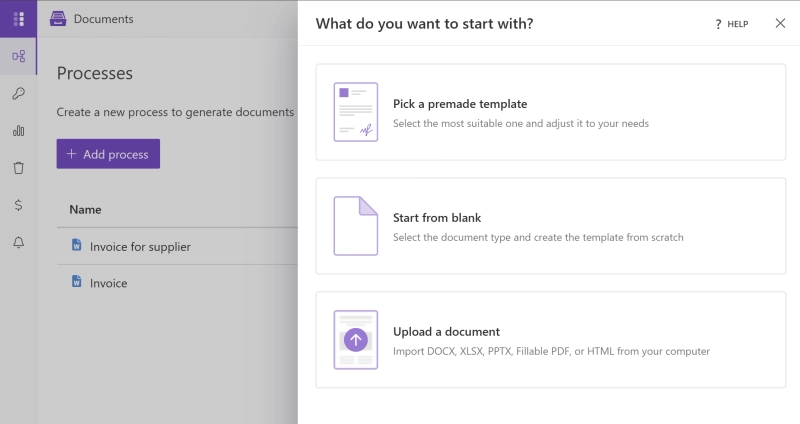
In your Plumsail account, go to Documents → Processes and create a new process. You can upload your own template, select one from the template gallery, or start with a blank template.
Supported template formats are DOCX, XLSX, PPTX, HTML, and fillable PDF. Office and HTML templates can be edited in the built-in editor; fillable PDF templates need to be prepared separately and uploaded.
Configure the template by replacing the parts that change with tokens matching your data, such as {{CustomerName}}. Click Tokens to see the placeholders used in the template:
Tip: one process can contain several templates and generate all of them from the same data in a single run.
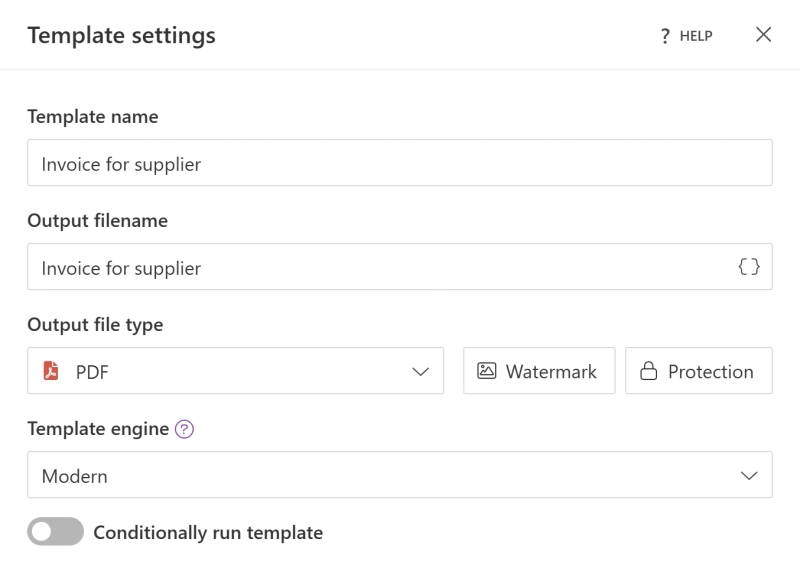
In Settings, configure the output file name and format. Office templates can remain in their original format or be converted to PDF. For PDF output, you can also add a watermark or password protection.
At the Delivery stage, choose what should happen to the generated files. For example, you can save them to SharePoint or OneDrive, send them by email, post them to Microsoft Teams, or send them for signature through DocuSign or Adobe Sign.
A process can have multiple deliveries, so the same document can be saved to SharePoint, emailed, and sent for signature in one run.
Click Start to run the process or choose how it should be triggered. You can enter data manually through a Plumsail web form, upload a CSV or Excel file for bulk generation, submit JSON, or start the process from Power Automate, Make, Zapier, Airtable, or custom code.
For example, a Power Automate flow can start the process whenever a new SharePoint list item is created.
Once configured, the process takes the supplied data, generates the document, and runs the configured delivery actions. Plumsail's process documentation covers the complete setup in more detail.
Pros and cons of Plumsail Documents and Forms
Of the four approaches in this post, Plumsail supports the broadest range of document-generation and data-collection scenarios. Documents supports repeating and nested data, multilevel lists, images, conditional content, and calculations, while Forms can provide the SharePoint or public-facing form used to collect the source data.
The trade-off is that these are third-party products with separate licensing and an additional platform to configure and maintain.
Pros of Plumsail Documents + Forms
Form-to-document workflow: data can be collected in Plumsail Forms, passed to a document template, and the generated file delivered automatically.
External users: Plumsail public forms can collect data from users without a Microsoft 365 account, including anonymous users.
Multiple template formats: templates can be DOCX, XLSX, PPTX, HTML, or fillable PDF, rather than Word only.
Flexible output: documents can remain in their original format or be converted to PDF, with options such as watermarks and password protection.
Rich document content: supports images, charts, QR codes, barcodes, signatures, and repeating data, including nested structures.
Multilevel lists: templates can generate both numbered and bulleted multilevel lists from dynamic data.
Calculations: calculations can be performed in both forms and document templates, which is useful for totals, taxes, discounts, and other derived values.
Multiple deliveries: the same process can save a document to SharePoint or OneDrive, send it by email, and pass it to services such as DocuSign or Adobe Acrobat Sign.
Forms with repeating data: a form can collect repeating rows directly in a Data Table or work with related items stored in another SharePoint list or library.
Form logic and validation: supports validation, conditional rules, cascading lookups, custom styling, and JavaScript for scenarios that go beyond the built-in controls.
Flexible form layouts: forms can use tabs, accordions, wizards, grids, and conditional visibility to organize larger sets of fields.
PDF split and merge: Plumsail Documents also includes actions for splitting and merging PDF files.
Automation options: processes can be started from Power Automate and other integration platforms. A Copilot Studio agent can also invoke a flow that starts a Plumsail Documents process.
Reusable templates: because Documents templates aren't tied to a particular SharePoint library, the same template can be used with different sites, libraries, and data sources.
Free to test: Plumsail Documents and Forms for SharePoint offer 30-day trials. Plumsail Web Forms also has a free plan, so you can test the workflow before committing to a subscription.
Cons of Plumsail Documents + Forms
Separate licensing: Plumsail is a third-party service rather than a built-in Microsoft 365 feature, so its licensing is additional to your Microsoft subscriptions.
Template syntax to learn: templates use Plumsail's {{token}} syntax. Basic placeholders are simple, but nested data, conditions, calculations, and formatting functions take some time to learn.
Two products for the complete workflow: if you need both advanced data collection and document generation, Forms and Documents have to be configured and licensed separately.
When it's best to use Plumsail Documents + Forms
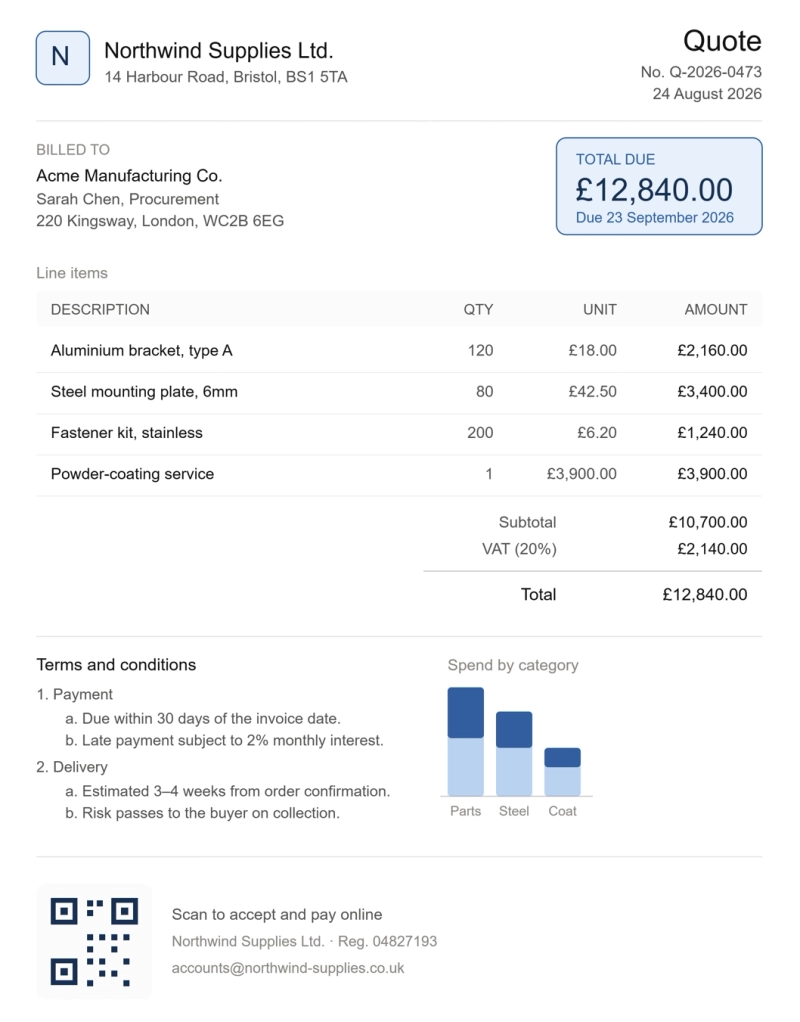
Plumsail becomes useful when the document or its source data goes beyond what the native SharePoint options handle comfortably. Typical examples are quotes, invoices, work orders, inspection reports, and service agreements with a variable number of line items, calculated totals, signatures, images, or other repeating data.
It's also the only option in this comparison that supports Word, Excel, PowerPoint, HTML, and fillable PDF templates rather than Word alone. This makes it suitable for processes that generate spreadsheets, presentations, reports with charts, or other documents where the output format varies.
Another strong use case is external data collection. Plumsail public forms can collect information from customers, applicants, suppliers, or other people outside your organization without requiring them to have access to your SharePoint tenant. The submitted data can then be passed directly to Plumsail Documents to generate the required file.
When Plumsail Documents + Forms isn't the best tool for document generation
Plumsail can be more than you need for simple cases. If you're generating a standardized document with a few straightforward values such as a name, address, and date, one of the built-in SharePoint approaches may be easier to set up and maintain.
It's also not a good fit if your organization has a policy against third-party services outside Microsoft 365, or if document data isn't permitted to be processed outside your Microsoft tenant. That's primarily a procurement, security, and compliance question, so it's worth resolving before investing time in templates and workflows.
Finally, consider document volume and how often the process is used. A separate subscription is easier to justify when document generation is a regular business process or requires capabilities the Microsoft options don't provide. If you generate only a handful of simple documents each year, a classic template or content assembly's current free monthly allowance may be sufficient without adding another vendor.
Which document generation approach should you choose?
After testing all four approaches, the right choice comes down to your document structure, where the data comes from, who provides it, and how much setup you're willing to maintain.
Choose content assembly for simple, structured Word documents when you want a native SharePoint experience with a live preview.
Choose structured document generation when you want a native form-based experience, controlled output, and already have Microsoft 365 Copilot.
Choose classic templates when you already rely on Word and Power Automate and need a flexible way to automate document generation.
Choose Plumsail when you need more complex documents, calculations, repeating or nested data, non-Word templates, or external data collection.
For a feature-by-feature breakdown, see the comparison table below.
Comparison table
Content assembly
Structured generation
Classic template
Plumsail
Top advantage
Live preview
Copilot-assisted setup
No per-document fee
Advanced document structures
Manual generation
Yes
Yes
Yes
Yes
Automation
Power Automate
Power Automate
Power Automate
Multiple options
Bulk generation
Yes
Yes
Yes
Yes
Templates
DOC, DOCX
DOCX
DOCX*
DOCX, XLSX, PPTX, HTML, PDF
Output
DOCX, PDF
DOCX, PDF
DOCX, PDF*
Original, PDF
Repeating tables
SharePoint data
No
Power Automate
Yes, nested
Dynamic images
Manual only
Yes
Power Automate
Yes
Drawn signature
No
No
No
Yes
Charts / QR codes
No
No
No
Yes
Conditional content
Basic
Basic
Via flow
Advanced
Calculations
No
No
Via flow
Yes
Prefill
Limited
Yes, default values are supported
No
Yes
Validation
Limited
Limited
Separate form
Yes
Built-in form
Basic
Customizable
No
Full form designer
External users
No
No
No
Yes
Reuse
No
No
Yes*
Yes
License
Pay-as-you-go
M365 Copilot
Power Automate*
Plumsail
Cost
$0.15/document
Copilot license
$0–15/user/month*
From $0.125/document; lower at higher volume
Setup
Easy
Easy–moderate
Moderate–advanced
Moderate
* Classic template capabilities and licensing depend on whether you use it manually with SharePoint metadata or automate generation through Power Automate.
When to consider Plumsail for document generation
If you've read this far, you probably have a good idea which approach fits your case. For simple internal documents based on SharePoint data, one of the native Microsoft options may be enough — especially if you generate only a small number of documents and don't need advanced form logic or document structures.
Plumsail becomes worth considering when the requirements are more complex: a variable number of line items, calculated totals, drawn signatures, Excel or PowerPoint templates, nested repeating data, or forms that need to be completed by people outside your organization. In these scenarios, Plumsail Documents and Plumsail Forms can cover both data collection and document generation without building the missing pieces separately.
A practical way to evaluate it is to use a document your team already generates regularly. You can try Plumsail Documents and Plumsail Forms, recreate one existing process, and compare the setup and resulting document with the Microsoft options above.
If your template has unusual requirements, you can also contact Plumsail support before deciding whether the products fit the process.
Frequently asked questions
What is content assembly in SharePoint?
Content assembly, originally part of SharePoint Syntex, generates standardized documents from Word templates using manual input or data from SharePoint lists. Users fill in a side-panel form and see a live preview of the document while entering data. It works well for simple, structured documents that don't require calculations or extensive form customization.
What is structured document generation in SharePoint?
Structured document generation is a preview feature of Copilot in SharePoint. It turns a Word document into a document generation form: Copilot helps identify potential fields, and when a user submits the published form, SharePoint merges the entered values into a new document.
Generated files are saved to a designated SharePoint folder, with form values captured as metadata. The form also supports default values, conditional field visibility, and branching. The form creator needs a Microsoft 365 Copilot license.
What is a classic or custom template in SharePoint?
A classic, or custom, template is a file associated with a SharePoint document library that users can create new documents from.
For Word documents, Quick Parts can connect document properties to SharePoint library columns. For automated document generation, Word content controls can instead be populated with Power Automate using the Populate a Microsoft Word template action.
What are Plumsail Documents and Plumsail Forms?
Plumsail Documents is a third-party document generation service that integrates with SharePoint and Microsoft 365. It generates documents from DOCX, XLSX, PPTX, HTML, and fillable PDF templates and can deliver the result to SharePoint, OneDrive, email, DocuSign, and other services.
Templates can contain repeating and nested data, multilevel lists, images, conditional content, calculations, charts, and QR codes. Plumsail Documents can also merge and split PDF files.
Plumsail Forms can be used to collect the data for those templates through SharePoint forms or public forms for external users. Forms support validation, conditional logic, repeating data, and other controls. A form submission can start a Plumsail Documents process directly.
What is the best way to generate documents in SharePoint?
There isn't one best approach for every case.
Content assembly works well for simple documents based on manual input or SharePoint data.
Structured document generation is useful when you want a native Microsoft form and controlled document-generation process.
Classic templates are suitable when you already use Word and Power Automate and don't need a built-in form.
Plumsail Documents + Forms is useful for more complex templates, calculations, repeating data, non-Word formats, or external data collection.
Can external users generate documents from SharePoint data?
Among the four approaches compared here, Plumsail Forms provides the most direct option for external users. Public forms can be completed without a Microsoft 365 account or access to your SharePoint tenant, and a submission can start document generation automatically.
With the Microsoft approaches, external data collection generally requires a separate form or workflow.
Are template formats other than DOCX supported?
Yes, but support depends on the tool.
Plumsail Documents supports DOCX, XLSX, PPTX, HTML, and fillable PDF templates. Classic SharePoint library templates can also use Excel or PowerPoint files for manual editing.
Content assembly and structured document generation are primarily Word-based document generation features.
How can I automatically generate a PDF from a template in SharePoint?
Content assembly and structured document generation can generate PDF output directly. Plumsail Documents can also generate or convert template output to PDF.
With classic Word templates, PDF generation normally requires Power Automate: first populate the Word template, then convert the generated document to PDF. Plumsail Documents additionally supports options such as PDF watermarking and password protection.
How to automate multi-step approval process in SharePoint with PDF timesheet result
See how FileBank Inc. built a four-stage timesheet approval workflow in SharePoint Online — with auto-calculated hours, signature capture, and final PDF generation — with Plumsail and Power Automate.
Farook Golam
IT Director at FileBank Inc.
DocumentsPower Automate
Last updated: Jun 11
Power Automate: populate a Microsoft Word template action step by step
Learn how to use the Populate a Microsoft Word Template action in Power Automate. Follow a step-by-step guide, understand its limitations, and explore options for advanced document generation.
Anton Cox
Customer Support Engineer
DocumentsPower AutomatePower Apps
Last updated: Jun 01
How to dynamically create PDF file with multiple images in Power Automate
Learn how to automatically generate PDF documents with dynamic images using Power Automate and Plumsail Documents.



 Documents
 FormsSharePoint
 Power Automate