Plumsail Documents Processes can now generate more than one document at a time. You can add multiple templates to the same Process, use different template formats, and generate a set of documents from the same data in a single run.
To see how it works, we'll build a sales proposal package containing a project proposal, pricing spreadsheet, and presentation. We'll use the same client and project data across all three templates and make the presentation conditional, so it's only generated when it's actually needed.
Instead of maintaining a separate Process for each document, we'll keep the whole proposal package together and generate it in one run.
Further in the article:
A single Plumsail Documents Process can contain multiple templates. Each template defines one document, and the Process can generate the documents together from the same input data in a single run.
The templates don't have to use the same format. You can combine DOCX, XLSX, PPTX, fillable PDF, and HTML templates in one Process and configure each template separately, including its output format, file name, and conditions for when it should be generated.
For our sales proposal package, we'll use three templates:
All three documents will use the same client and project data, but each template will use it differently.
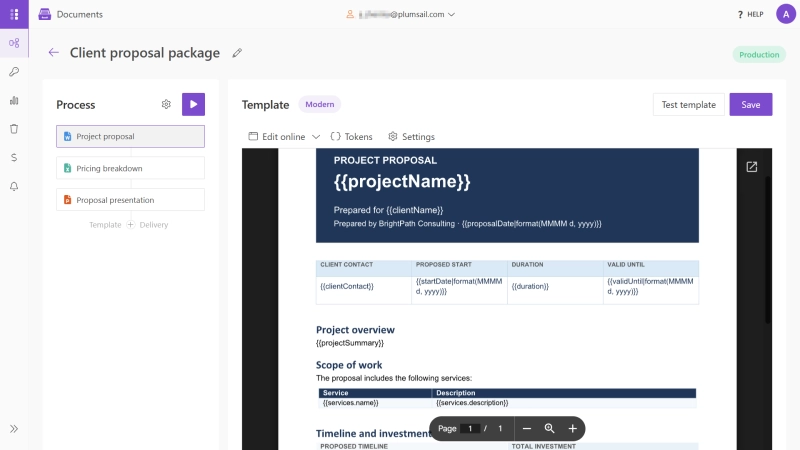
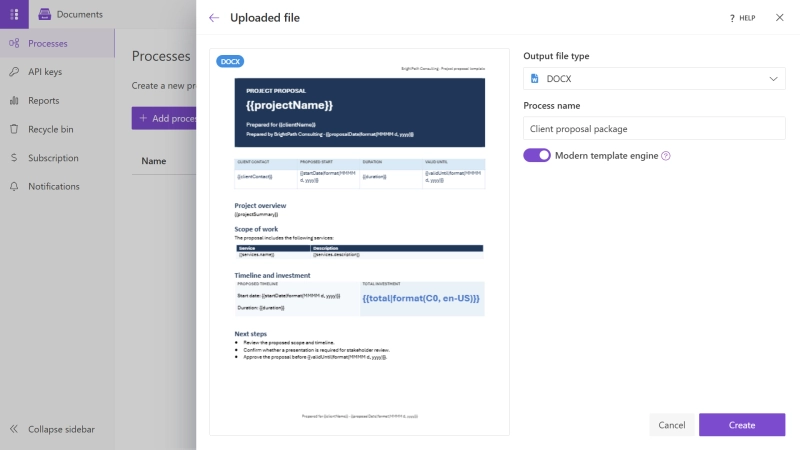
Let's start by creating a Process and adding the three templates that make up our proposal package.
- Go to Processes in your Plumsail Documents account
- Click Add process
- Choose to upload your own template
- Upload the Project proposal DOCX template
- Name the Process Sales proposal package
- Create the Process
We'll start with the main project proposal. It contains the client name, project overview, scope of work, timeline, and total investment.
The template uses tokens such as:
{{clientName}}
{{projectName}}
{{projectSummary}}
{{duration}}
{{total}}
It also uses the services collection to populate the scope of work table.
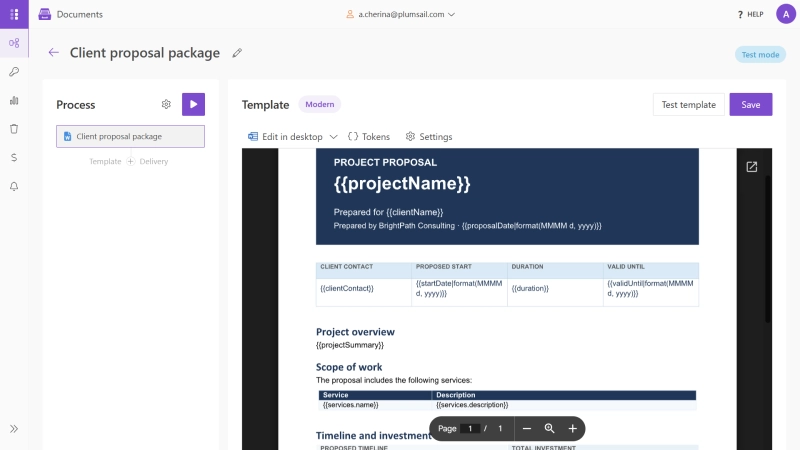
Open the template settings and configure:
- Template name: Project proposal
- Output filename:
{{clientName}} - Project proposal — the {{clientName}} token makes the file name dynamic, for example Contoso - Project proposal.pdf
- Output file type: PDF
We use a DOCX template because it's convenient to design and edit in Word, while the final proposal will be generated as a PDF.
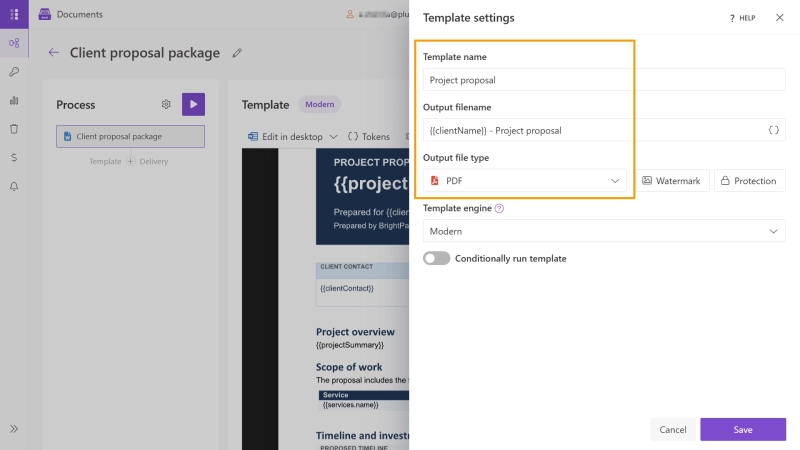
We'll add the pricing spreadsheet as another template in the same Process.
- Click Add template in the Process panel
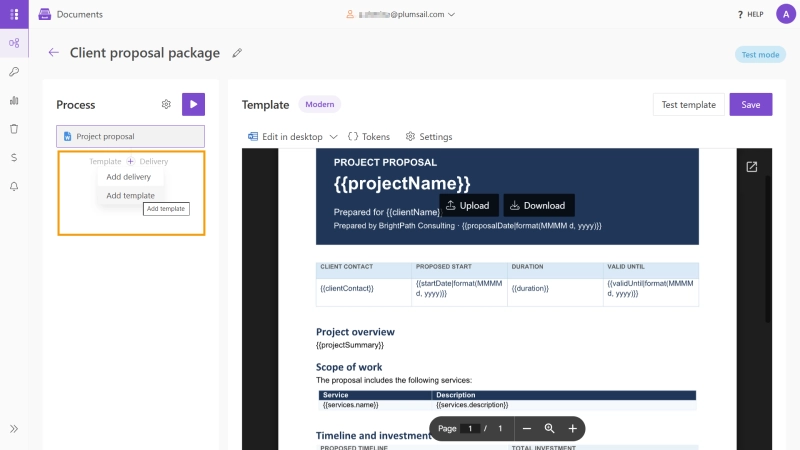
Configure:
- Output filename:
{{clientName}} - Pricing breakdown
- Output type: XLSX
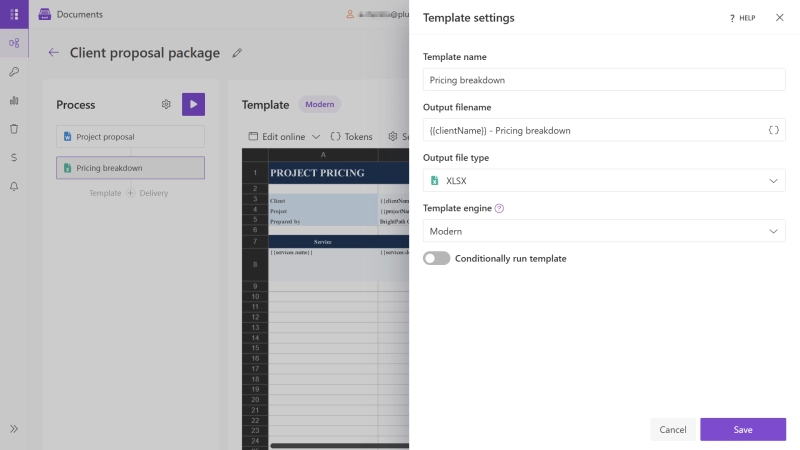
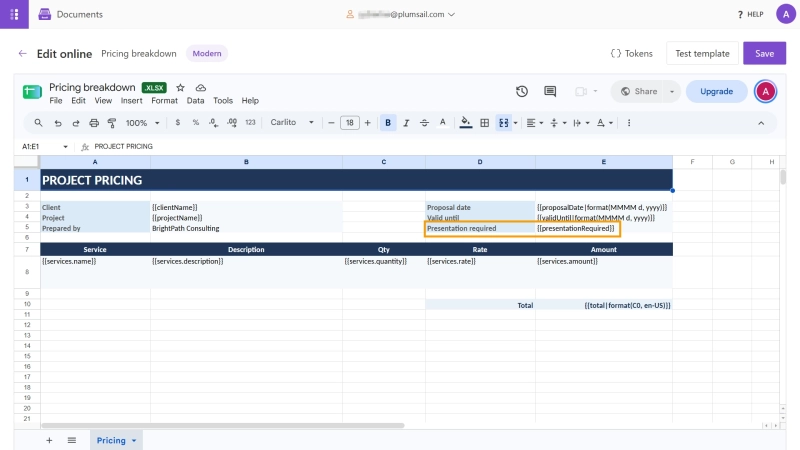
The spreadsheet contains the same client and project information as the proposal, but uses the services collection to create a detailed pricing table with quantities, rates, and amounts.
The XLSX template also contains the {{presentationRequired}} token. We'll use this value later to decide whether the PowerPoint presentation should be generated.
The {{presentationRequired}} token can be kept on a separate data sheet so it doesn't appear in the customer-facing pricing table.
Finally, add the PowerPoint presentation to the same Process.
Open the template settings and configure:
- Output filename:
{{clientName}} - Proposal presentation
- Output type: PPTX
- Turn on Conditionally run template
- Set the condition to presentationRequired Equals TRUE
The presentation is not needed for every sales opportunity, so we use the presentationRequired token to control whether this template should run. When its value is TRUE, Plumsail Documents Process generates the PowerPoint presentation along with the other documents in the set. If it is FALSE, the presentation is skipped.
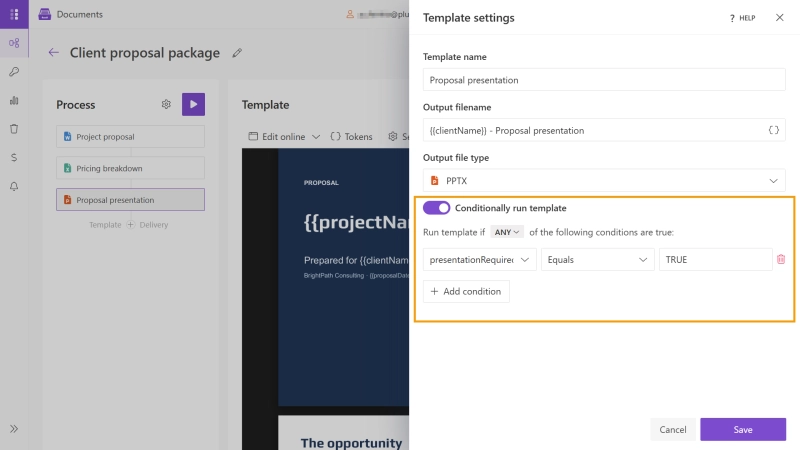
At this point, our Sales proposal package contains three templates in three different formats: a Word proposal, an Excel pricing breakdown, and a conditional PowerPoint presentation. All three remain independently configurable while being part of the same Process.
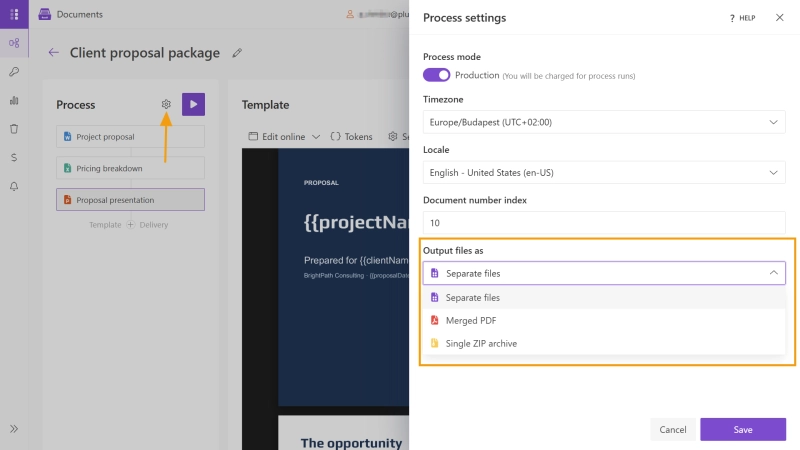
Before adding a delivery, open Process settings and make sure Output files is set to Separate files.
This keeps the generated documents as separate files, ready to attach to the Outlook email we'll configure next. If needed, you can also combine the generated documents into a single PDF or package them into a ZIP archive.
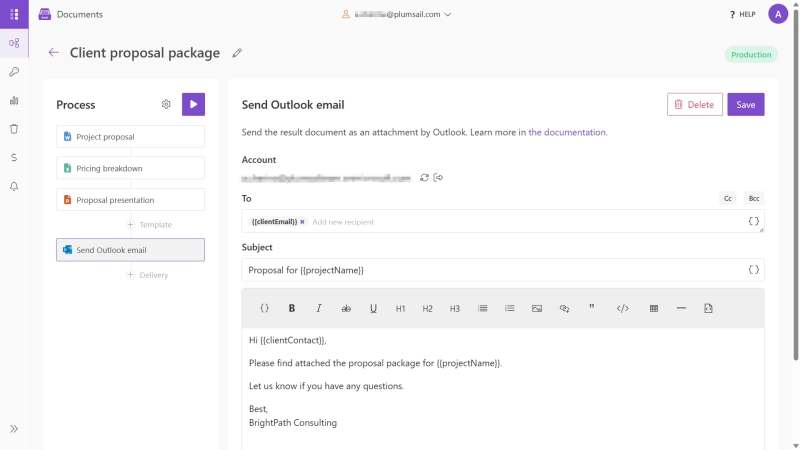
We'll use Outlook to send the complete proposal package by email. Since the Process output is set to Separate files, the generated PDF, Excel spreadsheet, and PowerPoint presentation can all be attached to the same message.
- Click Delivery in the Process panel
- Select Outlook
- Connect your Outlook account if you haven't already
- Enter the recipient address
- Add the email subject and body
- Keep all templates selected so every generated document is attached
Tokens can be used in Outlook recipients, subject lines, and email bodies, so the delivery can use the same Process data as the document templates.
Now that the templates, Process output, and Outlook delivery are configured, let's run the complete Process using sample JSON data.
Plumsail Documents Processes can be started in several ways, including web forms, CSV or Excel files, custom JSON, Power Automate, Make, Zapier, and REST API. For this example, we'll submit JSON directly so we can clearly see the single data object used to generate the entire proposal package.
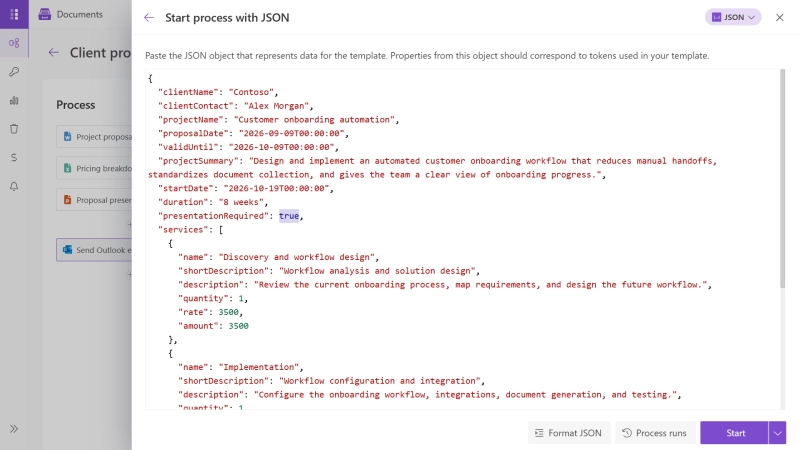
- Click Start in the Process panel
- Select Submit custom JSON data
- Paste the sample JSON
- Start the Process
{
  "clientName": "Contoso",
  "clientContact": "Alex Morgan",
  "projectName": "Customer onboarding automation",
  "proposalDate": "2026-09-09T00:00:00",
  "validUntil": "2026-10-09T00:00:00",
  "projectSummary": "Design and implement an automated customer onboarding workflow that reduces manual handoffs, standardizes document collection, and gives the team a clear view of onboarding progress.",
  "startDate": "2026-10-19T00:00:00",
  "duration": "8 weeks",
  "presentationRequired": true,
  "services": [
    {
      "name": "Discovery and workflow design",
      "shortDescription": "Workflow analysis and solution design",
      "description": "Review the current onboarding process, map requirements, and design the future workflow.",
      "quantity": 1,
      "rate": 3500,
      "amount": 3500
    },
    {
      "name": "Implementation",
      "shortDescription": "Workflow configuration and integration",
      "description": "Configure the onboarding workflow, integrations, document generation, and testing.",
      "quantity": 1,
      "rate": 12000,
      "amount": 12000
    },
    {
      "name": "Training and handover",
      "shortDescription": "Team training and documentation",
      "description": "Train the customer team and provide implementation documentation.",
      "quantity": 1,
      "rate": 3000,
      "amount": 3000
    }
  ],
  "total": 18500
}
The same input is used across all three templates. For example, clientName appears in the proposal, pricing spreadsheet, and presentation, while each template uses only the fields it needs.
Since presentationRequired is set to TRUE, the conditional PowerPoint template is generated as well.
The Process generates:
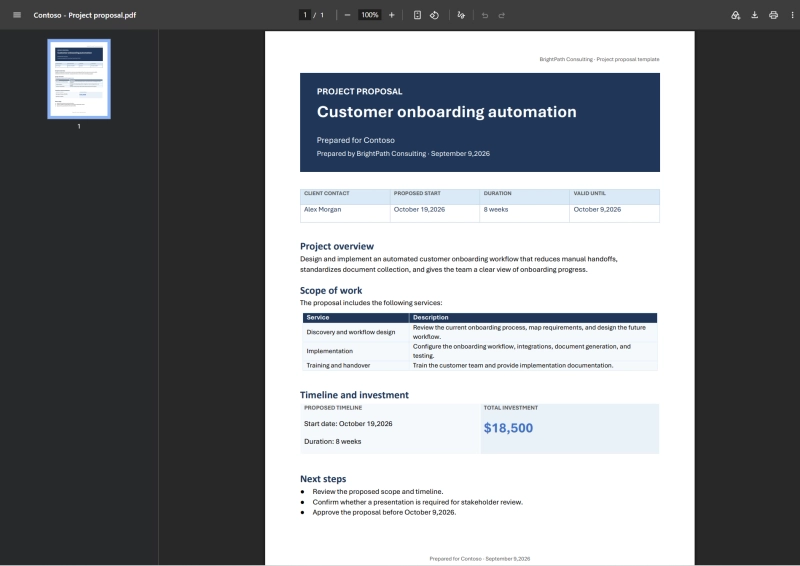
- Contoso - Project proposal.pdf — the final client proposal with the project overview, scope, timeline, and total investment.
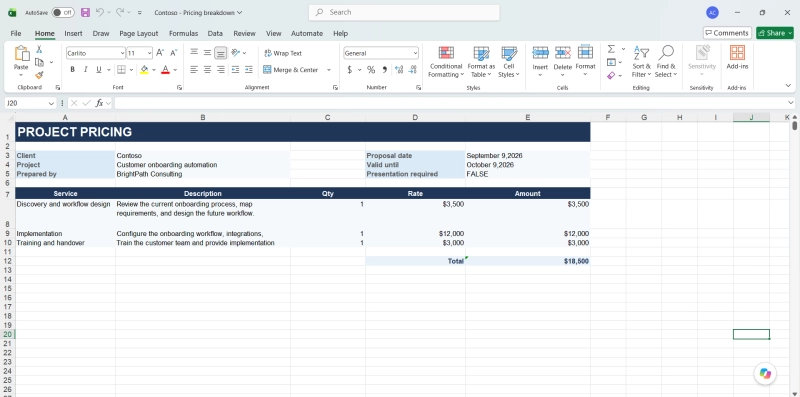
- Contoso - Pricing breakdown.xlsx — the detailed pricing spreadsheet with services, quantities, rates, and total.
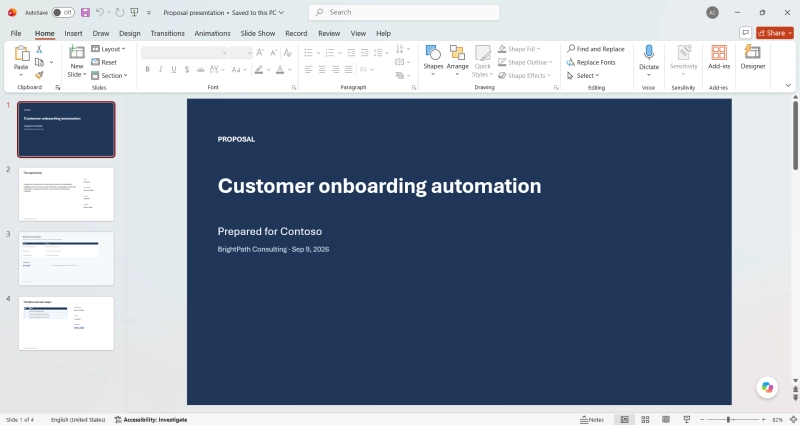
- Contoso - Proposal presentation.pptx — the presentation version of the proposal for stakeholder review.
The Outlook delivery then sends all three files as attachments in a single email:
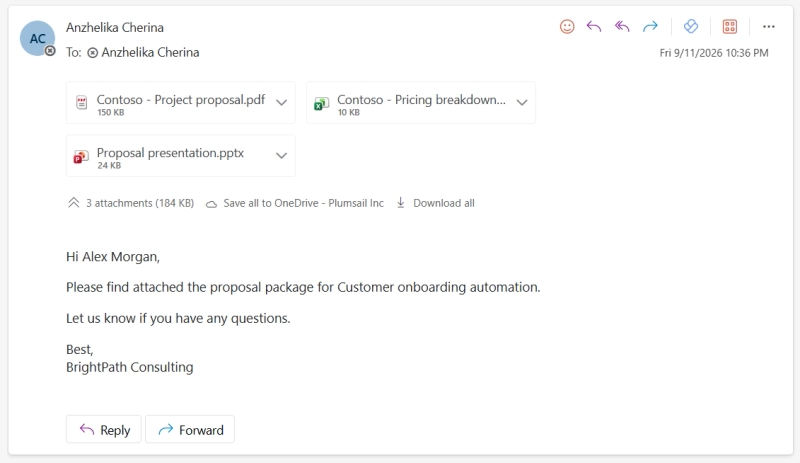
With one Process run, we've generated three documents in different formats from the same data and delivered them together by email.
To see the template condition in action, change:
"presentationRequired": true
to:
"presentationRequired": false
and run the Process again.
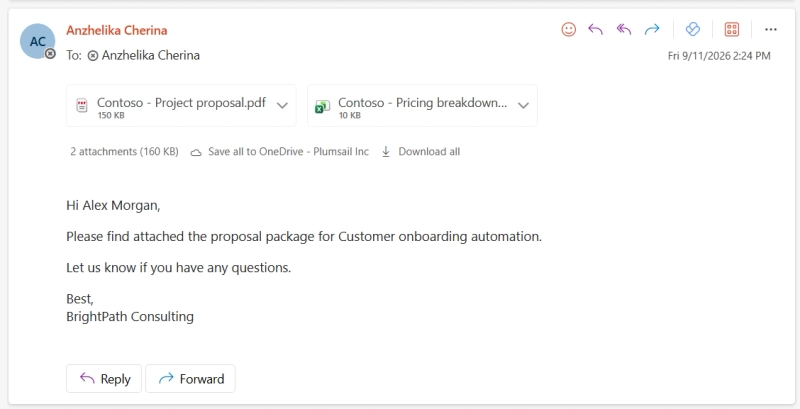
This time, the PowerPoint template is skipped. The Outlook email contains only:
- Contoso - Project proposal.pdf
- Contoso - Pricing breakdown.xlsx
The Process itself stays the same. Only the documents that meet the configured conditions are generated and delivered.
A sales proposal is just one example. Using multiple templates in one Process works well whenever the same business event needs to produce a set of related documents.
| Scenario | Example set of documents |
|---|
| Employee onboarding | Employment agreement + onboarding checklist + training presentation |
| Project kickoff | Project plan + budget spreadsheet + kickoff deck |
| Customer reporting | Written report + detailed Excel data + presentation |
| Procurement | Proposal + pricing workbook + supporting documents |
With Plumsail Documents, you can keep related templates in one Process and generate them from the same data.
Start a free trial and generate a set of documents using your own templates in a single Process.


 DocumentsSharePoint
 Power Automate