 Documents
Sep 14
Generate a set of documents from one data source using multiple templates
Use multiple templates in a single Plumsail Documents Process to generate Word, Excel, PowerPoint, PDF, and HTML files from the same data.
 Documents
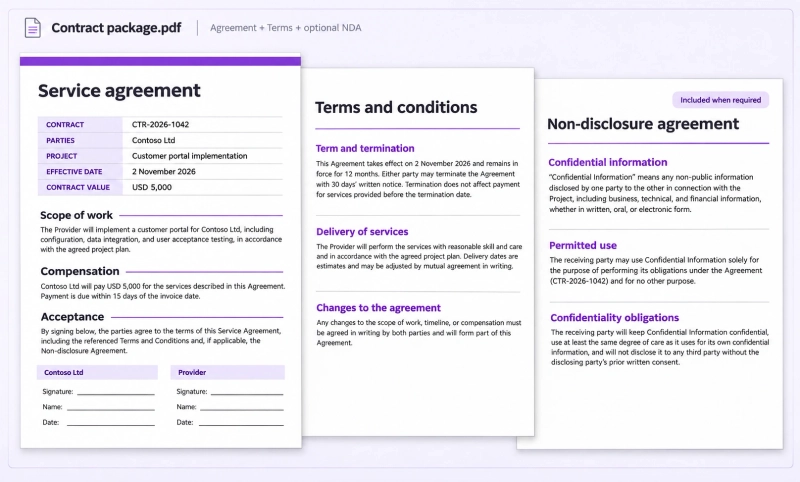
A contract package can contain a main agreement and standard terms, with an NDA included only when confidential information will be shared. For example, an IT services company might need an NDA when accessing a customer's internal systems, but not for standard services.
In this tutorial, we'll generate the documents from the same data and combine the required documents into one PDF using Plumsail Documents.
In this article:
Download the three templates for this example:
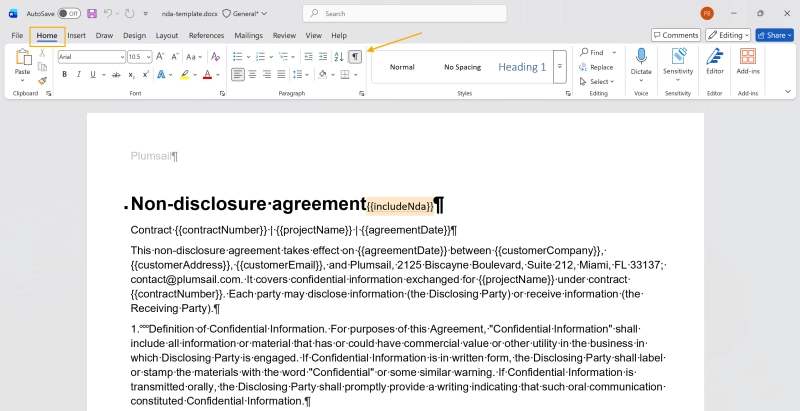
To use {{includeNda}} in the template condition, we've added the {{includeNda}} token to the NDA title as hidden text. This way, the field can be used in the condition without appearing in the generated document. To see or edit it in Word, enable the display of hidden text.
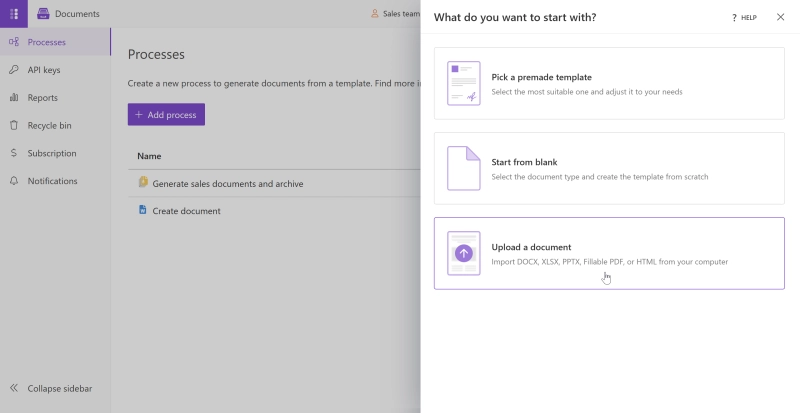
Log in to the Plumsail Documents account and create a new process. We can upload our own template, start with a blank document, or choose one of the ready-to-use templates.
To reproduce this example, select Upload a document and upload one of the downloaded templates, for example, Service agreement.
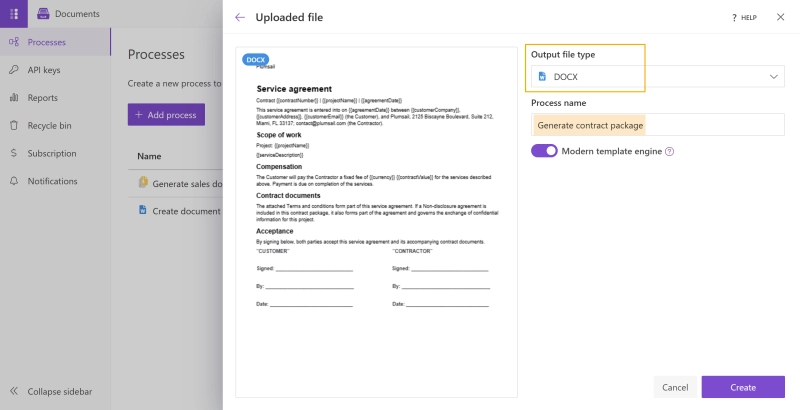
Name the process Generate contract package, leave the template's output file type as DOCX, and click Create. Later, we'll select Merged PDF in the Process settings. This automatically converts the generated documents to PDF and combines them into one file, so we can keep the DOCX output format for all three templates.
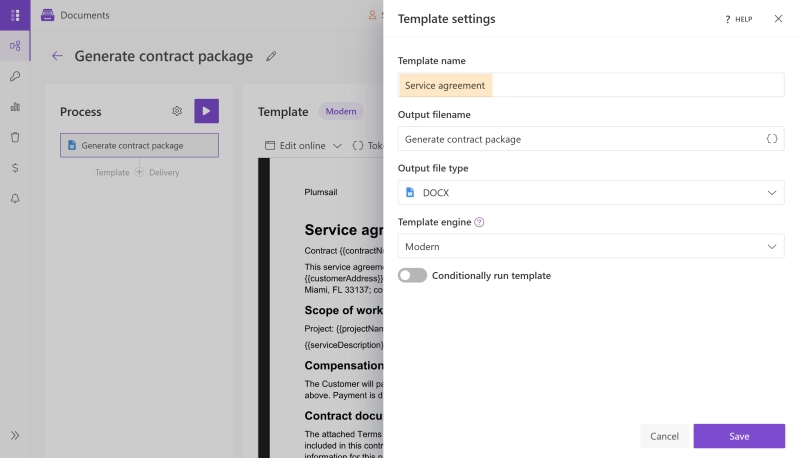
By default the first template is named after the Process name. In our case it's "Generate contract package". Let's rename the template so it’s easy to identify in the Process panel.
Click Settings above the template editor. Alternatively, hover over the template in the Process panel and click its gear icon. Enter Service agreement under Template name and save.
Next, add two more templates, Terms and conditions and NDA, to the created process.
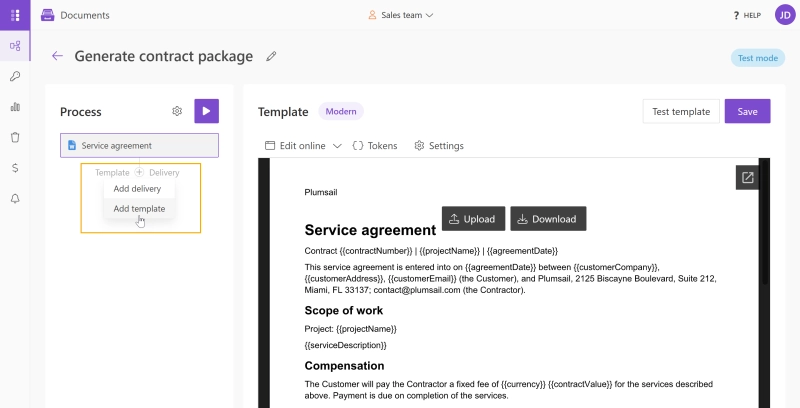
Click + beneath the first template in the Process panel and select Add template.
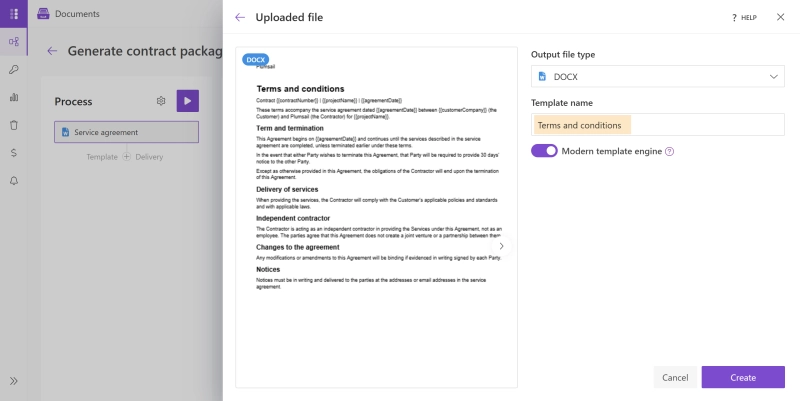
Upload the Terms and conditions template, enter Terms and conditions under Template name, and click Create.
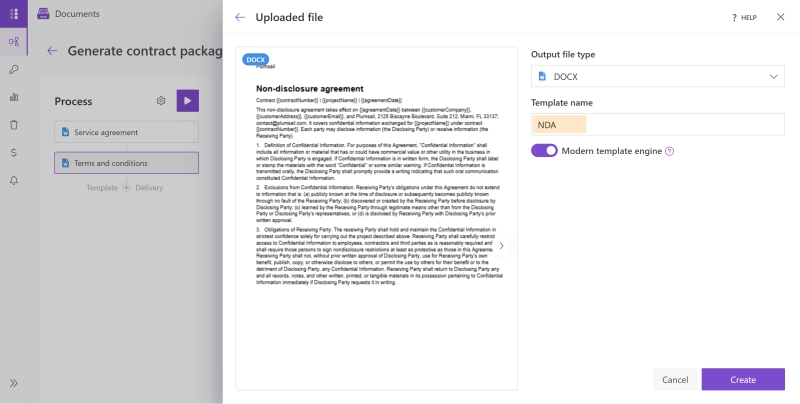
And then add the third template, NDA, rename the template and click Create.
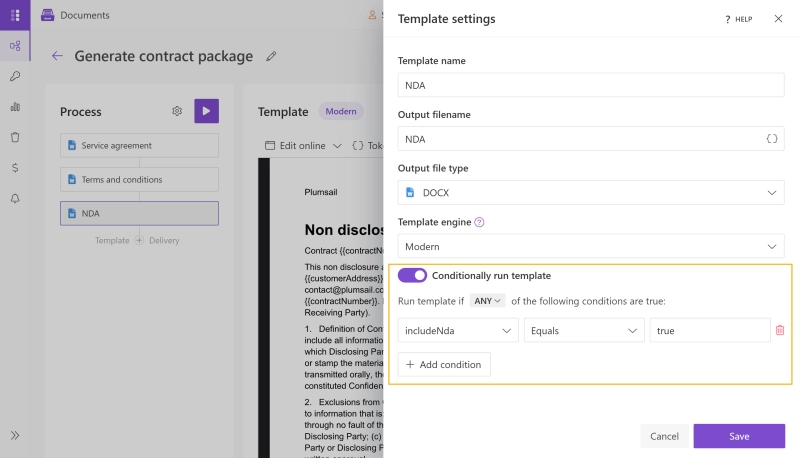
Open the NDA template settings and enable Conditionally run template.
Select includeNda and set the condition to Equals true. The token is hidden in the document because it controls whether the NDA is generated; its value does not need to appear in the contract package. Save the NDA template settings.
Next, configure the Process to convert and combine the generated documents into a single PDF.
Click the gear icon next to the Process heading in the left panel. This opens Process settings, where we can configure the output for the entire contract package.
Under Output files, select Merged PDF and enter the following output filename:
Contract package {{contractNumber}} {{includeNda|bool(with, without)}} NDA from {{@date|format(yyyy-MM-dd)}}The filename uses three tokens:
{{contractNumber}} adds the contract reference from the input data.{{includeNda|bool(with, without)}} uses the bool function to return with when includeNda is true and without when it is false.{{@date|format(yyyy-MM-dd)}} uses the format function to include the generation date without the time.For example, running the Process produces one of these filenames depending on the date and NDA:
This makes the two versions easy to distinguish before opening the attachment. Click Save to apply the settings.
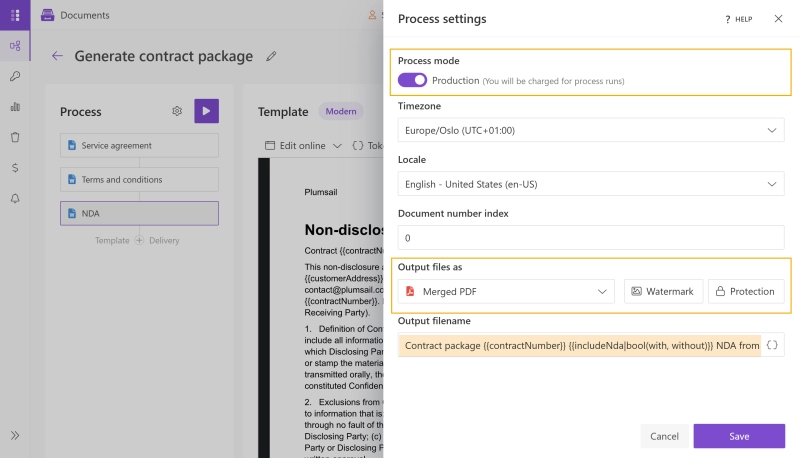
The result will contain the service agreement and terms and conditions. The NDA will be included only when includeNda is true. When the condition is not met, the NDA is skipped and the remaining documents are combined into the PDF.
For this case we switched the Process mode to Production. It removes a Plumsail watermark from the result but the runs are charged. You can keep the Process in Test mode while checking the results.
Now let's add a delivery. We'll use an Email delivery which sends the completed contract package to the customer for review. The merged PDF will be attached to the message.
Click + beneath the templates in the Process panel, select Add delivery.
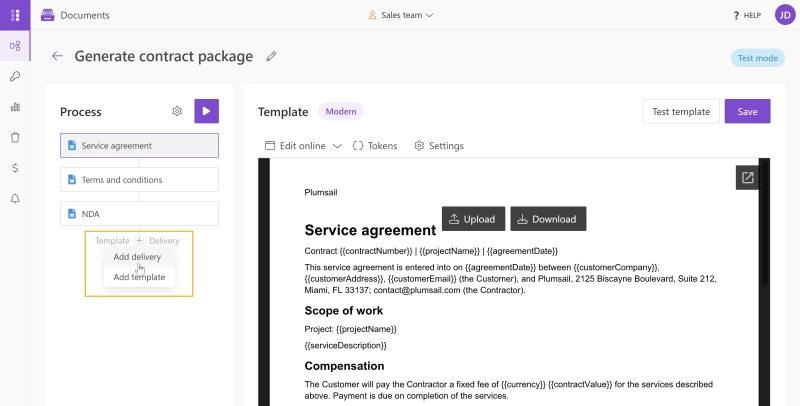
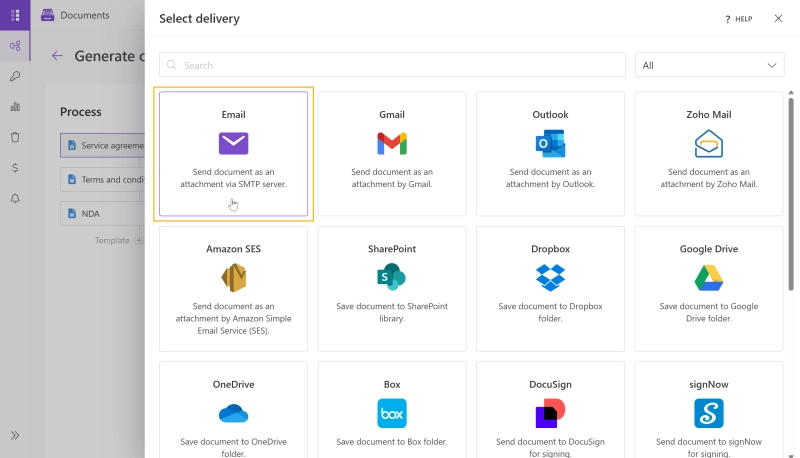
Then choose Email.
Click SMTP settings, enter the connection details supplied by the email provider, and click OK.
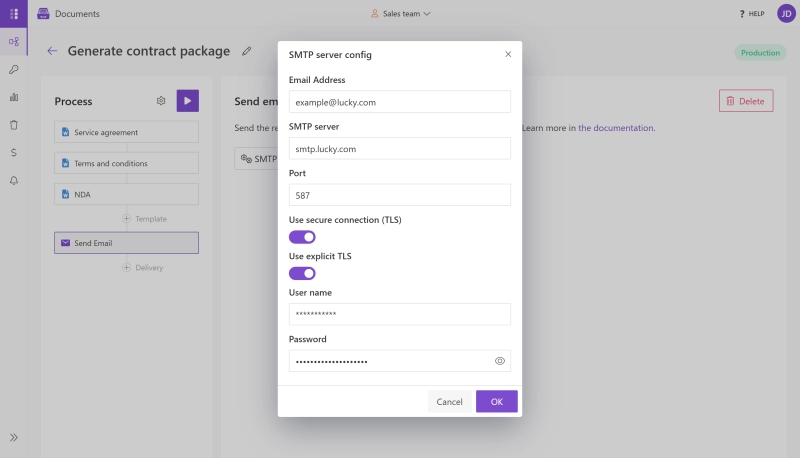
Once connected, configure the message.
Use the { } token picker to insert values from the Process data into the recipient, subject, or body. The customerEmail field determines who receives the package. Save the delivery settings.
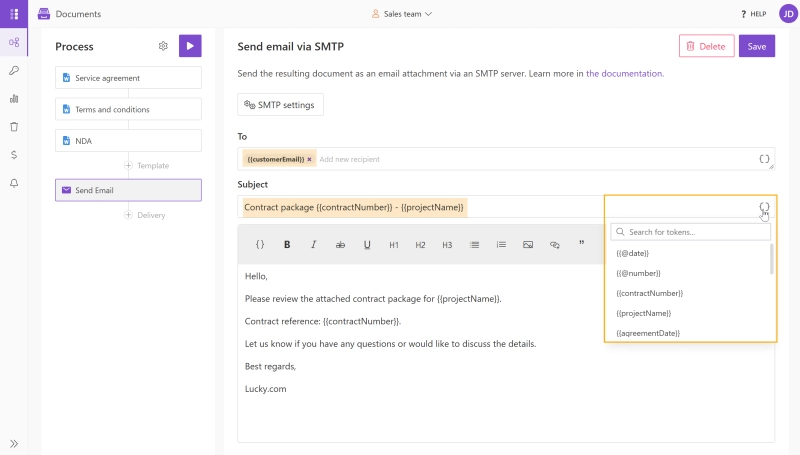
Each run sends one PDF. It contains the service agreement and terms and conditions, plus the NDA when includeNda is true.
Now, let's run the entire Process twice with the same contract data: first with the NDA included, then without it.
Click the Start button at the top of the Process panel. Select Submit custom JSON data, paste the sample JSON, and start the Process.
Also replace purchasing@example.com in customerEmail with your own email address.
{
  "contractNumber": "CTR-2026-1042",
  "agreementDate": "2026-11-02",
  "customerCompany": "Contoso Ltd",
  "customerAddress": "123 Example Street, London, UK",
  "customerEmail": "purchasing@example.com",
  "projectName": "Customer portal implementation",
  "serviceDescription": "Configure and launch a customer portal, including setup and user training.",
  "contractValue": 5000,
  "currency": "USD",
  "includeNda": true,
  "jurisdiction": "England and Wales"
}
Here, includeNda is true, so it matches the condition configured for the NDA template.
Click Start to submit the data and run the Process.
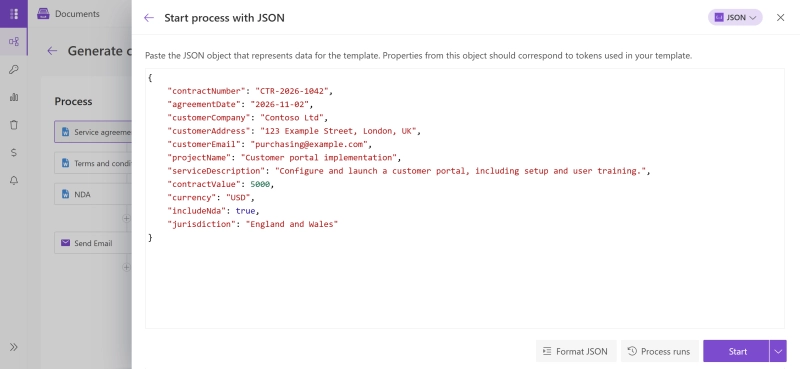
Once the run finishes, open the email and its PDF attachment. Check that the package contains all three documents: Service agreement, Terms and conditions, and NDA.
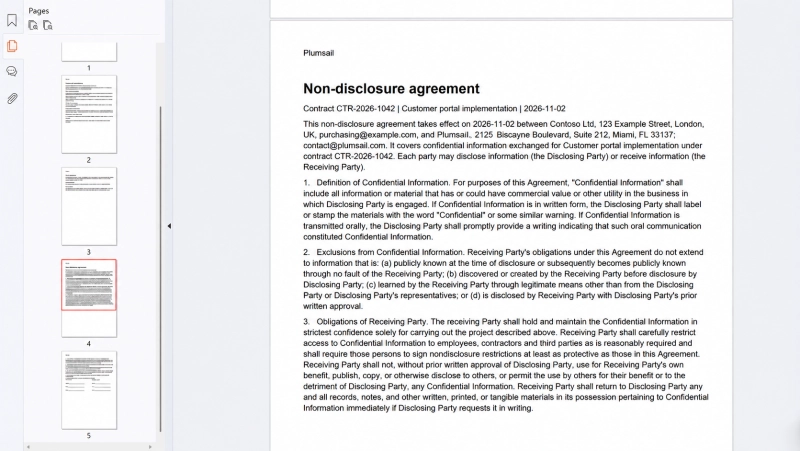
Open Submit custom JSON data again and use the following example. It differs from the first one only in the value of includeNda, which is now false.
{
  "contractNumber": "CTR-2026-1042",
  "agreementDate": "2026-11-02",
  "customerCompany": "Contoso Ltd",
  "customerAddress": "123 Example Street, London, UK",
  "customerEmail": "purchasing@example.com",
  "projectName": "Customer portal implementation",
  "serviceDescription": "Configure and launch a customer portal, including setup and user training.",
  "contractValue": 5000,
  "currency": "USD",
  "includeNda": false,
  "jurisdiction": "England and Wales"
}
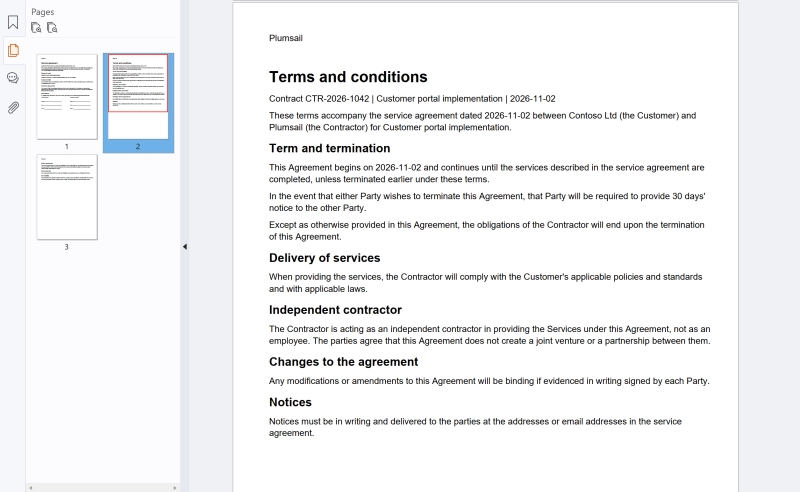
In this case the NDA condition is no longer met, so the Process skips that template. Open the new email attachment and check that it contains only the Service agreement and Terms and conditions, with no NDA pages.
You can also connect the Process to your business workflow through Plumsail Documents integrations and generate a package when a deal is marked as won in your CRM or when a customer submits a form.
Set up the trigger or schedule with Power Automate, Make, or Zapier. Retrieve the customer and contract details from your source app and pass them to the Process.
We've built one Process that generates a contract package, includes an NDA when needed, and emails the combined PDF to the customer.
To try this workflow with other templates, start with Plumsail Documents or book a call with our sales team for a demo session.
DocumentsDocumentsUse multiple templates in a single Plumsail Documents Process to generate Word, Excel, PowerPoint, PDF, and HTML files from the same data.
DocumentsSharePointGenerate an invoice, agreement, and receipt from the same data, package the PDFs into a ZIP archive, and save it to SharePoint with Plumsail Documents.
DocumentsSharePoint Power Automate
Learn how to show, hide, or change sections in Word documents based on SharePoint data in Power Automate. Use one template for multiple document variations.