
 FormsSharePoint
 Power Apps
Last updated: Aug 31
Best alternative to Power Apps for Microsoft SharePoint forms
Comparison of Power Apps and Plumsail Forms for SharePoint: features, advanced elements, and price.
 FormsSharePointPower Apps
Say farewell to InfoPath Forms Service!
Microsoft InfoPath was officially retired on July 14, 2026, and is no longer supported by Microsoft. If your organization still relies on InfoPath forms, now is the time to plan your migration.
In this guide, we explain what retirement means for existing InfoPath forms, explore the best InfoPath alternatives, and walk through how to migrate your forms to SharePoint Online and other modern solutions.
In this post:
For SharePoint Online users, after July 14, 2026, you will no longer be able to create or edit InfoPath forms. You won't be able to submit new responses with existing forms, but you will still be able to view and export existing form data.
For SharePoint on-premises users, the retirement of InfoPath means that Microsoft will no longer provide support or updates for the product. This could lead to security vulnerabilities and compatibility issues with future versions of Windows and SharePoint.
For both SharePoint Online and on-premises users, the recommended course of action is to migrate your existing InfoPath forms to a supported alternative before the retirement date.
Here is a quick guide on how to migrate your InfoPath forms:
Before you can plan an InfoPath migration, you need a clear picture of what's actually in your environment. So, the first step is to find every InfoPath form across your tenant, take a look at what they do and which features they use, and then make a plan for the next steps based on that information.
Start with an audit of your existing InfoPath forms. You can find them all within your SharePoint sites using the Migration Assessment Tool, which generates an InfoPath-details.csv report containing the exact location of each form along with site owner and admin details. The latter is useful if you have a large number of forms and need to contact the form owners to discuss the migration process.
Learn more about the Migration Assessment Tool in the Microsoft documentation.
Once you have a list of all forms, you can review them to determine how complex the forms are and what features they use.
Grouping your forms by complexity helps you plan a realistic migration timeline and pick the right InfoPath alternative for each one. Here's a simple way to tier them:
Once your forms are tiered, you'll have a clear picture of which features you need to replicate.
Microsoft's recommended tools to replace InfoPath are Power Apps, Microsoft Forms, and SharePoint list forms. Let's quickly review these options and other alternatives to InfoPath.
Microsoft Forms and SharePoint list forms are the most basic options for replacing InfoPath. They are easy to use and require no coding, but they have limited functionality. These are good options for simple forms that don't require complex logic or multiple views.
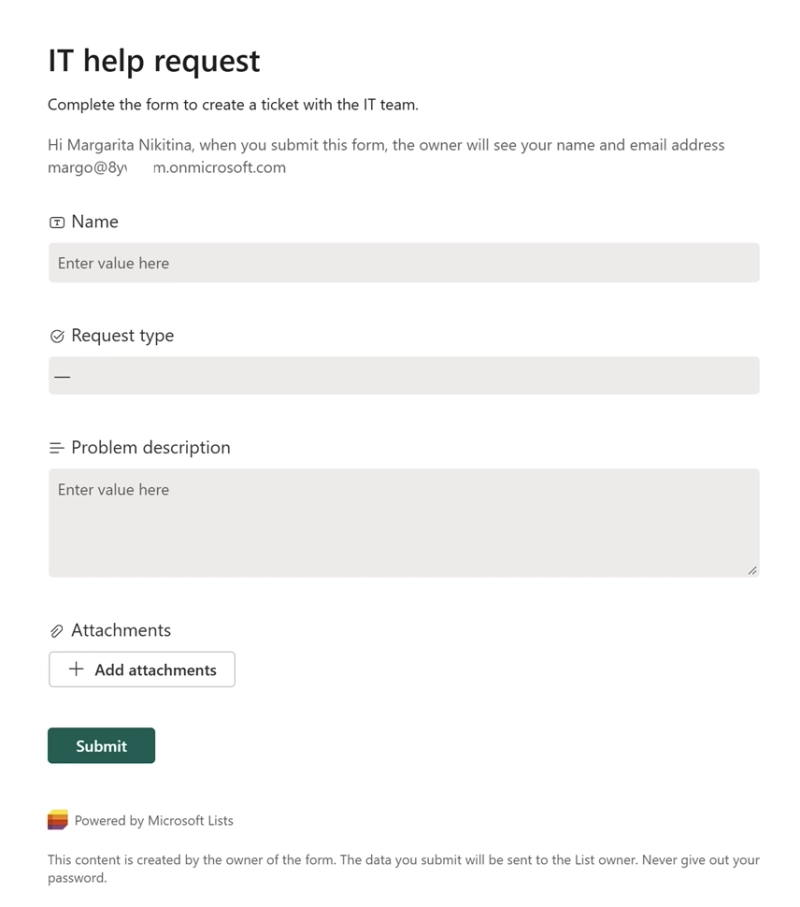
SharePoint list form example
Power Apps is a more comprehensive tool for building forms that replicate the full functionality of InfoPath and even more.
Before you commit, it's worth knowing what a Power Apps migration actually looks like in practice.
Consider these before going down the Power Apps route:
There's no automated conversion: no InfoPath to Power Apps migration tool exists. Every form has to be rebuilt from scratch — layout, fields, rules, and data connections all need to be recreated by hand.
Different language: Power Apps uses Power Fx, an Excel-like formula language, instead of InfoPath's point-and-click rule dialogs. It's capable, but it's a different way of thinking. You will need to learn it before you can rebuild anything beyond a basic form.
Missing features: Expect to invest extra time on workarounds for features that were native in InfoPath but aren't in Power Apps, such as:
Plan for a longer timeline: A simple form can come together in a day or two once your team is up to speed, but anything with serious logic or repeating data tends to take weeks.

It would have taken months with Power Apps to build something similar. With Plumsail Forms it took us about four weeks to go from the idea to a working solution.
Read how the University of Manchester Innovation Factory modernized its forms →
Besides Microsoft tools, there are third-party tools that could be a good fit to replace your legacy InfoPath forms. Plumsail Forms is one of them.

The main challenge that we faced was that Microsoft InfoPath was an unsupported platform.
So we've searched through a range of different solutions and Plumsail stood out as one of the best solutions out there.
Learn how SATC migrated from InfoPath →
Plumsail Forms is integrated with SharePoint, and allows you to build forms with the same logic and features as InfoPath, but much faster and more easily. It is also mobile-friendly, supports external users, and includes an AI assistant to help you with form logic.
Here is an example of a form built in Plumsail Forms at The University of Manchester Innovation Factory:
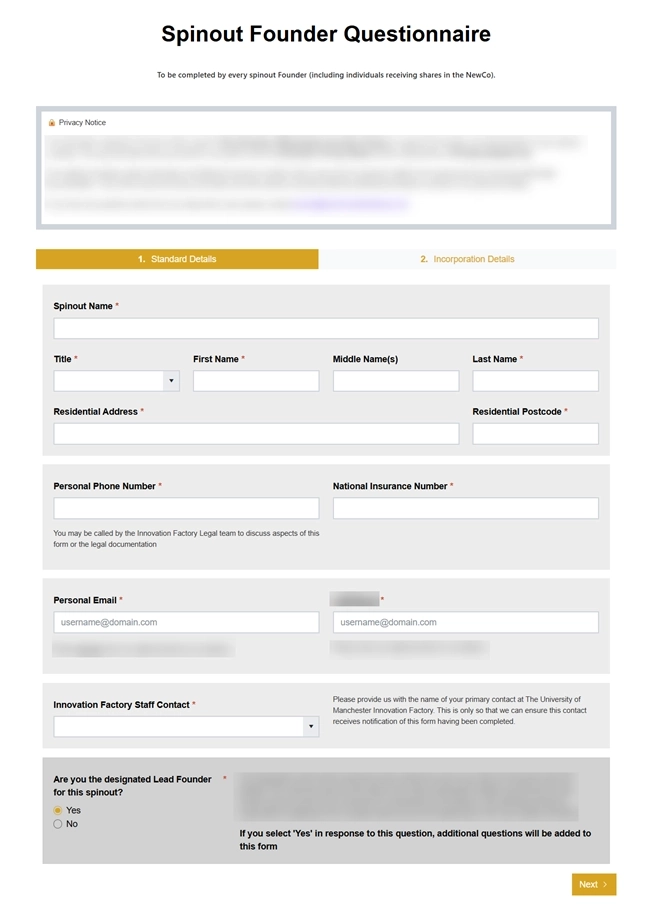
Founders Questionnaire form built with Plumsail Forms
So, let's break down the most popular InfoPath features and how Plumsail Forms can replace them.
In Plumsail Forms, you can replicate the exact same logic you had in your InfoPath forms using conditional rules set directly in the form designer, and even extend that logic with JavaScript if needed.
If you are not familiar with JavaScript, don't worry! There are plenty of ready-made code samples in Plumsail documentation. Plus, the built-in AI assistant in the SharePoint Online version can help you with the code as well.
Here is what you can do in Plumsail Forms:
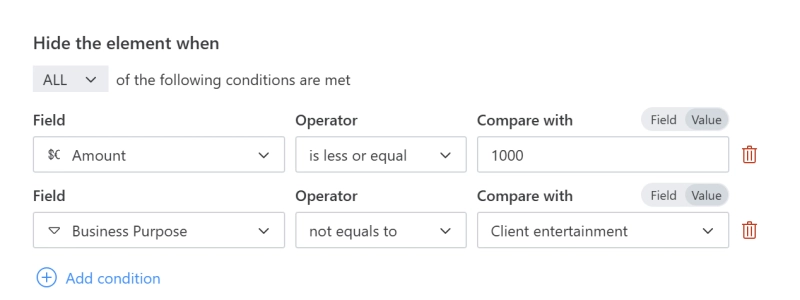
Add conditional visibility and disability rules to fields and controls in the designer interface, no code required.
Auto-populate fields on form load or user interaction with the form
Add custom validation to inputs or the entire form
Add form load rules, form submit rules, or rules triggered by any user interaction with the form
Style elements depending on current user role, user interaction, current item field value
Do calculations of any complexity using the data within the form or from another SharePoint list
InfoPath's ability to show different form layouts for New, Edit, and Display, and to route users to specific layouts based on conditions, is another feature that's painful to recreate in Power Apps.
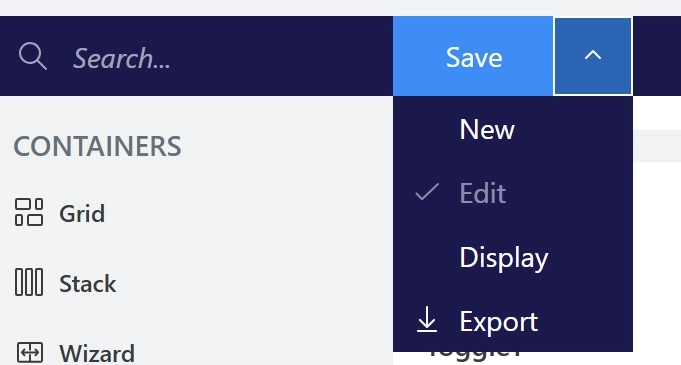
In Plumsail Forms, you can design a dedicated form for creating, viewing, and editing items. No rules required — simply switch the view. And if you need one unified form for all, save your design for all form types at once.
Additionally, because Power Apps does not natively support Content Types, it is often a 'no-go' for some scenarios. Plumsail Forms supports these natively, ensuring a smooth migration for even the most complex list structures.
Beyond this, you can create additional form layouts and route users depending on their role or job type, SharePoint item column values, or any other conditions you need — for example, time, device type, or location.
Repeating tables and sections are super handy for collecting data from users. In InfoPath, the data lived inside the form's XML file, which made it hard to work with that data in Power Automate or surface it in SharePoint views. Plumsail Forms gives you two controls that solve this differently.
For lightweight, in-form repeating rows, use the Data Table control. It supports various types of fields, from basic string, boolean, and drop-down, to masked input that validates user input on the go, and calculated columns that can do math for you. You can also set up total calculations for a column.
The Data table value is stored in JSON format, which is easy to work with in Power Automate, and it's rendered as a table in the list view.
The other control to mimic repeating sections is the List or Library control. In essence, it connects two lists with a lookup column, giving you more control over the data and how it is entered. You can use the control in two modes:
In both modes, you can customize the behavior and look of each column: add validation, conditional formatting, create cascading drop-downs, prefill rows, and so on.
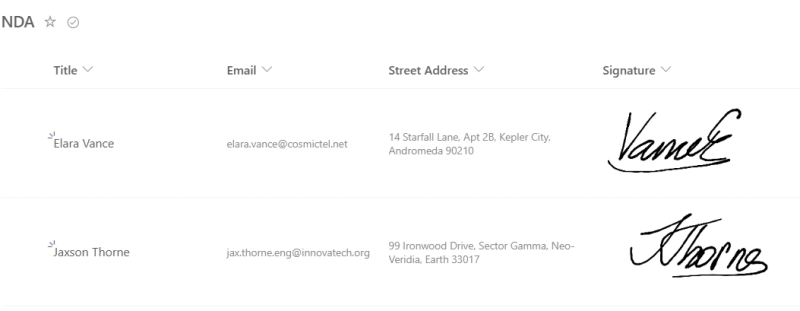
If your InfoPath forms used the Digital Signature Control to capture a hand-drawn signature, Plumsail Forms covers this with the Ink Sketch control.
The drawing is saved as a Base64 image string into a Multiline Plain Text column, and renders as an image in the SharePoint list view.
I bet at least one of your InfoPath forms uses data connections, the minimum being for cascading drop-downs. There are various scenarios for using external data, and with Plumsail Forms you can definitely do the same:
Create cascading drop-downs by filtering a Lookup field. It requires no coding if you want to filter data using one condition. But you are free to create more advanced filtering and search options with JavaScript — for instance, to allow search within multiple columns at once
Tip: you can modify the view of the options within a Lookup drop-down for an advanced user experience.

Populate a form with data from another list, with user profile data, or from an external source. Plumsail Forms has a built-in PnPjs library that you can use to load, create, or modify data within your SharePoint tenant with direct calls
Display related data using the List or Library control. You can dynamically change the source site collection and list.
Once you have done a forms inventory and chosen the tool that best fits the requirements, you've completed the preparation phase and are ready for the actual migration.
No matter what tool you choose, the migration process will require you to rebuild your forms in the new tool. There is no automated way to convert InfoPath forms to Power Apps or Plumsail Forms, so you'll need to recreate the layout, fields, rules, and data connections by hand.
A few things that make the rebuild phase go faster:
Start with simple forms: knock out the easy wins first to build momentum and let your team get comfortable with the new designer before tackling the heavy stuff.
Reuse layouts: if you have ten request forms with similar structures, design one well and use it as the template for the rest. In Plumsail Froms, you can export and import form layout, or use provisioning API to distribute the same form to multiple lists.
Don't try to recreate everything 1:1: some of the workarounds you built into InfoPath years ago aren't needed anymore. Treat the migration as a chance to simplify and improve, not just to copy.
Use AI: save time and ask Copilot to help you with the setup. If you're rebuilding in Plumsail Forms, the built-in AI assistant can create a form from your prompt, modify the layout, and add JavaScript for rules or validation.
Once your forms are ready and you want to go live, it is time to share your form with users. This is where Plumsail Forms gives you more options than InfoPath ever did.
You can define how the form opens from the list view—in full screen, in a panel, or as a dialog—and set its size directly in the designer interface.
When you need to embed a form on a SharePoint site page, use the Plumsail Forms web part. It can publish any SharePoint form from any site in the tenant — even forms whose source list lives in a different site collection.
If you collaborate in Microsoft Teams, the same forms can be added as a tab, so a request form lives directly inside the channel where the team works.
Bonus: You can also use the Plumsail List web part, which lets you customize how columns appear and behave in grid view.
If you need to collect data from users outside your tenant, you can use Plumsail public forms that save values along with files directly to your SharePoint list. External users don't need a Microsoft 365 license, don't need an account, and never touch your tenant directly.
Several organizations have moved legacy SharePoint and InfoPath forms to SharePoint Online using Plumsail Forms.
The South Australian Tourism Commission migrated internal InfoPath forms to SharePoint Online and Plumsail Forms, with Power Automate handling approvals and integrations with services such as Teams and Jira. Watch the interview with Luke Gackle as he discusses their migration path and system setup:
At the University of Manchester Innovation Factory, the team considered Power Apps while modernizing its forms but selected Plumsail Forms for a mix of internal and external processes, including more complex forms.
These examples show several ways organizations have approached the InfoPath migration process. The general idea is that replacing InfoPath often means redesigning the process around the form rather than recreating the old solution one-to-one. Migration can also be an opportunity to simplify the user experience and improve workflows.
InfoPath served SharePoint well for over a decade, but its retirement on July 14, 2026 is a hard deadline.
The good news is that InfoPath migration doesn't have to take months or force you to sacrifice the functionality you rely on. With Plumsail Forms, you can rebuild simple forms in under an hour, and even complex forms with advanced logic and multiple views in just a few days. Try Plumsail Forms free today to ensure you have time to migrate at a comfortable pace before the deadline.
If you have a complex environment, hundreds of forms, or unusual InfoPath features that aren't covered above, our support team can walk through your specific scenario with you. Contact us and we'll help you scope the migration.
InfoPath Forms Services for SharePoint Online will be removed on July 14, 2026. After that date, you will no longer be able to create or edit InfoPath forms, or submit new responses through them.
For SharePoint on-premises, you will stop receiving support and necessary updates. This could lead to security vulnerabilities and compatibility issues with future versions of Windows and SharePoint.
In SharePoint Online, no — after July 14, 2026 you will not be able to submit new responses through InfoPath forms.
On-premises SharePoint installations will keep running InfoPath forms technically, but Microsoft will no longer issue updates, security patches, or support, which makes long-term reliance a security risk.
No, you will need to rebuild it in Power Apps, and that can require hiring an expert if you don't have one. You'll also need to budget additional time for development.
The alternative is to use Plumsail Forms, as it allows you to recreate your InfoPath forms much faster.
The best alternative to InfoPath is Plumsail Forms for SharePoint. Its features can replace all functionality of InfoPath, including repeating sections, rules, signatures, cascading lookups, distinct views, and data connections.
FormsSharePointPower AppsFormsSharePointPower AppsComparison of Power Apps and Plumsail Forms for SharePoint: features, advanced elements, and price.
FormsMicrosoft 365SharePoint Power AutomateMicrosoft Teams
Learn how SATC, a South Australian government agency, moved to the cloud and switched from InfoPath to SharePoint forms in their journey to find the best InfoPath replacement option.
FormsSharePointSee how Plumsail Forms provided SharePoint-integrated internal and external forms that improved the Purchase Order system.