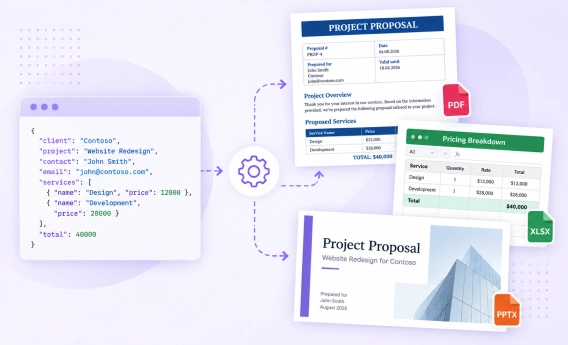
In this article, I'll show you how to bulk create documents from Excel or CSV spreadsheet data without any coding skills. I put this guide together after needing to create countless invitations from spreadsheet rows and noticing many others struggling with the same challenge.
Can you populate information from an excel spreadsheet en masse into multiple word documents?
I maintain a spreadsheet with customer data, each row is a different project that will need 4 unique documents created upon being added to the spreadsheet. I would like to find a way to pull the data from a row and automatically create all 4 unique documents.
I'll walk you through a straightforward approach that can save you hours of manual work. With Plumsail Documents, we'll create a template, connect it to spreadsheet data, and generate multiple personalized PDF documents directly in the browser — all without writing any code.
If you're looking for more advanced scenarios using Power Automate, Make, or Zapier, there are helpful links at the end of the article.
Let's say you're organizing a networking event and have a list of attendees in an Excel spreadsheet. You want to bulk create personalized invitations and passes for each guest and email them automatically.
Your data file should include a header row with column names, and each row should represent a unique recipient.
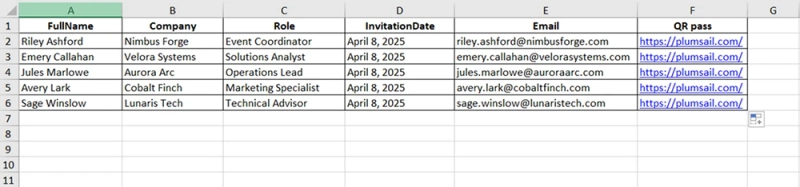
In our example, we use an Excel file named crm.xlsx with the following structure:
It contains:
FullName — recipient name
Company — organization
Role — job title
InvitationDate — event date
Email — for delivery
QR pass — a unique link that will be turned into a QR code
NOTE You can prepare this data in Excel or export it from your CRM system as a .csv file. This structure is perfect if you plan to bulk generate PDF documents from CSV or Excel files.
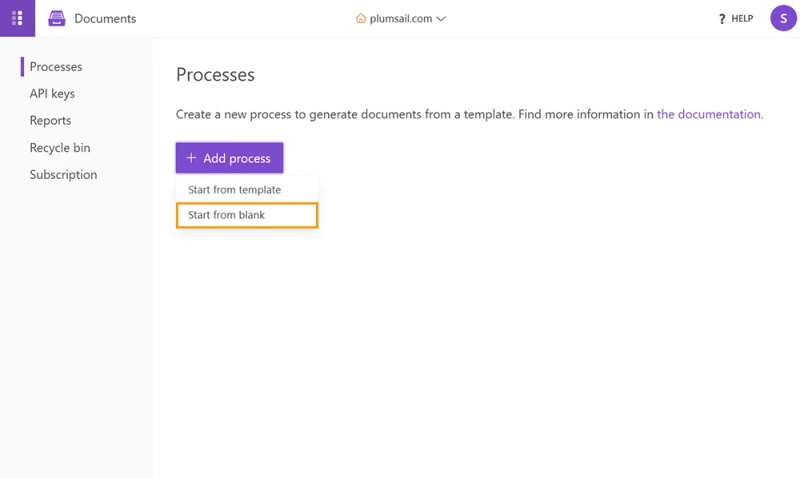
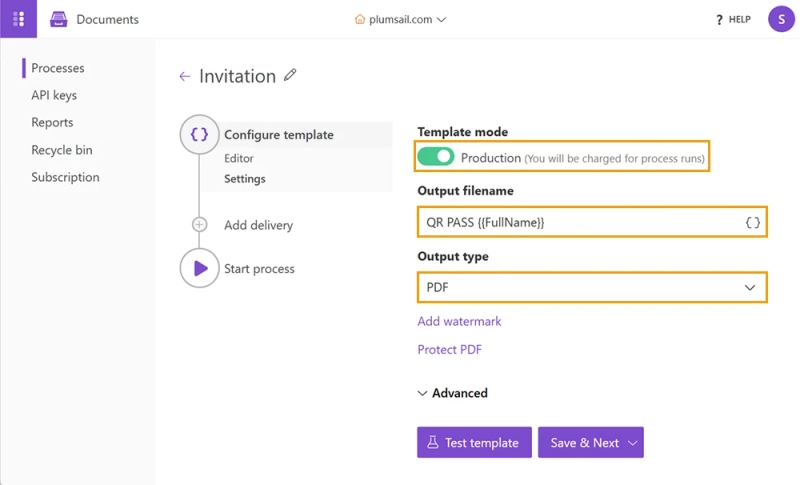
This step is where all the pieces come together: you create a process in Plumsail Documents, connect your template and spreadsheet, configure how the output should look, and optionally add email delivery.
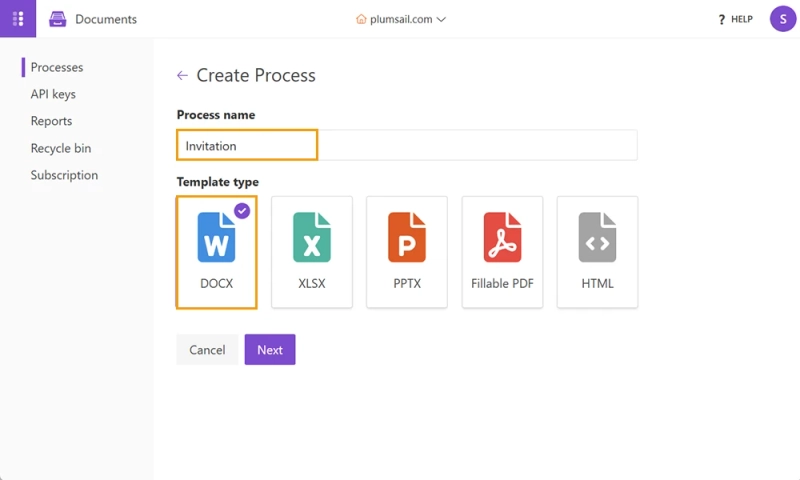
Give your process a clear name — for example, Invitation. Then choose the format of your input template. Since we're working with a Word file, select DOCX.
This tells Plumsail how to interpret the structure of your document.
You can upload your own document and turn it into a reusable template by adding tokens, or create one from scratch directly within the process. In this guide, we'll create it from scratch.
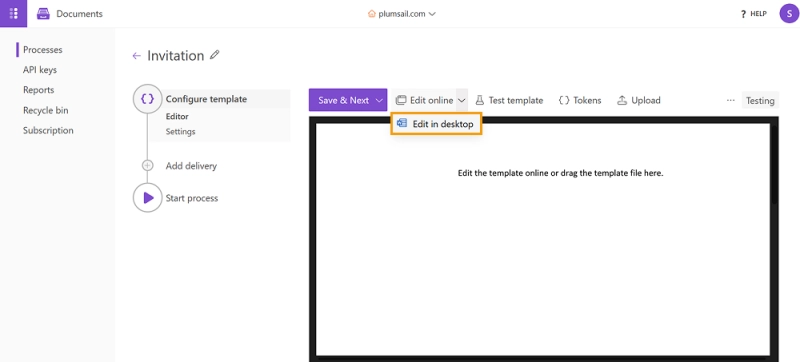
I prefer editing on the desktop using my Word application. To do this, click Edit on desktop.
It will open the document in Microsoft Word, where you can build the template.
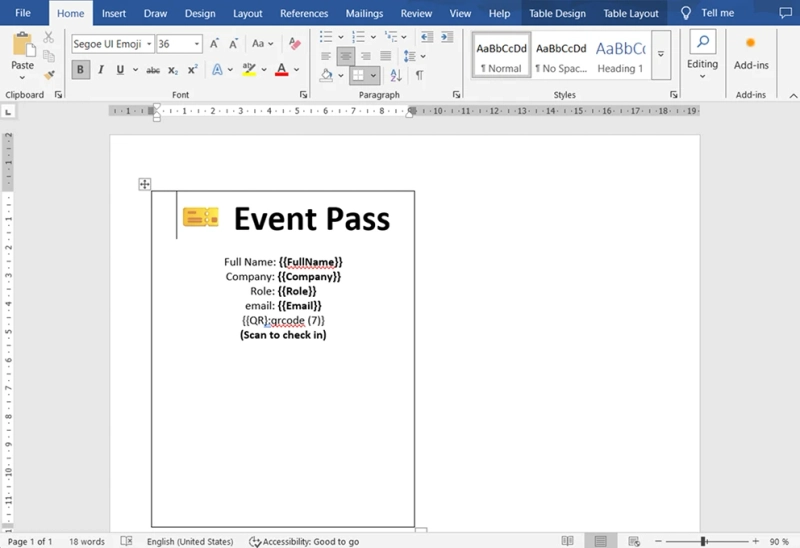
Here is an example of a Word template used for an event pass:
It contains tokens like {{FullName}}, {{Company}}, {{Role}}, and a QR code image placeholder. You can learn more about how to generate documents with QR codes in the documentation.
These tokens will be replaced with actual data from your Excel or CSV file when you run the process.
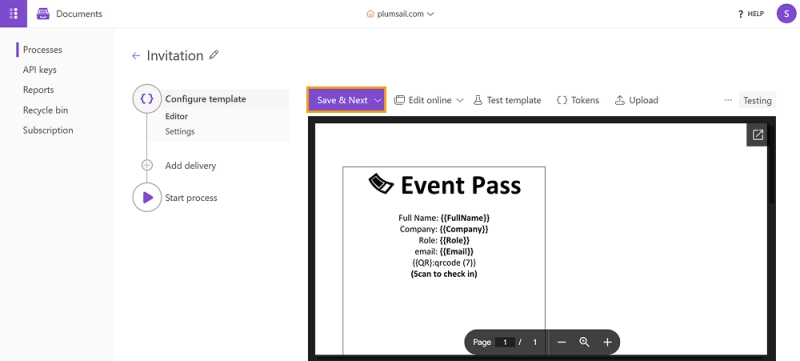
When you save it in Word, your changes will sync back to the process automatically.
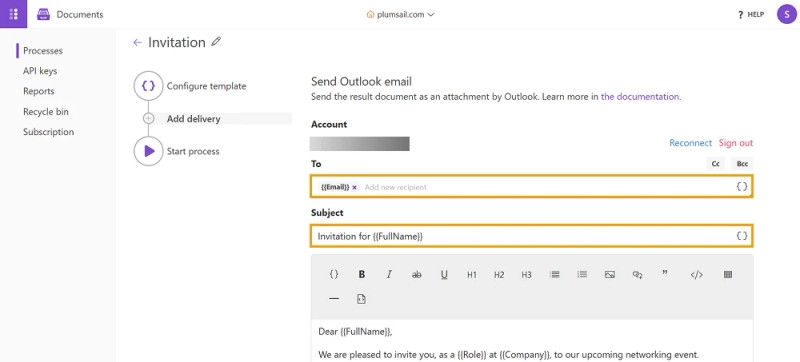
If you want to automatically send generated documents to recipients, you can add delivery via Outlook.
In the Add delivery section:
To: use {{Email}} to send to each contact listed in your spreadsheet.
Subject and body: personalize the email content with tokens to make it feel custom and relevant.
Body:
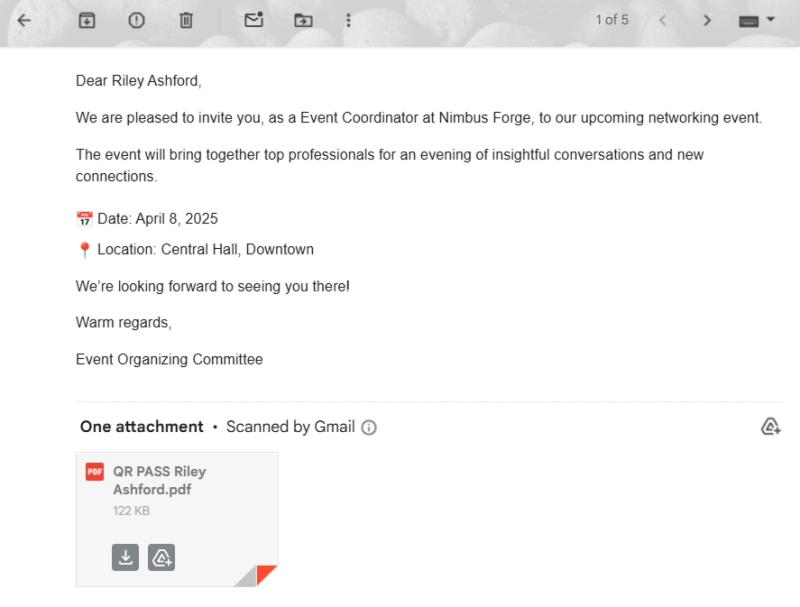
Dear {{FullName}},

We are pleased to invite you, as a {{Role}} at {{Company}}, to our upcoming networking event.

The event will bring together top professionals for an evening of insightful conversations and new connections.

📅 Date: {{InvitationDate}}
📍 Location: Central Hall, Downtown

We're looking forward to seeing you there!

Warm regards,
Event Organizing Committee
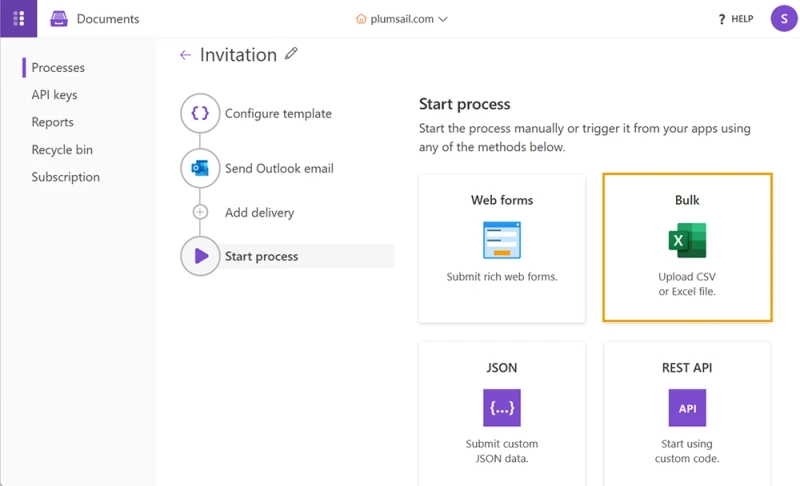
Under the Start process tab, choose the Bulk option — this lets you generate multiple documents based on your Excel or CSV file.
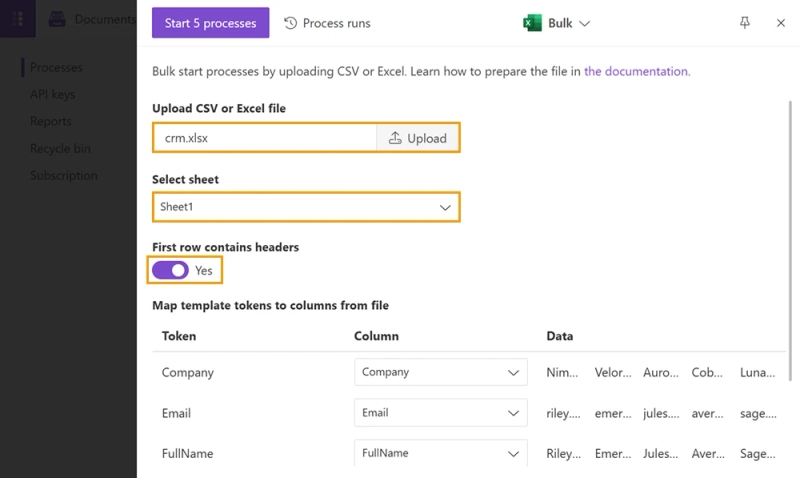
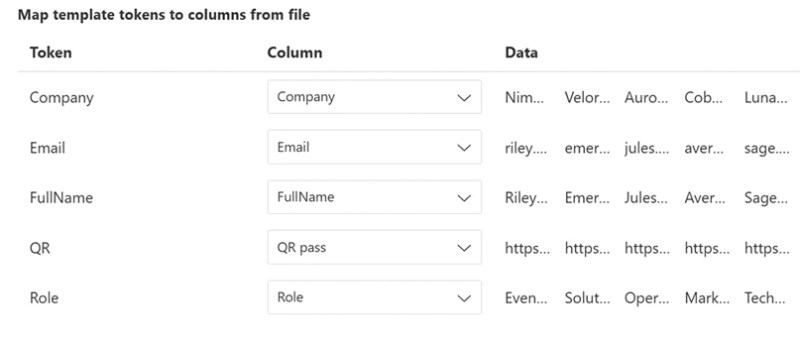
Upload your file and check that the first row is marked as headers. Then map each column in your spreadsheet to the corresponding token in the template:
FullName → {{FullName}}
Company → {{Company}}
Role → {{Role}}
Email → {{Email}}
QR pass → {{QR pass}}
This step connects your data source to your document structure. It's what enables you to bulk create and populate multiple documents automatically from spreadsheet rows — no manual input or scripting needed.
Plumsail Documents provides a fast and code-free way to bulk create personalized documents from Excel or CSV data. You can generate multiple PDF, Word, Excel, or PowerPoint files using spreadsheet rows and matching templates.
The entire process runs in a visual interface — from designing templates to filling them with data and sending documents by email.
As promised at the beginning of the article, here are the links to help you build more advanced automation scenarios using the same document generation actions:
Start your free trial and simplify how you generate documents from spreadsheet data!
Related posts
DocumentsFormsSharePointPower Automate
Sep 17
SharePoint timesheet: track hours, approve, and export to PDF
Build a SharePoint timesheet system with weekly hour entry, project totals, e-signatures, approvals, and automatic PDF generation. Full setup with code.
Nikita Kurguzov
Customer Support Engineer
Documents
Sep 14
Generate a set of documents from one data source using multiple templates
Use multiple templates in a single Plumsail Documents Process to generate Word, Excel, PowerPoint, PDF, and HTML files from the same data.
Angelika Cherina
Lead Marketing Specialist
DocumentsSharePointPower Automate
Sep 08
How to export multiple SharePoint list items to one Word document
Learn how to export multiple SharePoint list items to one Word or PDF document with Power Automate, including repeating table rows and images.




 Documents
 FormsSharePoint
 Power Automate