Forms
Last updated: Jun 28, 2023
How to design Mobile-Friendly Online Forms
Elevate your web forms for mobile era! Follow these 7 simple tips to create mobile-friendly online forms that are responsive and easy to complete.

Tables come in handy when creating forms, such as an order form, an event registration form, or a job application form. Most online form solutions offer little or no ability to manipulate tables or provide feature-restricted widgets.
The Data Table control in Plumsail Forms adds an editable, spreadsheet-like grid to a public web form. In this post, I will show you how to populate columns automatically, calculate row and column totals, fill the table from an external source, and export the finished table to Word or PDF files.
You can try out the examples from this post on a real form to see how they work:
In a Plumsail Forms Data Table, you can automatically fill one column based on the value a user selects in another. Suppose you have an order form with two columns, Product and Price: it would be nice to populate the Price column the moment a user selects a particular item in the Product column.
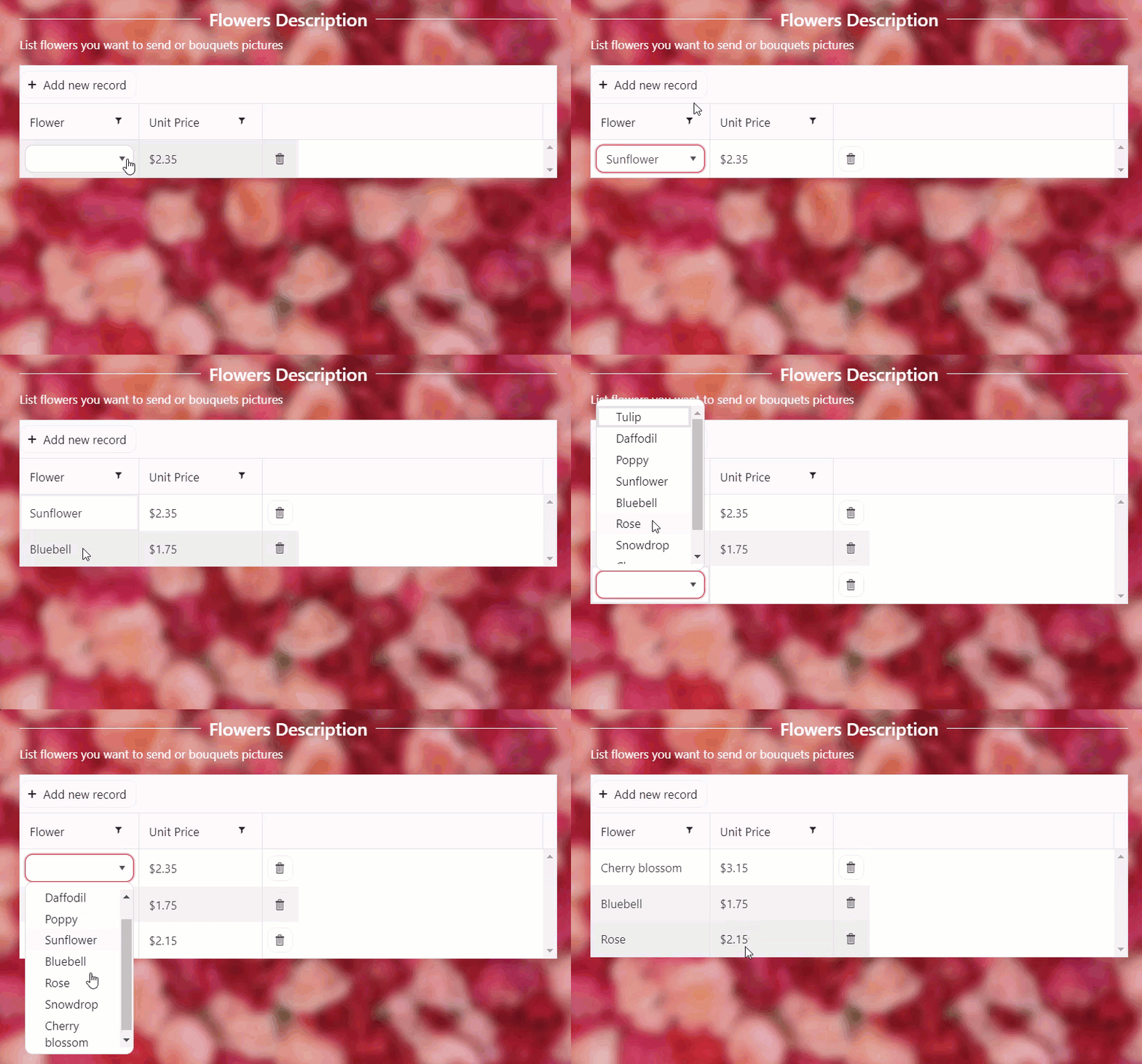
A short piece of JavaScript makes this possible. You can find the code sample in our documentation. If you use dynamic show/hide logic elsewhere on your form, the same event-based approach applies here.
In this example, the product list and prices are stored directly on the form. However, you can also connect the Dropdown column to an Excel file. This lets you pull data dynamically and populate columns the moment a user selects an option from the dropdown.
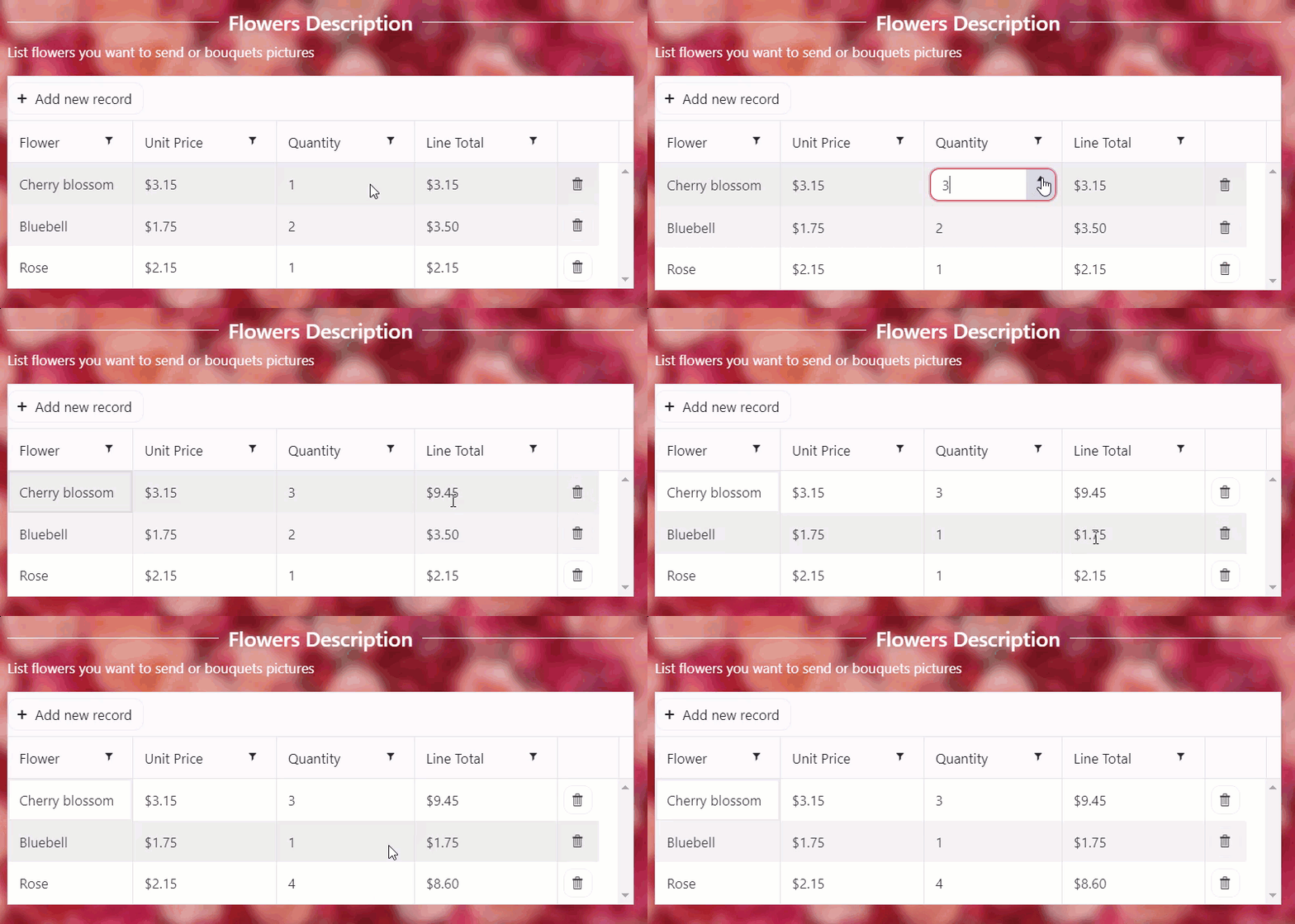
In a Plumsail Forms Data Table, you can calculate a per-row total using a Calculated column, so users can select a quantity and instantly see how much they will pay for each item in the list.
Add a Total column of the Calculated type. In the Formula property for the Total column, write the expression using the column names. It automatically returns the result in a currency format:
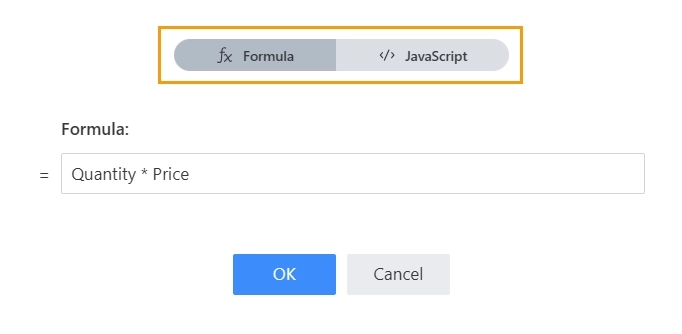
As a result, the line total is calculated once the user selects the product and its quantity:
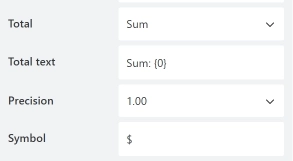
You can also calculate the total price for all products in the table by summing a column. For the Total column, open the Total property group and select Sum. You can customize the text displayed next to the column total, as well as the currency symbol:
That way, when users add a new product to the list and select a quantity, the overall total is recalculated automatically:
You can populate a Plumsail Forms Data Table from an external file stored on GitHub, OneDrive, Google Drive, and similar services. For instance, add a button to the form that fills the Data Table with a predefined set of items:
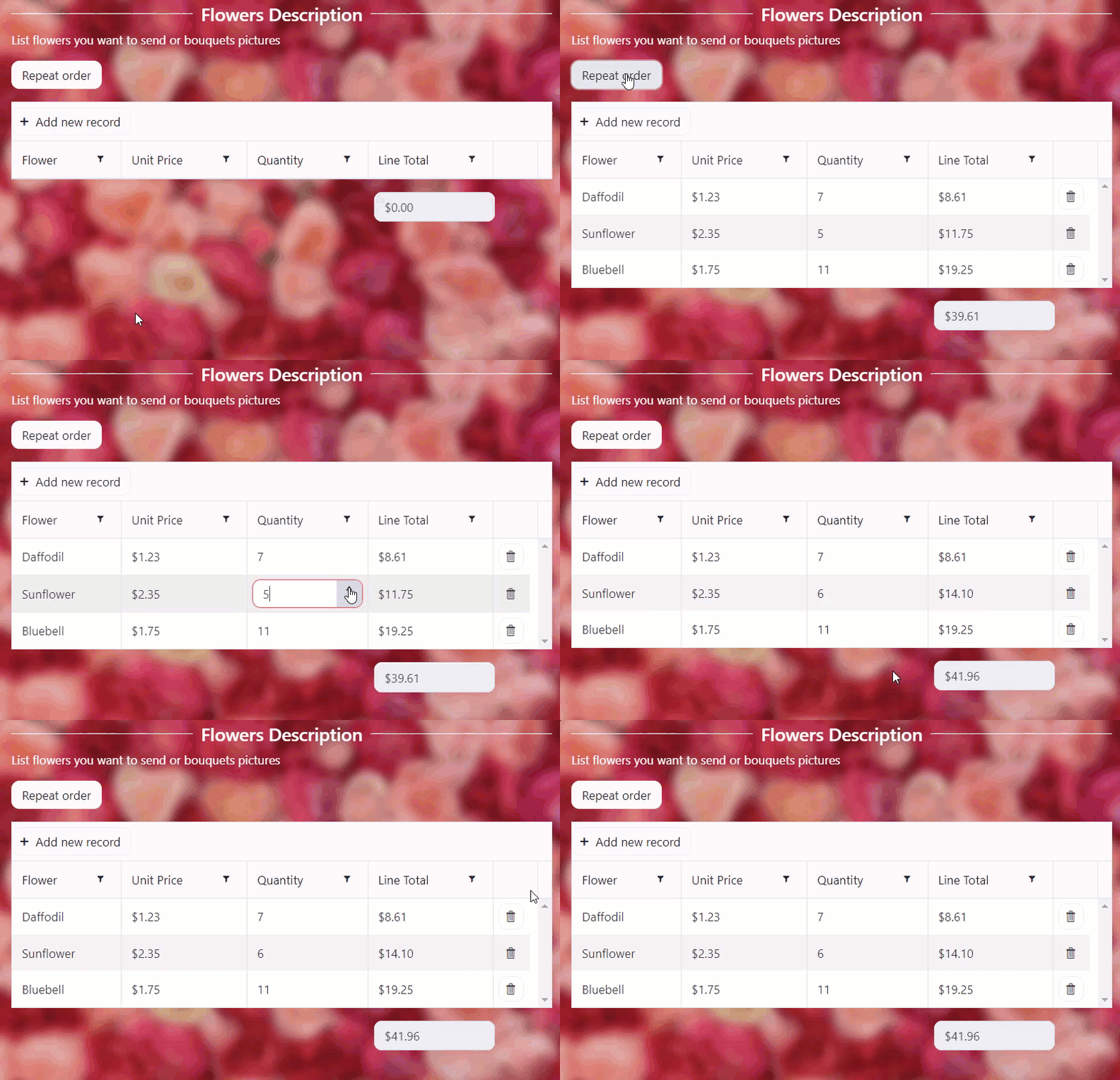
Full setup steps are in the documentation on populating a Data Table from an external data source.
Once users complete the form with the table, it can be transformed into a document — an order confirmation, a quote, or an invoice. With the Plumsail Documents integration, you can turn the Data Table and the rest of the submission into a Word or PDF file generated from your own template.
In the template, create a table and add a tag for the Data Table control's value. The value is a collection of rows that the engine automatically transforms into a table in the document. You can also tag columns individually to control which columns appear and how the table looks in the document.
See Tables in DOCX templates to learn more about table syntax, regular tables, tables with nested data, and other specifics of working with tables in DOCX templates.
Here is an example of the Order confirmation created from a form submission with a Data Table:
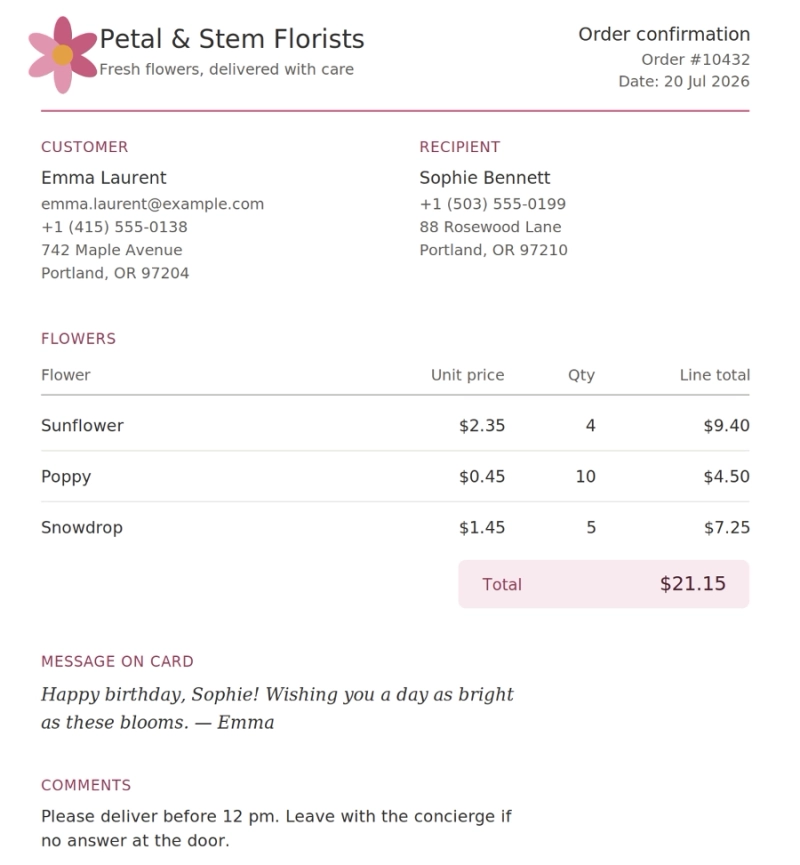
Once the DOCX or PDF file is created, it can be sent to the user, saved to cloud storage, or routed for a signature by configuring deliveries in Plumsail Documents.
These are just a few of the most common examples of what can be done with tables. Create a free account to design your first form with a table from scratch or use one of the ready-made templates.
Find more information and examples in Plumsail forms documentation, or contact the support team to get help with your ideas.
Elevate your web forms for mobile era! Follow these 7 simple tips to create mobile-friendly online forms that are responsive and easy to complete.
Popular use cases of how to validate a particular field in a web form.