 DocumentsAirtable
Aug 06
Airtable form to custom PDF
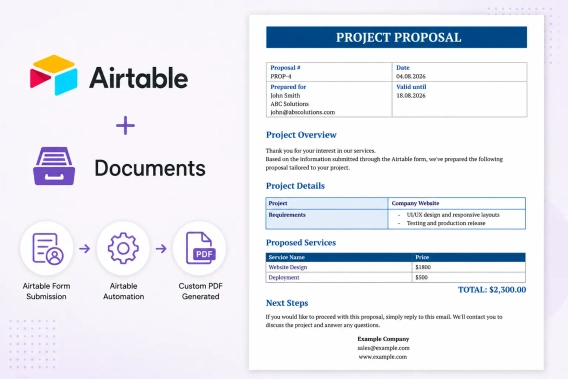
Generate custom PDF documents from Airtable form submissions automatically. Connect Airtable Forms with Plumsail Documents to create branded proposals, quotes, and other business documents.
 DocumentsAirtable
Need to generate PDFs from multiple Airtable records? Creating and exporting documents one by one can quickly become time-consuming when you're working with dozens of records.
In this tutorial, you'll learn how to generate a separate PDF document for each selected Airtable record in one click using Plumsail Documents.
In this article:
When generating PDFs from Airtable, you can either create a separate document for each record or combine data from multiple records into a single document. Let's look at the difference between these two approaches.
This approach creates a separate PDF for every Airtable record. For example, you can generate a proposal for each customer, an invoice for each order, or a certificate for each attendee. Plumsail Documents processes each record individually, so if you select 8 records, you'll get 8 separate PDF documents.
This is the approach we'll use in this tutorial. We'll select records using an Airtable view and generate a separate PDF for each of them.
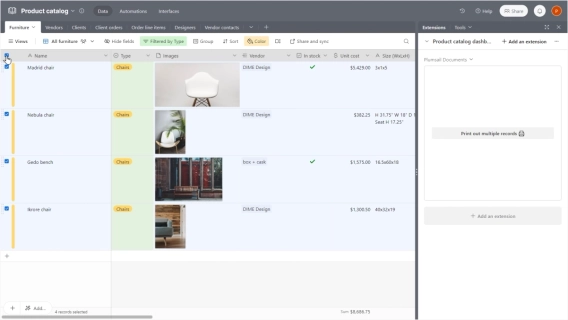
Sometimes, you may need to combine data from several Airtable records into a single document. This can be useful for product catalogs, sales reports, order summaries, and similar documents. In this case, multiple records are passed to the same template and included in one document.
If this is what you need, see our post: How to print multiple Airtable records on one page and include them in one document.
Now that the difference is clear, let's move on to bulk PDF generation. For this example, we'll use a filtered Airtable view and the Plumsail Documents extension for Airtable.
Here's what we're going to build:
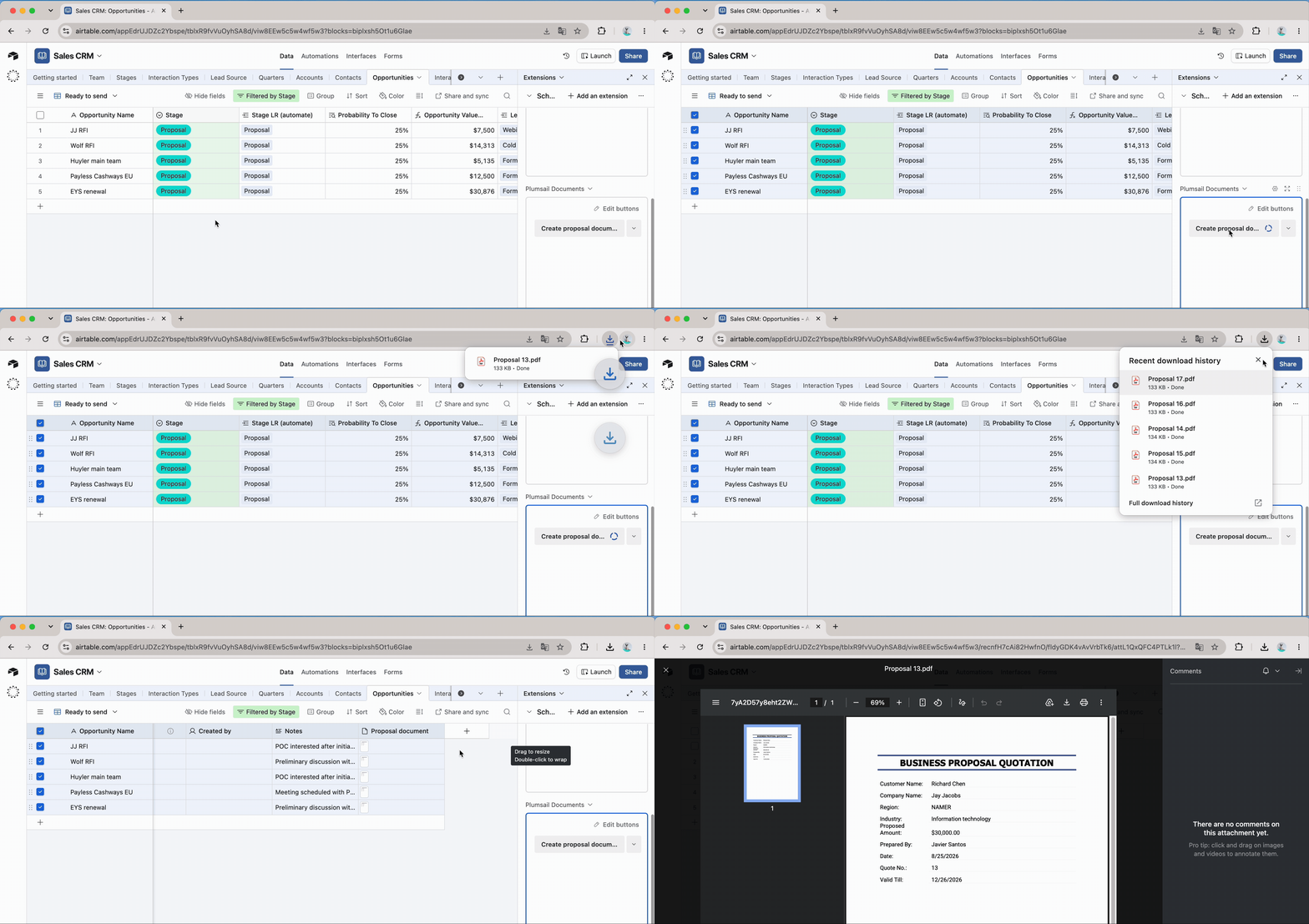
For our example, we'll use the Sales CRM template available in Airtable. We'll work with the Opportunities table, which contains information about sales opportunities, including the company, deal value, sales stage, and other details.
Suppose we want to generate proposals only for opportunities that have reached the Proposal stage. Instead of generating documents for every record in the table, we can create a filtered Airtable view that contains only the records we need.
In the Opportunities table, create a new view and name it, for example, Ready to send:
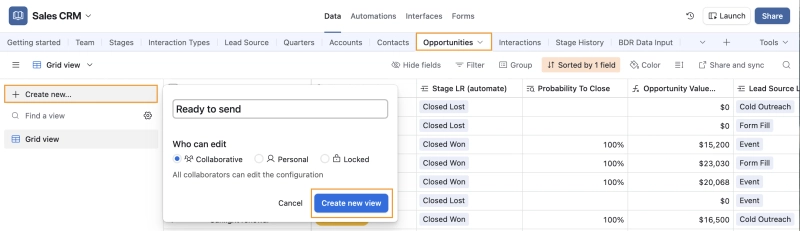
Creating a new Airtable view for records ready to send
Then add a filter to include only the opportunities you want to generate documents for. For example, when the stage is Proposal:

You can add more conditions depending on your workflow.
Now the view contains only the records that will be used for bulk document generation:
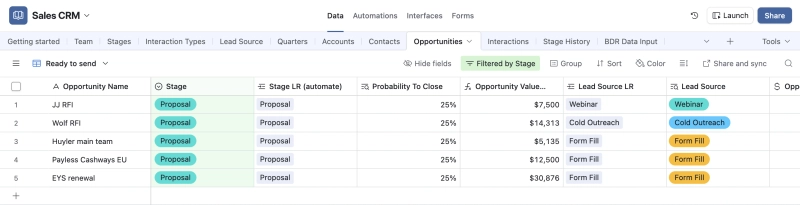
Now that we have the Airtable records we want to generate proposals for, let's create a document generation process in Plumsail Documents.
Go to your Plumsail Documents account and create a new process. For this example, we'll start with the ready-to-use Business proposal quotation template.
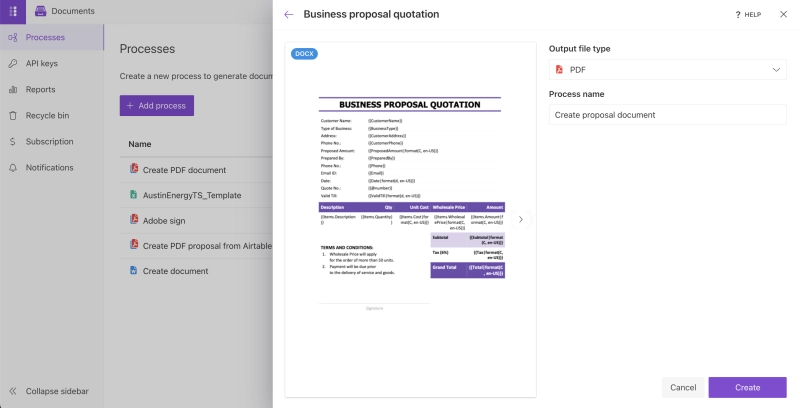
The template provides a premade layout that you can customize for your workflow. You can change the text and design, remove sections you don't need, and add tokens to populate the proposal with data from Airtable.
For our example, we'll adapt the template to include the key information from the Opportunities table, such as the company, opportunity name, proposed value, and expected close date. In the next step, we will add the appropriate tokens from Airtable:
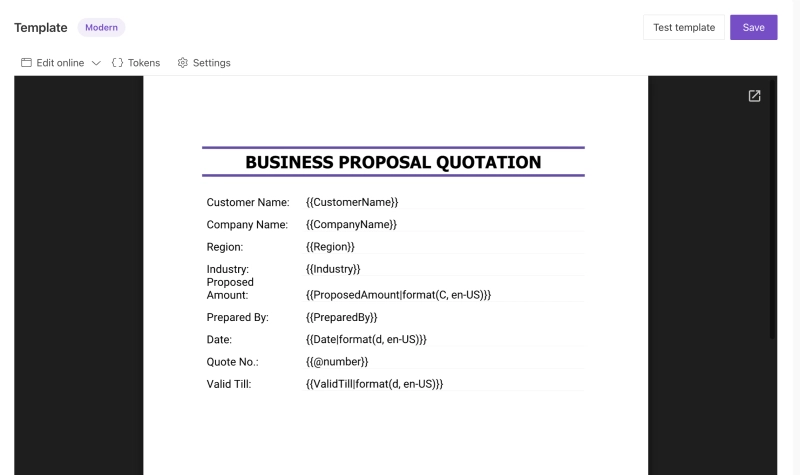
Once the template is ready, select PDF as the output format and configure the output file name. You can use tokens in the file name to make each generated proposal easy to identify.
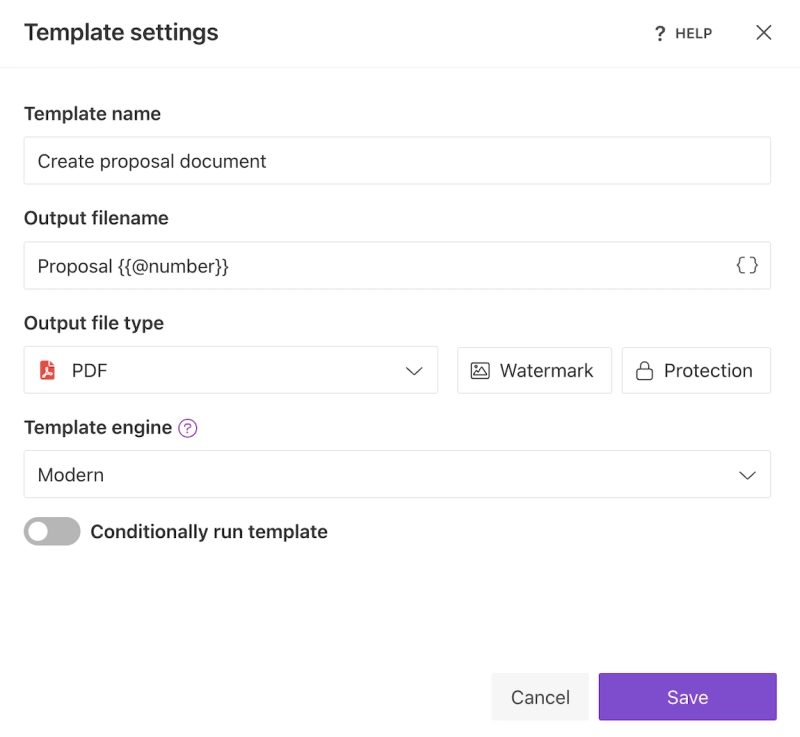
Additionally, you can add delivery to the process if you want to send the generated proposal by email or send it for signature.
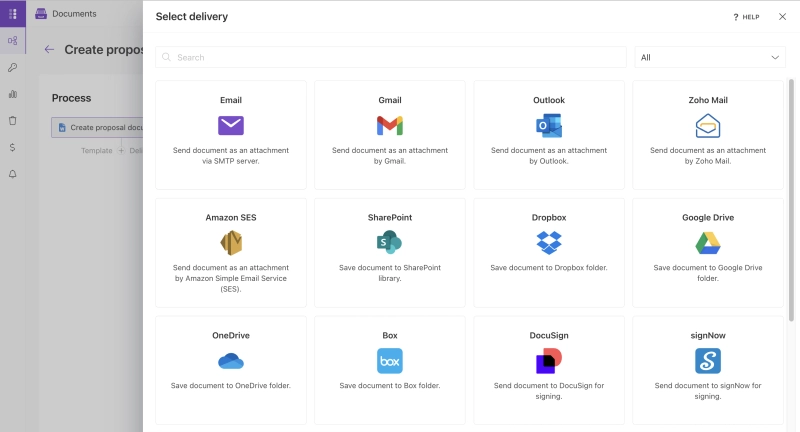
Now let's go back to Airtable and connect the base to the Plumsail Documents process:
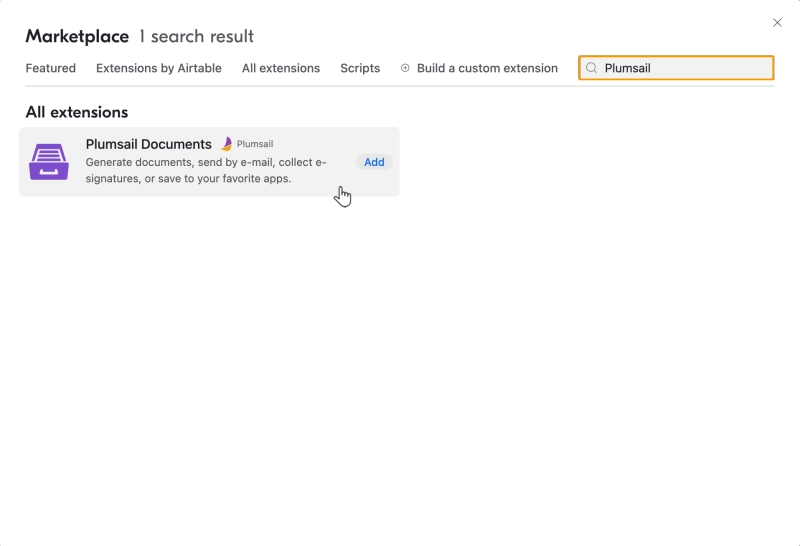
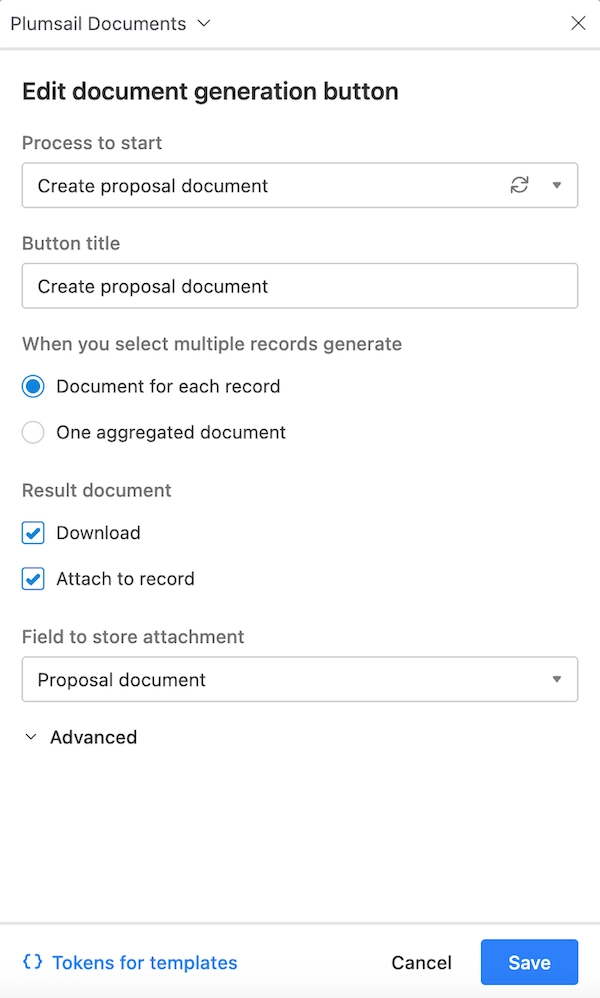
Click Add button, select your Plumsail Documents process, and choose to generate Document for each record. Additionally, you can select Attach to record to save each generated document as an attachment in the Airtable record:
The extension also provides a list of Tokens for templates based on the fields in your Airtable base. Open this list to see the exact token names you can use in your proposal template:
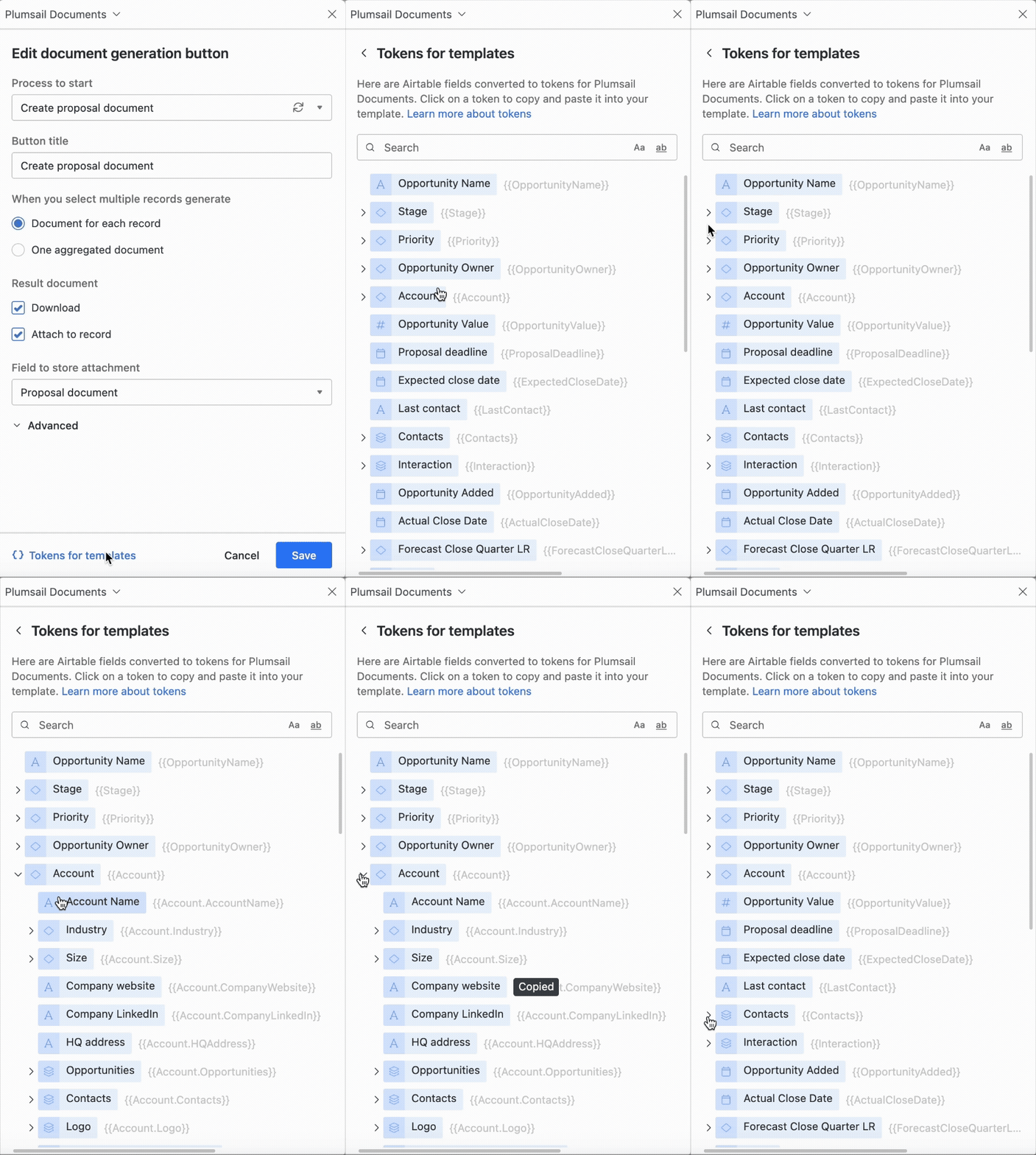
Available Airtable tokens that are automatically replaced with record data
Copy the required tokens and add them to the corresponding places in your proposal template:
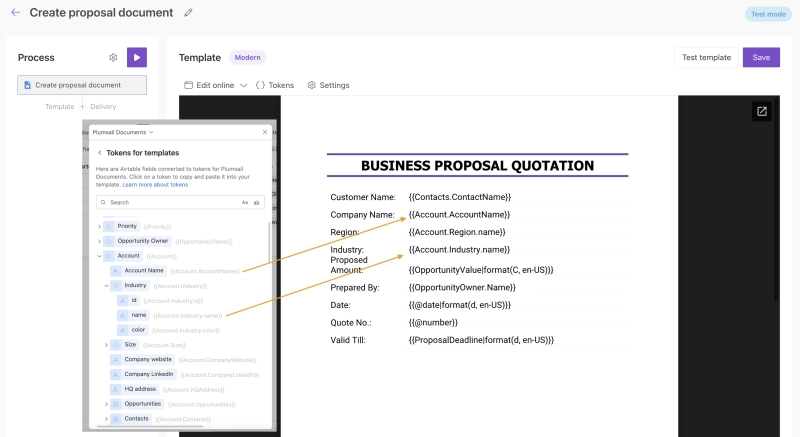
Matching Airtable tokens with tokens in the document template
Everything is almost ready. Before generating the final documents, go back to your Plumsail Documents process and switch the template mode from Testing to Production. This removes the Plumsail watermark from generated PDFs.
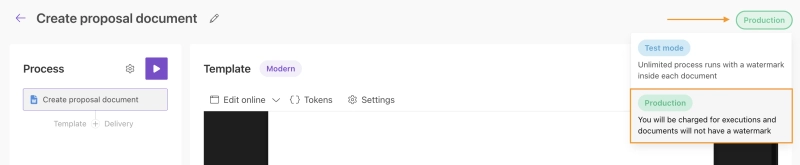
Now return to Airtable and open the Ready to send view we prepared earlier.
Open the Plumsail Documents extension, select the records, and click the document generation button:
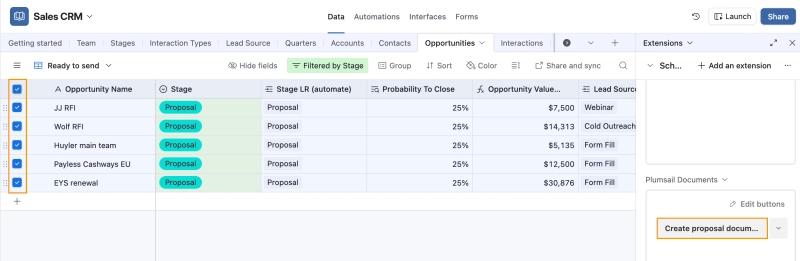
The extension will generate a separate PDF proposal for each record in the current filtered view. Once the generation is complete, you'll get a separate proposal for every processed Airtable record.
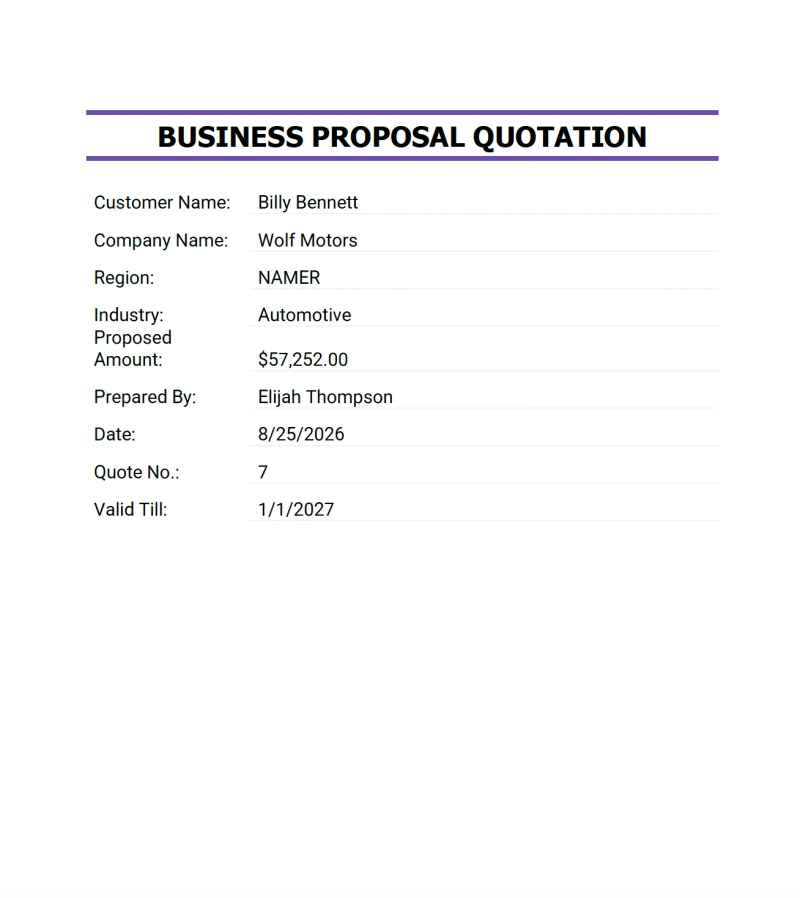
That's it! Instead of generating proposals one by one, you can now filter the records you need in Airtable and generate all the corresponding PDFs in bulk.
Bulk PDF generation is useful whenever you need to create the same type of document for many Airtable records at once. Instead of processing each record manually, you can filter the records you need and generate them all at once.
Here are some common examples:
Sales proposals: Generate a separate proposal for every opportunity that is ready to send to a customer.
Invoices and quotes: Create individual invoices or quotes for multiple customers or orders.
Contracts and agreements: Prepare personalized documents for multiple customers, employees, or partners.
Certificates: Generate individual certificates for attendees, students, or employees.
Reports: Create a separate report for each project, inspection, customer, or other Airtable record.
The same approach can be used with any Airtable data where each record needs its own document.
Yes. With Plumsail Documents, you can generate documents for multiple Airtable records in bulk. Each record is processed separately and generates its own PDF.
Yes. You can create a filtered view in Airtable to display only the records you want to process. This is useful when you need documents only for records with a specific status, date, category, or other condition.
Yes, but this is a different document generation scenario. This tutorial focuses on creating a separate PDF for each Airtable record. To combine data from multiple records into a single document, see our guide on how to print multiple Airtable records on one page and include them in one document.
Yes. Plumsail Documents can generate documents in different output formats, including DOCX and PDF. You can select the required output format when configuring your document generation process.
Bulk PDF generation in Airtable helps you turn multiple records into individual documents in just a few clicks. With Plumsail Documents, you can generate proposals, reports, invoices, or any other documents for selected Airtable records without processing them one by one.
Ready to try it yourself? Start your free 30-day trial of Plumsail Documents and create your first document generation workflow.
Need help getting started? You can also book an introductory call with our team.
DocumentsAirtableDocumentsAirtableGenerate custom PDF documents from Airtable form submissions automatically. Connect Airtable Forms with Plumsail Documents to create branded proposals, quotes, and other business documents.
DocumentsAirtableLearn how to include multiple Airtable records on one page and fit them into one document. This guide will help you overcome the limitations of Airtable Page Designer.
DocumentsAirtableLearn how to merge Airtable attachments into a single PDF easily with Make, whether combining PDFs or converting images into a consolidated PDF file.