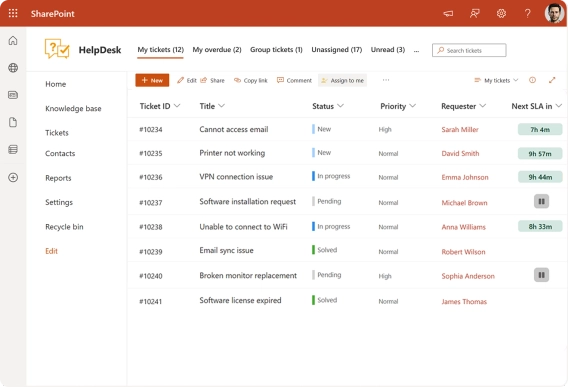
When all support requests arrive in the same queue in a HelpDesk system, agents often have to review and assign tickets manually. In Plumsail HelpDesk for SharePoint, you can automatically assign tickets based on keywords in the ticket title or description using automation triggers.
That's exactly what one of our wanted to achieve:
For example, a ticket Titled "Password Reset" would be auto assigned to me since it has the key word Password in it.
In this tutorial, we'll show you how to set up keyword-based ticket assignment in Plumsail HelpDesk for SharePoint using automation triggers, so incoming requests reach the right agents without manual sorting.
First, create the tags that we'll use to represent agent skills. In Plumsail HelpDesk for SharePoint, you can use Tags in the Contacts list to represent agent skills or areas of expertise.
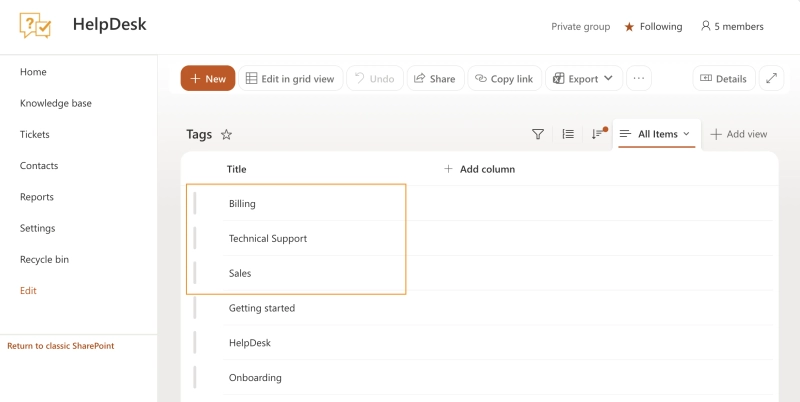
In our example, we'll create three tags:
Billing
Technical Support
Sales
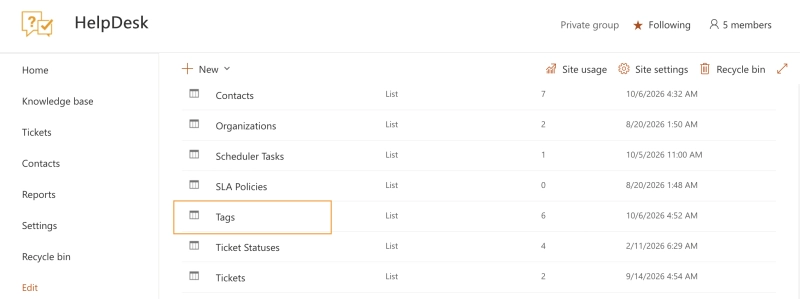
Open the SharePoint site where your HelpDesk is installed, go to Site contents, and find the Tags list:
Add necessary tags as new items to the list. Once added, your Tags list should look like this:
These tags will now be available in the Tags field of the HelpDesk Contacts list.
Now that the tags are created, assign them to agents based on the types of customer requests they handle.
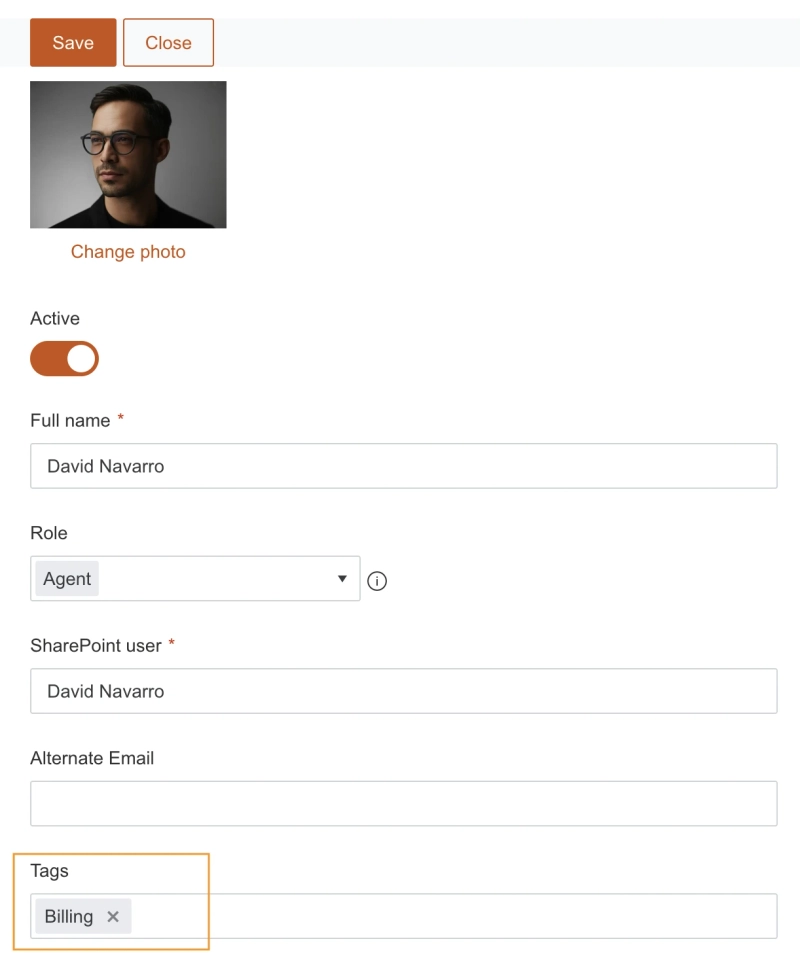
Open the Contacts list and find the agent you want to configure. Open the contact and add the appropriate tag to the Tags field:
Repeat these steps for the other agents, assigning the appropriate skill tags based on the types of requests they handle.
You can also add a SharePoint group as a contact and assign tags to it. This can be useful when requests should be assigned to a team rather than a specific person.
Now that the agent skills are configured, we need to classify incoming tickets by adding the appropriate tags based on their content.
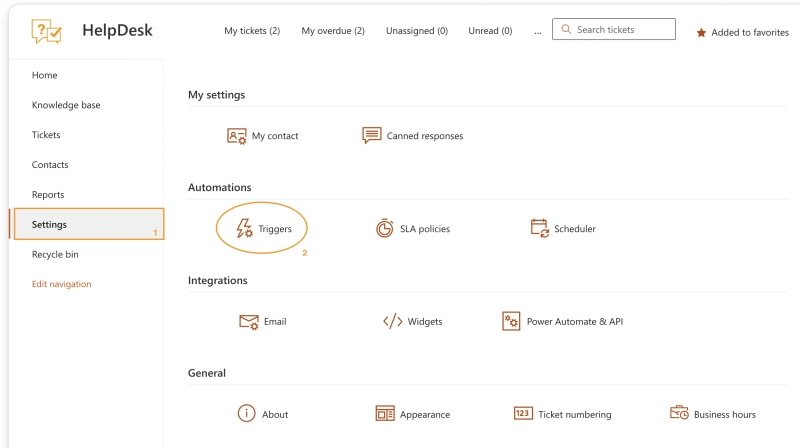
In Plumsail HelpDesk, go to Settings → Triggers:
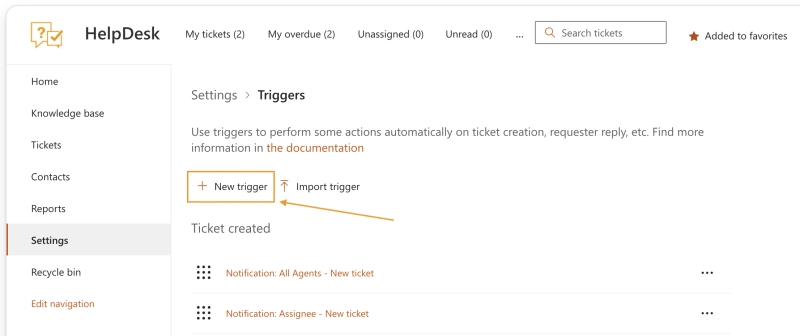
Then click to add a new trigger:
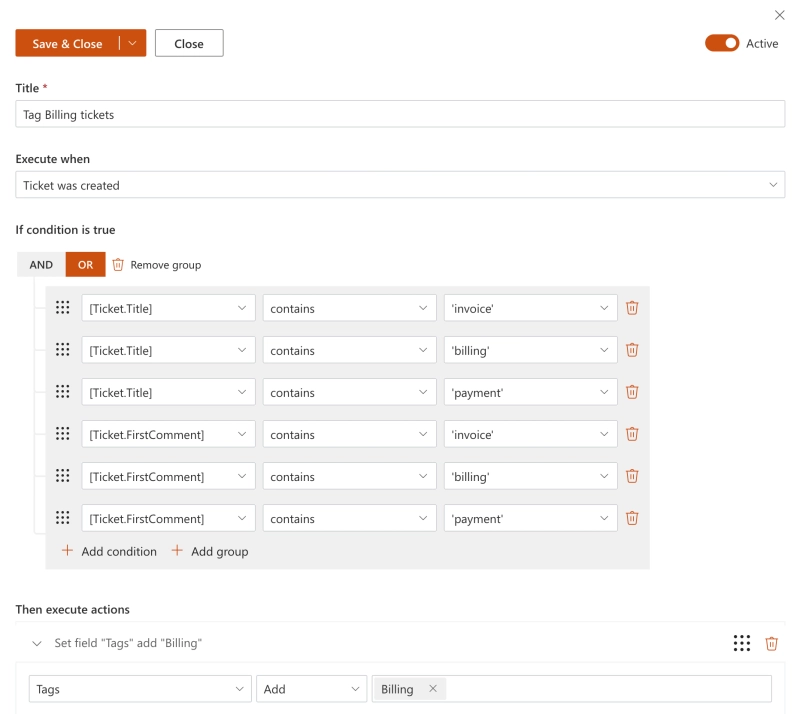
We'll start with a trigger for Billing requests:
Select when the trigger runs
HelpDesk triggers can run on different events. Since we want to classify new requests as soon as they arrive, select Ticket was created as the trigger event.
Define the keyword conditions
Next, add conditions that check the ticket title and first comment for billing-related keywords, such as invoice, billing, refund, payment, or subscription.
Use OR between the keyword conditions so the trigger runs when any of these keywords is found in the ticket.
Add the tag
Finally, add an action that sets the Billing tag to the ticket when the conditions are met.
Your completed trigger should look like this:
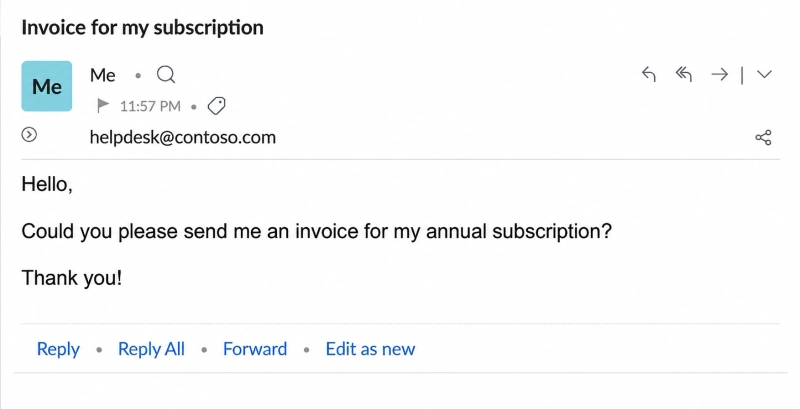
For example, if a customer submits a ticket with the title "Invoice for my subscription", the trigger detects the matching keywords and automatically adds the Billing tag.
You'll need to create a separate trigger for each request category. In our example, create three triggers with tags:
Now that incoming tickets are automatically tagged based on their content, let's create another trigger that will use these tags to assign tickets to agents with matching skills.
Create a new trigger and name it Ticket assignment. Then follow the steps:
Select when the trigger runs
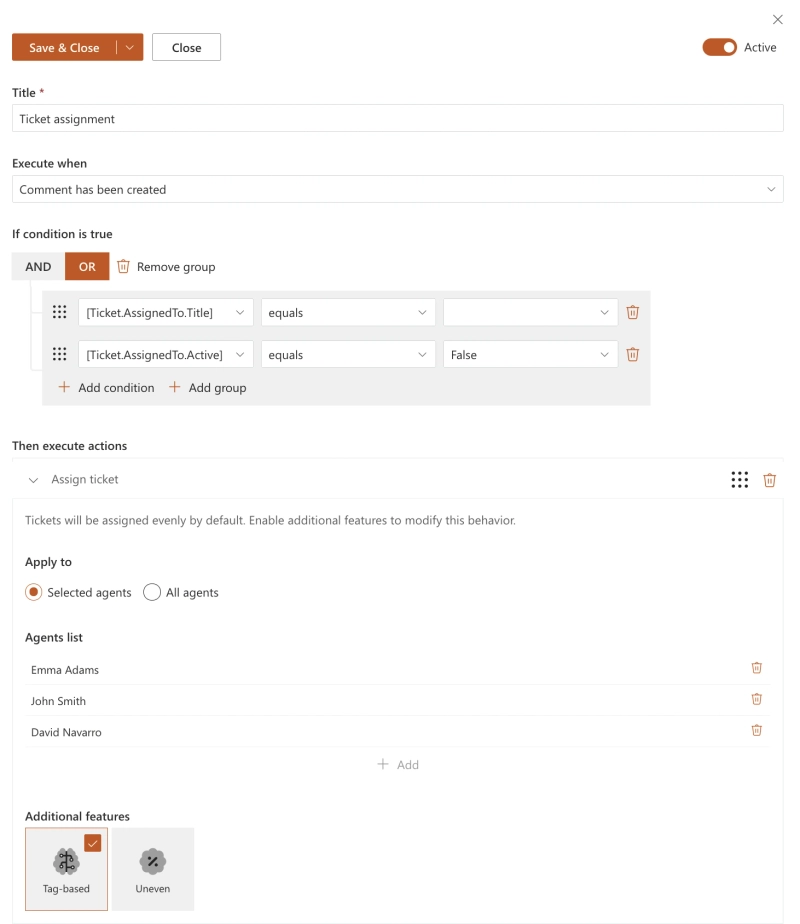
Select Comment has been created as the trigger event. This allows HelpDesk to check the ticket assignment whenever a new comment is added.
Define the assignment conditions
Configure the trigger to run if:
the ticket is not assigned to an agent, or
the currently assigned agent is disabled
This ensures that HelpDesk assigns unassigned tickets and can reassign tickets if their current assignee is no longer active.
Configure tag-based assignment
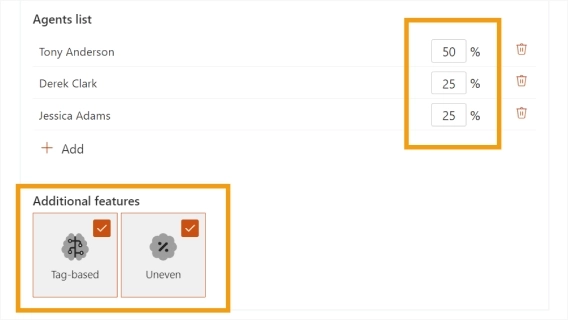
Add the Assign ticket action and select the agents who should participate in automatic ticket distribution.
Enable the Tag-based option. HelpDesk will compare the tags of the ticket with the tags assigned to agents in the Contacts list and look for agents with matching skills.
Your completed assignment trigger should look like this:
When the trigger runs, HelpDesk first looks for agents whose tags match the ticket tags. If matching agents are found, the ticket is distributed among them. If there are no agents with matching tags, HelpDesk uses all agents and assigns tickets evenly.
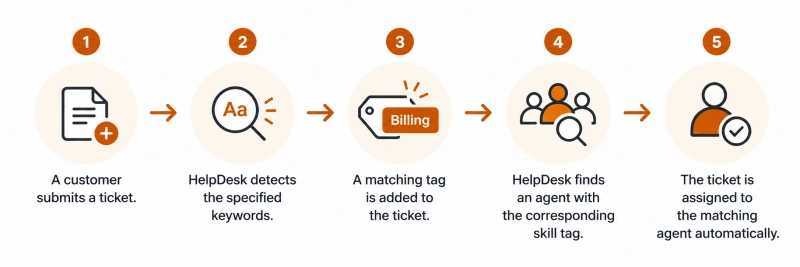
With both triggers configured, the workflow now works as follows:
Now that both triggers are configured, let's make sure the automatic assignment works as expected.
Send an email to your HelpDesk email address using one or more of the keywords configured earlier. For example, let's send a billing request:
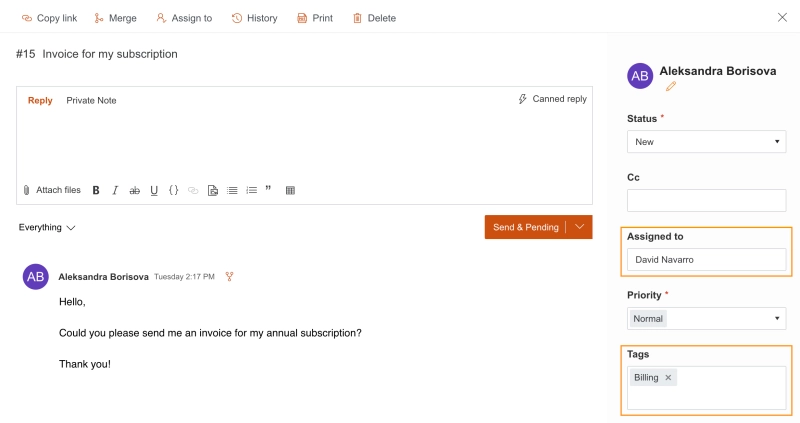
Once HelpDesk receives the email, a new ticket is created automatically. Open the ticket and check the result.
The first trigger should detect the invoice keyword and add the Billing tag to the ticket. The ticket assignment trigger should then find an agent with the matching billing skill tag and assign the ticket automatically.
You can also send test emails containing keywords for Technical Support and Sales to make sure the other classification triggers work as expected.
Keyword matching is a convenient way to classify incoming requests, but there are a few potential pitfalls that can affect how accurately tickets are categorized. Keep the following points in mind when configuring your triggers.
Customers may use different capitalization when describing the same issue. For example - Billing, billing, and BILLING should normally lead to the same category.
To make matching more flexible, you can use regular expressions in trigger conditions. For example:
[Ticket.Title] matches '(?mi)( |^)Billing'
The i flag makes the expression case-insensitive, so it can match the keyword regardless of capitalization.
Be careful when using short or generic keywords. A keyword may appear as part of another word and cause a ticket to be classified incorrectly. Regular expressions can help you define more precise matching rules.
A single request may contain keywords that belong to different categories. For example:
I found a bug during my trial.
In our configuration, bug belongs to Technical Support, while trial belongs to Sales. As a result, more than one classification trigger may match the same ticket.
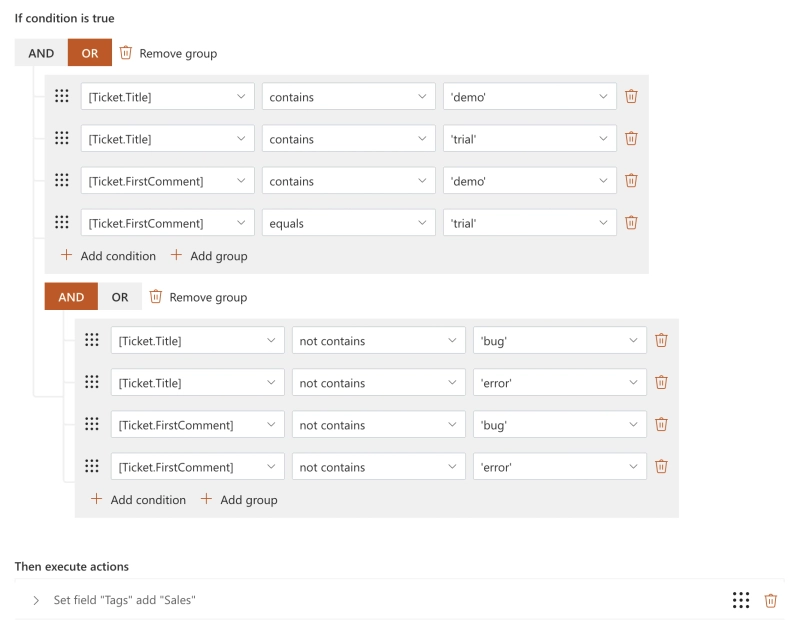
To avoid this, you can set priorities between categories using negative conditions.
For example, if Technical Support should take priority over Sales, add not contains conditions to the Sales trigger to exclude technical keywords such as bug, error, not working, and failed.
This way, a ticket mentioning both bug and trial will receive only the Technical Support tag.
Avoid using common words such as issue, problem, help, or question as keywords. They can appear in almost any support request and don't provide enough information to determine who should handle the ticket.
Instead, choose keywords that are closely related to a particular request type, and include several variations that customers are likely to use.
Testing your triggers with different ticket subjects and comments will help you identify problematic keywords and adjust the conditions before using the automation for real customer requests.
Auto assign tickets based on skills or percentage weight in HelpDesk for SharePoint
Explore new features in HelpDesk for SharePoint, including automated skill-based ticket assignment, automatic tag management, import/export settings, and new localization options.
Angelika Cherina
Lead Marketing Specialist
HelpDeskSharePointPower Automate
Jul 03, 2025
How to Create a SharePoint Helpdesk Ticketing System
Learn how to create a SharePoint HelpDesk ticketing system with native SharePoint tools or a ready-to-use powerful alternative with advanced features.



 HelpDeskSharePoint