Populate Microsoft Forms dropdown from a SharePoint list
Even though Microsoft Forms and SharePoint are two parts of the same ecosystem, there is no way to directly connect the two.
This limitation has been discussed in the community for years. As Damien Rosario noted in a Microsoft Tech Community thread back in 2019 — and things haven't changed since then:
There's currently no way to source data from external sources to use in Forms. I suspect that it logically may be a future option but for now you'll have to keep doing the changes in Forms.
To create a dropdown with options from SharePoint, open Microsoft Forms and add a dropdown to the form. Now copy each option from your SharePoint list into the dropdown by hand.
Note that the Microsoft Form will not update automatically; whenever the SharePoint dropdown changes, you'll have to manually adjust the dropdown in the form.
Although Microsoft Forms doesn't support dynamic dropdown options, we can use several workarounds to make creating forms based on SharePoint data easier.
Populate SharePoint List Forms dropdown from a SharePoint list
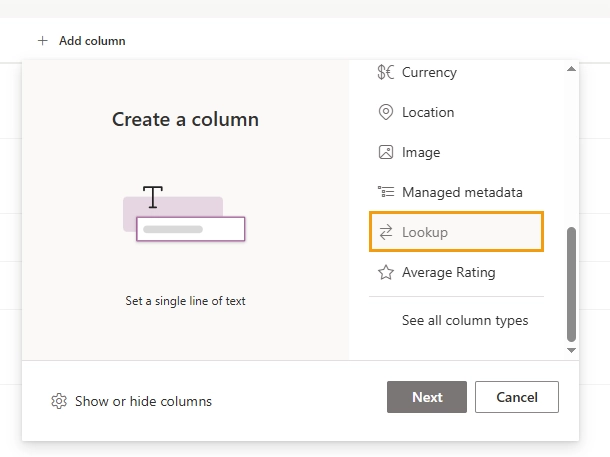
A regular dropdown can't display list items, so we'll have to use a Lookup column:
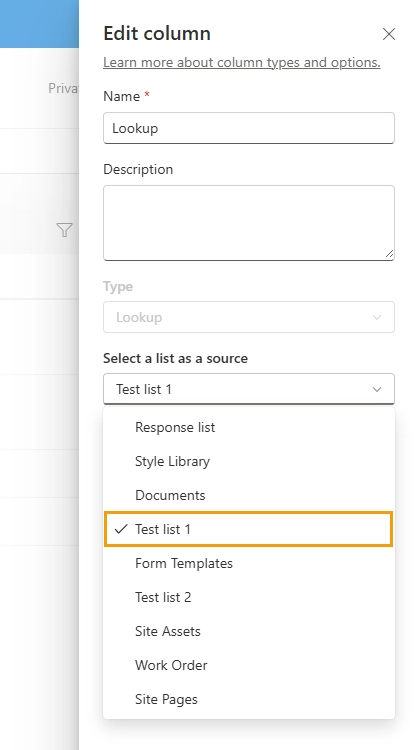
Make sure to pick the correct list in the column's settings:
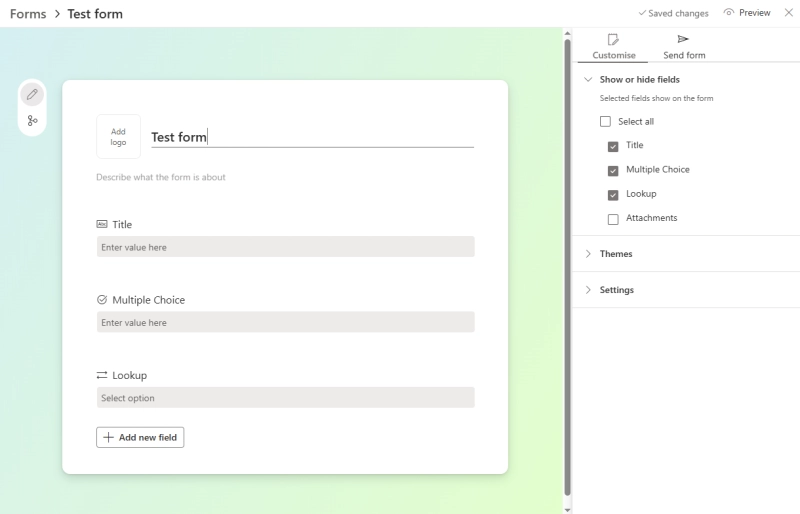
Now click the Forms button in the list view and create a new list form.
The form is created automatically and contains all fields from the list:
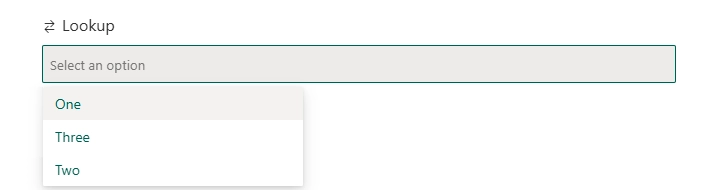
The Lookup field will display list items as a dropdown:
This is a simple and functional solution — but only members of your SharePoint tenant can open these forms.
Populate Power Apps dropdown from a SharePoint list
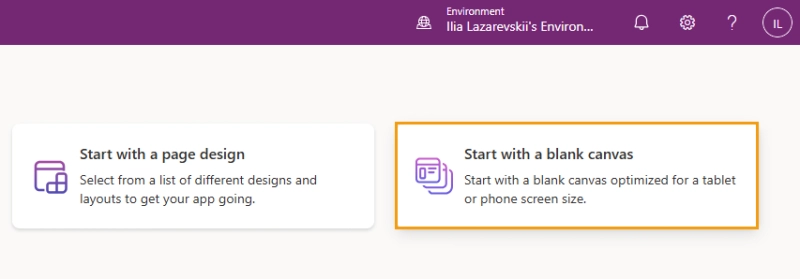
Go to the Power Apps main page and create a new Canvas app from blank.
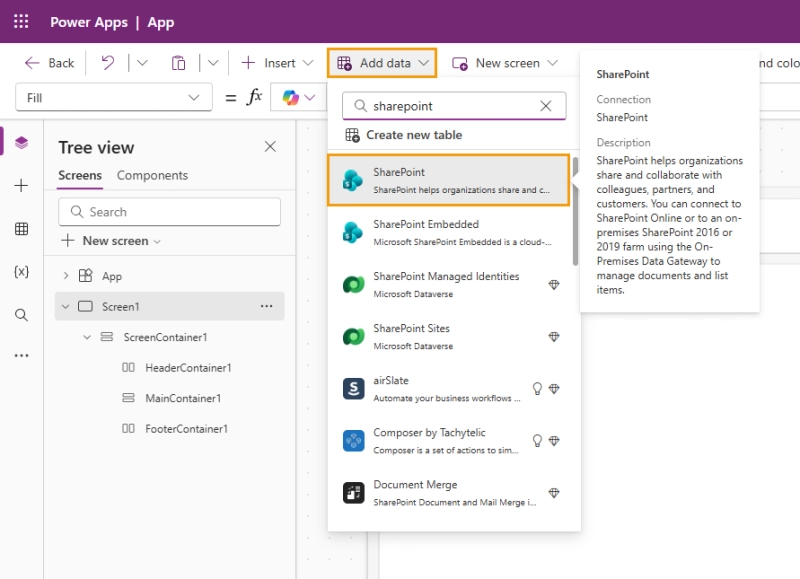
You can use the native SharePoint integration to automatically create a form field for each SharePoint field. To do that, click Add data at the top of the page and look up SharePoint in the dropdown list.
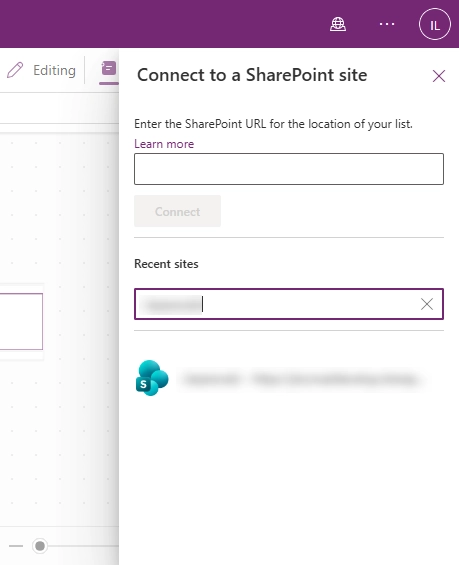
Log in to your SharePoint account, pick the correct site and list.
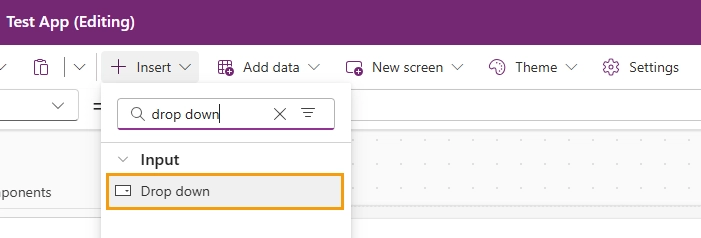
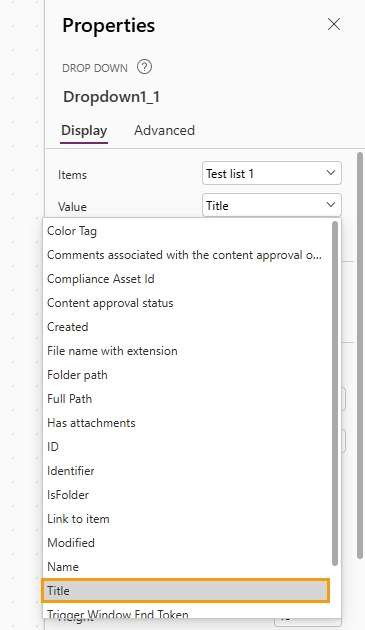
Now you can use your SharePoint list as a data source for a Power Apps dropdown:
Set the list as the data source and pick the correct field to display. By default, the display field is set to Compliance Asset ID, which might result in an empty dropdown.
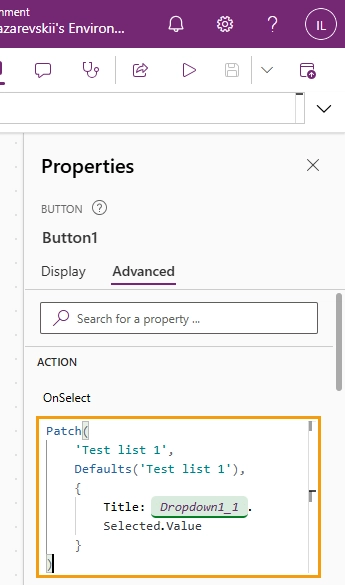
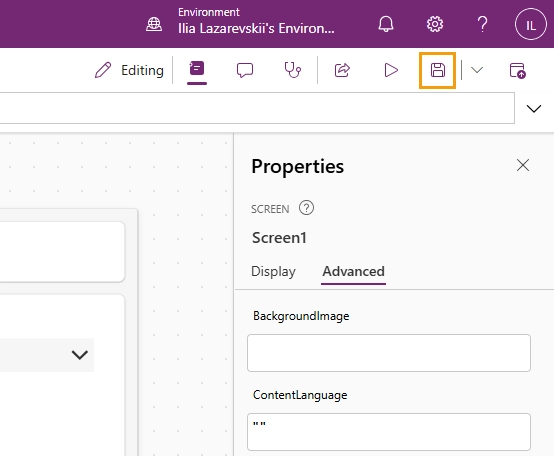
The last thing we need to do is to save the data. For this example, we'll save it to a different SharePoint list. Add a button to the app canvas and add this code to its OnSelect property:
Patch('Test list 2',Defaults('Test list 2'),{Title: Dropdown1_1.Selected.Value
})
You can check the internal name of the dropdown in its properties.
After you're done configuring, copy the link to the finished form to share it online.
Power Apps is a viable solution for this problem, but it is not without its drawbacks. The primary limitation is that while Power Apps allows guest access via Azure B2B, guest users must still have a license and authenticate through your Microsoft Entra ID tenant.
Furthermore, some key SharePoint features are not supported, customization is restricted, and the workflow is overcomplicated—even for a simple task like this. Fortunately, there are simpler ways to populate dropdown options based on SharePoint data.
Connect dropdown to SharePoint list to populate and update automatically
Plumsail Forms solves this for both public and private forms.
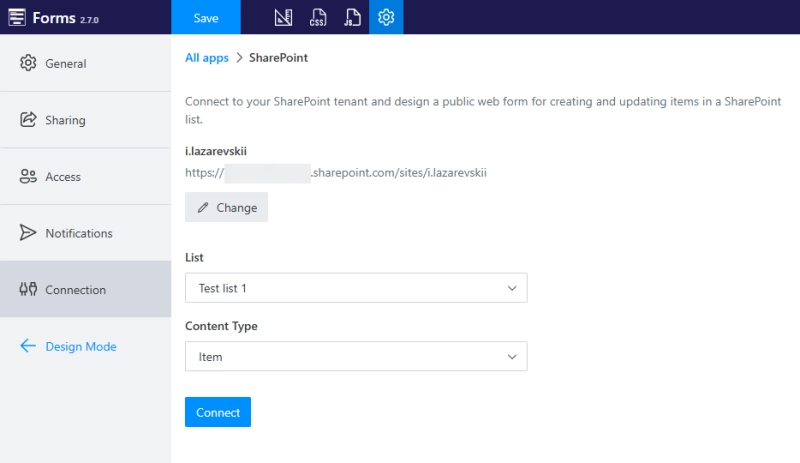
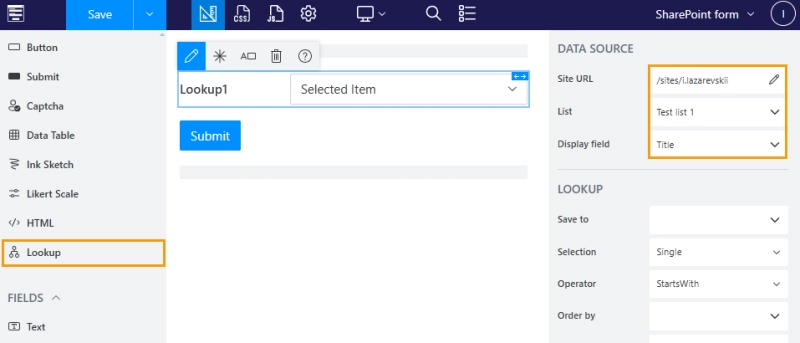
The simplest way to approach it is to use a native integration between Plumsail Public Forms and SharePoint. You can set up a connection in form settings:
Then, simply drag and drop a Lookup control onto the form. This control retrieves data from the SharePoint list and saves the result directly to your tenant. When the list updates, the dropdown options update with it.
Populate form dropdown from Excel synced with SharePoint list
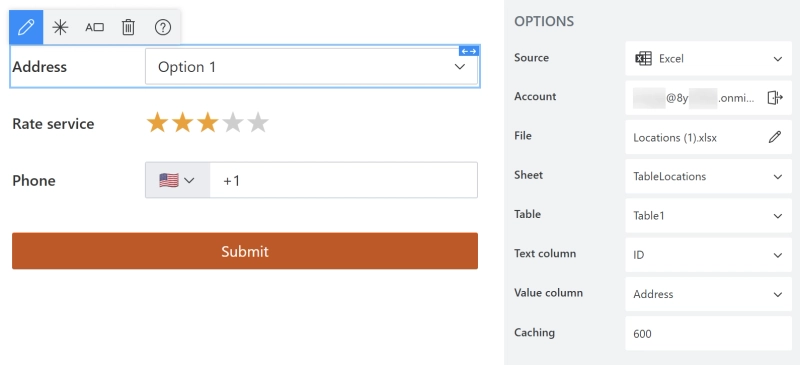
If connecting to SharePoint directly isn't your cup of tea, in Plumsail Forms you can use Excel as a data source.
Microsoft Forms is by far the simplest option to create and share forms, but the only way to work with external data sources to populate a dropdown is to add all options manually.
SharePoint List Forms allows you to automatically pull data from a SharePoint list, but the resulting forms are only available to members of the SharePoint tenant.
Power Apps is a powerful solution that can connect to SharePoint, but consider the complexity and licensing requirements for guest users before going down this route.
Plumsail Forms offers several ways to fetch SharePoint items and display them as dropdown options. You can share the form publicly or set up access rights for specific users. Use a free plan to get started and see how it works for you.
Can Microsoft Forms connect directly to a SharePoint list?
No, Microsoft Forms cannot read SharePoint list data. To create forms that update dynamically based on SharePoint data, use alternative solutions such as SharePoint List forms, Power Apps, or Plumsail forms.
How do I populate a dropdown in Microsoft Forms from a SharePoint list?
Microsoft Forms cannot read SharePoint list data automatically. You can only copy options in by hand. For dynamic dropdowns, use SharePoint List Forms, Power Apps, or Plumsail Forms.
Can Power Apps connect directly to a SharePoint list?
Yes, Power Apps has a native integration with SharePoint. However, keep in mind that guest users must have a license and authenticate through your Microsoft Entra ID tenant to access the app. To avoid extra complexity and costs, consider using Plumsail Forms.
How do I populate a dropdown in Power Apps from a SharePoint list?
Connect your app to a SharePoint site and add an edit form. Drop-down values will be pulled automatically from SharePoint.
Related posts
FormsSharePointPower Automate
Last updated: Jun 05
Connect Microsoft Forms to SharePoint using Power Automate
Learn how to seamlessly connect Microsoft Forms with or without attachments to a SharePoint List or Library using Power Automate. This comprehensive guide will help you automate data collection and streamline workflows efficiently.
Nikita Kurguzov
Customer Support Engineer
FormsSharePointPower Automate
Last updated: Sep 25, 2025
Save Microsoft Forms attachments to SharePoint with Power Automate
Learn how to save Microsoft Forms attachments to SharePoint using Power Automate. Plus, discover an alternative solution to overcome Microsoft forms file upload limitations.
Margarita Nikitina
Customer Support Engineer
FormsSharePointPower Automate
Jun 18, 2024
How to create a Microsoft Forms approval workflow
Learn how to create an efficient Microsoft Forms approval workflow using Power Automate and SharePoint. Step-by-step guide with use cases and best practices.







 FormsSharePoint
 Power Automate