FileBank Inc. is a New Jersey-based records and information management company. Their IT Director, Farook Golam, shares how the team replaced a manual, paper-based timesheet routine with a fully digital, multi-step approval workflow built on Plumsail Forms for SharePoint.
Timesheet approvals are one of those processes every organization has, and almost no one enjoys. Hours get written down, passed between desks, recalculated, signed, recalculated again, and eventually re-typed into payroll.
FileBank's IT team set out to remove that friction entirely — with a chain of SharePoint forms that calculates hours automatically, routes the request through every approver, and produces a final signed PDF, all within Microsoft 365.
Founded in 1987 and headquartered in Oakland, New Jersey, FileBank is a family-owned, veteran-owned records management company. For nearly four decades, the team has helped organizations digitize, secure, and manage records that span everything from financial archives to municipal documents, healthcare files, and even Metropolitan Opera costumes stored in their state-of-the-art Oakland facility.
FileBank serves clients in education, government, healthcare, and finance, with services that include physical document storage, scanning, secure shredding, digital file management, and full document-management workflows. Compliance, traceability, and a clean audit trail are not optional in their world — they are the product.
Challenge: a paper-heavy timesheet process
Like many internal HR processes, FileBank's timesheet approval routine had grown organically over the years. Employees recorded hours on paper or in spreadsheets, calculated their own totals, and walked the sheet from desk to desk for signatures. By the time the form reached payroll, mistakes in arithmetic — especially around regular versus overtime hours — were common, and so was lost paperwork.
The team wanted a SharePoint-native solution that would:
Replace paper timesheets with a structured online form
Automatically calculate hours worked, regular hours, and overtime
Route each submission through secretary, principal, and payroll approvals
Capture real signatures and attachments at each step
Produce a final, signed PDF for payroll without manual reformatting
The default SharePoint list forms were too rigid for that kind of multi-step workflow, and bolting it together with Power Automate alone meant losing the polished form experience their users expected.
Solution: SharePoint Forms for multi-step approval
After evaluating the options, FileBank chose Plumsail Forms for SharePoint. The same SharePoint list could now host four distinct forms — one for each stage of the approval — all reading and writing to a single list item, and all triggering Power Automate flows behind the scenes.
The drag-and-drop designer let the team mirror the look of their existing paper timesheet without writing layout code, and the JavaScript editor handled the bits that paper never could: live calculations, conditional fields, formatted account numbers, and dynamic data lookups.
I have been using Plumsail Forms for our organization, and it has completely transformed the way we handle forms and workflows. The platform is incredibly user-friendly, yet powerful enough to handle complex business processes without requiring deep technical expertise.
The system is built around a single SharePoint list — let's call it Timesheets — and four Plumsail forms attached to it. Each form represents one stage of the approval, and each one updates the same list item while triggering an email to the next approver.
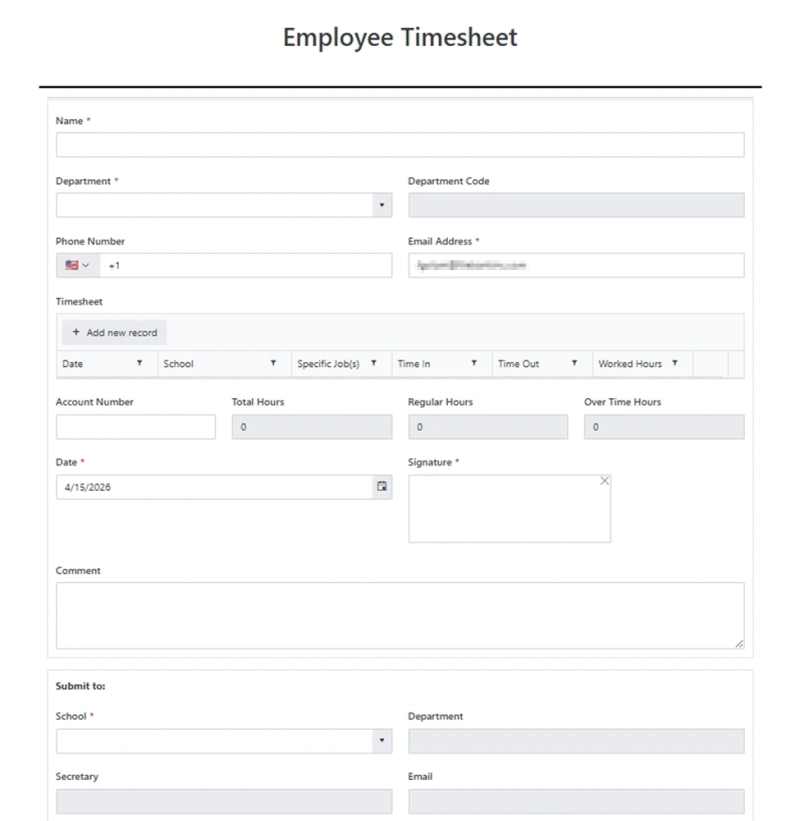
Empty Employee Timesheet form
Stage 1: Employee submits the timesheet
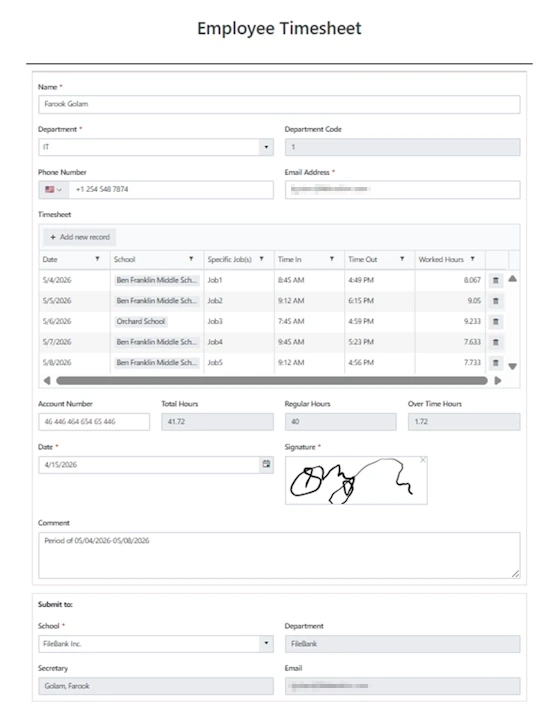
The employee opens the Employee Timesheet form in SharePoint. A Data Table captures one row per workday (date, school/site, specific job, time in, time out), and JavaScript calculates Worked Hours, Total Hours, Regular Hours, and Overtime Hours as they type. The Account Number field auto-formats as XX-XXX-XXX-XXX-XX-XXX, and a signature pad captures the employee's signature.
The Employee Timesheet form with calculated hours and captured signature
When the form is submitted, a Power Automate flow creates an item in the Timesheets list and emails the chosen Secretary a link that opens the next form, pre-filled with the employee's name, department, and total hours.
Stage 2: Secretary review and board approval
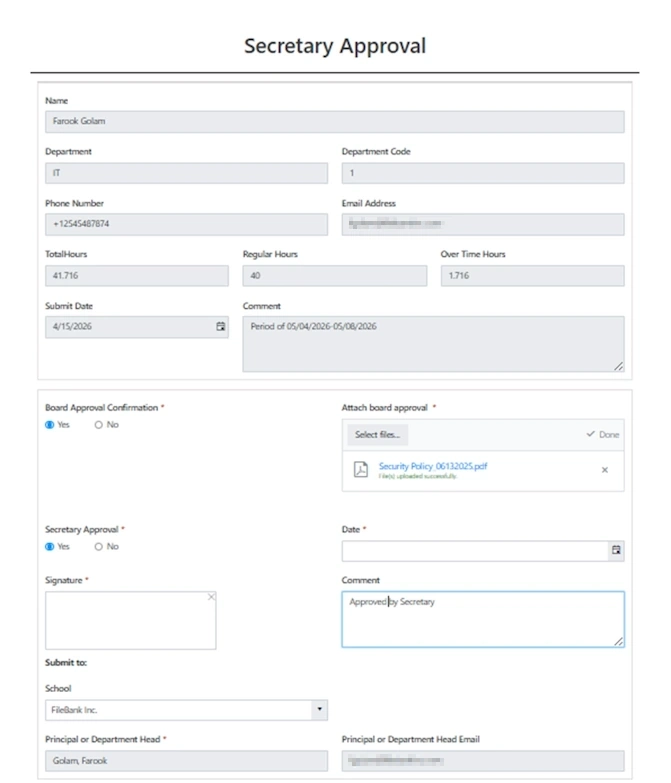
The Secretary opens the Secretary Approval form from the email. Employee details are already filled in and locked. The secretary attaches supporting documentation (for example, board approval PDFs), records their decision, signs, and submits.
Secretary Approval form with attachments and signature
A second Power Automate flow downloads any attached files, stores them against the SharePoint item, updates the record with the secretary's signature and decision, and emails the Principal or Department Head with the next form link.
Stage 3: Principal / Department Head approval
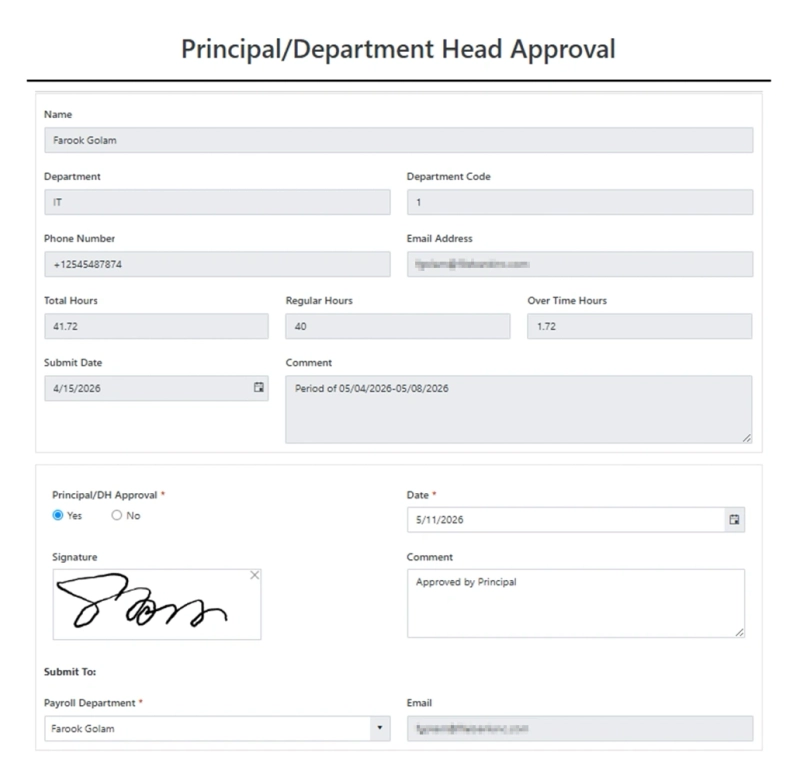
The Principal sees the cumulative summary — totals, employee signature, secretary's decision — and approves or rejects. Their signature is added to the same list item, and the flow emails the Payroll Department.
Principal / Department Head Approval form
Stage 4: Payroll approval and PDF generation
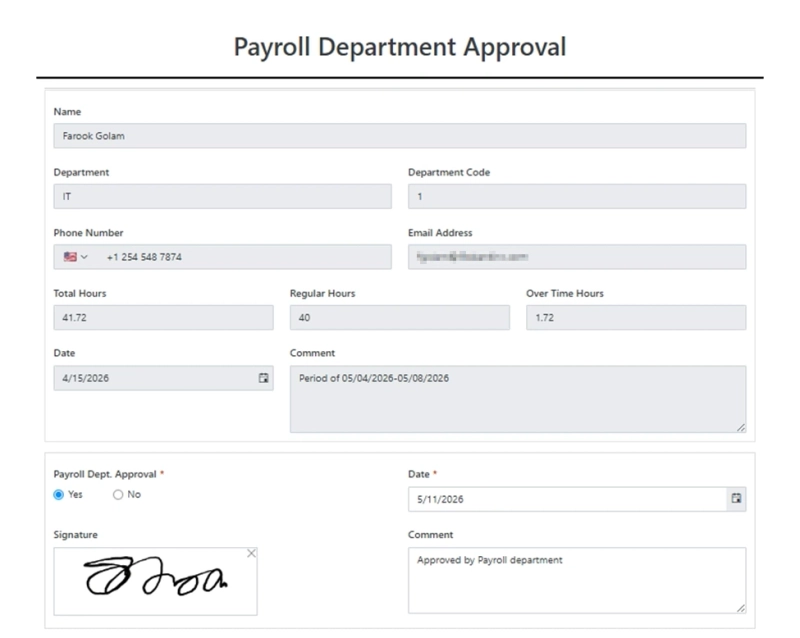
Payroll reviews everything one last time, signs, and submits.
Payroll Department Approval form
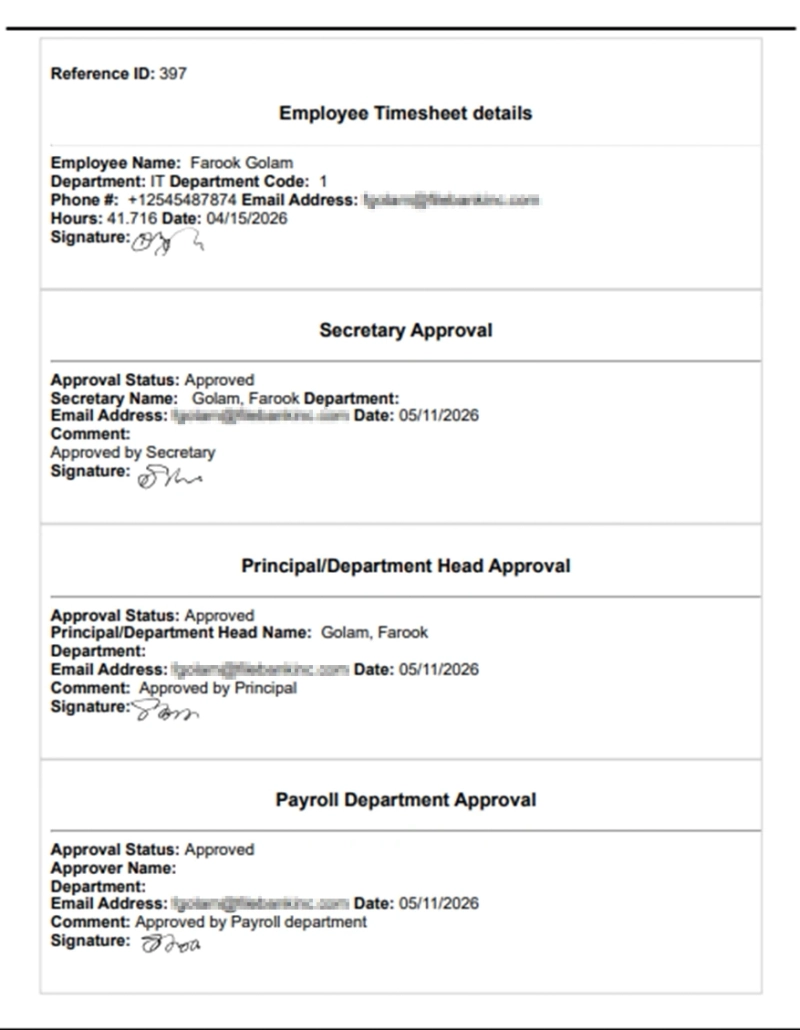
The final flow does not just close the ticket — it kicks off a Plumsail Documents process that merges every signature, every comment, and every approval date into a single Word template, then renders a finished PDF that is emailed to the recipient defined on the form.
The auto-generated, fully signed timesheet ready for payroll
Technical details behind the timesheet system
A few of the building blocks that made the workflow possible:
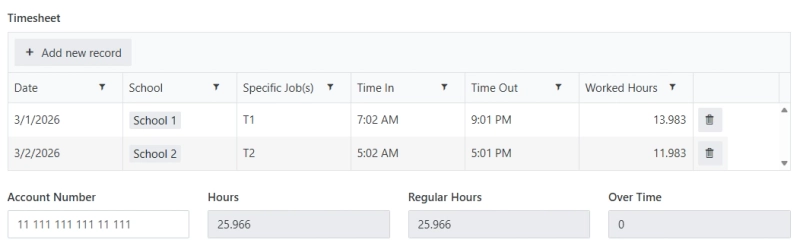
Live hour calculations. A small block of JavaScript in the form's editor watches the Time In / Time Out columns of the Data Table, calculates each row's Worked Hours as a decimal, sums them into Total Hours, splits the result into Regular Hours (0–40) and Overtime Hours (anything beyond 40), and writes the values into locked fields.
Account number formatting. The Account Number field is masked to XX-XXX-XXX-XXX-XX-XXX so users cannot enter it incorrectly.
Account number and hours calculation
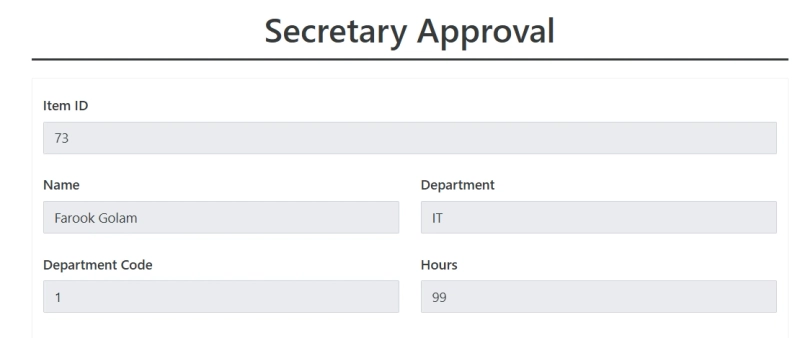
Pre-filled approval forms. When an approver clicks the link in their email, query-string parameters (?id=, &name=, &department=, &hours=) are read inside fd.spRendered() and used to fill and disable the relevant fields. The forms know who they are processing without anyone retyping a thing.
ID, Name, Department and Hours are pre-filled from URL params
Cascading dropdowns from a reference list. The Department dropdown is bound to a Department Codes list. When the user picks a department, JavaScript fills the Department Code field. The same pattern fills the Secretary's email when the Secretary is chosen, removing another source of typos.
Conditional approver fields. If the Secretary's decision is "No", the Principal and Principal Email fields are hidden and marked not-required on the fly, so a rejected submission cannot accidentally be routed onward.
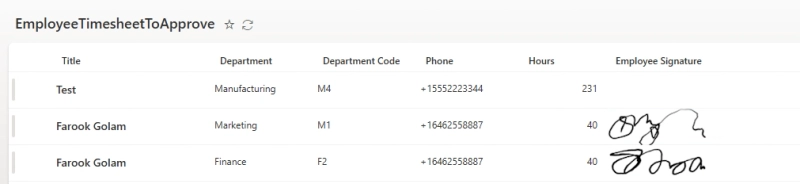
Signature storage. Signatures are captured by Plumsail's signature control and saved as long base64 strings — which means the SharePoint columns holding them must be Multiple Lines of Text, not Single Line.
Signatures in SharePoint List
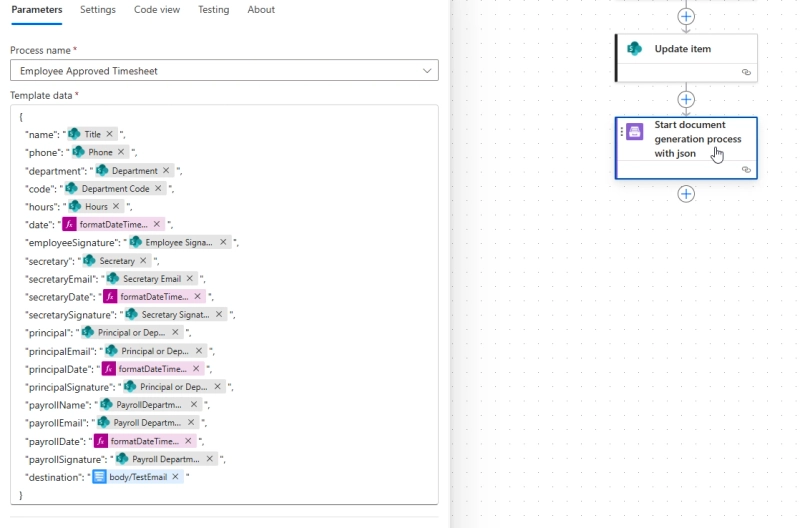
Power Automate orchestration. Each form's submission triggers a dedicated flow: create item, download attachments, update item, send email with the next form URL. Only the final flow calls Plumsail Documents for PDF generation.
Last flow starts document generation process
Results of moving timesheets into SharePoint
After rolling out the system, FileBank saw immediate wins:
No more manual arithmetic. Regular and overtime hours are calculated as the timesheet is filled in.
A single source of truth. Every approval, signature, and timestamp lives in one SharePoint list, fully auditable.
Faster turnaround. Approvers receive a pre-filled, one-click form instead of a paper sheet to track down.
No re-typing for payroll. The final PDF is generated automatically from the data already in SharePoint.
A polished user experience. The drag-and-drop designer let FileBank match the visual layout of their previous paper form, easing user adoption.
The customization options are excellent — from conditional logic and dynamic fields to seamless integrations with SharePoint. Customer support has also been outstanding — responsive, knowledgeable, and genuinely committed to helping resolve issues quickly.
If you have a multi-step approval somewhere in your organization that is still travelling on paper — timesheets, leave requests, purchase orders, expense claims — the pattern FileBank used translates directly.
If you have any questions about any of our products and their use, feel free to book a free call with our team.
Related posts
Customer storyFormsSharePoint
Dec 05, 2023
Using Plumsail SharePoint forms for Efficient Property Management
Find out how Plumsail Forms eliminate the need for multiple mailboxes, facilitate logging and tracking of work, and provide transparency and accountability.
Paul Norris
Systems Developer at SHW
Customer storyFormsSharePoint
Last updated: Sep 20
A single solution for SharePoint and external forms: The University of Manchester Innovation Factory's experience
See how Plumsail Forms provided SharePoint-integrated internal and external forms that improved the Purchase Order system.
Steve Ayres
Data-Centric, Information Services and Technology Leader
FormsSharePointPower Automate
Nov 27, 2024
How to automate a leave request in SharePoint
Learn how to create a SharePoint leave request system with custom forms, automated approvals, and a calendar to avoid scheduling conflicts.




 FormsSharePoint