If you're reading this, you've likely already discovered that collecting digital signatures from external users in SharePoint Online is not as easy as it should be. Yet, we all need to gather signatures for countless approvals, contracts, and forms—from HR documents to vendor agreements.
In this article, I'll share the most direct and easiest way to save signatures to SharePoint using Plumsail public web forms, as well as two known approaches using native Microsoft tools.
Prefer a video? Watch below for collecting signatures, repeating tables, and ratings.
Save signatures directly in SharePoint Online
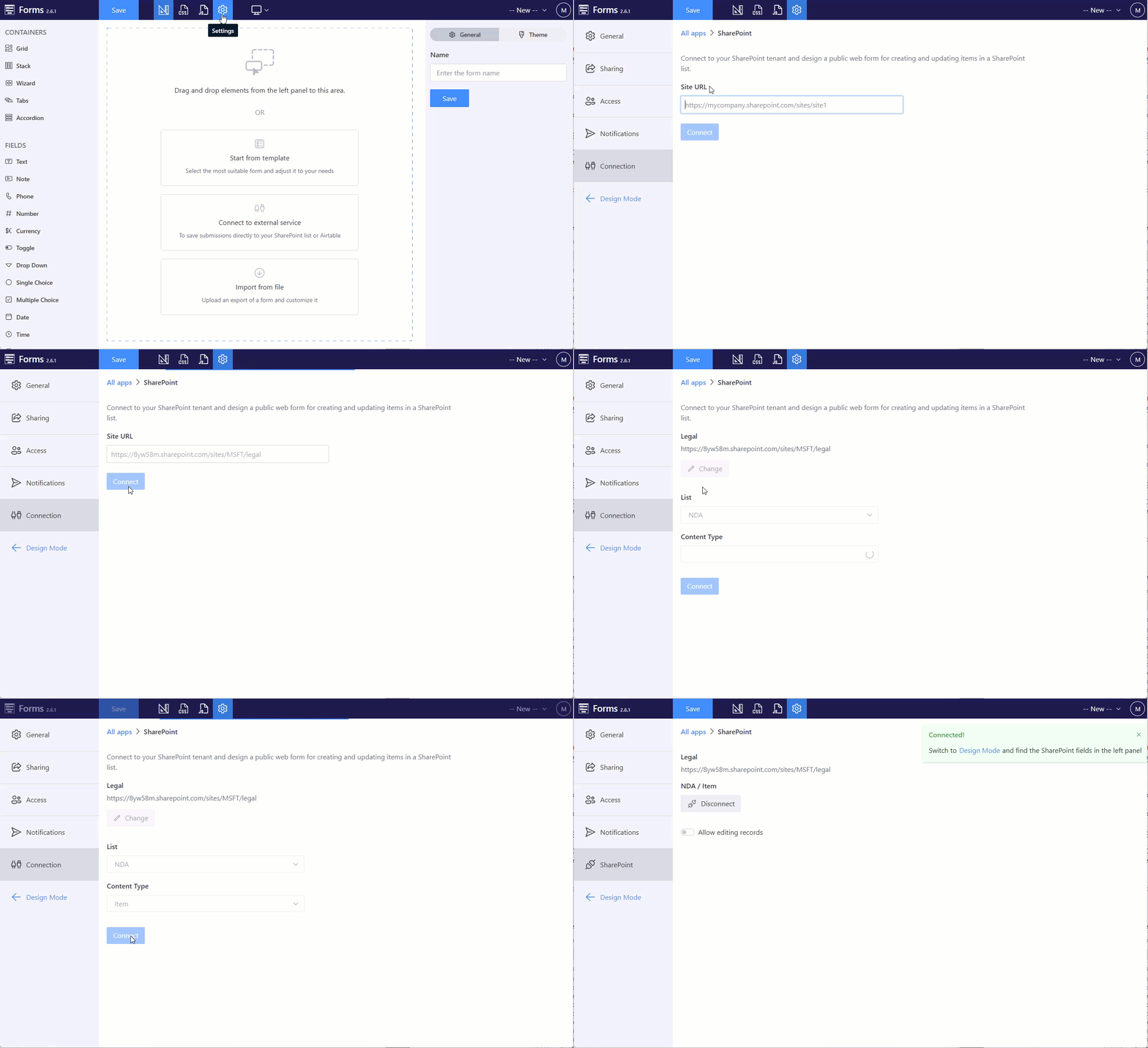
Plumsail public forms has a direct integration with SharePoint Online, meaning all data from a form is saved directly to a SharePoint list with no Power Automate flows or extra coding.
Note: You need tenant admin permissions to grant Plumsail public forms access to your SharePoint tenant. This only need to be done once.
Plumsail public forms has an Ink Sketch control for collecting pen input for e-signatures. Here are the simple steps to save a signature to a SharePoint list:
Add the Ink Sketch control to your form:
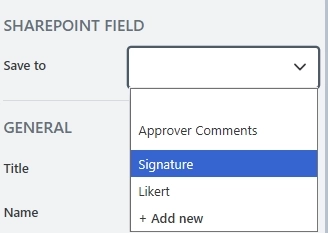
In the control's properties, select the existing or create a new multiple line text column where you want to save the signature. The signature is saved as a Base64 image to the selected column:
Save the form and share it by a public link or embed to a website page.
That's it — no Power Automate flows or complex setup required.
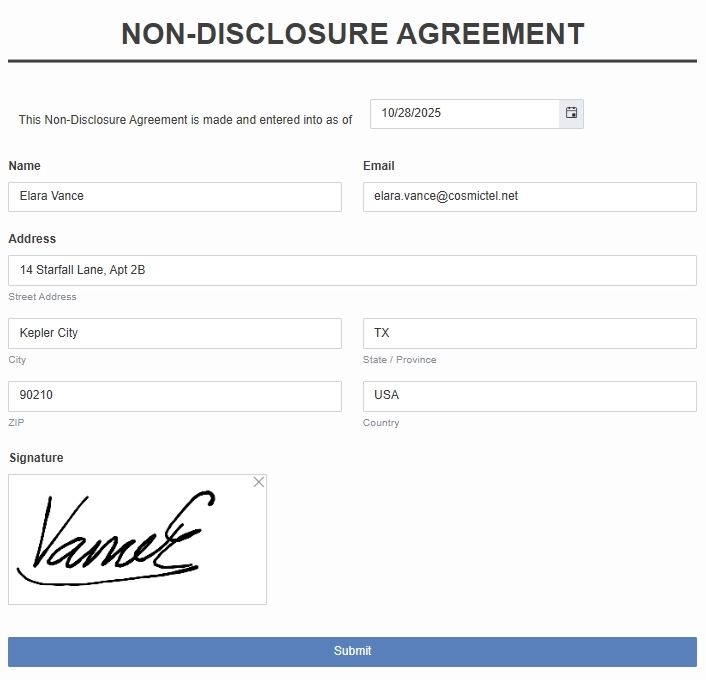
Here is my Non-Disclosure Agreement form I designed with a signature control that is saved to my SharePoint list:
The value of the control is saved and here is how captured signatures look in my SharePoint list:
Tip: Install the Plumsail Forms for SharePoint app from Microsoft AppSource to render the Base64 image in a list view.
Use Microsoft tools to collect signatures in SharePoint
If you're not ready to use any third-party tools for collecting SharePoint digital signatures, here are a few options using Microsoft tools only.
Power Apps + Power Automate
You can build a Power Apps form that includes a Pen input control and save the signature to a SharePoint list with a Power Automate flow. This works well for internal users, but for external signers, you must invite them as guests, which adds complexity and limits flexibility.
Microsoft eSignature
This is a fairly new feature that lets you send files for signature directly from your SharePoint Document Library. You can choose between SharePoint eSignature, DocuSign, or Adobe Acrobat Sign. To allow external signers, you must enable Microsoft Entra B2B and configure external sharing settings at both the tenant and site levels.
However, this feature is still rolling out and not available in all regions — and pricing can be high, currently $2 per signature request.
Choose the right way to collect signatures in SharePoint
You can use native Microsoft tools like Power Apps or Microsoft eSignature to collect signatures from external users, but get ready for limitations, guest access setup, and high costs.
If you need a simple, direct way to collect e-signatures in SharePoint Online, Plumsail public forms offer the easiest and most direct approach. You can start right away by creating a free Plumsail account.
If you have questions or would like to learn more, feel free to schedule a 15-minute call. We're happy to walk you through a demo and answer any specifics.
Related posts
Customer storyFormsSharePoint
Apr 01, 2025
Leave requests management with SharePoint Forms at EFAFLEX
See how EFAFLEX automated their leave request process using Plumsail Forms for SharePoint Online, creating an efficient approval workflow.
Malte Schöppe
IT System and Network Administrator at EFAFLEX
Customer storyFormsMicrosoft 365SharePoint
Feb 28, 2025
SharePoint asset management with a web shop for SharePoint Online and Plumsail Forms
See how advantegy GmbH created a Web Shop for SharePoint Online in Microsoft 365 with SharePoint Forms and utilize it for asset management and tracking.






 FormsSharePoint