Create PDF invoices from template in Power Automate

Step 1. Upload your invoice template
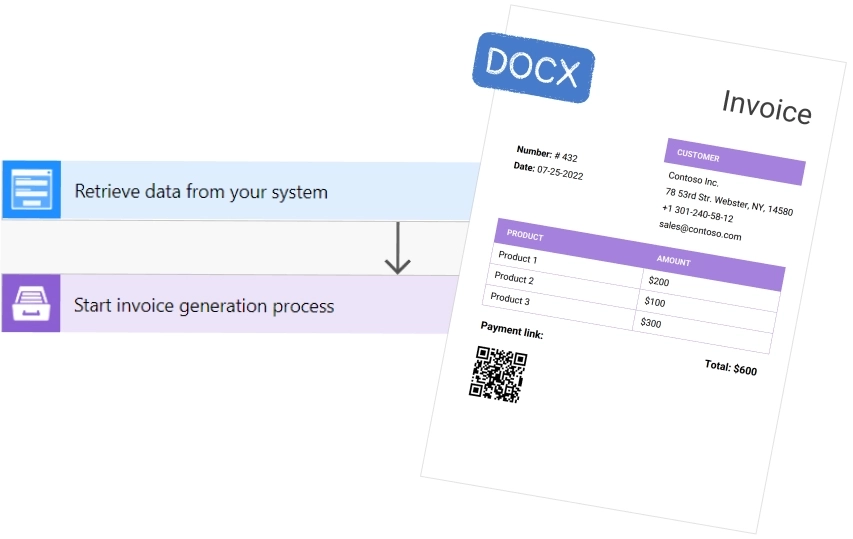
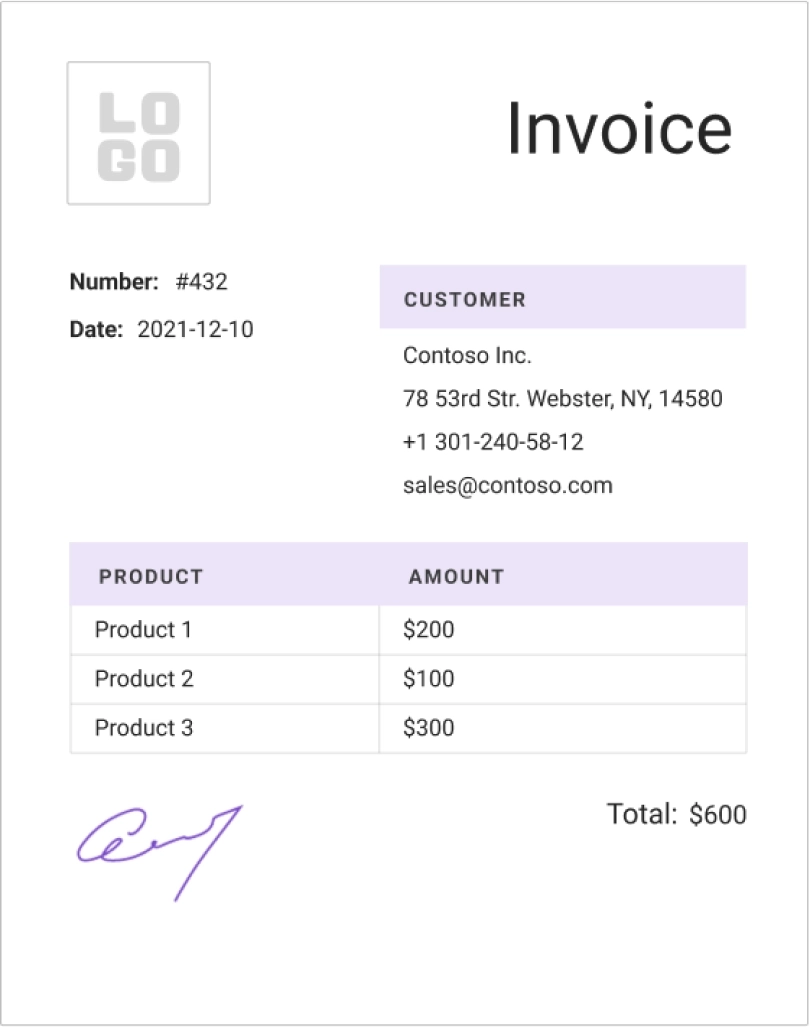
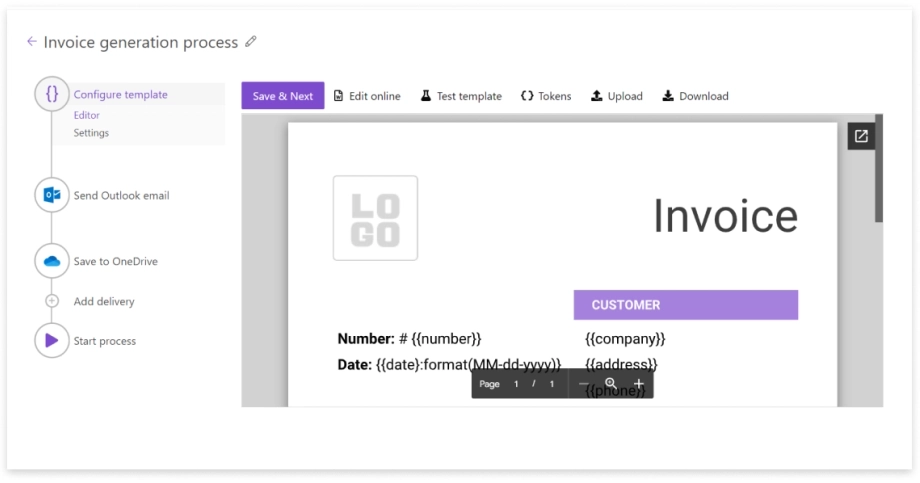
Plumsail Documents allows users to issue new invoices using their own invoice template. Uploading one’s own invoice template can help save time on future invoices, thereby expediting the payment process.
Log in to your Plumsail Documents account to access the invoice template. If you don’t already have one, create a Plumsail account.

Step 2. Set up invoice generation process
In your Plumsail Documents account, configure the output settings for the invoice process. Select PDF as the output format, then add a delivery step—for example, send the generated PDF invoice by email via Outlook or save it to SharePoint or OneDrive.

Step 3. Create Flow in Power Automate
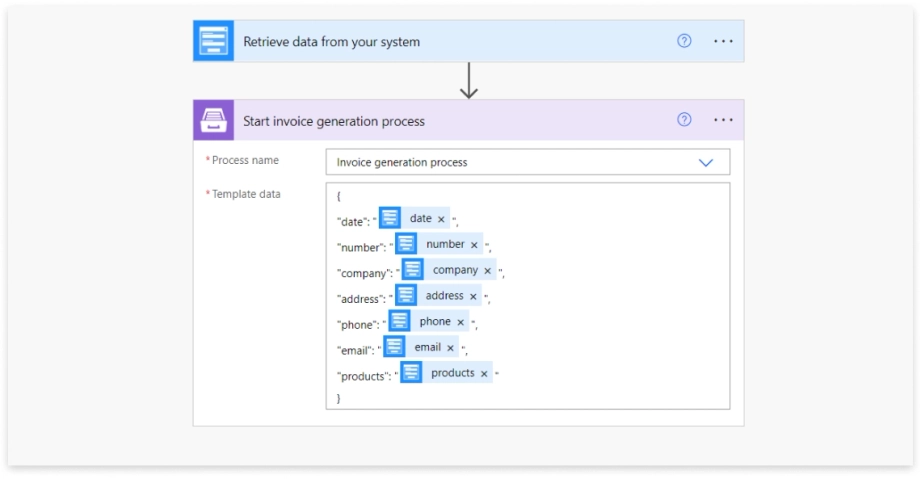
In Power Automate, create a new flow with a trigger that fits your workflow—for example, when a form is submitted or a new row appears in SharePoint. Add the Start document generation process action from the Plumsail Documents connector and map the trigger data to the invoice template tokens.

What people say about Plumsail Documents