Starting February 16, 2026, Microsoft began transitioning SharePoint Online authentication from legacy protocols to modern authentication.
This change affects Plumsail Actions configured with SharePoint custom credentials. As legacy authentication is phased out, these connections can no longer authenticate, causing Actions to fail.
If your Power Automate flows or Plumsail Actions have recently stopped working, this is likely the reason.
What changed in SharePoint authentication (and why it matters)
Microsoft is deprecating the legacy authentication protocol known as IDCRL (Identity Client Runtime Library) and replacing it with modern authentication.
As part of this transition, legacy client authentication is being disabled by default for SharePoint Online and OneDrive for Business, and all connections relying on this method must be updated before April 30, 2026, when enforcement is completed.
This change can cause Plumsail Actions and Power Automate flows to fail, especially if they use outdated credentials.
Common issues: Actions failing in Power Automate
If your API key was configured using SharePoint custom credentials, you may experience:
- Flows failing in Power Automate
- Authentication errors when running Actions
- Existing connections becoming invalid
How to fix your Actions using a new API key
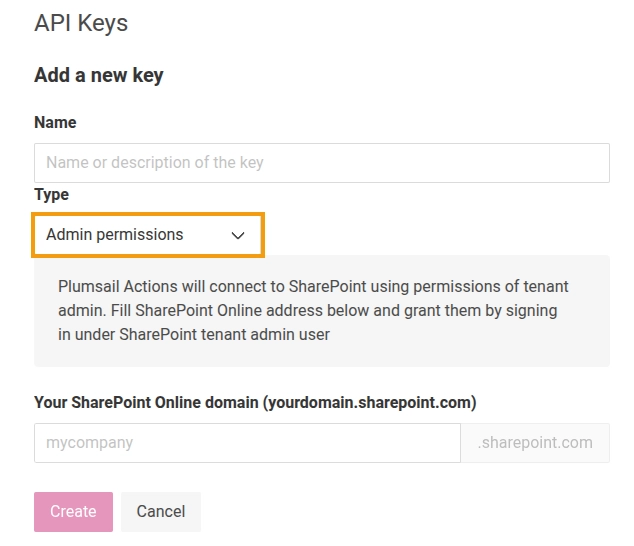
To resolve the issue, you need to create a new API key using SharePoint admin permissions.
Unlike custom credentials, this type of API key uses modern authentication and will continue working after legacy protocols are disabled.
Follow these steps:
-
Log in to Plumsail account in account.plumsail.com.
-
Navigate to the API Keys section and click Add key.

- Select the correct type of API key and complete the rest of the fields.
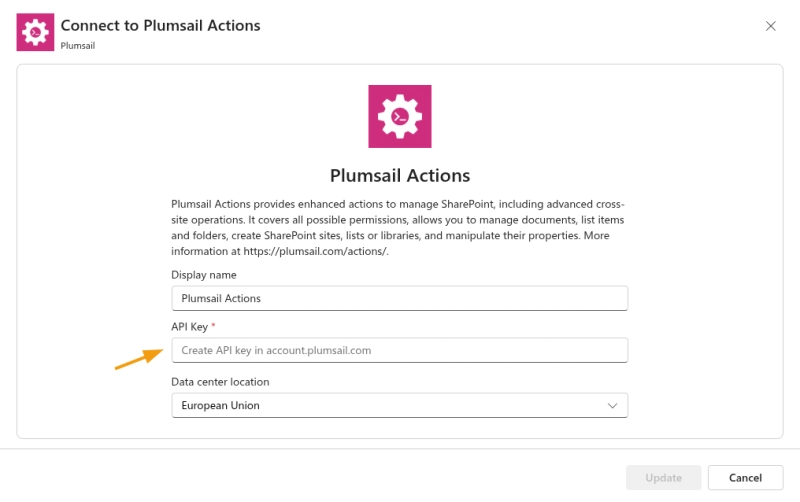
After generating the new API key, you need to update your existing connections:
- Open the Connections section in Power Automate
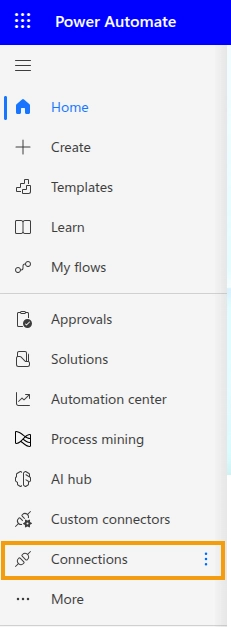
Tip: If you don't see it in the side panel, click More.
-
Find your existing Plumsail Actions connection.
-
Edit the connection and replace the old API key with the new one.
Still experiencing issues?
If Plumsail Actions are still not working after replacing the API key, please contact our support team at support@plumsail.com with screenshots of any error messages.
We will be happy to assist you further.