Starting March 1, 2026, Microsoft began enforcing SharePoint Online Content Security Policy (CSP).
This issue mainly affects SharePoint Online solutions that load external scripts, including SPFx-based integrations and third-party tools.
If trusted script sources are not configured, external scripts can be blocked in SharePoint, causing tools like Plumsail HelpDesk, Org Chart, and Forms to stop loading.
What changed in SharePoint Online CSP?
The new Content Security Policy (CSP) restricts which domains can load scripts in SharePoint.
If a required domain (such as Plumsail services) is not included in the allowed list, scripts will fail to load, causing UI elements and functionality to break.
This is why you may see:
- Missing components
- Broken forms
- Incomplete pages
Common SharePoint CSP issues: external scripts blocked and tools not loading
If your SharePoint tenant is affected by the SharePoint CSP changes, you may notice:
- SharePoint views not loading
- Org Chart web part disappearing from pages
- Configuration wizards not opening
- External scripts blocked in SharePoint
- Plumsail HelpDesk not loading or showing blank pages
These issues occur because SharePoint blocks external scripts by default unless they are explicitly allowed.
How to fix SharePoint CSP: add trusted script sources
To resolve the issue, allow Plumsail domains in SharePoint trusted script sources.
Follow these steps:
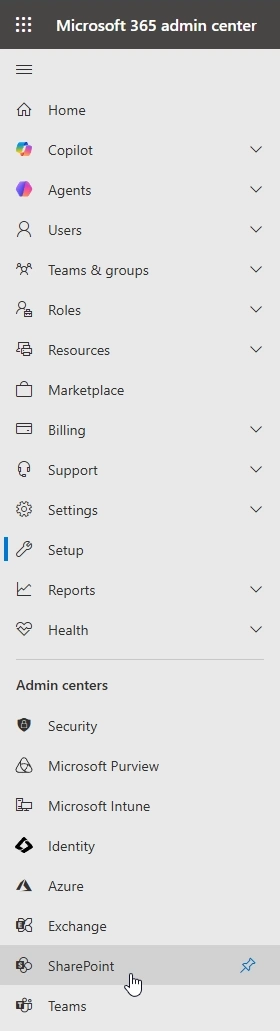
- Open the Global Admin Center
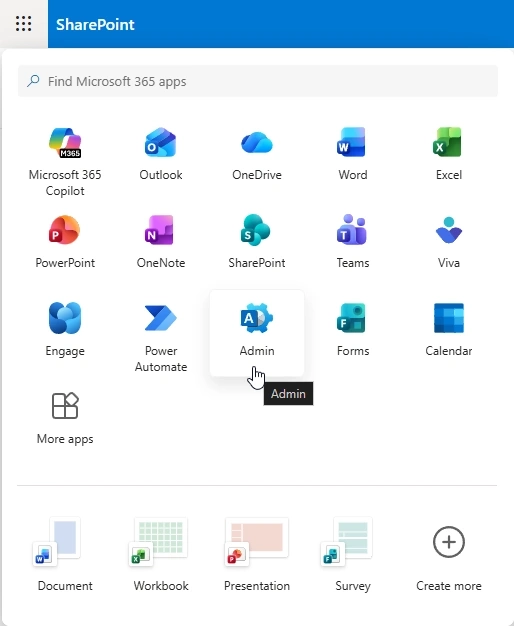
- Navigate to the SharePoint Admin Center
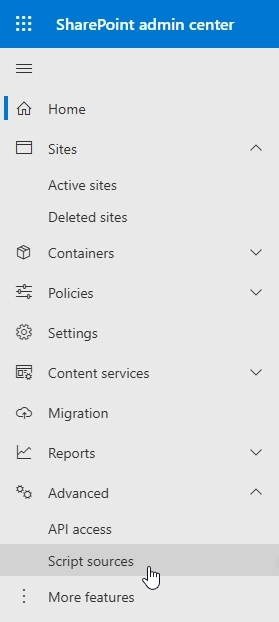
- Go to Advanced, and then, Script sources
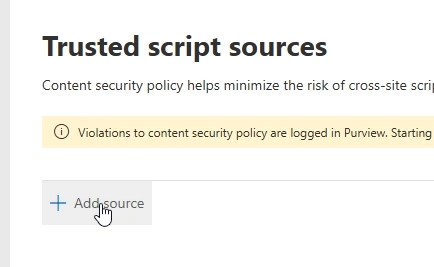
- Add the following domain:
https://*.plumsail.com (important: add it even if similar entries already exist)
- If you are using HelpDesk, also add:
https://*.spform.com
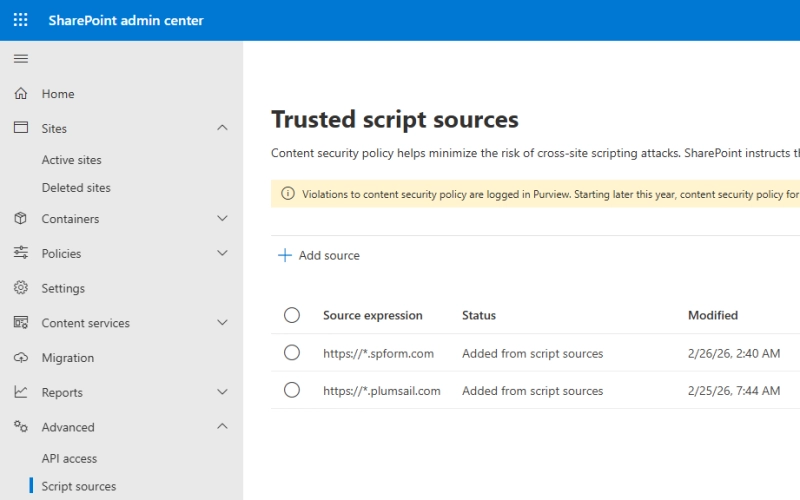
After completing these steps, external scripts should load correctly, and your Plumsail apps should function as expected again.
Alternative fix for Plumsail Org Chart in SharePoint Online
If you are using a recent Plumsail Org Chart version, there is an easier option.
You can:
This latest version will request updated permissions, which can bypass SharePoint CSP restrictions without manual configuration.
Still experiencing issues?
If Plumsail tools are still not loading after applying the fix, please contact our support team at support@plumsail.com with the following details:
- Affected tool (HelpDesk, Org Chart)
- Screenshots or error messages
We will be happy to assist you further.