Automatically populate fillable PDF based on data from SharePoint list in Power Automate
In this article, you will learn how to automatically populate fillable PDF forms in Power Automate (Microsoft Flow) or Azure Logic Apps. We will use Processes - a Plumsail Documents feature for creating documents from templates.
In our case, we will fill in an Application for Employment form based on the data from a SharePoint list. Actually, you can get data from any other source. We use the SharePoint list here as an example.
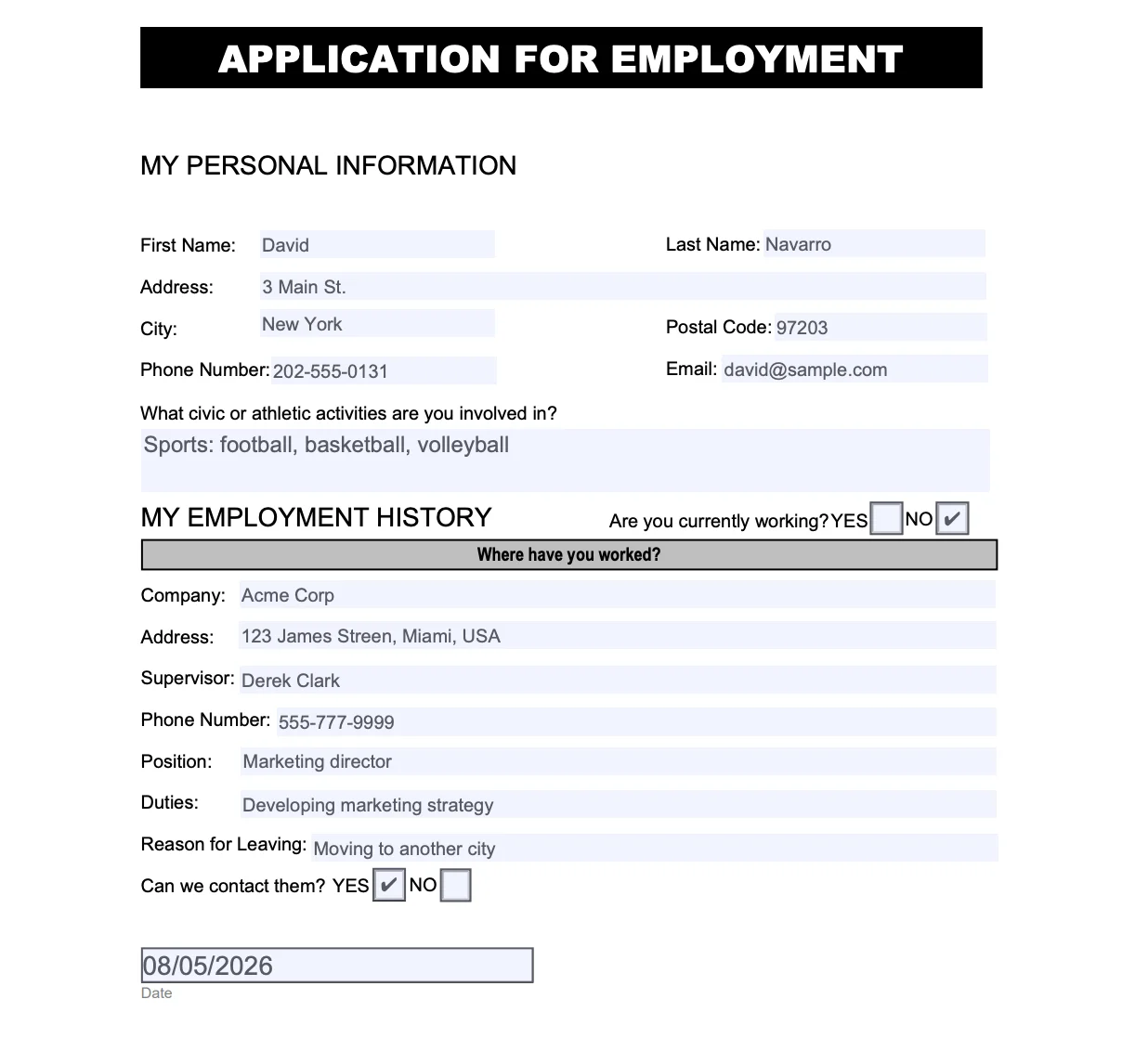
This is how the final PDF document with the form will look in our case:
Follow the steps below.
Create a fillable PDF
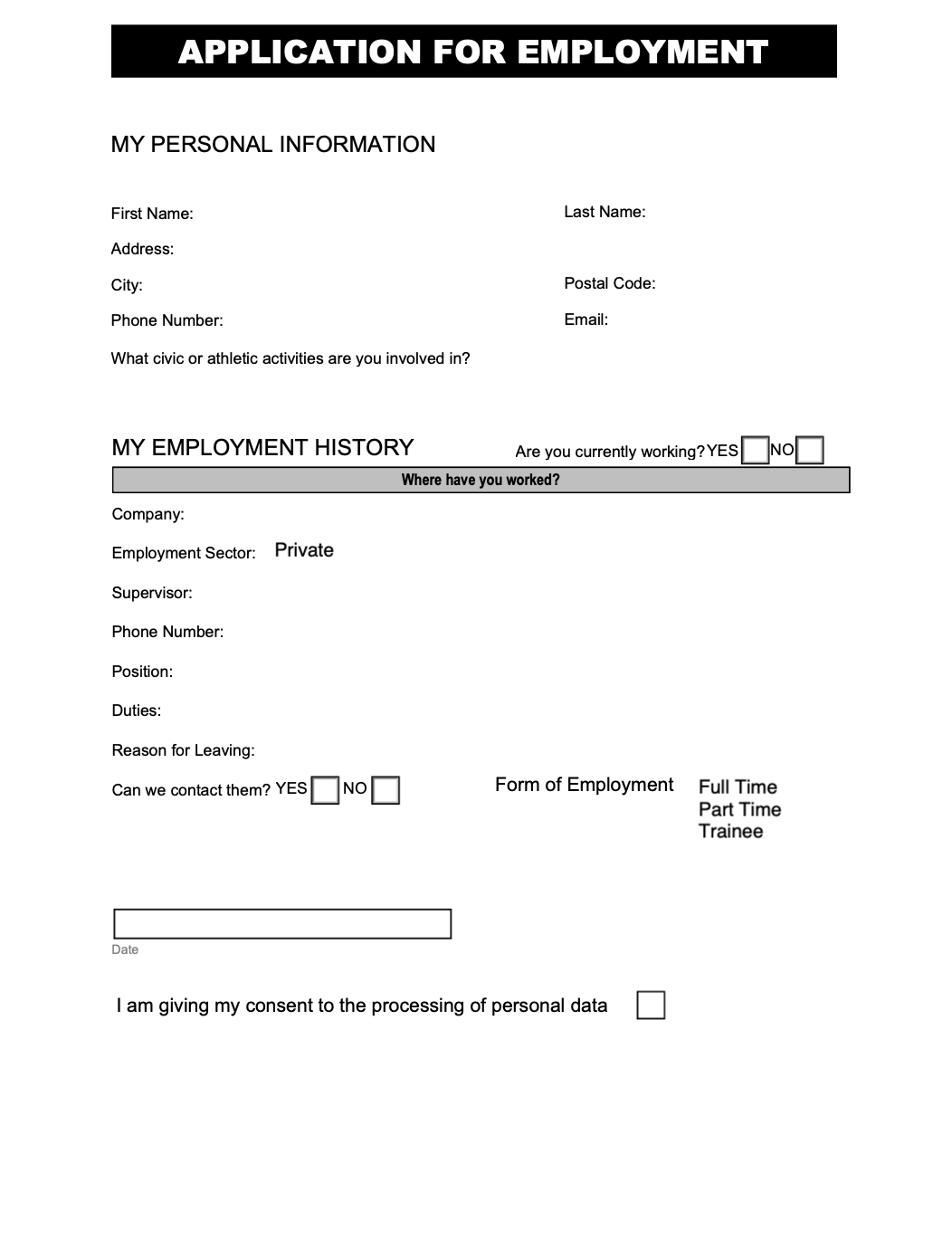
Follow this instruction to create a fillable PDF.
Download the template file for this article.
Configure the Process
In your Plumsail account, open the Processes section and create a process for the employment application PDF.
Create a new process
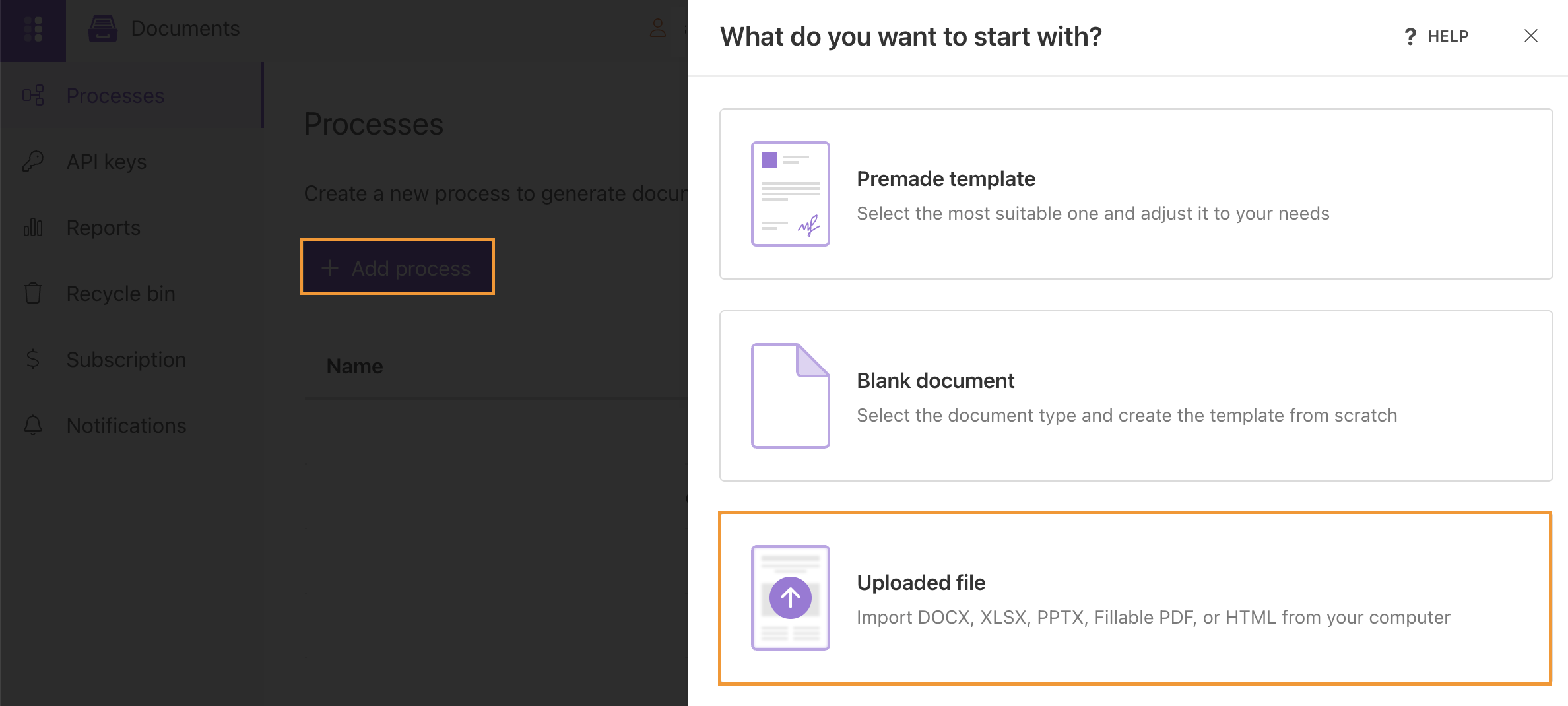
Click on the Add process button and select Uploaded file
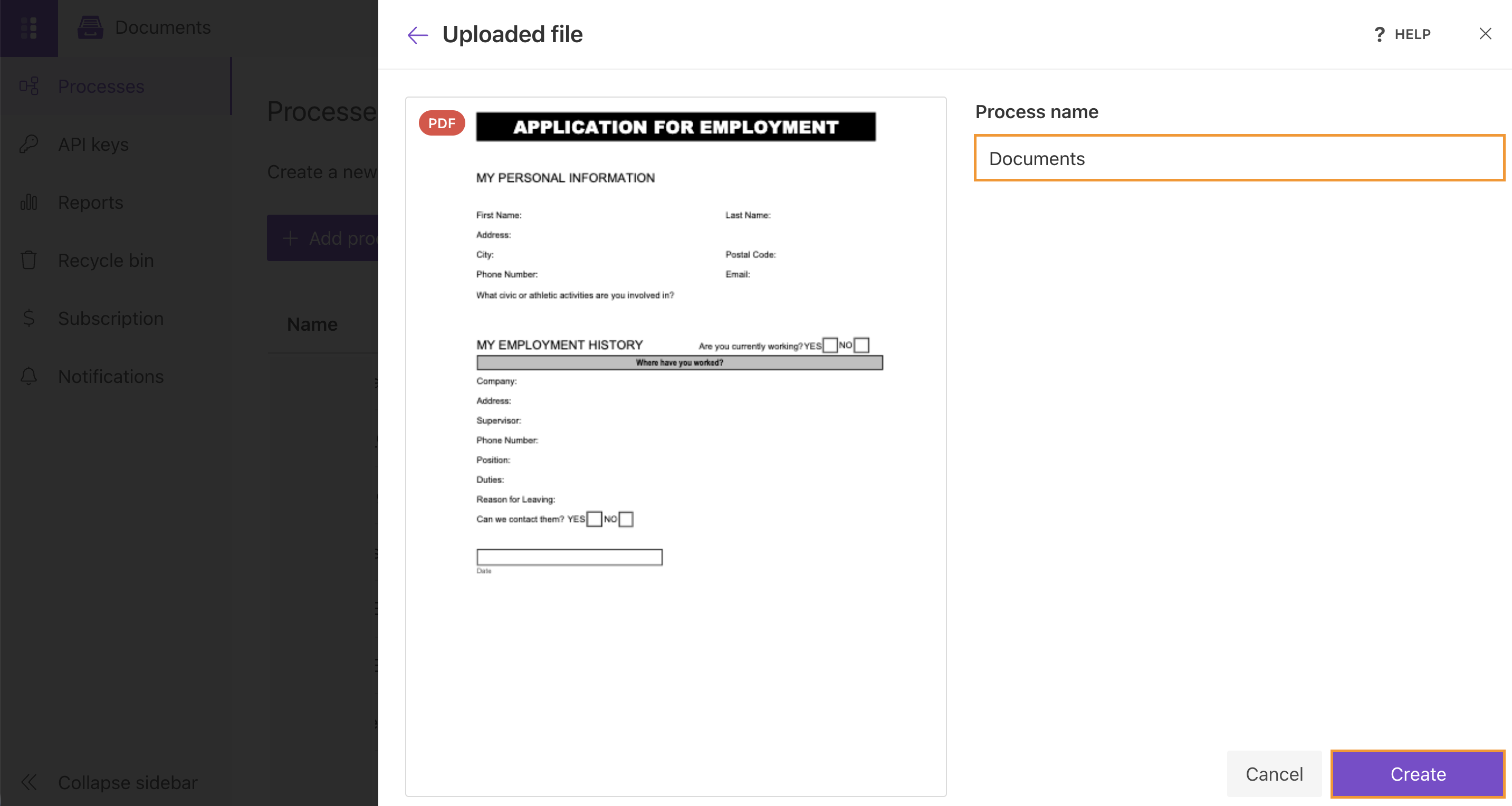
Set the Process name and click Create
Configure a template
After creating the process, you can configure a template and adjust the process settings.
In the Editor, upload your fillable PDF template or download the current template to your computer.
Another feature here is testing the template. It helps you to get a sight of the resulting document and decide if you’re satisfied with it.
Just click the Test template.
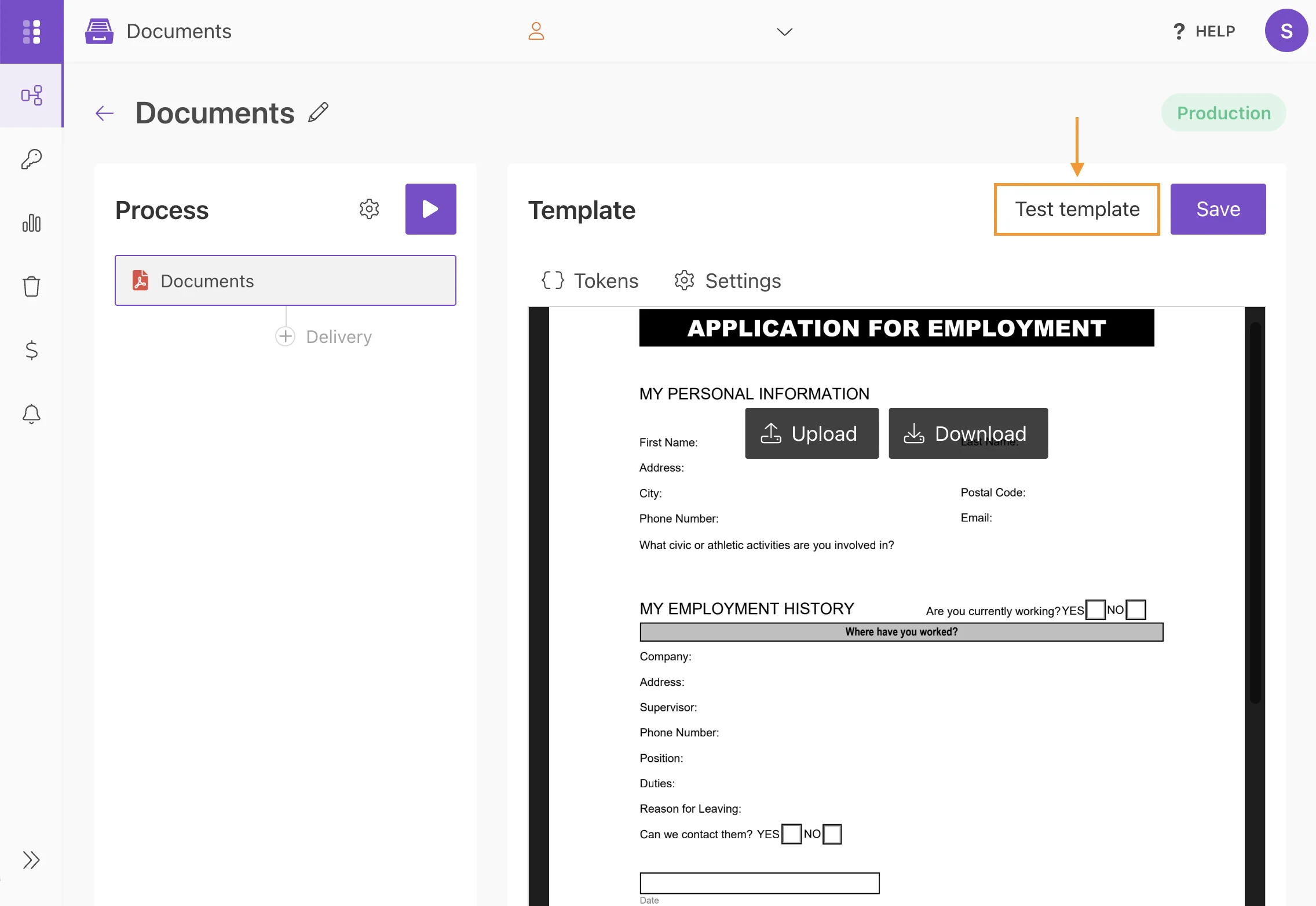
You’ll see the dialog where to put the source data in JSON format.
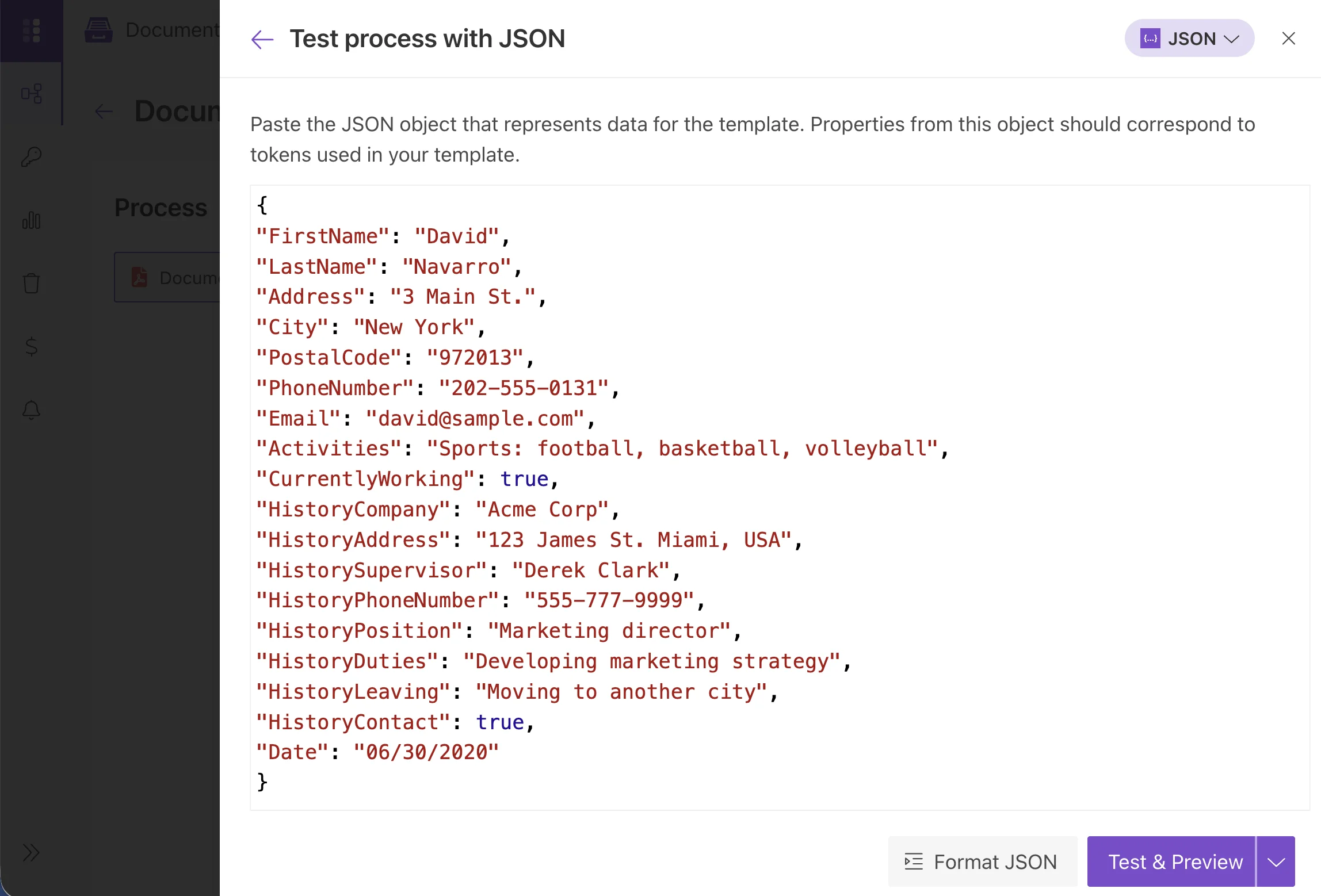
To test the PDF form template from this example, copy and paste this JSON data:
{
"FirstName": "David",
"LastName": "Navarro",
"Address": "3 Main St.",
"City": "New York",
"PostalCode": "972013",
"PhoneNumber": "202-555-0131",
"Email": "david@sample.com",
"Activities": "Sports: football, basketball, volleyball",
"CurrentlyWorking": true,
"HistoryCompany": "Acme Corp",
"HistoryAddress": "123 James St. Miami, USA",
"HistorySupervisor": "Derek Clark",
"HistoryPhoneNumber": "555-777-9999",
"HistoryPosition": "Marketing director",
"HistoryDuties": "Developing marketing strategy",
"HistoryLeaving": "Moving to another city",
"HistoryContact": true,
"Date": "06/30/2020"
}
Note
It’s testing, we’ll pass data from the SharePoint list to the process to populate the template. See the Start process section.
Next open the Settings tab:
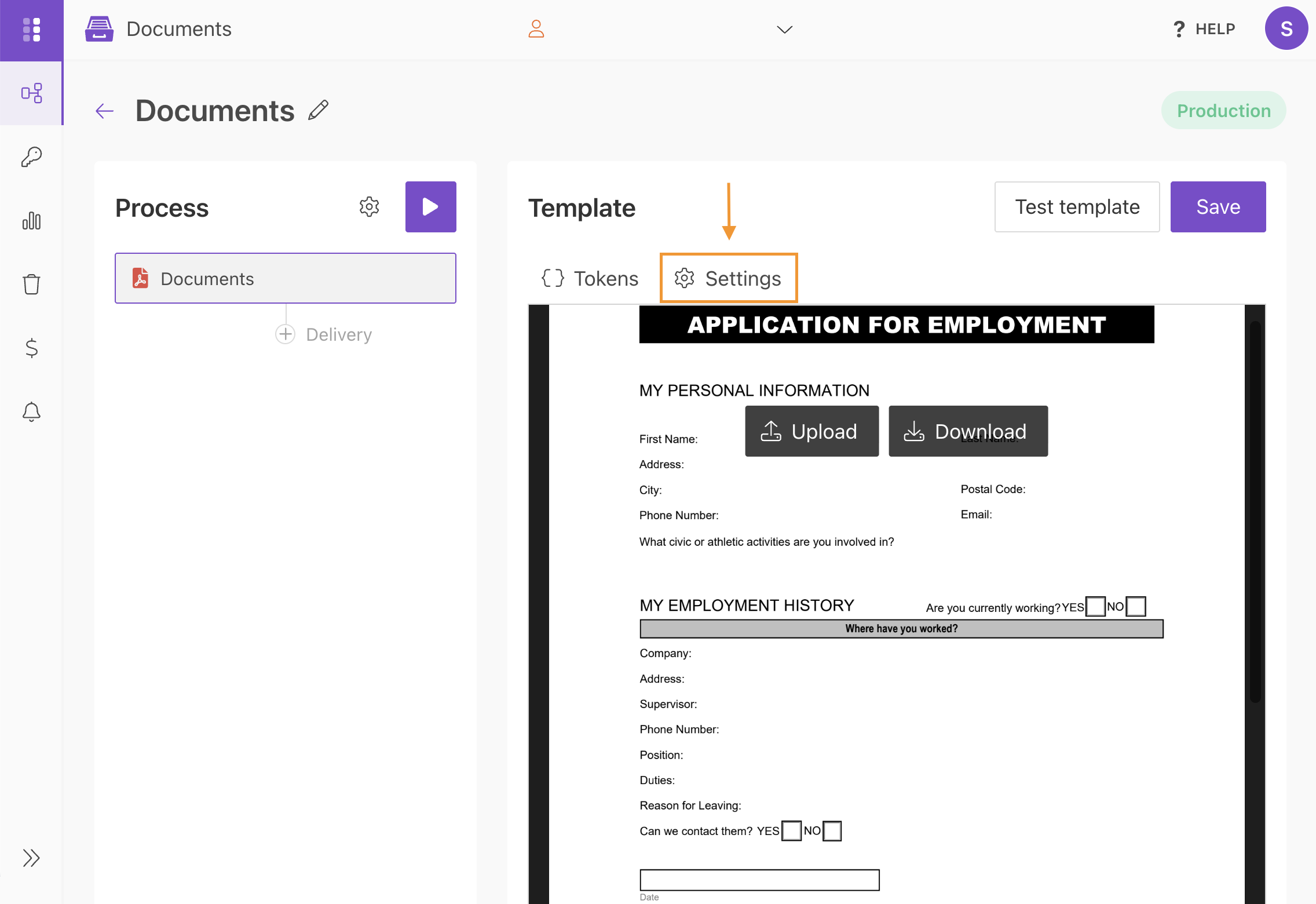
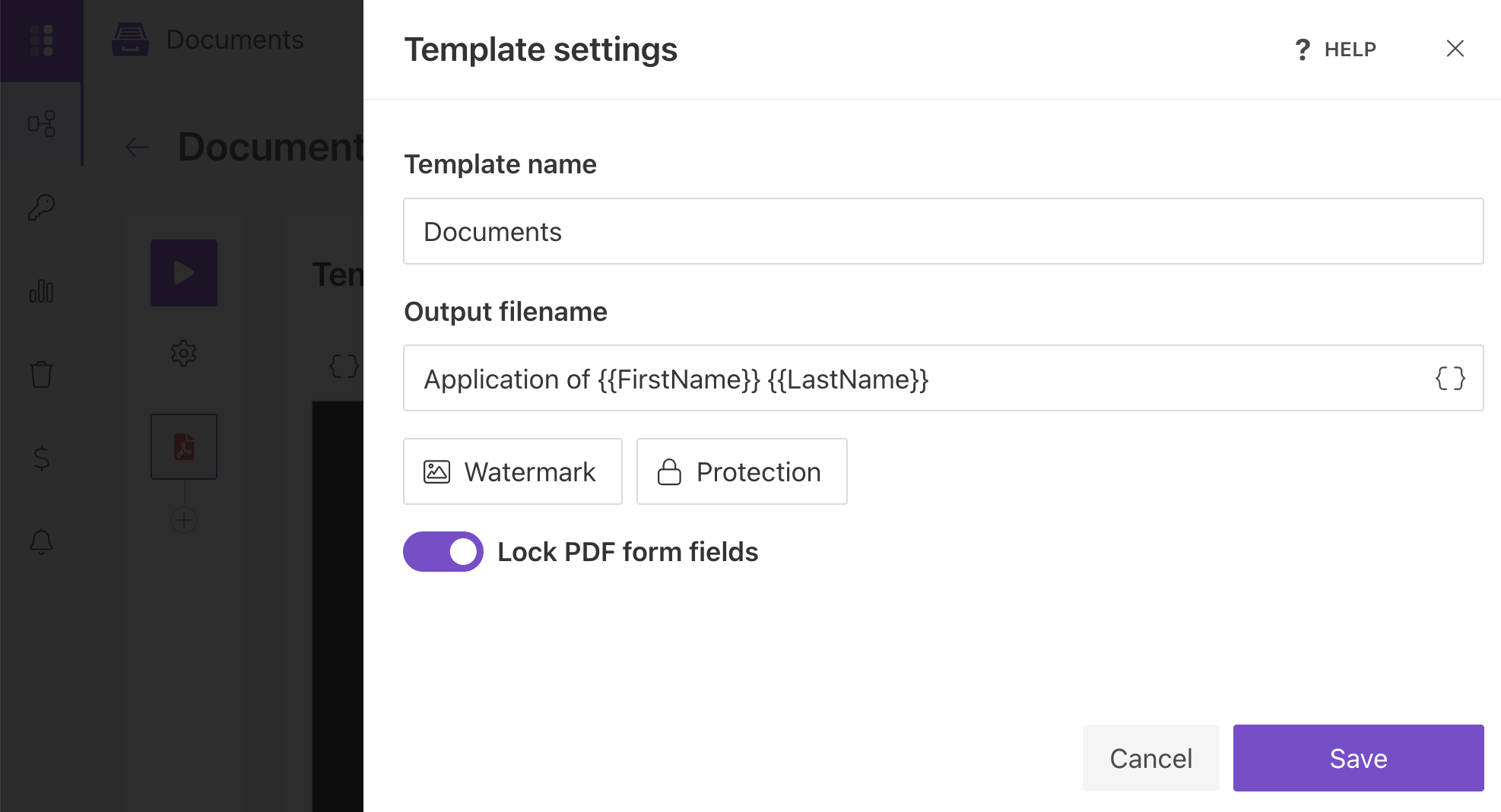
In Template settings, you can set the Output file name using tokens from the template and choose the Output type.
For details, see the user guide.
Hint
You can protect your final PDF document with a watermark, by setting a password, or disabling some actions.
Note
Lock PDF form fields option is activated by default. If you want to edit fields in the result PDF file - disable the option.
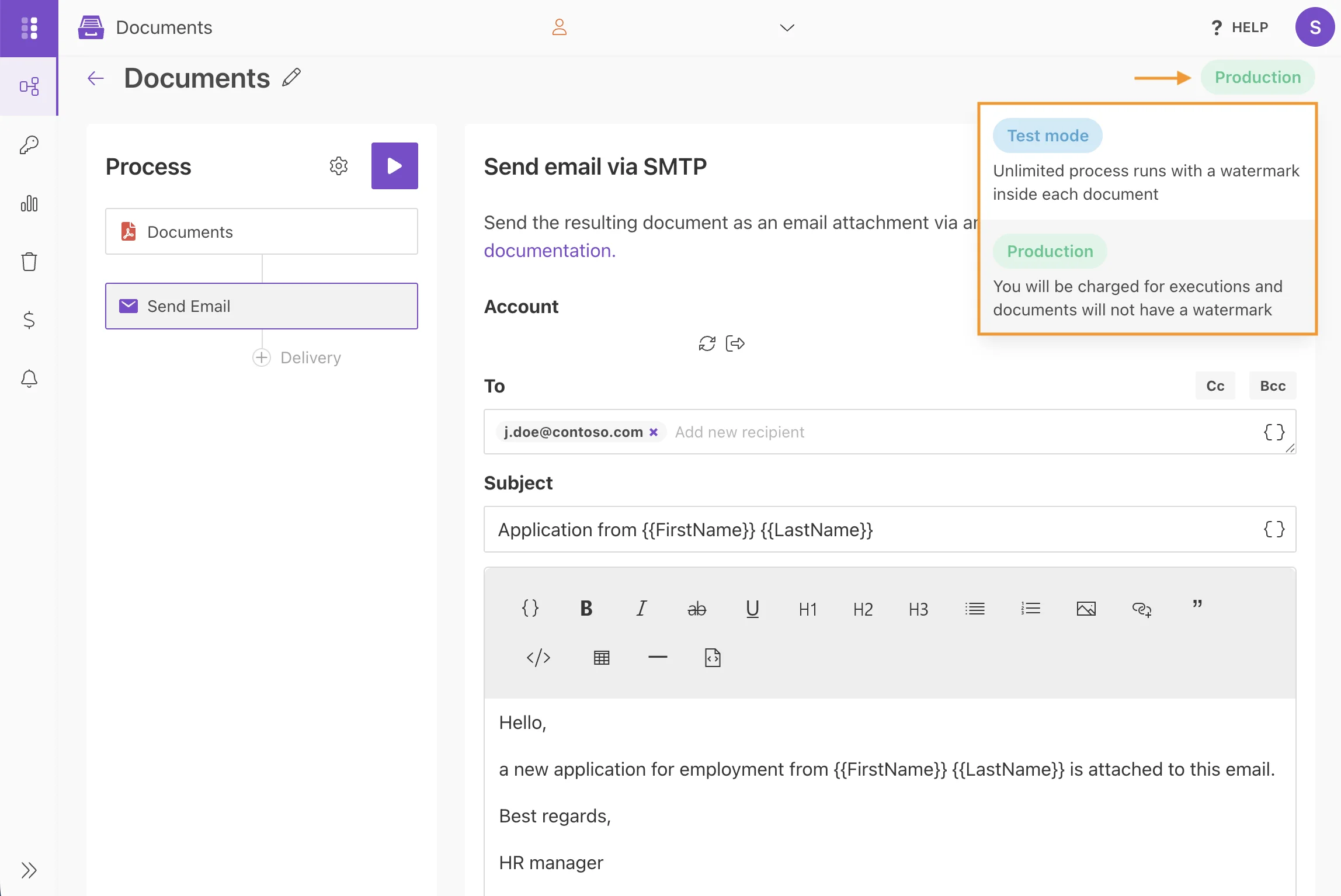
Template mode
It is Test mode by default. It means you won’t be charged for this process runs, but result documents will have a Plumsail watermark. Change it to Production to remove the watermark.
Delivery
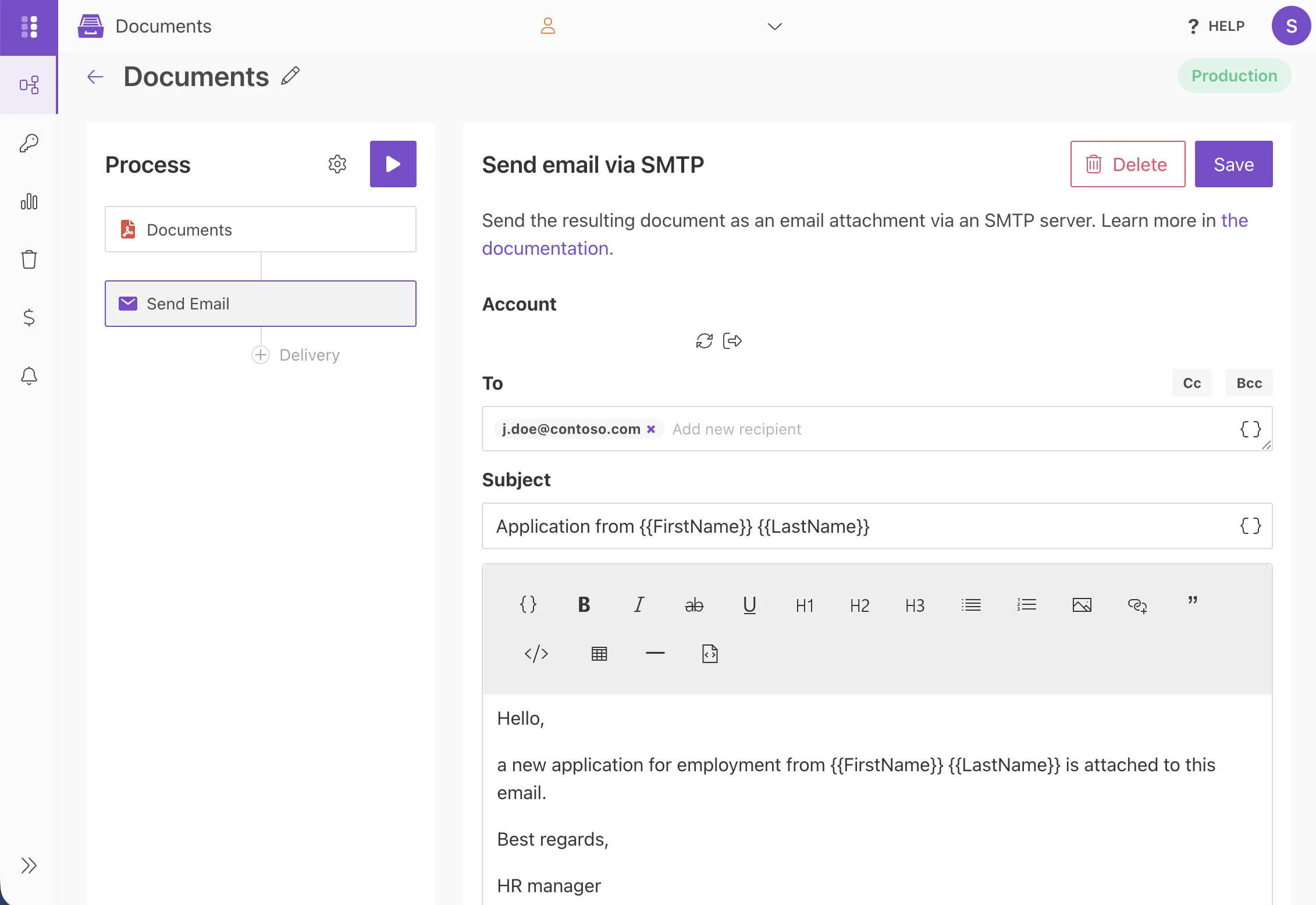
The next step is delivery. For demonstrating purposes, let us set an email delivery.
Fill-in a recipient email. Add recipients for a copy or blind copy if you need. Define the subject and write an email body.
You can use tokens from your template to specify details in the email subject as we did, or in the body. The submitted data will be applied to them as well. Learn more by following this article.
You can configure as many deliveries as you need, or even skip the step. Check all the available options and how to handle them in this article.
Start the Process
We will start our Process from Power Automate (Microsoft Flow).
Create a Flow
This is how our Flow looks:
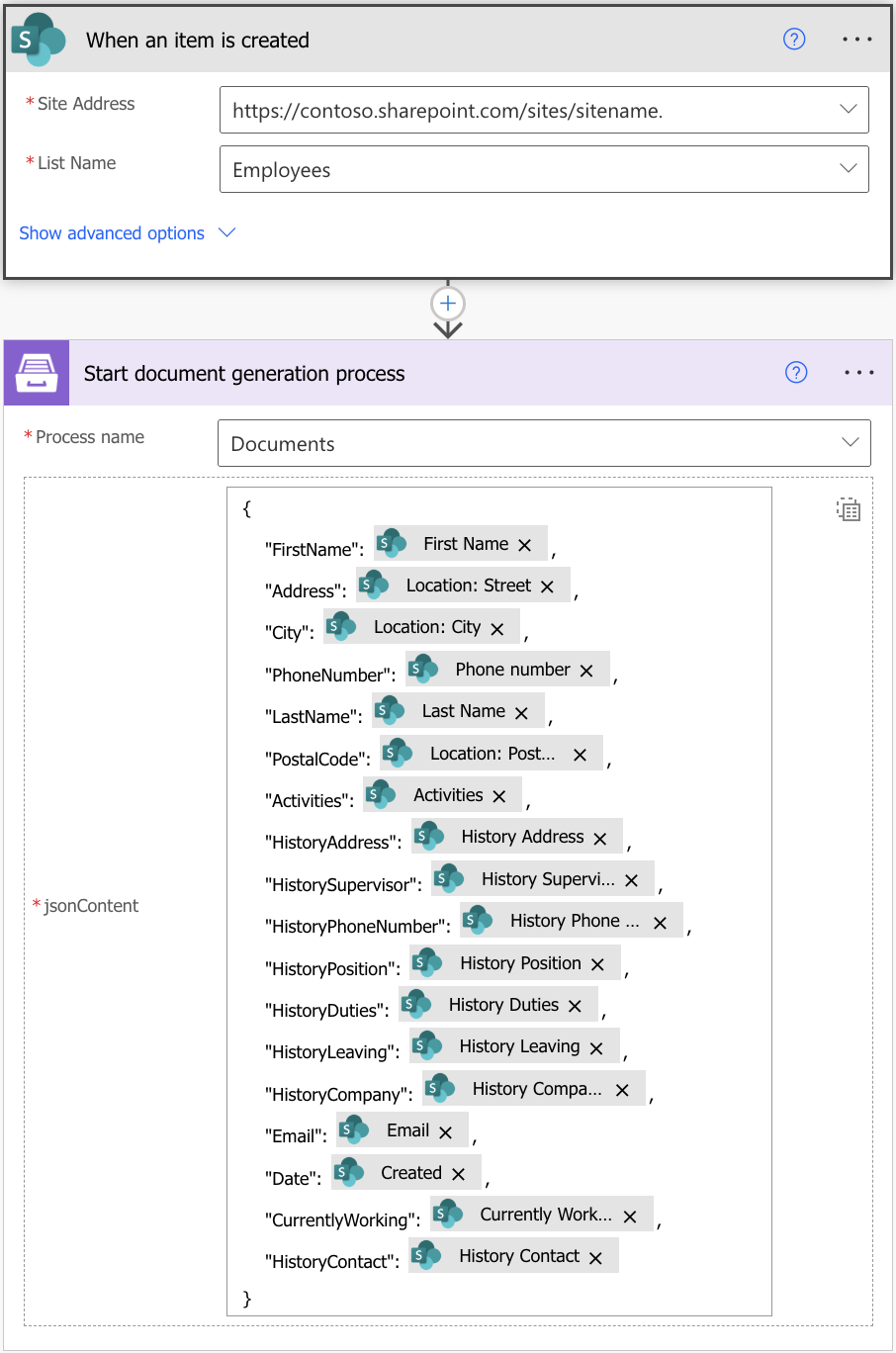
Flow trigger
You can pick any trigger. For example, you can start your Flow on form submission. We use “When an item is created” trigger to get data of the latest created item from the SharePoint list.
Our SharePoint list has the same columns as fields in our fillable PDF file.
Start document generation process
This is the action from Plumsail Documents connector. This action is suitable for starting the Process of generating documents from a template. You can find more information about this action by visiting this article.
Mind, If you use the Plumsail documents action for the first time, you’ll be asked for ‘Connection Name’ and ‘Access Key’. You can type any name for the connection. For example, ‘Plumsail Documents’.
Then create an API key in your Plumsail Account page, copy and paste it to the ‘Access Key’ field.
The Start document generation process action has two parameters:
Process name. Select the process you need from available ones.
Template data. Specify source data in JSON format.
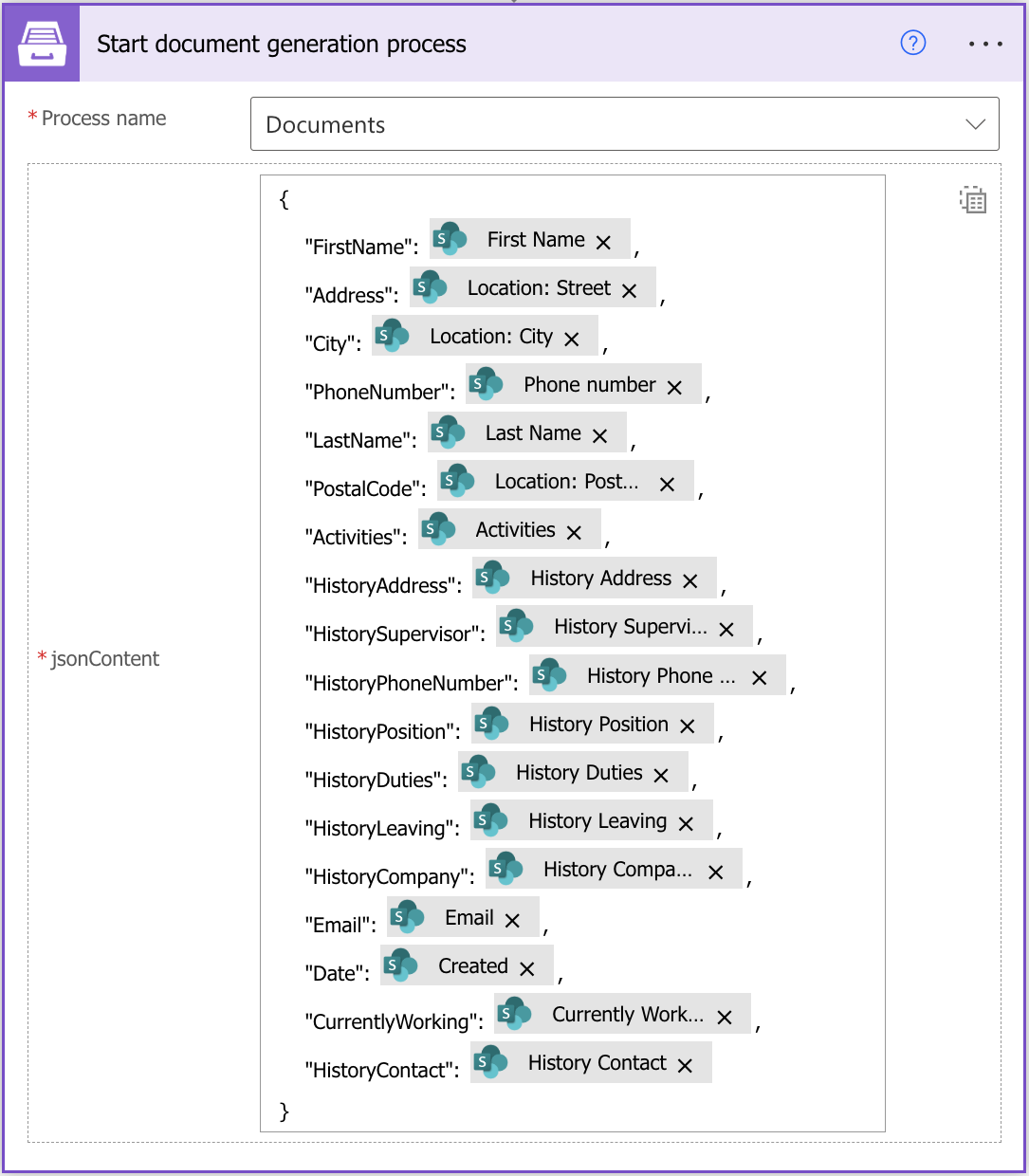
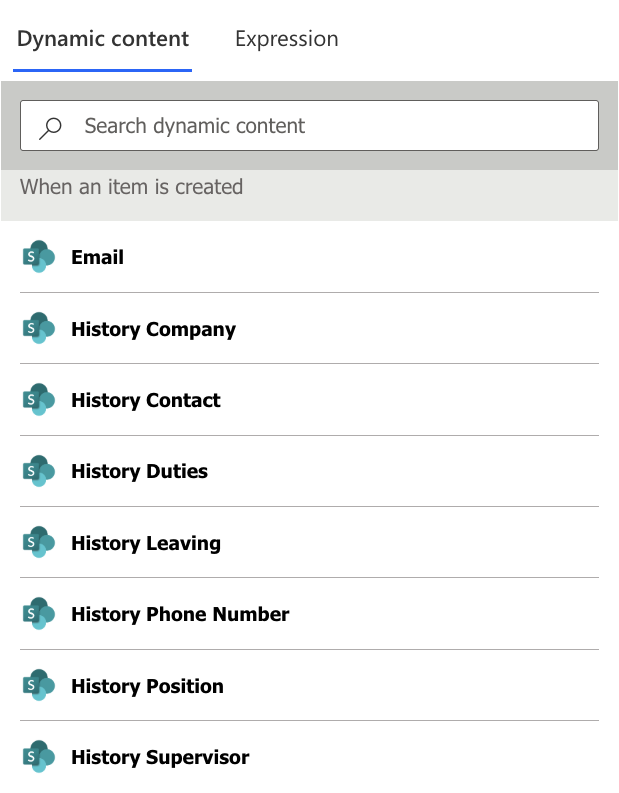
This object contains information from an item newly created in the SharePoint list. We selected the dynamic content from the output of SharePoint - When an item is created:
Use the ready PDF in Flow
Now we upload our ready and filled-in PDF to the SharePoint document library to see how to use the output of the Start document generation process action right in the Flow.
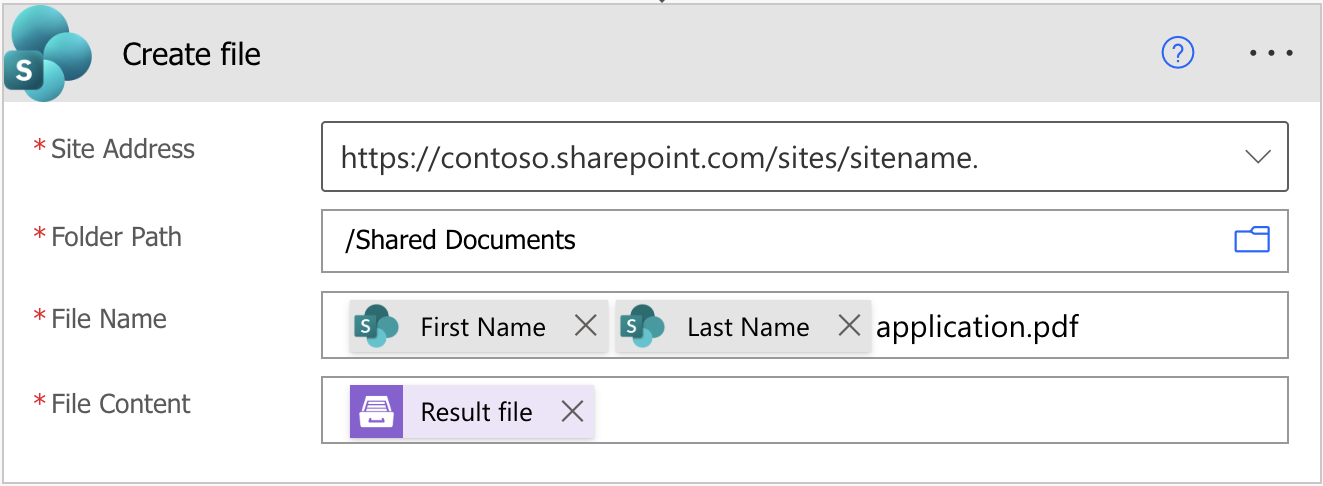
Add a Create file action from the SharePoint connector.
For the File content, select Result file in Dynamic content from Start document generation process.
Make sure the file name includes the .PDF extension.
Our Flow is ready. Now you know how to automatically populate fillable PDFs with the help of Plumsail Documents in Power Automate (Flow). If you’re new to Plumsail Documents, register an account and follow the steps described in the article. To get started is easy.